apm
99 TopicsF5 BIG-IP APM with Omnissa Workspace ONE Access
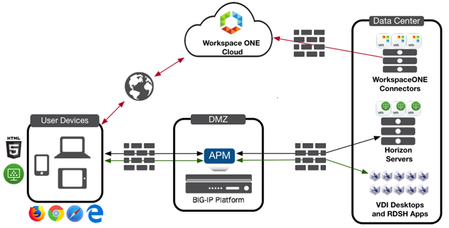
This article discusses the collaboration between Omnissa and F5 to integrate Workspace ONE Access Cloud with F5 Access Policy Manager (APM). Workspace ONE Access unifies applications and desktops into a single, aggregated workspace, allowing employees to access resources from anywhere while simplifying IT administration through fewer management points and flexible access. The deployment of Workspace ONE Access in the cloud centralizes assets, devices, and applications, enabling secure management of users and data. Organizations benefit from instant upgrades without maintenance outages. The document provides detailed instructions for configuring Workspace ONE Access Cloud as an Identity Provider (IDP) in front of F5 APM as a Service Provider (SP), utilizing APM as a gateway for Omnissa Horizon. This integration aims to offer a comprehensive view of the workspace, ensuring robust DMZ security and scalability with the F5 PCoIP/Blast Proxy in conjunction with Omnissa Horizon.2.1KViews3likes0Comments
BIG-IP Edge Client installation stuck at "Status: Registering Modules"
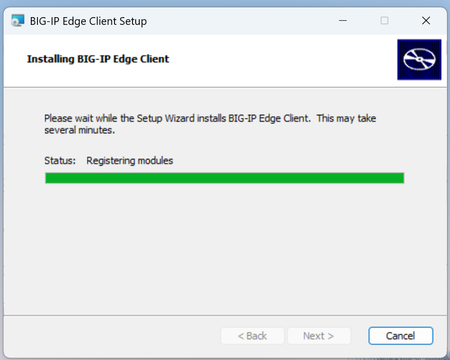
I have just updated my Windows 11 with the version 24H2 update. Tried to launch and login through Edge-Client, which never failed before, but now it's stuck at the "initializing" stage. I tried uninstalling the Edge Client, and then get a new package from APM to perform a re-install. During the installation, it got stuck at the stage "Status: Registering Modules", and it won't finish the installation beyond that stage. I rebooted and tried several times, still the same. I have never encountered this issue before and can't find any technical document to solve it. Does anyone have this issue before and a solution?? Thank you.1.9KViews0likes5CommentsWhat's new in BIG-IP v21.0?
Introduction In November of 2025 F5 released the latest version of BIG-IP software, v21.0. This release is packed with fixes and new features that enhance the F5 Application Delivery and Security Platform (ADSP). These changes complement the Delivery, Security and Deployment aspects of the ADSP. Demo Video: New SSL Orchestrator Features SNI Preservation SNI (Server Name Indication) Preservation is now supported for Inbound Gateway Mode. This preserves the client’s original SNI information as traffic passes through the reverse proxy, allowing backend TLS servers to access and use this information. This enables accurate application routing and supports security workflows like threat detection and compliance enforcement. Previous software versions required custom iRules to enable this functionality. Note: SNI preservation is enabled by default. However, if you have existing Inbound Gateway Topologies, you must redeploy them for the change to take effect. iRule Control for Service Entry and Return Previously, iRules were only available on the entry (ingress) side, limiting customization to traffic entering the Inspection Service. iRule control is now extended to the return-side traffic of Inspection Services. You can now apply iRules on both sides of an Inspection Service (L2, L3, HTTP). This enhancement provides full control over traffic entering and leaving the Inspection Service, enabling more flexible, powerful, and fine-grained traffic handling. The Services page will now include configuration for iRules on service entry and iRules on service return. A typical use-case for this feature is what we call Header Enrichment. In this case, iRules are used to add headers to the payload before sending it to the Inspection Service. The headers could contain the authenticated username/group membership of the person who initiated the connection. This information can be useful for Inspection Services for either logging, policy enforcement, or both. The benefit of this feature is that the authenticated username/group membership header can be removed from the payload on egress, preventing it from being leaked to origin servers. New Access Policy Manager (APM) Features Expanded Exclusion Support for Locked Client Mode Previously, APM-locked client mode allowed a maximum of 10 exclusions, preventing administrators from adding more than 10 destinations. This limitation has now been removed, and the exclusion list can contain more than 10 entries. OAuth Authorization Server Max Claims Data Support The max claim data size is set to 8kb by default, but a large claim size can lead to excessive memory consumption. You must allocate the right amount of memory dynamically as required based on claims configuration. New Features in BIG-IP v21.0.0 Control Plane Performance and Scalability Improvements The BIG-IP 21.0.0 release introduces significant improvements to the BIG-IP control plane, including better scalability and support for large-scale configurations (up to 1 million objects). This includes MCPD efficiency enhancements and eXtremeDB scale improvements. AI Data Delivery Optimize performance and simplify configuration with new S3 data storage integrations. Use cases include secure ingestion for fine-tuning and batch inference, high-throughput retrieval for RAG and embeddings generation, policy-driven model artifact distribution with observability, and controlled egress with consistent security and compliance. F5 BIG-IP optimizes and secures S3 data ingress and egress for AI workloads. Model Context Protocol (MCP) support for AI traffic Accelerate and scale AI workloads with support for MCP that enables seamless communication between AI models, applications, and data sources. This enhances performance, secures connections, and streamlines deployment for AI workloads. F5 BIG-IP optimizes and secures S3 data ingress and egress for AI workloads. Migrating BIG-IP from Entrust to Alternative Certificate Authorities Entrust is soon to be delisted as a certificate authority by many major browsers. Following a variety of compliance failures with industry standards in recent years, browsers like Google Chrome and Mozilla made their distrust for Entrust certificates public last year. As such, Entrust certificates issued on or after November 12, 2024, are deemed insecure by most browsers. Conclusion Upgrade your BIG-IP to version 21.0 today to take advantage of these fixes and new features that enhance the F5 Application Delivery and Security Platform (ADSP). These changes complement the Delivery, Security and Deployment aspects of the ADSP. Related Content SSL Orchestrator Release Notes BIG-IP Release Notes BLOG F5 BIG-IP v21.0: Control plane, AI data delivery and security enhancements Press Release F5 launches BIG-IP v21.0 Introduction to BIG-IP SSL Orchestrator 1.8KViews3likes0Comments
What is the use of epsec-package file in APM ?
Hello Team , What is the use of epsec-package file in APM ? How EPSEC works in APM ? apm epsec epsec-package epsec-1.0.0-1622.0.iso { create-time 2024-09-19:12:50:37 last-update-time 2024-03-21:11:07:38 mode 33188 oesis-version 4.3.3969.0 revision 1 size 301641728 system-package true updated-by root version 1.0.0-1622.0 }1.7KViews0likes3Comments
Solving Secure Mobile Access with F5 and iOS 7 Per app VPN - Part 1
Overview As an F5 engineer out in the field I’m fortunate in the fact that I get to talk with customers about their projects and security concerns. While it probably would not surprise you to learn that Mobility is a key project for many organizations what does surprise me is how many are still using a layer-3 VPN approach on mobile devices. The major problem with this design is that once the VPN is established any application on the mobile platform can now access the corporate network. As we hear more and more about malware on mobile devices it is critical to start protecting corporate infrastructure by limiting access to corporate applications only. With iOS 7 Apple introduced a great way to accomplish this with their Per app VPN. Per app VPN allows iOS to control which applications have access to the VPN tunnel. This gives organizations the ability to designate which applications are corporate apps and treat everything else as personal. Per app VPN also works in Safari with a per-tab level of granularity. So I can have one tab open watching who the Houston Texan’s take in the first round draft (Johnny Manziel of course) and a second tab that is securely connected to my corporate SharePoint site. To take advantage of the iOS Per app VPN functionality Apple requires an Enterprise Mobile Management (EMM) solution to configure the mobile device and an Enterprise VPN solution like F5’s Access Policy Manager. So, if you’re anything like me you’ve scrolled past this text and straight to the pictures below because you need to deploy this ASAP right? We’ll here we go… Configuration The iOS Per app VPN uses F5’s APM SOCKS Proxy functionality so we'll need TMOS 11.4 or higher installed on the BIG-IP and Edge Client 2.0 or higher installed on the mobile device. 1. Create a new Application Policy Profile and select your default language. 2. Customize the Profile's Visual Policy Builder by adding a Client Cert Inspection object and set the successful branch to Allow 3. Create a new LTM Client SSL Profile: set Client Certificate to request set Trusted Certificate Authority to the CA that signed the certificate installed on the iOS device. 4. Create a new LTM Virtual Server: Add your customer Client SSL profile Select your Access Profile Select the default Connectivity Profile of create a custom connectivity profile with default settings Click the VDI & Java Support box to enable SOCKS proxy capabilities User Experience So What does the end result look like? In the example below I tested the Safari per-tab capabilities by clicking the F5 shortcut icon and seamlessly had access to my test web server. Next Steps In Part 2 we will walk through how I configured AirWatch to perform the user experience demonstration.1.4KViews0likes10Comments
Blazor WebSocket WebApp behind APM not working...
Dear community, we a trying to host a new web-application using Websockets. I created a websocket profile - but we always get the following errors: [2024-12-13T18:28:56.102Z] Information: Normalizing '_blazor' to 'https://remote-t.dfg.de/f5-w-687474703a2f2f73727767743238312e696e742e742e6466672e6465$$/f5-h-$$/_blazor'. blazor.server.js?F5CH=J:1 [2024-12-13T18:28:56.219Z] Warning: Failed to connect via WebSockets, using the Long Polling fallback transport. This may be due to a VPN or proxy blocking the connection. To troubleshoot this, visit https://aka.ms/blazor-server-using-fallback-long-polling. log @ blazor.server.js?F5CH=J:1 blazor.server.js?F5CH=J:1 [2024-12-13T18:28:56.267Z] Error: The circuit failed to initialize. log @ blazor.server.js?F5CH=J:1 blazor.server.js?F5CH=J:1 [2024-12-13T18:28:56.375Z] Information: Connection disconnected. blazor.server.js?F5CH=J:1 Uncaught (in promise) Error: Invocation canceled due to the underlying connection being closed. at Xt._connectionClosed (blazor.server.js?F5CH=J:1:62068) at Xt.connection.onclose (blazor.server.js?F5CH=J:1:51976) at pn._stopConnection (blazor.server.js?F5CH=J:1:91786) at features.reconnect.transport.onclose (blazor.server.js?F5CH=J:1:89471) at hn._raiseOnClose (blazor.server.js?F5CH=J:1:76756) at hn.stop (blazor.server.js?F5CH=J:1:76567) at async pn._stopInternal (blazor.server.js?F5CH=J:1:84144) at async pn.stop (blazor.server.js?F5CH=J:1:83975) at async Xt.stop (blazor.server.js?F5CH=J:1:55012) at async Ir.disconnect (blazor.server.js?F5CH=J:1:137836) Without APM, the Website ist working fine. What am I doing wrong? I value and appreciate your time and energy and look forward to hearing from you. Thank you.1.1KViews0likes1CommentF5 BIG-IP Zero Trust Access
Introduction F5 BIG-IP Zero Trust Access, a key component of the F5 Application Delivery and Security Platform (ADSP), helps teams secure apps that are spread across hybrid, multi-cloud and AI environments. In this article, I’ll highlight some of the key features and use cases addressed by BIG-IP Zero Trust Access. F5 BIG-IP Zero Trust Access improves security and the user experience while managing access to your portfolio of corporate applications. Demo Video What is Zero Trust? Key Zero Trust Concepts Zero Trust is a cybersecurity framework built on the following core concepts: Never Trust Similar to human concepts that trust is not given freely, it is earned Always Verify Authenticate and authorize based on all available data points Continuously Monitor Zero Trust is an ongoing security framework that requires monitoring F5 enables zero-trust architectures that optimize your investments and extend zero-trust security across your entire portfolio. Why is this important? Securing apps is complex because apps are spread across a hybrid, multi-cloud environment. Apps themselves have become hybrid in nature, too. This creates 2 problems: Legacy and custom applications can complicate access security. Apps residing anywhere increases the attack surface. F5 BIG-IP Zero Trust Access secures hybrid application access. Securely managing access to corporate applications is critical to preventing data breaches. Doing it well can also increase efficiencies in business processes and user productivity. A Zero Trust security model can deliver this business value by enabling users to seamlessly and securely access their applications from anywhere regardless of where the application resides. In today’s world of hybrid, multicloud and AI applications, Zero Trust is a must. Application access control is key to any Zero Trust architecture. How does F5 address Zero Trust? F5 Zero Trust Begins with Secure Access to All Apps. The F5 Application Delivery and Security Platform (ADSP) is the foundation for Zero Trust Architectures. F5 ADSP delivers visibility, enforcement, and intelligence where it matters most: the application layer. While there are many important components to Zero Trust, we will be focusing on Zero Trust Application Access: Identity-Aware Proxy - Secure access to apps with a fine-grained approach to user authentication and authorization that enables only per-request context- and identity-aware access. Single Sign-On (SSO) and Access Federation - Integrating with existing SSO and identity federation solutions, users can access all their business apps via a single login, regardless of if the app is SAML enabled or not. OAuth 2.0 and OIDC Support - Enable social login to simplify access authorization from trusted third-party identity providers like Google, LinkedIn, Okta, Azure AD, and others. Identity Aware Proxy (IAP) – A Key Component of Zero Trust Use the Guided Configuration to configure the Identity Aware Proxy. From the BIG-IP UI, go to Access > Guided Configuration > Zero Trust. Select the Identity Aware Proxy You will see a configuration example of Identity Aware Proxy Click Next at the bottom For the Config Properties, give it a name, “IAP_DEMO” in this example Set the below options to On Click Save & Next Enable the F5 Client Posture Check Select your CA Trust Certificate Click Add Give it a Name, “FW_Check” in this example Under Windows, select Firewall and Domain Managed Devices Enter your domain name, “f5lab.local” in this example Click Done Click Save & Next Configure the Virtual Server Properties Switch Advanced Settings to On Set the Destination Address, “10.1.10.100” in this example For the Client SSL Profile, select the Client SSL Certificate, Private Key and Trusted Certificate Authorities For the Server SSL Profile, select your Server SSL Certificate and Private Key Click Save & Next Click Add under Authentication Give it a Name, “AD” in this example Set the Authentication Type to “AAA” Set the Authentication Server Type to Active Directory Choose your Authentication Server, “ad-servers” in this example Check the box for Active Directory Query Properties Under Required Attributes, find “memberOf” and click the arrow to move it to Selected Click MFA Click Add Double click Radius Under Choose Radius Server, select Create New Give it a name, “radius_pool” in this example Enter the Server IP Address, “10.1.20.8” in this example Enter the Secret in the two fields Click Save Click Save & Next Click Add Give it a name, “basic_sso” in this example For the SSO Configuration Object, click Create New The Username Source and Password Source should be set like the following Click Save Click Save & Next Under Applications click Add Give it a name, “iap1.acme.com” in this example Under Application Properties, set the FQDN and Caption to “basic.acme.com” Set the Pool IP Address to 10.1.20.7, Port 443, HTTPS Click Save For the Auth Domain, enter “iap1.acme.com” Click Save & Next Set Primary Authentication to “AD” Click Save & Next Click Add under Contextual Access For the Contextual Access Properties, give it a name, “basic.acme.com” in this example Set the Resource to iap1.acme.com Set Device Posture to FW_CHECK Set Single Sign-On to basic_sso Find the Sales Engineering Group and click Add Select the box for Additional Checks Set the Match Action to Step Up Set Step Up Authentication to Custom Radius based Authentication Click Save & Next The Remediation Page must be changed to a real host where users can download and install the EPI updates In this example, it has been changed to “https://iap1.acme.com/epi/downloads” Click Save & Next Click Save & Next Click Deploy Click Finish when the deployment completes Test the functionality by going to a client computer and accessing https://iap1.acme.com Logon with valid credentials You should see a page like the following Click basic.acme.com Login with valid credentials & click Validate You should see the basic.acme.com web page and be already logged in Note: If you disable the Windows Firewall on the client, you should get a block page similar to the following: Conclusion BIG-IP introduces a powerful access experience. BIG-IP provides a variety of Authentication, Federation, SSO and MFA protocols allowing for modern to legacy protocol translation. BIG-IP integrates with 3 rd parties to enforce identity aware decisions. BIG-IP secures identities for any apps and users anywhere in legacy and modern environments, spanning on-prem, hybrid or cloud locations. The highly scalable and proven Access Security solution that F5 customers know and trust. Related Content Zero Trust Solution Overview Secure Corporate Apps with a Zero Trust Security Model BLOG: F5 BIG-IP Zero Trust Access Zero Trust Application Access for Federal Agencies 927Views2likes0Comments
How can k8s CIS CRD VirtualServer reference existing APM Access profile?
Hey Everyone, How can k8s Container Ingress Services (CIS) CRD VirtualServer reference existing APM Acess profile? I know that this is in as3 ( https://clouddocs.f5.com/products/extensions/f5-appsvcs-extension/3.32/declarations/access-related.html ) but I don't see such options in the virtualserver ( https://clouddocs.f5.com/containers/latest/userguide/crd/virtualserver.html ) or policy ( https://clouddocs.f5.com/containers/latest/userguide/crd/virtualserver.html ) crd and I don't want to use old way with config maps. Edit: A not great workaround I found is attaching an access profile by using an irule (APM access-profile can be assigned from iRule only) as the F5 CRD supports attaching configured existing irules. apiVersion: "cis.f5.com/v1" kind: VirtualServer metadata: name: vs-test namespace: xxxx labels: f5cr: "true" spec: virtualServerAddress: "xxxx" virtualServerHTTPPort: xxx snat: auto iRules: - "/Common/test-irule" pools: - monitor: interval: 10 recv: "" send: "GET /" timeout: 31 type: http path: / service: XXX servicePort: 80Solved800Views0likes3Comments