f5
243 Topics2022 DevCentral MVP Announcement
Congratulations to the 2022 DevCentral MVPs! Without users who take time from their busy days to share their experience and knowledge for others, DevCentral would be more of a corporate news site and not an actual user community. To that end, the DevCentral MVP Award is given annually to the outstanding group of individuals – the experts in the technical F5 user community who go out of their way to engage with the user community. The award is our way of recognizing their significant contributions, because while all of our users collectively make DevCentral one of the top community sites around and a valuable resource for everyone, MVPs regularly go above and beyond in assisting fellow F5 users. We understand that 2021 was difficult for everyone, and we are extra-grateful to this year's MVPs for going out of their ways to help others. MVPs get badges in their DevCentral profiles so everyone can see that they are recognized experts. This year’s MVPs will receive a glass award, certificate, exclusive thank-you gifts, and invitations to exclusive webinars and behind-the-scenes looks at things like roadmaps, new product sneak-previews, and innovative concepts in development. The 2022 DevCentral MVPs are: Aditya K Vlogs AlexBCT Amine_Kadimi Austin_Geraci Boneyard Daniel_Wolf Dario_Garrido David.burgoyne Donamato 01 Enes_Afsin_Al FrancisD iaine jaikumar_f5 Jim_Schwartzme1 JoshBecigneul JTLampe Kai Wilke Kees van den Bos Kevin_Davies Lionel Deval (Lidev) LouisK Mayur_Sutare Neeeewbie Niels_van_Sluis Nikoolayy1 P K Patrik_Jonsson Philip Jönsson Rob_Carr Rodolfo_Nützmann Rodrigo_Albuquerque Samstep SanjayP ScottE Sebastian Maniak Stefan_Klotz StephanManthey Tyler.Hatton1.5KViews8likes0CommentsF5 Insight for ADSP - A Closer Look
Introduction F5 Insight for ADSP, a key component of the F5 Application Delivery and Security Platform (ADSP), helps teams monitor and secure apps that are spread across hybrid, multi-cloud and AI environments. In this article, I’ll highlight some of the key features and use cases addressed by F5 Insight. Demo Video Demo Video: F5 Insight for ADSP - A Closer Look The F5 Insight Home Screen The F5 Insight Home Screen provides comprehensive monitoring for your F5 infrastructure, applications, and security posture. It features intelligent anomaly detection and performance optimization tools, giving administrators and users a centralized view of their BIG-IP fleet health and operational status. System Report Cards The System Report Cards display health indicators ranked Good, Warning, and Critical for the following: Anomaly Detection Monitors the connection count, pool availability, CPU utilization, and memory usage. Application Performance Monitors application-level health based on response time, 4xx, and 5xx error codes. Security Monitors the expiration of SSL/TLS certificates and BIG-IP WAF events. BIG-IP Metrics Monitors for BIG-IP health issues with device resources and operational status. Fleet Status Displays a summary of all BIG-IP devices and their operational status. The Fleet Status shows all the BIG-IP devices with a status of Up, Down or Degraded. Ask AI Assistant Allows you to type queries in plain English to retrieve device statistics, configuration information, security events, device health, application performance and much more. The AI Assistant connects to a configurable Large Language Model (LLM) backend. Supported providers include OpenAI, Anthropic, or a customer provided LLM. An example query: Have there been any outages in the past 24 hours for all devices in all data centers? The AI Assistant understands the question and has identified all the data centers. The AI Assistant then checks the device statistics for any outages or issues. The AI Assistant compiles a detailed summary report of the query. Configuration of Large Language Model (LLM) Large language model (LLM) Insights bring natural language intelligence to F5 Insight, enabling you to query your BIG-IP configurations and logs conversationally. Instead of manually searching through configurations or parsing log files, you can ask questions like “Why is pool member X marked down?” or “Show me all virtual IPs (VIPs) with SSL offloading enabled” and receive immediate, contextualized, clear answers. In the toolbar on the left under Manage, select LLM Insights. Select your LLM Provider Enter your API Token/Key Enter your Enterprise API URL Click Test Connection to verify it’s working Click Save Configuration when the connection is validated. Conclusion F5 Insight for ADSP offers customizable visualizations and dashboards to help you surface metrics and KPIs tailored to your organization. It provides access to useful telemetry data for a deeper understanding of your environment, application behaviors, and complex BIG-IP deployments, all centralized in a single location. Identification of root causes during outages/tickets. Solves issues and struggles with Day 2 analysis of your BIG-IP Fleet and the applications therein. Mitigates the problem of a lack of detailed visual information on your BIG-IP Fleet. Set a foundation for the utilization of open-source tools and their benefits. Related Content Introducing F5 Insight for ADSP F5 Insight for ADSP Documentation F5 Insight Product Page 741Views5likes0Comments
WAFaaS with SSL Orchestrator
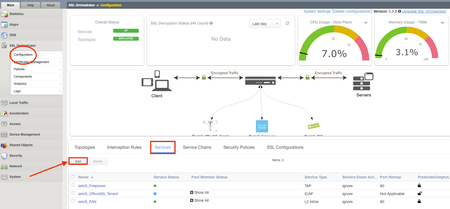
Introduction Note: This article applies to SSL Orchestrator versions prior to 11.0. If using version 11.0 refer to the article HERE This use case allows you to insert F5 WAF functionality as a Service in the SSL Orchestrator inspection zone. WAFaaS is the ability to insert ASM profiles into the SSL Orchestrator Service Chain for Inbound Topologies. This configuration is specific to a WAF policy running on the SSL Orchestrator device. WAF and SSL Orchestrator consume significant CPU cycles so care should be given when deploying both together. It is also possible to deploy WAF as a service on a separate BIG-IP device, in which case you’d simply configure an inline transparent proxy service. The ability to insert F5’s WAF into the Service Chain presents a significant customer benefit. This guide assumes you already have WAF/ASM profile(s) configured, licensed and provisioned on BIG-IP and wish to add this functionality to an Inbound Topology. In order to run WAF and SSL Orchestrator on the same device you will need an LTM license with SSL Orchestrator as an add-on option. You cannot add a WAF license to an SSL Orchestrator stand-alone license. SSL Orchestrator does not directly support inserting F5 WAF policies into the Service Chain. However, the F5 platform is flexible enough to handle many custom use cases. In this case, the ICAP service configuration exposes a framework that is useful for any number of specialized patterns, including adding a WAF policy to an SSLO service chain. We will configure an ICAP Service and attach the WAF policy to it. Steps: Create ICAP Service Disable Strictness on the Service Disable TCP monitor for the ICAP Pool ICAP Adapt profiles removed from the Virtual Server Application Security Policy enabled and a Policy assigned under Security Step #1: Create ICAP Service Note: These instructions assume an SSL Orchestrator Topology and Service Chain are already deployed and working properly. These instructions simply add WAFaaS to the existing Service Chain. It is entirely possible to create the WAFaaS during the initial Topology creation, in which case you would create the service during the workflow, then make the necessary changes after the topology has been created. From the SSL Orchestrator Guided Configuration click Services then Add Scroll to the bottom, select Generic ICAP Service and click Add Give it a name, WAFaaS in this example For ICAP Devices click Add on the right Enter an IP Address, 198.19.97.1 in this example and click Done. Note: the IP address you use does not have to be the one above. It’s just a local, non-routable address used as a placeholder in the service definition. This IP address will not be used. IP addresses 198.19.97.0 to 198.19.97.255 are owned by network benchmark tests and located in private networks. Scroll to the bottom and click Save & Next. The next screen is the Services Chain List. Click the name of the Service Chain you wish to add WAF functionality to, ssloSC_ServiceChain in this example. Note: The order of the Services in the Selected column is the order in which SSL Orchestrator will pass decrypted data to the device. This can be an important consideration if you want some devices to see, or not see, the actions taken by the WAF Service. Select the WAFaaS Service and click the right arrow to move it to Selected. Click Save. Click Save & Next Click Deploy You should receive a Success message Step #2: Disable Strictness on the Service From the SSL Orchestrator Configuration screen select Services. Click the padlock to Unprotect Configuration. Note: Disabling Strictness on the ICAP Service is needed to modify it and attach the WAFaaS policy. Strictness must remain disabled on this service and disabling strictness on the service has no effect on any other part of the SSL Orchestrator configuration. Click OK to Unprotect the Configuration Step #3: Disable tcp monitor for the ICAP Pool From Local Traffic select Pools > Pool List Select the WAFaaS Pool Under Active Health Monitors select tcp and click >> to move it to Available. This removes the Pool’s Monitor because otherwise it would be marked as down or unavailable. Click Update Note: The Health Monitor needs to be removed because there is no actual ICAP service to monitor. Step #4: ICAP Adapt profiles removed from the Virtual Server From Local Traffic select Virtual Servers > Virtual Server List Locate the WAFaaS ICAP service that ends in “-t-4” virtual server and select it Set the Request Adapt Profile and Response Adapt Profile to None to disable the default ICAP Profiles Click Update Step #5: Application Security Policy enabled and a Policy assigned under Security For the WAFaaS-t-4 Virtual Server click the Security tab Set Application Security Policy to Enabled Select the Security Policy you wish to use. Click Update when done Note: In specific versions of SSL Orchestrator there is one extra configuration item that needs to be modified. This is NOT required in other versions. If this change is made, when performing an upgrade it is not necessarily required to back out this change. Required versions: SSLO version 5.9.15 available on TMOS 14.1.4 SSLO versions 6.0-6.5 available on TMOX 15.0.x Navigate to “Local Traffic ›› Profiles : Other : Service” Select the Service profile named “ssloS_WAFaaS-service” Change the “Type” from “ICAP” to “F5 Module” Conclusion The configuration is now complete. Using the WAFaaS this way is functionally the same as using it by itself. There are no known limitations to this configuration.3.5KViews5likes9Comments
Power of tmsh commands using Ansible
Why is data important Having accurate data has become an integral part of decision making. The data could be for making simple decisions like purchasing the newest electronic gadget in the market or for complex decisions on what hardware and/or software platform works best for your highly demanding application which would provide the best user experience for your customer. In either case research and data collection becomes essential. Using what kind of F5 hardware and/or software in your environment follows the same principals where your IT team would require data to make the right decision. Data could vary from CPU, Throughput and/or Memory utilization etc. of your F5 gear. It could also be data just for a period of a day, a month or a year depending the application usage patterns. Ansible to the rescue Your environment could have 10's or maybe 100 or even 1000's of F5 BIG-IP's in your environment, manually logging into each one to gather data would be a highly inefficient method. One way which is a great and simple way could be to use Ansible as an automation framework to perform this task, relieving you to perform your other job functions. Let's take a look at some of the components needed to use Ansible. An inventory file in Ansible defines the hosts against which your playbook is going to run. Below is an example of a file defining F5 hosts which can be expanded to represent your 10'/100's or 1000's of BIG-IP's. Inventory file: 'inventory.yml' [f5] ltm01 password=admin server=10.192.73.xxx user=admin validate_certs=no server_port=443 ltm02 password=admin server=10.192.73.xxx user=admin validate_certs=no server_port=443 ltm03 password=admin server=10.192.73.xxx user=admin validate_certs=no server_port=443 ltm04 password=admin server=10.192.73.xxx user=admin validate_certs=no server_port=443 ltm05 password=admin server=10.192.73.xxx user=admin validate_certs=no server_port=443 A playbook defines the tasks that are going to be executed. In this playbook we are using the bigip_command module which can take as input any BIG-IP tmsh command and provide the output. Here we are going to use the tmsh commands to gather performance data from the BIG-IP's. The output from each of the BIG-IP's is going to be stored in a file that can be referenced after the playbook finished execution. Playbook: 'performance-data/yml' --- - name: Create empty file hosts: localhost gather_facts: false tasks: - name: Creating an empty file file: path: "./{{filename}}" state: touch - name: Gather stats using tmsh command hosts: f5 connection: local gather_facts: false serial: 1 tasks: - name: Gather performance stats bigip_command: provider: server: "{{server}}" user: "{{user}}" password: "{{password}}" server_port: "{{server_port}}" validate_certs: "{{validate_certs}}" commands: - show sys performance throughput historical - show sys performance system historical register: result - lineinfile: line: "\n###BIG-IP hostname => {{ inventory_hostname }} ###\n" insertafter: EOF dest: "./{{filename}}" - lineinfile: line: "{{ result.stdout_lines }}" insertafter: EOF dest: "./{{filename}}" - name: Format the file shell: cmd: sed 's/,/\n/g' ./{{filename}} > ./{{filename}}_formatted - pause: seconds: 10 - name: Delete file hosts: localhost gather_facts: false tasks: - name: Delete extra file created (delete file) file: path: ./{{filename}} state: absent Execution: The execution command will take as input the playbook name, the inventory file as well as the filename where the output will be stored. (There are different ways of defining and passing parameters to a playbook, below is one such example) ansible-playbook performance_data.yml -i inventory.yml --extra-vars "filename=perf_output" Snippet of expected output: ###BIG-IP hostname => ltm01 ### [['Sys::Performance Throughput' '-----------------------------------------------------------------------' 'Throughput(bits)(bits/sec) Current 3 hrs 24 hrs 7 days 30 days' '-----------------------------------------------------------------------' 'Service 223.8K 258.8K 279.2K 297.4K 112.5K' 'In 212.1K 209.7K 210.5K 243.6K 89.5K' 'Out 21.4K 21.0K 21.1K 57.4K 30.1K' ' ' '-----------------------------------------------------------------------' 'SSL Transactions Current 3 hrs 24 hrs 7 days 30 days' '-----------------------------------------------------------------------' 'SSL TPS 0 0 0 0 0' ' ' '-----------------------------------------------------------------------' 'Throughput(packets)(pkts/sec) Current 3 hrs 24 hrs 7 days 30 days' '-----------------------------------------------------------------------' 'Service 79 82 83 63 62' 'In 41 40 40 34 32' 'Out 41 40 40 32 34'] ['Sys::Performance System' '------------------------------------------------------------' 'System CPU Usage(%) Current 3 hrs 24 hrs 7 days 30 days' '------------------------------------------------------------' 'Utilization 17 18 18 18 17' ' ' '------------------------------------------------------------' 'Memory Used(%) Current 3 hrs 24 hrs 7 days 30 days' '------------------------------------------------------------' 'TMM Memory Used 10 10 10 10 10' 'Other Memory Used 55 55 54 54 53' 'Swap Used 0 0 0 0 0']] ###BIG-IP hostname => ltm02 ### [['Sys::Performance Throughput' '-----------------------------------------------------------------------' 'Throughput(bits)(bits/sec) Current 3 hrs 24 hrs 7 days 30 days' '-----------------------------------------------------------------------' 'Service 202.3K 258.7K 279.2K 297.4K 112.5K' 'In 190.8K 209.7K 210.5K 243.6K 89.5K' 'Out 19.6K 21.0K 21.1K 57.4K 30.1K' ' ' '-----------------------------------------------------------------------' 'SSL Transactions Current 3 hrs 24 hrs 7 days 30 days' '-----------------------------------------------------------------------' 'SSL TPS 0 0 0 0 0' ' ' '-----------------------------------------------------------------------' 'Throughput(packets)(pkts/sec) Current 3 hrs 24 hrs 7 days 30 days' '-----------------------------------------------------------------------' 'Service 77 82 83 63 62' 'In 39 40 40 34 32' 'Out 37 40 40 32 34'] ['Sys::Performance System' '------------------------------------------------------------' 'System CPU Usage(%) Current 3 hrs 24 hrs 7 days 30 days' '------------------------------------------------------------' 'Utilization 21 18 18 18 17' ' ' '------------------------------------------------------------' 'Memory Used(%) Current 3 hrs 24 hrs 7 days 30 days' '------------------------------------------------------------' 'TMM Memory Used 10 10 10 10 10' 'Other Memory Used 55 55 54 54 53' 'Swap Used 0 0 0 0 0']] The data obtained is historical data over a period of time. Sometimes it is also important to gather the peak usage of throughout/memory/cpu over time and not the average. Stay tuned as we will discuss on how to obtain that information in a upcoming article. Conclusion Use the output of the data to learn the traffic patterns and propose the most appropriate BIG-IP hardware/software in your environment. This could be data collected directly in your production environment or a staging environment, which would help you make the decision on what purchasing strategy gives you the most value from your BIG-IP's. For reference: https://www.f5.com/pdf/products/big-ip-local-traffic-manager-ds.pdf The above is one example of how you can get started with using Ansible and tmsh commands. Using this method you can potentially achieve close to 100% automation on the BIG-IP.11KViews4likes3CommentsF5 BIG-IP Zero Trust Access
Introduction F5 BIG-IP Zero Trust Access, a key component of the F5 Application Delivery and Security Platform (ADSP), helps teams secure apps that are spread across hybrid, multi-cloud and AI environments. In this article, I’ll highlight some of the key features and use cases addressed by BIG-IP Zero Trust Access. F5 BIG-IP Zero Trust Access improves security and the user experience while managing access to your portfolio of corporate applications. Demo Video What is Zero Trust? Key Zero Trust Concepts Zero Trust is a cybersecurity framework built on the following core concepts: Never Trust Similar to human concepts that trust is not given freely, it is earned Always Verify Authenticate and authorize based on all available data points Continuously Monitor Zero Trust is an ongoing security framework that requires monitoring F5 enables zero-trust architectures that optimize your investments and extend zero-trust security across your entire portfolio. Why is this important? Securing apps is complex because apps are spread across a hybrid, multi-cloud environment. Apps themselves have become hybrid in nature, too. This creates 2 problems: Legacy and custom applications can complicate access security. Apps residing anywhere increases the attack surface. F5 BIG-IP Zero Trust Access secures hybrid application access. Securely managing access to corporate applications is critical to preventing data breaches. Doing it well can also increase efficiencies in business processes and user productivity. A Zero Trust security model can deliver this business value by enabling users to seamlessly and securely access their applications from anywhere regardless of where the application resides. In today’s world of hybrid, multicloud and AI applications, Zero Trust is a must. Application access control is key to any Zero Trust architecture. How does F5 address Zero Trust? F5 Zero Trust Begins with Secure Access to All Apps. The F5 Application Delivery and Security Platform (ADSP) is the foundation for Zero Trust Architectures. F5 ADSP delivers visibility, enforcement, and intelligence where it matters most: the application layer. While there are many important components to Zero Trust, we will be focusing on Zero Trust Application Access: Identity-Aware Proxy - Secure access to apps with a fine-grained approach to user authentication and authorization that enables only per-request context- and identity-aware access. Single Sign-On (SSO) and Access Federation - Integrating with existing SSO and identity federation solutions, users can access all their business apps via a single login, regardless of if the app is SAML enabled or not. OAuth 2.0 and OIDC Support - Enable social login to simplify access authorization from trusted third-party identity providers like Google, LinkedIn, Okta, Azure AD, and others. Identity Aware Proxy (IAP) – A Key Component of Zero Trust Use the Guided Configuration to configure the Identity Aware Proxy. From the BIG-IP UI, go to Access > Guided Configuration > Zero Trust. Select the Identity Aware Proxy You will see a configuration example of Identity Aware Proxy Click Next at the bottom For the Config Properties, give it a name, “IAP_DEMO” in this example Set the below options to On Click Save & Next Enable the F5 Client Posture Check Select your CA Trust Certificate Click Add Give it a Name, “FW_Check” in this example Under Windows, select Firewall and Domain Managed Devices Enter your domain name, “f5lab.local” in this example Click Done Click Save & Next Configure the Virtual Server Properties Switch Advanced Settings to On Set the Destination Address, “10.1.10.100” in this example For the Client SSL Profile, select the Client SSL Certificate, Private Key and Trusted Certificate Authorities For the Server SSL Profile, select your Server SSL Certificate and Private Key Click Save & Next Click Add under Authentication Give it a Name, “AD” in this example Set the Authentication Type to “AAA” Set the Authentication Server Type to Active Directory Choose your Authentication Server, “ad-servers” in this example Check the box for Active Directory Query Properties Under Required Attributes, find “memberOf” and click the arrow to move it to Selected Click MFA Click Add Double click Radius Under Choose Radius Server, select Create New Give it a name, “radius_pool” in this example Enter the Server IP Address, “10.1.20.8” in this example Enter the Secret in the two fields Click Save Click Save & Next Click Add Give it a name, “basic_sso” in this example For the SSO Configuration Object, click Create New The Username Source and Password Source should be set like the following Click Save Click Save & Next Under Applications click Add Give it a name, “iap1.acme.com” in this example Under Application Properties, set the FQDN and Caption to “basic.acme.com” Set the Pool IP Address to 10.1.20.7, Port 443, HTTPS Click Save For the Auth Domain, enter “iap1.acme.com” Click Save & Next Set Primary Authentication to “AD” Click Save & Next Click Add under Contextual Access For the Contextual Access Properties, give it a name, “basic.acme.com” in this example Set the Resource to iap1.acme.com Set Device Posture to FW_CHECK Set Single Sign-On to basic_sso Find the Sales Engineering Group and click Add Select the box for Additional Checks Set the Match Action to Step Up Set Step Up Authentication to Custom Radius based Authentication Click Save & Next The Remediation Page must be changed to a real host where users can download and install the EPI updates In this example, it has been changed to “https://iap1.acme.com/epi/downloads” Click Save & Next Click Save & Next Click Deploy Click Finish when the deployment completes Test the functionality by going to a client computer and accessing https://iap1.acme.com Logon with valid credentials You should see a page like the following Click basic.acme.com Login with valid credentials & click Validate You should see the basic.acme.com web page and be already logged in Note: If you disable the Windows Firewall on the client, you should get a block page similar to the following: Conclusion BIG-IP introduces a powerful access experience. BIG-IP provides a variety of Authentication, Federation, SSO and MFA protocols allowing for modern to legacy protocol translation. BIG-IP integrates with 3 rd parties to enforce identity aware decisions. BIG-IP secures identities for any apps and users anywhere in legacy and modern environments, spanning on-prem, hybrid or cloud locations. The highly scalable and proven Access Security solution that F5 customers know and trust. Related Content Zero Trust Solution Overview Secure Corporate Apps with a Zero Trust Security Model BLOG: F5 BIG-IP Zero Trust Access Zero Trust Application Access for Federal Agencies 905Views2likes0Comments
Simplifying and Securing Network Segmentation with F5 Distributed Cloud and Nutanix Flow
Introduction Enterprises often separate environments—such as development and production—to improve efficiency, reduce risk, and maintain compliance. A critical enabler of this separation is network segmentation, which isolates networks into smaller, secured segments—strengthening security, optimizing performance, and supporting regulatory standards. In this article, we explore the integration between Nutanix Flow and F5 Distributed Cloud, showcasing how F5 and Nutanix collaborate to simplify and secure network segmentation across diverse environments—on-premises, remote, and hybrid multicloud. Integration Overview At the heart of this integration is the capability to deploy a F5 Distributed Cloud Customer Edge (CE) inside a Nutanix Flow VPC, establish BGP peering with the Nutanix Flow BGP Gateway, and inject CE-advertised BGP routes into the VPC routing table. This architecture provides full control over application delivery and security within the VPC. It enables selective advertisement of HTTP load balancers (LBs) or VIPs to designated VPCs, ensuring secure and efficient connectivity. By leveraging F5 Distributed Cloud to segment and extend networks to remote location—whether on-premises or in the public cloud—combined with Nutanix Flow for microsegmentation within VPCs, enterprises achieve comprehensive end-to-end security. This approach enforces a consistent security posture while reducing complexity across diverse infrastructures. In our previous article (click here) , we explored application delivery and security. Here, we focus on network segmentation and how this integration simplifies connectivity across environments. Demo Walkthrough The demo consists of two parts: Extending a local network segment from a Nutanix Flow VPC to a remote site using F5 Distributed Cloud. Applying microsegmentation within the network segment using Nutanix Flow Security Next-Gen. San Jose (SJ) serves as our local site, and the demo environment dev3 is a Nutanix Flow VPC with an F5 Distributed Cloud Customer Edge (CE) deployed inside: *Note: The SJ CE is named jy-nutanix-overlay-dev3 in the F5 Distributed Cloud Console and xc-ce-dev3 in the Nutanix Prism Central. On the F5 Distributed Cloud Console, we created a network segment named jy-nutanix-sjc-nyc-segment and we assigned it specifically to the subnet 192.170.84.0/24: eBGP peering is ESTABLISHED between the CE and the Nutanix Flow BGP Gateway in this segment: At the remote site in NYC, a CE named jy-nutanix-nyc is deployed with a local subnet of 192.168.60.0/24: To extend jy-nutanix-sjc-nyc-segment from SJ to NYC, simply assign the segment jy-nutanix-sjc-nyc-segment to the NYC CE local subnet 192.168.60.0/24 in the F5 Distributed Cloud Console: Effortlessly and in no time, the segment jy-nutanix-sjc-nyc-segment is now extended across environments from SJ to NYC: Checking the CE routing table, we can see that the local routes originated from the CEs are being exchanged among them: At the local site SJ, the SJ CE jy-nutanix-overlay-dev3 advertises the remote route originating from the NYC CE jy-nutanix-nyc to the Nutanix Flow BGP Gateway via BGP, and installs the route in the dev3 routing table: SJ VMs can now reach NYC VMs and vice versa, while continuing to use their Nutanix Flow VPC logical router as the default gateway: To enforce granular security within the segment, Nutanix Flow Security Next-Gen provides microsegmentation. Together, F5 Distributed Cloud and Nutanix Flow Security Next-Gen deliver a cohesive solution: F5 Distributed cloud seamlessly extends network segments across environments, while Nutanix Flow Security Next-Gen ensures fine-grained security controls within those segments: Our demo extends a network segment between two data centers, but the same approach can also be applied between on-premises and public cloud environments—delivering flexibility across hybrid multicloud environments. Conclusion F5 Distributed Cloud simplifies network segmentation across hybrid and multi-cloud environments, making it both secure and effortless. By seamlessly extending network segments across any environment, F5 removes the complexity traditionally associated with connecting diverse infrastructures. Combined with Nutanix Flow Security Next-Gen for microsegmentation within each segment, this integration delivers end-to-end protection and consistent policy enforcement. Together, F5 and Nutanix help enterprises reduce operational overhead, maintain compliance, and strengthen security—while enabling agility and scalability across all environments. This integration is coming soon in CY2026. If you’re interested in early access, please contact your F5 representative. Related URLs Delivering Secure Application Services Anywhere with Nutanix Flow and F5 Distributed Cloud | DevCentral F5 Distributed Cloud - https://www.f5.com/products/distributed-cloud-services Nutanix Flow Network Security - https://www.nutanix.com/products/flow 676Views2likes0Comments
AWS WAF - Bot Protection Rules
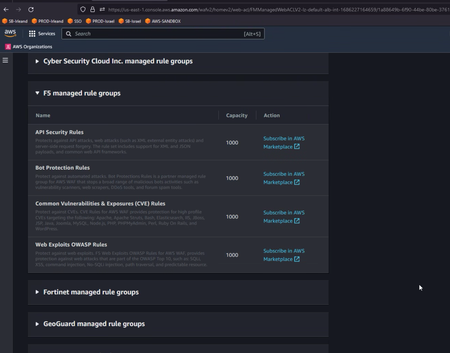
Hello guys, we are looking for this WAF Rule in the AWS Marketplace. We have interest in DDOS protection further, so can anyone tell me if the F5 Bot Protection Rules could work and what "DDOS bot/tools protection means". We will use the WAF for ALB, se we need to cover the layer 7 and not sure which kind of protection this can give us? If some hackers pretend to make a DDOS attack trough our Load Balancer, will be covered? "F5's Managed Rules for AWS WAF offer an additional layer of protection that can be easily applied to your AWS WAF. F5's Bot Protection rules analyze all incoming requests and block any malicious bot activities identified, including DDoS tools, vulnerability scanners, web scrapers, and forum spam tools"175Views1like1Comment
F5 ASM with fortisandbox
Hi i want to integrate f5 ASM with fortisandbox as a icap server for file upload inspection i found this articale https://support.f5.com/csp/article/K70941653 but Value of virus_header_name for fortisandbox is not mentioned any one has experince of integration with fortisandbox. please let me know if anyone know virus_header_name for fortisandbox2.6KViews1like2Comments
replacing blade 2100 to 2150 viprion c2400
greetings all, i am newbie on installing viprion series, my customer has viprion C2400 with existing blade 2100 which is end of life device, right now they have already purchase 2150 to replace the 2100. i have seen the link Replacing a blade in a VIPRION system that has only one blade installed (f5.com) , my question is, is it possible if we install the replacement blade in the VIPRION chassis while leaving the existing blade in the chassis and let the cluster replicate the configuration to the replacement blade ? please advice thank youSolved1.7KViews1like6Comments