big-ip access policy manager (apm)
94 Topics
APM SAML IdP - SP Issuer Extraction
Problem this snippet solves: APM doesn't expose any detail about the SAML SP Issuer when authentication requests hitting APM as an IdP during an SP initiated SAMLRequest. This iRule when applied to a SAML IdP enabled virtual server will extract the assertion request, decode it and present the SAML SP Issuer ID as the session variable %{session.saml.request.issuer} within APM. How to use this snippet: This comes in real handy when performing authorisation of the resource and could help avoid having APM perform a TCP connection reset when a SAML resource isn't authorised. Code : when CLIENT_ACCEPTED { ACCESS::restrict_irule_events disable } when HTTP_REQUEST { if { [HTTP::path] equals "/saml/idp/profile/redirectorpost/sso" } { if { [HTTP::method] equals "POST" } { # Colelct POST data set content_length [HTTP::header value Content-Length] HTTP::collect $content_length } elseif { [HTTP::method] equals "GET" } { #TODO } } } when HTTP_REQUEST_DATA { set payload_data [URI::decode [HTTP::payload]] log local0. "payload=[URI::query "?$payload_data" "SAMLRequest"]" if { $payload_data contains "SAMLRequest" } { # Extract SAML request data set SAMLdata [b64decode [URI::query "?$payload_data" "SAMLRequest"]] set SAML_Issuer_loc [string first "saml:issuer" [string tolower $SAMLdata]] set SAML_Issuer_start [expr {[string first ">" $SAMLdata $SAML_Issuer_loc] + 1}] set SAML_Issuer_end [expr {[string first "<" $SAMLdata $SAML_Issuer_start] - 1}] set SAML_Issuer [string range $SAMLdata $SAML_Issuer_start $SAML_Issuer_end] if { !([ACCESS::session sid] equals "" ) } { ACCESS::session data set session.saml.request.issuer $SAML_Issuer } } } when ACCESS_SESSION_STARTED { if { [info exists SAML_Issuer] } { ACCESS::session data set session.saml.request.issuer $SAML_Issuer } } Tested this on version: 11.61.8KViews2likes8CommentsComplete MFA solution with GA stored in Active Directory
Problem this snippet solves: All modern business applications require Multi-Factor Authentication (MFA) to be used for remote access by employees. There are many vendors on market selling enterprise MFA solutions that may be utilised with F5 BIG-IP Access Policy Manager (APM). Those solutions are complex and allow customers to create flexible policies which allow them to decide when and whom will be authorised to access protected applications. But what about those customers which have no needs for using complex enterprise solutions or does not have adequate budget for such spendings? How to use this snippet: For those customers I would like to present my One-Time Password (OTP) application which requires BIG-IP LTM/APM/iRulesLX. Shared secret value is stored in Active Directory and QR code is generated in user's browser. All you need after implementing this application on your BIG-IP is. to ask your users to get any OTP-compatible mobile application, like Google Authenticator or Microsoft Authenticator Please see https://github.com/akhmarov/f5_otp/ for instructions UPDATE 1: New version now support APM 15.1+ Modern Customization UPDATE 2: Added trusted device support UPDATE 3: Added multi-tenancy support Tested this on version: 15.11.9KViews1like9Comments
Modify UCS Archive so it doesn't backup epsec images
Problem this snippet solves: Currently, if you have APM installed, the UCS Archive process, also backs up the epsec images. I have written a bash script, which modifies the UCS Archive process, so that it does not include these in the UCS Archive process, and it also modifies the bigip.conf that is archived, so that it does not contain references to these images. By default, APM has it's own epsec image in /var/sam/images so when your UCS Archive is loaded to a new system, or a rebuilt system, it will just use the default epsec image for that system. This means that if you have upload a new epsec image to fix an issue, you will need to ensure that this is done on any system you restore the UCS Archive too. How to use this snippet: Just save the bash script to a file like /shared/bin/modify_ucs.sh Then run the script:- # sh /shared/bin/modify_ucs.sh The script modifies /usr/libdata/configsync/cs.dat and creates two files config_save_pre and config_save_post in the same folder. It also creates a backup of cs.dat as cs.YYYY_MM_DD_HH_MM.bak The /usr filesystem is mounted RO, so I remount it RW to do this. To remove changes: mount -o remount,rw /usr cd /usr/libdata/configsync/ mv -f `ls -1t cs.dat.[0-9][0-9][0-9][0-9]*.bak|head -1` cs.dat rm -f config_save_p[or][se]* mount -o remount,ro /usr This modification does not survive a upgrade, so you will need to run the script again after any upgrade If you are running a cron job to create a daily/weekly backup, you can just call this script before you run the tmsh save sys ucs command, as it checks to see if the modification has already been done. Code : 70454623Views0likes1Comment
APM Optimisation Script
Problem this snippet solves: With the current Covid-19 lockdown, many workers are now working from home which is putting stress on existing APM VPN devices. This script looks through the config and suggests some changes to be made to reduce CPU usage, based on https://support.f5.com/csp/article/K46161759 Matthieu Dierick has created a YouTube video showing how to use this at https://youtu.be/F0Z1AnM3L54 Let me know if you have any questions or requirements. Source code is held at https://github.com/pwhitef5/apm-vpn-optimisation/tree/master How to use this snippet: Copy the file to the /var/tmp directory as apm-optimisation Give it permissions with `chmod +x /var/tmp/apm-optimisation` Run with `/var/tmp/apm-optimisation`. Output is to stdout Example: [root@apm-1:Active:Standalone] ~ # ./apm-optimisation APM Optimisation Visibility CPU Usage -------------------------------- Current Average Maximum 52% 30% 93% -------------------------------- Compression -------------------------------- Licensed Hardware unlimited None -------------------------------- --- Partition /Common --- Connectivity Profile Compression -------------------------------- Profile Name Status -------------------------------- myConnectivity Disabled myConnectivity2 Disabled -------------------------------- Network Access Profile Compression ----------------------------------------------------------------------------------------------------------- Name | Compression | Split-Tunneling | Client Traffic Classifier | DTLS ----------------------------------------------------------------------------------------------------------- networkAccess | Enabled | Enabled | Disabled | Enabled networkAccess2 | Disabled | Enabled | Disabled | Disabled ----------------------------------------------------------------------------------------------------------- --- Optimisation Suggestions --- - CPU rate is LOW. Go down the Winchester and wait for it all to blow over - Hardware Compression is not included so consider turning off the feature ------- Partition /Common ------- - To turn off compression in the connectivity profile, run the command 'tmsh modify apm profile connectivity /Common/myConnectivity compression disabled' - To turn off compression in the NA profile, run the command 'tmsh modify apm resource network-access /Common/networkAccess compression none' - To turn on Client Traffic Classifier, run the commands below: tmsh create apm resource client-rate-class /Common/rate_class_2M { rate 2000000 } tmsh create apm resource client-rate-class /Common/rate_class_1M { rate 1000000 } tmsh create apm resource client-traffic-classifier /Common/client-traffic-classifier-1 { entries add { entry { client-rate-class rate_class_1M dst-ip any dst-mask any dst-port https src-ip any src-mask any } } } tmsh modify apm resource network-access /Common/networkAccess client-traffic-classifier client-traffic-classifier-1 - Network Access profile /Common/networkAccess is using SNAT automap. Consider using a SNAT pool - To turn on Client Traffic Classifier, run the commands below: tmsh create apm resource client-rate-class /Common/rate_class_2M { rate 2000000 } tmsh create apm resource client-rate-class /Common/rate_class_1M { rate 1000000 } tmsh create apm resource client-traffic-classifier /Common/client-traffic-classifier-1 { entries add { entry { client-rate-class rate_class_1M dst-ip any dst-mask any dst-port https src-ip any src-mask any } } } tmsh modify apm resource network-access /Common/networkAccess2 client-traffic-classifier client-traffic-classifier-1 - To turn on DTLS, create a duplicate virtual server listening on UDP and enabled DTLS in the Network Access List Network Settings ( see https://devcentral.f5.com/s/articles/APM-DTLS-Virtual-Server-iApp ) - Network Access profile /Common/networkAccess2 is using SNAT automap. Consider using a SNAT pool ----------------------------------------------------------------------------------------------------------- Code : #!/bin/bash # Version 5 8/4/2020 P.White # This is a script to check your APM system and give suggestions to reduce CPU usage # Taken from suggestions at https://support.f5.com/csp/article/K46161759 # v2 - small typo fix line 119 create changed to modify # v3 - updated classifier to only include https as it was causing an error # v4 - loops through admin partitions and prints out for each # v5 - added DTLS check and suggestion suggestions="--- Optimisation Suggestions ---\n" getLicensedCompression () { # Show the licensed compression comp=`tmsh -q show sys license detail|grep perf_http_compression|awk '{print $2}'|sed 's/\[\(.*\)\]/\1/g'` if [ x$comp != "x" ];then echo -n "$comp" else echo -n "Error!" fi } getHardwareCompression () { # Show hardware compression hcomp=`tmsh -q show sys license detail|grep "HTTP Hardware Compression"` if [ x$hcomp = "x" ];then # Hardware compression is not enabled echo -n "None" else echo -n "$hcomp" fi } clear echo "APM Optimisation Visibility" # CPU usage cur=`tmsh -q show sys cpu |grep "Utilization"|awk '{print $2}'` avg=`tmsh -q show sys cpu |grep "Utilization"|awk '{print $3}'` max=`tmsh -q show sys cpu |grep "Utilization"|awk '{print $4}'` if [ $avg -gt 90 ];then suggestions+=" - CPU rate is VERY HIGH! Turn off compression, implement split tunneling and consider more processing\n" elif [ $avg -gt 60 ];then suggestions+=" - CPU rate is HIGH! Turn off compression and consider split tunneling for non-internal traffic\n" elif [ $avg -gt 40 ];then suggestions+=" - CPU rate is MEDIUM. Consider turning off compression where required\n" else suggestions+=" - CPU rate is LOW. Go down the Winchester and wait for it all to blow over\n" fi echo echo "CPU Usage" echo "--------------------------------" echo -e "Current\tAverage\tMaximum" echo -e "$cur%\t$avg%\t$max%" echo "--------------------------------" echo # Compression clic=`getLicensedCompression` chw=`getHardwareCompression` if [ $chw = "None" ];then suggestions+=" - Hardware Compression is not included so consider turning off the feature\n" fi echo "Compression" echo "--------------------------------" echo -e "Licensed\tHardware" echo -e "$clic\t$chw" echo "--------------------------------" # loop through adminstrative partitions for partition in `tmsh -q list auth partition one-line|awk '{print $3}'`;do suggestions+="\n------- Partition /$partition -------\n" echo " --- Partition /$partition ---" echo echo "Connectivity Profile Compression" echo "--------------------------------" echo -e "Profile Name\t\tStatus" echo "--------------------------------" for profile in `tmsh -q -c "cd /$partition;list apm profile connectivity one-line"|awk '{print $4}'`;do if [ $profile = "connectivity" ];then continue fi if [ `tmsh -q -c "cd /$partition;list apm profile connectivity $profile one-line"|grep "compress-gzip-level 0"|wc -l` -gt 0 ];then echo -e "$profile\t\tDisabled" else suggestions+=" - To turn off compression in the connectivity profile, run the command 'tmsh modify apm profile connectivity /$partition/$profile compress-gzip-level 0'\n" echo -e "$profile\t\tEnabled" fi done echo "--------------------------------" echo echo "Network Access Profile Compression" echo "-----------------------------------------------------------------------------------------------------------" echo -e " Name\t\t\t| Compression\t| Split-Tunneling\t| Client Traffic Classifier\t| DTLS" echo "-----------------------------------------------------------------------------------------------------------" for profile in `tmsh -q -c "cd /$partition;list apm resource network-access one-line"|awk '{print $4}'`;do # Compression if [ `tmsh -q -c "cd /$partition;list apm resource network-access $profile one-line"|grep "compression gzip"|wc -l` -gt 0 ];then echo -en "$profile\t\t| Enabled" suggestions+=" - To turn off compression in the NA profile, run the command 'tmsh modify apm resource network-access /$partition/$profile compression none'\n" else echo -en "$profile\t\t| Disabled" fi if [ `tmsh -q -c "cd /$partition;list apm resource network-access $profile one-line"|grep "split-tunneling true"|wc -l` -gt 0 ];then echo -en "\t| Enabled" else echo -en "\t| Disabled" suggestions+=" - To turn on split-tunneling, run the command 'tmsh modify apm resource network-access /$partition/$profile split-tunneling true'\n" suggestions+=" - To configure split-tunneling exclude traffic by DNS name, run the command 'tmsh modify apm resource network-access /$partition/$profile address-space-exclude-dns-name add { office.com microsoftonline.com google.com gmail.com facebook.com }'\n" suggestions+=" - To configure split-tunneling exclude traffic by IP address, run the command 'tmsh modify apm resource network-access /$partition/$profile address-space-include-subnet add { { subnet 10.0.0.0/8 } { subnet 172.16.0.0/16 } { subnet 192.168.0.0/16 } }'\n" fi if [ `tmsh -q -c "cd /$partition;list apm resource network-access $profile one-line"|grep "client-traffic-classifier "|wc -l` -gt 0 ];then echo -en "\t\t| Enabled" else echo -en "\t\t| Disabled" suggestions+=" - To turn on Client Traffic Classifier, run the commands below:\n" suggestions+="tmsh create apm resource client-rate-class /$partition/rate_class_2M { rate 2000000 }\n" suggestions+="tmsh create apm resource client-rate-class /$partition/rate_class_1M { rate 1000000 }\n" suggestions+="tmsh create apm resource client-traffic-classifier /$partition/client-traffic-classifier-1 { entries add { entry { client-rate-class rate_class_1M dst-ip any dst-mask any dst-port https src-ip any src-mask any } } }\n" suggestions+="tmsh modify apm resource network-access /$partition/$profile client-traffic-classifier client-traffic-classifier-1\n" fi if [ `tmsh -q -c "cd /$partition;list apm resource network-access $profile one-line"|grep "dtls true"|wc -l` -gt 0 ];then echo -en "\t\t\t| Enabled" else echo -en "\t\t\t| Disabled" suggestions+=" - To turn on DTLS, create a duplicate virtual server listening on UDP and enabled DTLS in the Network Access List Network Settings ( see https://devcentral.f5.com/s/articles/APM-DTLS-Virtual-Server-iApp )\n" fi # Check for SNAT automap if [ `tmsh -q -c "cd /$partition;list apm resource network-access $profile one-line all-properties"|grep "snat automap"|wc -l` -gt 0 ];then suggestions+=" - Network Access profile /$partition/$profile is using SNAT automap. Consider using a SNAT pool\n" fi echo "" done echo "-----------------------------------------------------------------------------------------------------------" # Check VSs for mirroring for vs in `tmsh list ltm virtual one-line|awk '{print $3}'`;do if [ `tmsh -q -c "cd /$partition;list ltm virtual $vs mirror"|grep "mirror enabled"|wc -l` -gt 0 ];then echo echo "WARNING! Virtual Server /$partition/$vs has mirroring enabled\n" echo suggestions+="Consider disabling Connection Mirroring for virtual server /$partition/$vs with the command 'tmsh modify ltm virtual /$partition/$vs mirror disabled'\n" fi done done echo echo -e "$suggestions" echo "-----------------------------------------------------------------------------------------------------------" Tested this on version: 13.03.1KViews6likes5CommentsAPM Kerberos Auth or fallback to another authentication method
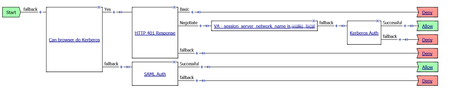
Problem this snippet solves: This iRule can be used when it is required to offer both Kerberos authentication and for example SAML or another authentication method in a mixed environment for devices that are domain joined and devices that are not domain joined. This iRule uses javascript and HTML5 Web Workers to determine if the browser can successfully authenticate by using Kerberos or will need to fallback to another authentication method. I've been testing this iRule with Internet Explorer, Edge, Firefox and Chrome. All these browsers seem to be working fine. Only Chrome seems to do things a bit differently and is showing a login prompt for a split second, but it's working. How to use this snippet: The screenshot below shows an example of an Access Policy that uses either Kerberos or SAML authentication. The first agent in the policy is an 'Empty Agent' which will read the session.custom.domainjoined variable to determine which authentication method to use. The session.custom.domainjoined variable is set by the kerberos_auth_or_fallback_auth iRule. Tested this on version: 13.0 Link to iRule https://github.com/nvansluis/f5.kerberos_auth_or_fallback_auth912Views1like0CommentsAPM Customization: Password Change Validation
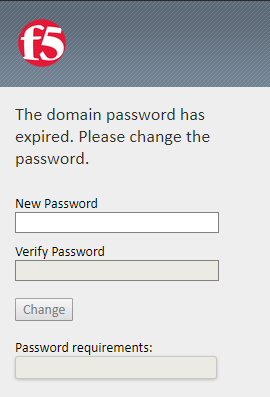
Problem this snippet solves: When an user is prompted to change the password, the user will be instructed to choose a password that matches your password policy. See the screenshots below. This updated version uses a progress bar instead of showing the requirements directly on the page. This should give some more protection against shoulder surfing. Please note that this code snippet will only customize the look-and-feel of the APM portal. It will *not* enforce a password security policy. The password policy should be enforced on the backend authentication server (active directory). Screenshot 1 - A password requirement progress bar is shown. Screenshot 2 - While typing the progress bar will grow towards 100% if the required character types are being used. Screenshot 3 - If you wonder why your new password doesn't meet the requirements, you can move your mouse over the progress bar to find out why. Screenshot 4 - When you meet the requirements, you must retype the password for validation. The progress bar will become green when both passwords match. Move your mouse over the progress bar to get more info. Screenshot 5 - All set, let's change the password. How to use this snippet: Use the F5 APM Advanced Customization Editor and reference this script from Common > footer.inc For example: Tested this on version: 13.0 Link to iRule https://github.com/nvansluis/f5.password_change_validation1.4KViews1like3CommentsTransparent Kerberos Authentication and APM fallback authentication
Problem this snippet solves: This iRule can be used when it is required to offer both Kerberos authentication (transparent, non-APM) and for example SAML or another APM authentication method in a mixed environment for devices that are domain joined and devices that are not domain joined. This iRule uses javascript and HTML5 Web Workers to determine if the browser can successfully authenticate by using Kerberos or will need to fallback to another authentication method. I've been testing this iRule with Internet Explorer, Edge, Firefox and Chrome. All these browsers seem to be working fine. Only Chrome seems to do things a bit differently and is showing a login prompt for a split second, but it's working. How to use this snippet: Create a Virtual Server that delivers a webserver that uses Kerberos Authentication. Create APM Access Policy that will perform the fallback authentication. Add this iRule to the Virtual Server that holds the APM access policy to perform the fallback authentication. Tested this on version: 13.0 Location of iRule https://github.com/nvansluis/f5.transparent_kerberos_auth_or_apm_authentication1.1KViews0likes2CommentsBypass Azure Login Page by adding a login hint in the SAML Request
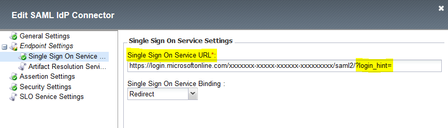
Problem this snippet solves: Enhance the login experience between F5 (SAML SP) and Azure (SAML IDP) by injecting the "email address" as a login hint on behalf of the user. This enhances the user experience because it allows to bypass the Azure Login Page and avoids the user to type two times his login/email address. Example of use Your application need to be accessed by both "domain users" and "federated users". Your application is protected by the F5 APM with a "Login Page" that asks for the user "email address". Based on the "email address" value you determine the domain: if the user is a "domain user", you authenticate him on the local directory (AD Auth, LDAP Auth or ...) if the user is a "federated user" (such as [email protected]), you send him to the Azure IDP that will manage all federated access This snippet is particularly interesting for the "federated user" scenario because: without this code, a "federated user" will need to type his "login" twice. First time on "F5 Login Page" and the second time on "Azure Login Page" with this code, a "federated user" will need to type his "login" only on the F5 Login Page How to use this snippet: Go to "Access > Federation > SAML Service Provider > External IDP Connectors" and edit the "External IdP Connectors" object that match with the Azure IDP app. On the "Single Sign On Service Settings" add at the end of the "Single Sign On Service URL" the following string "?login_hint=" as shown in the picture below. The string "?login_hint=" is added here only to be able to uniquely identify it later by the iRule and replaced it. 3. Finally, apply the iRule below on the VS that has the Access Policy enabled and for which the SAML SP role is attributed and is binded to the Azure IDP application. The iRule will simply catch the "Single Sign On Service URL" and replace it with "[email protected]". Code : when CLIENT_ACCEPTED { ACCESS::restrict_irule_events disable } when HTTP_RESPONSE_RELEASE { if { [string tolower [HTTP::header value "Location"]] contains "/saml2/?login_hint="} { set user_login [ACCESS::session data get "session.logon.last.mail"] #log local0. "Before adding the hint [HTTP::header value "Location"]" set locationWithoutHint "?login_hint=" set locationWithHint "?login_hint=$user_login" HTTP::header replace Location [string map -nocase "${locationWithoutHint} ${locationWithHint}" [HTTP::header Location]] #log local0. "After adding the hint [HTTP::header value "Location"]" } } Tested this on version: No Version Found6KViews1like5Comments
APM (& LTM) Session & Cookie Information - Chrome Extension
Problem this snippet solves: If you've ever troubleshooted APM Portal Access issues, you know how annoying it can be to find the decoded internal url. Note: This extension has been updated as more of an APM and LTM extension as opposed to just an APM one. This chrome extension seeks to make that quick and easy by showing the decoded information. It will also display the cookies for that site (including the ever-useful MRHSession and LastMRH_Session cookies) and allows you to delete cookies directly from the extension (useful for testing session timeout if you delete the MRHSession cookie). Version History 1.1 - Initial version Includes APM portal access decoded url information 1.2 - 2016.04.01 Added list of cookies associated with the current site (shows cookie name, domain and value) 1.3 - 2016.04.25 Added ability to delete cookies from the extension for the site (Known Issue: if you have multiple cookies with the same name that match the page, deleting one will delete all of them) Added decoded BIG-IP persistence cookie value in parenthesis to the list for quicker reference 1.4 - 2016.06.30 Rebuilt the popup page using AngularJS Introduced (but still disabled) options page and client-side functionality (will need iRules development as well) 1.5 - 2016.09.07 Enabled the options page again, and finished code to allow the extension to add a header to requests on specific domains (user specified) 1.5.1 - 2016.09.18 Updated the icon, and removed APM and replaced with debugging icon since this has morphed to APM and LTM usefulness 1.6 - 2016.12.19 Now enables the extension when it determines a persistence cookie (based on value format) Added a link that will popup APM session details (when management url specified in options page) (Note: must be logged into the management GUI already or else it won't redirect properly). Used alongside my APM Tampermonkey script you can see the session variables as well as the session detail 1.7 - 2017.09.03 Added local tracking of sites that appear to use F5 BigIP How to use this snippet: As Chrome doesn't really like unpublished extensions, and it's not in the Chrome App Store (yet), you'll have to install the extension in Developer Mode. Instructions Navigate to chrome://extensions Ensure that the Developer mode checkbox is enabled Sub-Method 1: Load unpacked extension (preferred method) Download all the code from the Github repository Click the Load unpacked extension button and select the src folder Sub-Method 2: Load the crx file (may not always be current) Download the crx from the Github repository From the file system, click and drag the .crx file onto the extension page to install it Code : https://github.com/jangins101/F5-APM-Session-Information Tested this on version: 11.5982Views0likes0Comments