visibility
12 TopicsDisplaying Application Study Tool (AST) Dashboards in Your Own Grafana Instance
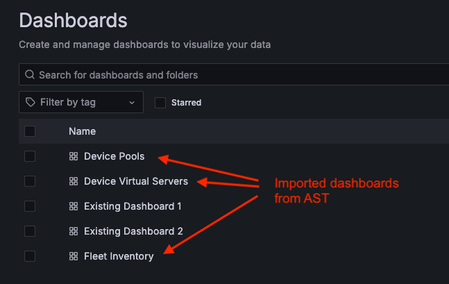
The Application Study Tool (AST) has its own Prometheus and Grafana instances. These instances run as containers and are designed to coexist with other Prometheus and Grafana instances in your environment, even on the same host. However, during demos and discussions with customers, many have expressed the desire to use their existing Grafana instance to display AST dashboards. Although it may not be obvious to new Grafana users, this process is straightforward. This blog will walk you through launching a second generic Grafana container instance, connecting it to the AST instance of Prometheus (the data source), importing a dashboard from the AST instance of Grafana, and displaying it in the new Grafana instance. If you already have a non-AST instance of Grafana running in your environment, the steps to launch a second Grafana container are optional. However, you may want to run it in order to test the import functionality and make your own customizations before importing it again into your “production” Grafana instance. Here is an example of a dashboard folder in a non-AST Grafana instance after importing three dashboards from AST: Launch a Second (Generic) Grafana Container If you already have a Grafana instance, you may skip this step. However, if you don’t, or you would like to use a “sandbox” for testing customizations before importing the dashboard into your “production“ Grafana instance, you can use the following steps to launch a new Grafana container. The following assumptions are made for the steps that follow: You are using Docker as your container runtime. (If you are using Podman, simply substitute “podman” for “docker” in each of the following commands. Other container runtimes may also work for this exercise, but I have not tested them.) You have sufficient privileges to run containers. If you don’t, you may need to run these commands with “sudo”. If that fails due to permissions errors, you will need to request the necessary privileges from your Linux administrator. We want to run Grafana version 11.5.2. Any recent version should work. However, this is the latest version as of the writing of this blog. The IP address of the host where you are running these containers is 192.168.0.15. Yours will likely be different. Use your own host’s IP when you run “curl” inside the grafana2 container. In my testing, I used MacOS. This will also work on any current Linux distribution and should work on Windows. First, launch the Grafana container. I set this new instance of Grafana to listen on port 3002 (the default for Grafana is 3000) to avoid conflicts with the AST instance, if they are running on the same host. $ docker run -d --name=grafana2 -p 3002:3000 grafana/grafana:11.5.2 Next, exec into the container to ensure it can connect to the AST instance of Prometheus. You can instead check connectivity from the Grafana UI, but the below method is a good way to troubleshoot any connectivity errors you may encounter. $ docker exec -it grafana2 bash You are now running a Bash shell inside the new Grafana container. Run a curl command to confirm the new Grafana container can reach the Prometheus application, which listens on port 9090, by default. (The IP address, 192.168.0.15, is used as an example. Use your own host's IP address here.) 5d3e8256af3d:/usr/share/grafana$ curl 192.168.0.15:9090 <a href="/graph">Found</a>. Now, it is time to test the new Grafana instance. Open a web browser and navigate to the host where this new Grafana container is running, at port 3002. If you are running on your local machine, it will be http://localhost:3002/. The default credentials are admin/admin. When first logging in, Grafana will prompt you to change the password. You may choose to change it now or click “skip” to leave it as is. Now you can export one of the dashboards from AST and import it into this instance. Export a Dashboard from AST Now that you have launched a second instance of Grafana (or you are running your own non-AST instance), it is time to import a dashboard from AST. You can import just one dashboard of your choosing (i.e., BigIP - Device Device >> Virtual Servers), or several (or even all) dashboards from AST. For this example, we will only import one dashboard, BigIP - Device Device >> Virtual Servers. If you wish to import other dashboards, the steps are the same. Navigate to the dashboard you would like to import into your Grafana instance. For the example used here, navigate to Dashboards >> BigIP – Device >> Device Virtual Servers. Click the blue "Share" button near the upper-right corner. In the pop-up box, click the Export tab. Click the blue "Save to file" button to download the JSON file representing the dashboard. Two notes: If you wish to use your own non-AST instance of Prometheus, you will need to move the slider for “Export for sharing externally” (available in the Share pop-up box, under the Export tab) to the right to enable it. This will allow you to select your own Prometheus instance as the data source when importing the dashboard into the alternate Grafana instance. The default JSON for these dashboards is also available in “dashboards” folder of the repo: https://github.com/f5devcentral/application-study-tool/tree/main/services/grafana/provisioning/dashboards. This version has the “Export for sharing externally” option enabled, so you will need to select the desired Prometheus data source – either your own or the AST instance – when importing the dashboard into the alternate Grafana instance. Import the Dashboard into the New (or Existing) Grafana Instance If you have just launched a new, generic Grafana container using the instructions in the above section, Launch a Second (Generic) Grafana Container, you can now launch the UI from a web browser by navigating to http://localhost:3002/ (assuming you are running on your local machine). The default login credentials are admin/admin. If this is just a temporary test instance, you may click “skip” when prompted to “Update your password”. (For a production instance or any instance that will be used more than just briefly, we recommend changing this to a stronger password.) If you are using an existing Grafana instance, navigate to it and log in. Connect the New Grafana Instance to the AST Prometheus Instance From this non-AST Grafana instance, verify the Prometheus data source is reachable from Grafana, and then connect to it by following these steps: In the menu bar on the left, click Connections >> Data sources. If this is a new instance of Grafana, the “Add data source” button will appear in the middle of the screen. If this is an existing instance with pre-existing data sources, the button will be in the upper-right corner of the screen and will say “Add new data source”. Click on it. Select Prometheus from the list of data sources. You may have to scroll down or enter “prometheus” in the search bar. Fill in a name (for example, “ast-prometheus”), and the URL to connect to the Prometheus instance. In my case, it was my host's private IP address, 192.168.0.15, and the port Prometheus is listening on (9090 by default): http://192.168.0.15:9090. Set the “Interval behaviour >> Scrape interval” to be the same as the value used for the collection_interval setting in your AST configuration. If you did not explicitly change it when configuring AST, it will be the default value of 60s. Click the blue "Save & test" button and ensure you get the message, “Successfully queried the Prometheus API” at the bottom of the screen. Import the Dashboard into the New Grafana Instance Click on “Dashboards” in the menu on the left. Click the blue “New” button in the upper-right and, from the drop-down, select "Import". Click on "Upload dashboard JSON file" and upload the JSON file you previously exported from the original AST dashboard. Give it a name (under Name). Under the Prometheus drop-down, select your Prometheus data source. (In the example above, it is called "ast-prometheus". If you accept the default name, it will just be “prometheus”.) Click Import. Voilà! You are now taken to the newly imported Grafana dashboard. Conclusion The Application Study Tool offers excellent observability for F5 BIG-IP systems and the traffic they handle. If you have your own Grafana instance with your own set of dashboards, there is no need to manage two separate instances. You can combine the two so you have all your dashboards in one place. The flexibility of Grafana also allows it to be highly customizable, so you can modify any of the out-of-the-box dashboards AST provides and even create your own. If you have gotten value from customizing some of the default AST dashboards, feel free to post what you did below, as many of our readers will find this valuable.2KViews10likes1CommentF5 Insight for ADSP – Initial Setup in VMware
Demo Video Initial VMware Configuration Download the ova file from myf5.com. In VMware choose the Create/Register VM option and choose Deploy a virtual machine from an OVF or OVA file. Continue through the install wizard, which will upload the ova file to your VMware server. Uncheck the option to Power on automatically so you can edit the VM properties prior to boot. Note: Thick Provision Lazy Zeroed is recommended for performance Edit the Virtual Hardware options and set the hardware settings as follows: Note: A 600 GB disk formatted to Thick Provision Lazy Zeroed is recommended for performance Switch to the VM Options tab and expand Advanced Scroll down and click Edit Configuration Click Add parameter and add the following: guestinfo.userdata.encoding = base64 Create a local cloud-config.yml file to set the administrative username and password: Be sure to change the admin password and make a note of it. Then you need to base64 encode the file. Return to the VMware Configuration Parameters screen and Add another parameter named “guestinfo.userdata” and paste the base64 encoded text in the Value. Click OK when done. After saving the VM settings, you are ready to power on your VM for the first time! Note: Refer to the F5 Insight on VMware Deployment Guide for further details on this procedure. Post Boot VM Settings Open the VM Console and login to F5 Insight with the credentials specified in the cloud-config.yml file Configure the F5 Insight network settings using the following commands: Example: After hitting Enter, you will see the following: If no changes are needed, enter “y” to confirm. The output should look like the following: Note: Refer to the F5 Insight User Guide for further details on this procedure. Accessing the User Interface The initial configuration is complete and you can now log into the UI. You will see the Welcome screen. Click Next. Paste the text of the JWT Token and click Validate. If the license is activated, click Next. Enable the LLM Provider. Select your LLM Provider, Anthropic in this example. Enter your API Token/Key and the Enterprise API URL. Note that I am skipping TLS verification. Click Test Connection. Click Next if the test is successful On the next screen, select your preferred Setup Method. I’m using Start Fresh. Click Add Device Enter the Endpoint, Username and Password You can optionally configure a Certificate Authority and Data Center Select the Modules that are active and you want to monitor. Click Add Device. Click Next The configuration is complete. You can view the Home Page or the Device Settings. The Home Page should look like this: Conclusion F5 Insight for ADSP offers customizable visualizations and dashboards to help teams surface actionable metrics and KPIs tailored to your organization. It provides access to useful telemetry data for a deeper understanding of your environment, application behaviors, and complex BIG-IP deployments, all centralized in a single location. Identification of root causes during outages/tickets. Solve issues and struggles with Day 2 analysis of your BIG-IP Fleet and the applications therein. Mitigates the problem of a lack of detailed visual information on your BIG-IP Fleet. Set a foundation for the utilization of open-source tools and their benefits. Related Content Introducing F5 Insight for ADSP F5 Insight for ADSP - A Closer Look F5 Insight for ADSP Documentation F5 Insight Product Page F5 Insight Release Blog 605Views5likes0Comments
F5 Insight for ADSP - A Closer Look
Introduction F5 Insight for ADSP, a key component of the F5 Application Delivery and Security Platform (ADSP), helps teams monitor and secure apps that are spread across hybrid, multi-cloud and AI environments. In this article, I’ll highlight some of the key features and use cases addressed by F5 Insight. Demo Video Demo Video: F5 Insight for ADSP - A Closer Look The F5 Insight Home Screen The F5 Insight Home Screen provides comprehensive monitoring for your F5 infrastructure, applications, and security posture. It features intelligent anomaly detection and performance optimization tools, giving administrators and users a centralized view of their BIG-IP fleet health and operational status. System Report Cards The System Report Cards display health indicators ranked Good, Warning, and Critical for the following: Anomaly Detection Monitors the connection count, pool availability, CPU utilization, and memory usage. Application Performance Monitors application-level health based on response time, 4xx, and 5xx error codes. Security Monitors the expiration of SSL/TLS certificates and BIG-IP WAF events. BIG-IP Metrics Monitors for BIG-IP health issues with device resources and operational status. Fleet Status Displays a summary of all BIG-IP devices and their operational status. The Fleet Status shows all the BIG-IP devices with a status of Up, Down or Degraded. Ask AI Assistant Allows you to type queries in plain English to retrieve device statistics, configuration information, security events, device health, application performance and much more. The AI Assistant connects to a configurable Large Language Model (LLM) backend. Supported providers include OpenAI, Anthropic, or a customer provided LLM. An example query: Have there been any outages in the past 24 hours for all devices in all data centers? The AI Assistant understands the question and has identified all the data centers. The AI Assistant then checks the device statistics for any outages or issues. The AI Assistant compiles a detailed summary report of the query. Configuration of Large Language Model (LLM) Large language model (LLM) Insights bring natural language intelligence to F5 Insight, enabling you to query your BIG-IP configurations and logs conversationally. Instead of manually searching through configurations or parsing log files, you can ask questions like “Why is pool member X marked down?” or “Show me all virtual IPs (VIPs) with SSL offloading enabled” and receive immediate, contextualized, clear answers. In the toolbar on the left under Manage, select LLM Insights. Select your LLM Provider Enter your API Token/Key Enter your Enterprise API URL Click Test Connection to verify it’s working Click Save Configuration when the connection is validated. Conclusion F5 Insight for ADSP offers customizable visualizations and dashboards to help you surface metrics and KPIs tailored to your organization. It provides access to useful telemetry data for a deeper understanding of your environment, application behaviors, and complex BIG-IP deployments, all centralized in a single location. Identification of root causes during outages/tickets. Solves issues and struggles with Day 2 analysis of your BIG-IP Fleet and the applications therein. Mitigates the problem of a lack of detailed visual information on your BIG-IP Fleet. Set a foundation for the utilization of open-source tools and their benefits. Related Content Introducing F5 Insight for ADSP F5 Insight for ADSP Documentation F5 Insight Product Page 827Views5likes0Comments
Introducing F5 Insight for ADSP
Introduction F5 Insight for ADSP, a key component of the F5 Application Delivery and Security Platform (ADSP), helps teams monitor and secure apps that are spread across hybrid, multi-cloud and AI environments. In this article, I’ll highlight some of the key features and use cases addressed by F5 Insight. F5 Insight: Actionable intelligence to foster operational excellence Demo Videos Demo Video: Introduction to F5 Insight for ADSP Demo Video: F5 Insight - A Closer Look What is F5 Insight for ADSP? F5 Insight is a holistic solution that unifies every aspect of operating applications. It provides end-to-end visibility and operational narratives. It allows you to prioritize to-dos with health scores, anomaly detection, and report cards. It delivers clarity and value faster with views built by F5 experts. It provides expert guidance and optimization recommendations using natural language interactions. F5 Insight is not intended to replace SIEM solutions like Splunk or Sentinel but serves a different, complementary purpose. It’s an open-source tool designed specifically for monitoring and analyzing metrics from your BIG-IP devices. By leveraging open-source telemetry tools, it collects and presents data in a central, easy-to-read dashboard. This eliminates the need to log into individual interfaces like the CLI or GUI to sift through logs and metrics, offering streamlined visibility into your BIG-IP estate for simplified monitoring and analysis. Why is F5 Insight important? Gain out-of-the-box actionable intelligence to optimize application delivery and security: Get critical application and infrastructure performance data, operational analytics, security issues, and other telemetry in a unified tool. Surface important KPIs and data points fast by querying data using natural language with model context protocol (MCP) support. Optimize application delivery and security, as well as underlying resources, with built-in F5 expertise and guidance. Share data with F5 and use F5 AI Data Fabric for application health scores, security grades, and automatic identification and categorization of apps by type and workload (In Limited Availability) Speeds mean-time-to-innocence (MTTI) and mean-time-to-restore (MTTR) with actionable intelligence and proactive alerts. Streamlines monitoring and analysis while being able to run on its own and integrate with your existing Grafana/VictoriaMetrics stacks. Leverage data to make the business case and prove ROI for more resources, application migrations, or system refreshes. How does F5 Insight work? F5 Insight is deployed as a Virtual Machine. This gives you full access and control of your F5 BIG-IP telemetry data. The configuration is simple, log into the F5 Insight portal and add your BIG-IP devices. There is no configuration needed on BIG-IP itself. Ready to get started? Log into the F5 Insight portal: By default you will arrive at the Home screen. From the navigation menu, under Manage, click BIG-IP Settings to add your BIG-IP devices. Before we add the BIG-IP devices click the Data Centers tab and then Add Data Center. This allows you to specify a location for the BIG-IP devices. Give it a Name, San Jose, CA in this example. Click Add Data Center. Go back to the Devices tab and click Add Device. Note that you can add a single device from here or add multiple devices using the Upload YAML Files (more on this later). For now, let’s add a single device using the management address or Endpoint, Username and Password. Scroll down and specify the Certificate Authority if using custom TLS certificates on BIG-IP devices. Under Data Center select the Data Center created previously, San Jose, CA in this example. Note: if you didn’t create a Data Center you can still do it now. Under Modules select the BIG-IP Modules you are using. In this example I selected Policy Firewall (or AFM). Click Add Device. The BIG-IP from San Jose has been added. From the navigation menu select BIG-IP Device then Device Overview to see more details. Note: you can select the specific Device you want to view. Important details are shown on this screen. Some items of interest are the BIG-IP version, system model or VM, Licenses and Enabled Modules. The Home Screen displays System Report Cards and allows you to drill down into the individual widgets. System Report Cards provide at-a-glance health indicators for four critical monitoring categories. Each card displays a status badge (Good, Warning, or Critical) based on deviation thresholds. Note: you can filter the Home Screen to display a specific Data Center. Adding Multiple BIG-IPs using YAML File Upload For bulk onboarding or infrastructure-as-code workflows, import devices using YAML configuration. Using YAML streamlines bulk onboarding, ensures consistency, improves scalability, simplifies automation, and increases accuracy. It also ensures integration with IaC workflows and CI/CD pipelines—enabling reusable, version-controlled configurations. From the BIG-IP Settings screen select Add Device. Upload your Defaults and Receiver YAML files here or click Paste YAML to copy/paste them. Note: YAML import also supports configuring F5 Insight features such as high availability, LLM Insights, AIDF, and data retention policies alongside device definitions. Both BIG-IPs are now connected to F5 Insight When you return to the BIG-IP Settings screen it should look like this: A correctly configured ast-defaults.yaml file will look like the following. Note: enter the username and password to log into your BIG-IPs A correctly configured ast-receivers.yaml file will look like the following. Note: enter a Device Name and Endpoint address. Conclusion F5 Insight for ADSP offers customizable visualizations and dashboards to help teams surface actionable metrics and KPIs tailored to your organization. It provides access to useful telemetry data for a deeper understanding of your environment, application behaviors, and complex BIG-IP deployments, all centralized in a single location. Identification of root causes during outages/tickets. Solves issues and struggles with Day 2 analysis of your BIG-IP Fleet and the applications therein. Mitigates the problem of a lack of detailed visual information on your BIG-IP Fleet. Set a foundation for the utilization of open-source tools and their benefits. Related Content F5 Insight for ADSP BLOG F5 Insight Documentation F5 Insight Product Page3.2KViews4likes0CommentsWhat’s new in F5 Insight for ADSP v1.1?
Introduction F5 Insight for ADSP, a key component of the F5 Application Delivery and Security Platform (ADSP), helps teams monitor and secure apps that are spread across hybrid, multi-cloud and AI environments. In this article, I’ll highlight some of the new features introduced in F5 Insight v1.1. Demo Video Disaster Recovery Now with enhanced User Workflows. The F5 Insight Disaster Recovery feature helps your system keep running even if one server fails. It works by maintaining two synchronized systems: Primary instance — Handles all active operations. Standby instance — A backup system that continuously syncs data from the primary. If the Primary fails or requires maintenance, you can “promote” the Standby to take over as the Primary. After fixing the first system, you can perform a “failback” to restore it to normal operation. Change to Default User Credentials on First Boot F5 Insight now supports a default user and random password login workflow. You can either use cloud-init (like previous version) or the default user credential option. NOTE: This applies to new installations, not upgrades. In previous versions of F5 Insight, the procedure to set the admin username/password involved utilizing the “cloud-init” function. There is now an alternative method for setting the admin username/password. A unique password will be generated at first boot, allowing administrators to log in for the first time using this password. This randomly generated password must be changed after initially logging in. UI Improvements Previous versions of F5 Insight dashboards with large data volumes could experience some performance degradation due to extensive configuration objects. This has been resolved by implementing comprehensive performance optimizations across the dashboard platform, enabling it to handle significantly larger datasets while maintaining a fast and responsive user experience. Upgrade Procedure You’ve probably never upgraded your F5 Insight version, so it’s time to learn how. First, download the updated software version from myf5.com. The updated software is distributed as a bundled gzipped tar file. Then, upload the new version to your F5 Insight from the About screen, then click Upgrade. After uploading the new version, select Start Upgrade. The upgrade will take several minutes. Conclusion The latest version of F5 Insight for ADSP offers expanded functionality with Disaster Recovery. It also provides a convenient alternative to “cloud-init” for setting the initial administrative username & password. Finally, there are several UI improvements aimed at making the user experience better and more seamless. Upgrade today to the latest version of F5 Insight for ADSP and enjoy the following benefits: Streamline the initial configuration of F5 Insight with the new default admin user and dynamically generated password. Enjoy expanded workflows with the Disaster Recovery feature. Benefit from the many UI improvements. Related Content Introducing F5 Insight for ADSP F5 Insight for ADSP – Initial Setup in VMware F5 Insight for ADSP - A Closer Look F5 Insight for ADSP Documentation F5 Insight Product Page F5 Insight Release Blog 438Views3likes0Comments
Visibility and Orchestration
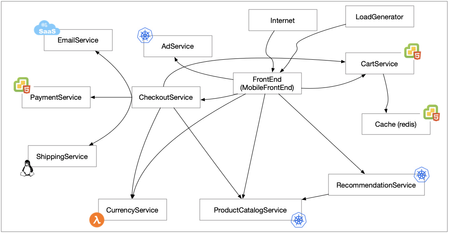
Introduction Applications living in public clouds such as AWS, Azure, GCP, Alibaba Cloud, delivered via CI/CD pipelines and deployed using Kubernetes or Docker, introduce significant challenges from a security visibility and orchestration perspective. This article is the first of series, and aims at defining the tenets of effective security visibility and explore a journey to achieving end-to-end visibility into the application construct. The consideration of visibility from the inception of service or application is crucial for a successful implementation of security. Comprehensive visibility enables ‘security and performance’ oriented insights, generation of alerts and orchestration of action based on pertinent events. The end-goal of integrating visibility and orchestration in application management is to provide a complete framework for the operation of adaptive applications with appropriate level of security. Initial Premise and Challenge For the purposes of this article, an application is defined as a collection of loosely coupled microservices (ref. https://en.wikipedia.org/wiki/Microservices) that communicate over the back and/or front-end network to support the frontend. Microservices are standalone services that provide one or more capabilities of the application. They are deployed across multiple clouds and application management infrastructures. The following shows a sample application built on microservices (ref. https://github.com/GoogleCloudPlatform/microservices-demo). The challenge posed by the infrastructure above lies in providing comprehensive visibility for this application. From a confidentiality, integrity and availability standpoint, it is essential to have this visibility to ensure that the application is running optimally and that the users are guaranteed a reasonable level of reliability. Visibility In this article we consider two distinct aspects of security: posture assessment and monitoring. The first is based on the review and assessment of the configuration of the security measures protecting the application. For example, the analysis aims to answer questions such as: Is the application protected by an advanced web application firewall? What threats are the application and/or the microservices protected from? DoS? Bot? Application vulnerabilities? Is the communication between microservices confidential? The second aspect of security visibility is dynamic in nature. It relies on the collection of logs and intelligence from the infrastructure and control points. The information collected is then processed and presented in an intelligible fashion to the administrator. For example, log gathering aims to answer questions such as: How much of the traffic reaching my applications and its components, “good traffic” and how much of it is coming from Bots and Scans? Does the application traffic hitting my servers conform to what I am expecting? Is there any rogue user traffic attempting to exploit possible vulnerabilities to disrupt availability of my application or to gain access to the data it references? Are the protection policies in place appropriate and effective? The figure below gives a graphical representation on possible feeds into the visibility infrastructure. Once the data is ingested and available from the assessment and monitoring, we can use the data to produce reports, trigger alerts and extract insights. Strategies for reporting, alerting and insights will vary depending on requirements, infrastructure and organizational/operational imperatives. In following articles, we will offer different possibilities to generate and distribute reports, strategies for alerting and providing insights (dashboards, chatops etc.) From an F5-centric perspective, the figure below shows the components that can contribute to the assessment and monitoring of the infrastructure: Orchestration In order to be able to consume security visibility with an adaptive application, it needs to be implemented as part of the CI/CD pipeline. The aim is to deploy it alongside the application. Any dev modification will trigger the inclusion and testing of the security visibility. Also, any change in the security posture (new rules, modified policy etc.) will trigger the pipeline and hence testing of deployment and validation of security efficacy. From an application deployment point of view, inserting F5 solutions in the application through the pipeline would look something like the picture below. In the picture above, BIG-IP, NGINX Plus / NGINX App Protect, F5 Cloud Services, Silverline/Shape are inserted at key points in the infrastructure and provide control points for the traffic traversing the application. Each element in the chain also provides a point that will generate telemetry and other information regarding the component protected by the F5 element. In conjunction with the control points, security can also be provided through the implementation of an F5 AspenMesh service mesh for Kubernetes environments. The implementation of security is integrated into the CI/CD pipeline so as to tightly integrate, testing and deployment of security with the application. An illustration of such a process is provided as an example in the figure below. In the figure above, changes in the security of the application is tightly coupled with the CI/CD pipeline. It is understood that this might not always be practical for different reasons, however, it is a desirable goal that simplifies the security and overall operations considerably. The figure shows that any change in the service or workload code, its security or the API endpoints it serves triggers the pipeline for validation and deployment in the different environments (prod, pre-prod/staging, testing). The figure does not show different integration points, testing tools (unit and integration testing) or static code analysis tools, as those tools are beyond the scope of this discussion. Eventually, the integration of artificial AI/ML, and other tooling should enable security orchestration, automation and response (SOAR). With greater integration and automation with other network and infrastructure security tools (DoS prevention, firewall, CDN, DNS protection, intrusion prevention) and the automated framework, it is conceivable to offer important SOAR capabilities. The insertion and management of the visibility, inference, and automation in the infrastructure enables coordinated and automated action on any element of the cyber kill-chain thus providing enhanced security and end-to-end remediation. Journey It is understood that the implementation of security frameworks cannot occur overnight. This is true for both existing and net-new infrastructure. The journey to integration will be fraught with resistance from both the Security or secdevops group and the Application or devops organization. The former needs to adapt to tools that seem foreign but are incredibly accessible and powerful. The latter category feels that security is a hindrance and delays implementation of the application and is anything but agile. Neither sentiment is based on more than anecdotal evidence. F5 offers a set of possible integrations for automated pipelines, this includes: A comprehensive automation toolchain for BIG-IP (link). F5 supported integrations with multiple infrastructure-as-code and automation tools such as Terraform (link)or Ansible (link). Integrations with all major cloud providers including Amazon Web Services (link), Google Cloud Platform (link) or Microsoft Azure (link). Full RESTful API’s to manage all F5 products including Cloud Services, Shape and NGINX Plus instances. These integrations are supported and maintained by F5 and available across all products. The following are possible steps in the journey to achieve complete visibility with the use of F5 products – the following steps as well as recommendations will be discussed in greater detail in follow-up articles: Architect the insertion of F5 control points (Cloud Services, BIG-IP, NGINX, Shape etc.) wherever possible. This differs somewhat based on the type of infrastructure (e.g. deployment in on premises datacenter versus cloud deployments) Automate the insertion and configuration of F5 control points leveraging the centralized management platforms, and other F5-provided tools to make the process easy. Automate the configuration of logging and telemetry of different control points in such a manner so that they feed into the centralized management platforms, and other visibility tools such as Beacon, ELK or other 3 rd -party utilities (e.g. SIEM etc). Based on available tools, define logging/telemetry/signaling strategy to collect and build a global view of the infrastructure – this might include the layering of technologies to distill the information as it is interpreted and aggregated, for example, leverage BIG-IQ as the first line of logging and visibility for BIG-IP Leveraging F5 Beacon or other 3 rd party tools, and build custom dashboards offering various insights to appropriate party involved in delivery and security of applications. Enhance the visibility provided through a reporting strategy that will allow the sharing of information among different groups as well as different platforms (e.g. SIEM etc.) Build a centralized solution collecting metrics, logs and telemetry from the different platforms to build meaningful insights. (Optional) Integrate with flexible ops tools such as chatops (Slack, MS Teams etc.) and other visibility tools via webhooks. (Optional) Integrate with ML/AI tools to speed the discovery and creation of insights (Optional) Progressively build SOAR and other capabilities leveraging F5 and/or 3 rd -party tools. Keep in mind that applications are fluid and adaptive. This raises important challenges with regards, to maintaining and adjusting the visibility so that it remains relevant and efficient. This justifies the integration of security in the CI/CD pipeline to remain nimble and adapt at the speed of business. Conclusion This article aims at helping you define a journey to building a comprehensive resilient and scalable application security visibility framework. The context for this journey is that of adaptive applications that evolve constantly. Do note that the same principles apply to common off-the-shelf applications as well as they are extended and communicate with third-party applications. The journey may begin by defining the goals for implementing security visibility and then a strategy to get to the goals. To be successful, the security strategy should include a “shift-left” plan to integrate into the CI/CD pipeline, removing friction and complexity from an implementation standpoint. Operational efficiency and usability should remain the guiding principles at the forefront of the strategy to ensure continued use, evolution and rapid change. The next articles in this series will help you along this journey, leveraging F5 technologies such as BIG-IP, BIG-IQ, NGINX Plus, NGINX App Protect, Essential App Protect and other F5 Cloud Services to gather telemetry and configuration information. Other articles will discuss avenues for visibility and alerting services leveraging F5 services such as Beacon, as well as 3 rd party utilities and infrastructure. At the heart of this article is the implementation of proxies and control-points throughout the networked infrastructure to gather data and assess the application’s security posture. As a continuation of this discussion, the reader is encouraged to consider other infrastructure aspects such as static code analysis, infrastructure isolation (what process/container/hypervisor connects to which peer etc.) and monitoring.1.8KViews1like0Comments