f5 distributed cloud
236 TopicsMaking WAF Monitoring Mode Powerful
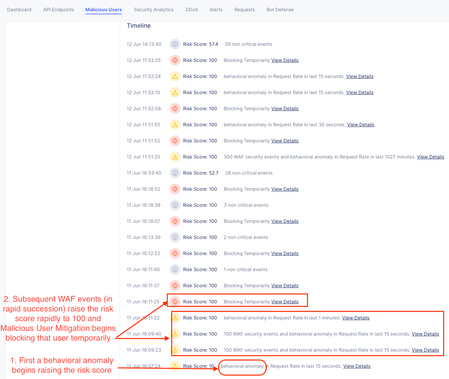
In a nutshell, the current state of the F5 Distributed Cloud WAF considers several factors before making a block/allow decision. The default configuration does the following: Operates in a monitoring mode, which logs WAF hits but doesn't block matches requests against high and medium attack signature accuracy classes Automatic Attack Signature tuning automatically suppresses likely false positives Bot Signature fill drop requests from clients that match known malicious bot signatures The focus here is that the default is to match based on signature accuracy, an approach that has been leveraged for years until the introduction of the AI-enhanced WAF. This deserves its own article, but to summarize here it pivots to a risk-based enforcement model instead of a pure signature match model. This decision is based on a custom model trained by F5 to identify requests that were riskier regardless of signature accuracy which improves both the block rate while lowering false positives further. But this isn't why you came here. Stepping outside of AI functions that have reduced false positives and better blocking, let's pivot to the challenge that many security teams face in actual businesses: you get stuck with a WAF forever in monitoring mode. Many on the security side of this equation might feel that watching malicious actors walk through the wide open front door has very little utility before the fact. There is a growing stash of events that could have been blocked or maybe get analyzed downstream to enforce a blocking mechanism (perhaps a SOC engineer maintaining a deny list?) in a purely reactive fashion. What if there was a better way? This is how we recently helped a customer find the best balance: Enter Malicious User Detection/Mitigation When Malicious User Detection is enabled, instead of looking at each request in isolation like a WAF or Firewall does, we look at the behavior of a particular client over time. This includes detecting anomalous behavioral changes, failed logins, unauthorized access, and most importantly for this article, all other Distributed Cloud security engine detections including but not limited to a WAF in monitoring mode. Why does this matter? An Application Firewall looks at the requests in their own context. We can assess risk inside the context of a given request, across all accuracy classes of signatures, but that context exists constrained to the request. Malicious User Detection adds the context of the user behavior over time. For instance, we will look at things that may never trigger a WAF block but because they are anomalous in time we can change the risk level of that user; with Malicious User Mitigation we can make a subtler decision to challenge a user with proportional responses. For instance, when a user transitions from no risk to low risk behavior, we can ensure they are running a browser with a javascript challenge. When they transition from low to medium risk we can present a captcha challenge. When they transition into high risk we can temporarily block that user. We can even identify users with a wide set of criteria than simple source IP. We can use XFF source IP, TLS fingerprints, headers, JWT claims, and other things, in a cascading list, to provide those mitigations in a very targeted way at an individual level. This means that one user that sends a request that triggers a WAF violation through a monitoring policy will be allowed through while another attacker that commits multiple WAF violations (or even just anomalous requests) will have mitigation applied in a progressive manner proportional to their risk. This is more subtle and targeted than a pure WAF block. An example Malicious User log from an Apache Bench test against an application with WAF monitoring mode and MUM: Configuration: App Firewall in Monitoring mode Enable Malicious User Detection and Mitigation in the HTTP Load Balancer 3. Save the HTTP Load Balancer Summary and Conclusions Pros: Mitigation are applied per-user instead of per signature A true false positive will be allowed through for a well-behaved user because where it might otherwise be blocked with a blocking WAF policy A malicious user can be stopped with mitigations based on anomalous behavior before they ever trigger a WAF block Cons: It takes a little more time to come to a decision to mitigate because behavior is a time-dependent variable Using behavioral analysis costs more than using WAF alone Key Point: Malicious User Detection/Mitigation with a monitoring WAF policy means you shift a block decision from a request context to a user-behavioral context which dramatically narrows the scope of impact from an application-related false positive. It is a safer middle ground to start doing something with all that WAF logging when you aren't allowed to turn on a blocking policy.308Views2likes1CommentFrom Chat to Config: Building an AI-Native MCP Server for F5 Distributed Cloud
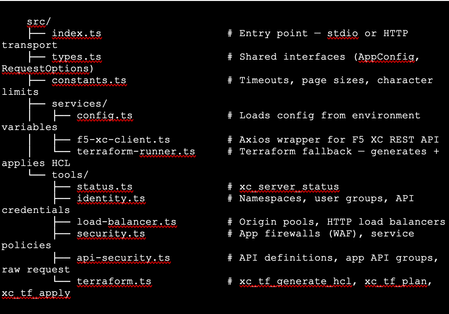
The Problem: F5 Distributed Cloud is Powerful but Verbose Anyone who has worked with F5 Distributed Cloud (XC) knows the platform is incredibly capable. HTTP load balancers, WAF policies, API security, origin pools, namespaces, service policies—the feature set is deep. But with depth comes complexity. A single POST to create an HTTP load balancer with WAF, HTTPS auto-cert, and an origin pool involves carefully crafting nested JSON across three or four separate API calls, each with its own spec structure. For experienced engineers, this is manageable. But what if you could just say: "Create an HTTPS load balancer for test-namespace, attach a WAF policy in blocking mode, origin server at 10.10.10.10 port 80 with an HTTP health check, auto-cert on port 443 with HTTP redirect" …and have all of that happen automatically, correctly, with dry-run safety by default? That's exactly what I built. This article walks through the F5 XC MCP Server—an open-source Model Context Protocol server that translates natural language commands from Claude Code or GitHub Copilot directly into F5 XC API calls. What is MCP? Model Context Protocol (MCP) is an open standard introduced by Anthropic that lets AI assistants (like Claude) call external tools and services through a structured interface. Think of it as a plugin system for AI — instead of the AI just generating text, it can actually do things: query APIs, read files, run commands, interact with platforms. An MCP server exposes a set of tools—typed functions with names, descriptions, and input schemas. When you ask Claude Code something like "list all my namespaces in F5 XC," it finds the right tool (xc_list_namespaces), calls it with the right parameters, and shows you the result. No copy-pasting API tokens into curl commands. No hunting through docs for the right endpoint path. MCP clients could be the popular AI coding tool, or any custom build MCP client, such as: Claude Code (via VS Code extension—the one I primarily used) GitHub Copilot (via VS Code extension) Any MCP-compatible client MCP servers can run locally (via stdio) or remotely (via HTTP/HTTPS). Architecture The server is built in TypeScript using the @modelcontextprotocol/sdk, with axios for F5 XC API calls and zod for input validation. The structure is intentionally simple: Key design decisions: Dry-run by default. F5_XC_DRY_RUN=true is the default. Every mutating call returns a preview of what would be sent rather than actually calling the API. This makes it safe to explore and prototype without fear. Set F5_XC_DRY_RUN=false when you're ready to go live. Dual auth. Supports both API token (Authorization: APIToken …) and mTLS certificate auth (https.Agent with PEM cert + key). The certificate extracted from the F5 XC .p12 credential file works directly. Dual transport. stdio for local use with Claude Code/Copilot; streamable HTTP/HTTPS for team-shared remote deployment. Terraform as fallback. When the REST API doesn't support an operation (more on this below), tools automatically generate ready-to-apply Terraform HCL using the volterraedge/volterra provider. The Four Use Cases The server covers four areas matching common F5 XC workflows: UC Tools Example operations UC-1 Identity Namespace CRUD, API credentials Create namespace, list users/groups, audit credentials UC-2 Load Balancer Origin pool CRUD, HTTP LB CRUD Create HTTPS LB with auto-cert, add origin pool UC-3 Security App Firewall (WAF) CRUD, Service Policy CRUD Create WAF in blocking mode, attach to LB UC-4 API Security API definition CRUD, App API group CRUD, raw request Import OpenAPI spec, create API group In total the server exposes 39 tools—enough to cover the majority of day-to-day F5 XC operations from a conversation. A Live Demo Walkthrough Here's a real session—every one of these was a natural language instruction to Claude Code, which called the appropriate MCP tool automatically. Step 1: Create a namespace "Create a new namespace called test-namespace" Step 2: Create an HTTP load balancer — then upgrade it "Create an HTTP load balancer named test-http-lb in test-namespace" The tool calls xc_create_http_lb with a minimal spec. State returns as VIRTUAL_HOST_READY in seconds. "Change protocol from HTTP to HTTPS port 443, use automatic certificate management from XC, add origin server 10.10.10.10 port 80 with default HTTP health check" This triggers three tool calls automatically: xc_raw_request → creates an HTTP healthcheck object xc_create_origin_pool → creates origin pool with 10.10.10.10:80, references the healthcheck Delete old LB + xc_create_http_lb → recreates as HTTPS with https_auto_cert, HTTP→HTTPS redirect, pool attached Note: F5 XC does not allow changing the LB type (HTTP → HTTPS) via PUT. The MCP server detected this and handled the delete-recreate flow automatically. The result: Step 3: Create and attach a WAF policy "Create a WAF policy named test-waf-policy" xc_create_app_firewall — blocking mode, default OWASP detection, default bot settings. Done in one call. test-waf-policy created ✓ Field Value Name test-waf-policy Namespace test-namespace Mode Blocking (blocks detected attacks) Detection Default OWASP ruleset Bot protection Default bot settings UID 8d350b72-5c8c-4e7c-b827-248b03067ed3 The WAF policy is ready. Would you like to attach it to test-http-lb? "Enable this WAF policy on test-http-lb" xc_update_http_lb — removes disable_waf, adds app_firewall reference. Verified with a GET to confirm disable_waf is gone and app_firewall.name is set. WAF policy enabled on test-httlp-lb ✓ Field Value WAF policy test-waf-policy (blocking mode) disable_waf removed LB state VIRTUAL_HOST_PENDING_A_RECORD Total time from zero to a WAF-protected HTTPS load balancer: under 2 minutes, all from natural language. The API Limitation Discovery — and the Terraform Fallback One of the most interesting findings during development: F5 XC's public REST API does not expose user/group write operations. Every path I tried returned either 404 or 501 Not Implemented: This is intentional by design—F5 XC routes user management through its Console UI. The Terraform volterraedge/volterra provider also didn’t help for users, group management. Rather than leaving the user with a dead end, I built a Terraform fallback: when a user group write fails, the tool’s response automatically includes: The AI can then call xc_tf_apply directly to execute it—or the user can copy the HCL and apply it themselves. The Terraform runner operates in isolated temp directories, cleans up after itself, and respects the global dryRun flag (plan instead of apply when dry-run is active). This pattern—REST first, Terraform as fallback—turned out to be a very useful architectural choice. It gracefully handles the gap between what the API exposes and what the platform can actually do. Deploying to Production: HTTPS with Automatic Certificates For a shared team tool, local stdio mode isn't enough. The server needs to be always-on, accessible over HTTPS, and with a real TLS certificate. The deployment stack on an Azure Ubuntu VM: Node.js 20 (via nvm) running the MCP server on port 3000 as a systemd service Caddy as a TLS-terminating reverse proxy—one config file, automatic Let's Encrypt The entire Caddy config: Caddy handles the ACME HTTP-01 challenge automatically. The Let's Encrypt certificate was issued in under 10 seconds after DNS propagated. Auto-renewal is built in—no cron jobs, no certbot timers. One gotcha worth noting: the default Caddy proxy timeout (30s) is shorter than some F5 XC API calls (namespace creation can take ~45s). The response_header_timeout 90s setting above is necessary. With this setup, the MCP endpoint is https://your-domain/mcp — usable from any MCP client without VPN or local server setup. Connecting Claude Code to the Remote Server Add this to your Claude Code MCP configuration (~/.claude.json or .claude/settings.json in your project): That's it. After a /mcp reload in Claude Code, all 39 tools are available. You can verify with: "Show me the F5 XC server status" Which calls xc_server_status and returns tenant, auth method, dry-run state, and Terraform auth status. Lessons Learned The F5 XC REST API is comprehensive for data plane operations, limited for identity management. Load balancers, WAF policies, origin pools, API definitions — all fully CRUD-able via REST. User and group management is not. Plan accordingly if your use case involves IAM automation. Dry-run mode is not optional — it's essential. Without it, a misunderstood instruction could delete a production load balancer. Making dry-run the default (and requiring explicit override per-call or globally) is the right design for any AI-driven ops tool. Tool descriptions matter more than you think. The quality of an MCP tool's description directly affects how accurately the AI uses it. Spending time writing precise, example-rich descriptions — including what fields are required, what values are valid, and what the return looks like — significantly improves the AI's ability to compose multi-step operations correctly. Graceful degradation beats hard failures. The Terraform fallback pattern is a good example. Rather than returning a cryptic API error and stopping, surfacing the equivalent HCL and offering to apply it keeps the workflow moving. Users get an answer even when the API says no. LB type changes require delete+recreate. The F5 XC API rejects PUT requests that change the load balancer type (e.g., HTTP → HTTPS). The MCP server handles this automatically by detecting the error and orchestrating the delete-recreate sequence — a good example of where the AI layer can absorb platform-specific quirks. What's Next This is v1.0 — functional, deployed, and covering the core use cases. Areas I'm exploring for future versions: API security scanning integration: trigger XC's web application scanning from the MCP server and return findings Multi-tenant support: switch tenants within a session without restarting the server Policy-as-code export: serialize existing LBs and WAF configs to Terraform HCL for IaC migration Audit/diff mode: compare current live config against a desired state and report drift Try It Yourself The server is open source on GitHub: https://github.com/gavinw2006/F5_XC_MCP_Server Prerequisites: Node.js 18+, an F5 XC tenant with an API token, and Claude Code or any MCP-compatible client. The first thing to try once connected: "Show me the F5 XC server status, then list all namespaces" Happy to hear feedback, questions, and PRs from the DevCentral community. If you build something on top of this—a new tool module, a different transport, integration with another F5 product—I’d love to know about it.544Views2likes2CommentsHow to use F5 Distributed Cloud to block (OFAC) Sanctioned Countries
Over the last several days, the climate has changed significantly in Eastern Europe, and I have been getting asked a lot about the possibility of blocking Office of Foreign Assets Control - Sanctioned Countries (OFAC) with F5 Distributed Cloud, and how to do it. The answer is quite simple; yes we can do it and its a pretty simple configuration. I think its also important to point out that this same process can be used to configure any other required GeoFencing policies as well. Do we also have ways to block DDOS and provide WAAP services? Also yes, but outside the scope of this article. In this article, I will focus on how to deploy & create: [Namespace] Service Policies Origin Pool(s) to send traffic to Distributed listener / load balancer with the security policy assigned View Security Events. Level Set Most of this article will be based around ClickOps deployment of this use-case. That said, the F5 Distributed Cloud is an API first platform, so everything can be done with your tools of choice for interaction with declarative APIs. I will include JSON manifests of the configured items as well to provide examples of what delcarations will resemble, as well as support direct import into the distributed cloud. It would be possible to say, set the policy configuration JSON into github as a source of truth, and have webhooks set up to push to the platform any time a change is made to ensure configurations stay within proper alignment. Who do we block? Before we can start blocking things, we need to know what exactly to block, so we need to acquire a list of OFAC Sanctioned Countries. There are a couple of options here as well. CSV straight from the source: https://home.treasury.gov/policy-issues/office-of-foreign-assets-control-sanctions-programs-and-information Dig through available data sources on Data.Gov: https://catalog.data.gov/dataset/consolidated-non-sdn-sanctions-list Third Party ACL Sites like Country Block List: https://www.countryipblocks.net/ofac.php (I cannot personally vouch for the accuracy of this content.) For the sake of brevity here, I will focus on just some top level country sanctions based on country code versus IP Subnet, but thats up to preference. Configuration Log in to your F5 Distributed Cloud Console. (If you do not have a tenant today, you should reach out to your F5 Account Team immediately and rectify the situation!) Service Policies for everyone! There are a couple of options for service policies in the platform. Shared Policies: Policies created in the Shared namespace, can be shared globally within your tenant. Benefit: Globally set policy baseline for all applications in your tenant. Namespace Policies: Policies created in a Namespace can only be shared within that namespace. Benefit: Namespace service policies applied by default to all listeners / load balancers. For this example, we will create the policy in a namespace. From the tiles, select Load Balancers, and then we need to ensure that we are in the proper namespace. (As with everyting on the platform, there are multiple ways to get places, and multple ways to configure things, so this will only cover 1 example of how.) Now we need to expand Security, hover over Service Policies, Click Service Policies, and in the new window click Add service policy. Populate the Name under metadata, leave attachment as Any Server, and set Select Policy Rules to Denied Sources. Now, we could use IP blocks, but for this example we will just use the Country List configuration parameter and enter country codes. This will pull from GeoIP validation. UPDATE: I have been getting a lot of notes on this article based on Ukraine versus Crimea, and how to specify since its not seperated out as a country code. Can we Allow Ukraine and block Crimea? Absolutely! For Crimea, we need to pull from another database, so for this example I am going to pull from https://bgpview.io/search/Crimea and we are going to block by ASN. So within our service policy, click Add item under BGP ASN Set. And on this screen we enter in all the ASN's that we discovered from the previous link. Then click Apply. (Making sure to now remove Ukraine from our Block List.) Then we need to determine Default Action. This is where you can cause some pain for yourself, so pay special attention when selecting Default action (“Default Action for requests from sources that do not belong to this list”), if you are using Next Policy, ensure the next policy allows traffic, or set the Default action to Allow, or the application will not receive any traffic. In this example I will only be using one policy, so I will set the Default Action to Allow (as noted in the JSON). Save and Exit. UPDATE 2: OK, you guys are killing me! Can we go to City Level or target regions outside of ASN? Yes! Here is how you do that. (I should plan better in the future for less edits!) Just to keep things clean, lets add a new Service Policy. This time, under Select Policy Rules, we are going to select Custom Rule List from the drop down. Then from here, we want to click Configure under Rules, then Add Item. Give our new rule a name, and click Configure under Rule Specification. From here, we are going to change the dropdown under Clients - Client Selection from Any Client to Group of Clients by Label Selector. Then under Selector Expression, Add Label. In the available selections you will find geoip.ves.io/city, country, and region (as well as some really cool IP Intelligence options but those are out of scope for this article.). Lets do a Region first to see how that works. Selct geoip.ves.io/region, then =, then start typing a region, for example Crimea. Once we have it set, scroll down and click Apply. Now, lets add another rule, but this time we are going to select city. We are already blocking Russia in our earlier policy, but just for an example lets add = Moscow. Now scroll down and click Apply. Thats it! Now we have policies to block based on GeoIP Country, Region, and City, as well as BGP ASN. We can apply all of them to our application at the same time. Now, lets say you just want to cheat, and copy and paste some JSON in, or you want to build it into a pipeline. You can go and check out the API specifications for Service Policy here: https://docs.cloud.f5.com/docs/api/service-policy The JSON would resemble the following for our first policy: { "metadata": { "name": "coleman-ofac-deny", "namespace": "m-coleman", "labels": {}, "annotations": {}, "description": "", "disable": false }, "spec": { "algo": "FIRST_MATCH", "any_server": {}, "rules": [ { "kind": "service_policy_rule", "uid": "c12f8c5d-44c2-495c-83e8-30842e9e0a7f", "tenant": "f5-sa-rnxeudss", "namespace": "m-coleman", "name": "ves-io-service-policy-coleman-ofac-deny-asn-list" }, { "kind": "service_policy_rule", "uid": "5d24d0d0-6c6b-4c7b-b5b3-4bec67c2ffed", "tenant": "f5-sa-rnxeudss", "namespace": "m-coleman", "name": "ves-io-service-policy-coleman-ofac-deny-country-list" }, { "kind": "service_policy_rule", "uid": "f9df0b83-21de-4c13-aebf-4e27fc580ed0", "tenant": "f5-sa-rnxeudss", "namespace": "m-coleman", "name": "ves-io-service-policy-coleman-ofac-deny-default-action" } ], "deny_list": { "ip_prefix_set": [], "asn_list": { "as_numbers": [ 204791, 205515, 208090, 28761, 41269, 43222, 43564, 49617, 59744, 8654 ] }, "asn_set": [], "country_list": [ "COUNTRY_BY", "COUNTRY_BA", "COUNTRY_BI", "COUNTRY_CF", "COUNTRY_CU", "COUNTRY_IR", "COUNTRY_IQ", "COUNTRY_KP", "COUNTRY_XK", "COUNTRY_LY", "COUNTRY_MK", "COUNTRY_SO", "COUNTRY_SD", "COUNTRY_SY", "COUNTRY_ZW", "COUNTRY_CD", "COUNTRY_LB", "COUNTRY_NI", "COUNTRY_RU", "COUNTRY_SS", "COUNTRY_VE", "COUNTRY_YE" ], "tls_fingerprint_classes": [], "tls_fingerprint_values": [], "default_action_allow": {} }, "simple_rules": [] } } And our second policy JSON puts us over the limit for the article, but all JSON from these configs are in the attached file. Origin Pools Origin Pools are where we send traffic to, so if you are familiar with BIG-IP its just the Pool, and if you are familiar with NGINX its our Upstream. All of the settings and nerd knobs that are part of origin pools are out of scope of this article, so we are just going to point our origin at a single public IP and move on. To create an Origin Pool, Expand the Manage Block, hover over Load Balancers, click Origin Pools, and then Add Origin Pool. Give the Origin Pool a Name under Metadata. Then under Origin Servers click Add Item so we can add an upstream server. For this example I am going to use a Public DNS Name of Origin Server, but you should use whichever applies best to your situation. Click Add Item once done, which will return us to the Origin Pool Config. Make sure to select the correct port, and any TLS settings for your environment. Click Save and Exit. Load Balancer / Listener Now that we have somewhere to send traffic, we need a way to receive traffic and assign security policies. We will be staying within scope for this use-case as well and not highlighting all of the details within the load balancer configuration. To create a Load Balancer, Expand the Manage Block, hover over Load Balancers, click HTTP Load Balancers, and then Add HTTP load balancer. Set a Name under Metadata. Under Basic Configuration, Domains, add a domain for the application. If you have delegated a DNS zone to the platform, we can automate DNS (and make certificate management super easy, but not required). Under Default Origin Servers, click Add Item, and in the Origin Pool drop down, select the pool that was created previously, then click Add Item. For VIP configuration we will leave as Advertise on Internet. You will notice under Security Configuration, Service Policies are already set to Apply Namespace Service Policies. Since I have a few policies in my namespace already, and I want to demonstrate OFAC policies, I am going to change this to Apply Specified Service Policies, and under Apply Specified Service Policies click Configure and select the previously created policy, then click Apply. From here click Save and Exit. Testing Using a VPN we can make sure that our policy is up and running. Since we did not configure a custom response page of any sort we should just get a 403 - Forbidden page. While users accessing from non OFAC countries will be able to access the application. Reporting We should be able to access the security events now as well, Expand Virtual Hosts, HTTP Load Balancers, and then over the load balancer we created earlier a hyperlink for Security Monitoring will show up, click it. We can see in the dashboard a L7 security event, and if we select Security Events, we will see that our VPN based request was flagged (l7_policy_sec_event, Rule to match CountryList). If its not totally legible, I VPN'd to Belarus and tried to access the page. Hint: Being able to use the JSON to copy policies is really great, I have used this in action with several customers to show how quickly we can backup and copy policies between environments in a few seconds. Thats it, now your web application is blocking traffic from OFAC sanctioned countries, and anyone else you want to keep out.7.6KViews9likes3Comments
Leverage BIG-IP 17.1 Distributed Cloud Services to Integrate F5 Distributed Cloud Bot Defense
Introduction: The F5 Distributed Cloud (XC) Bot Defense protects web and mobile properties from automated attacks by identifying and mitigating malicious bots. The Bot Defense uses JavaScript and API calls to collect telemetry and mitigate malicious users. The F5 Distributed Cloud (XC) Bot Defense is available in Standard and Enterprise service levels. In both the service levels the Bot Defense is available for traffic form web, web scarping, and mobile. The web scrapping is only applicable to web endpoints. This article will show you how to configure and use F5 Distributed Cloud Bot Defense (XC Bot Defense) on BIG-IP version 17.1 and above and monitor the solution on F5 Distributed Cloud Console (XC Console). Prerequisites: A valid XC Console account. If you don't have an account, visit Create a Distributed Cloud Console Account. An Organization plan. If you don't have an Organization plan, upgrade your plan. Getting Started: Log In to F5 XC Console: If XC Bot Defense isn't enabled, a Bot Defense landing page appears. Select Request Service to enable XC Bot Defense. If XC Bot Defense is enabled, you will see the tiles. Select Bot Defense. Verify you are in the correct Namespace. If your Namespace does not have any Protected Applications you will see the following page. Click Add Protected Application When you select a Namespace that has been configured with Protected Applications you will see this page. Scroll down to Manage Click Applications Click Add Application The Protected Application page is presented. Enter: Name Labels Description Select the Application Region - US in this example Connector Type - BIG-IP iApp for this demo. Cloudfront and Custom are other available connectors Scroll to the bottom and Click Save and Exit That will take you back to the Protected Applications Page. Verify your Application is listed with all the Metadata you supplied. Click the three ellipses to the right. Scroll down into the highlighted area and click and Copy App ID, Tenant ID and API Key Copy and save each value to a location where you can access it in the next steps. That completes the configuartion of F5 XC Console. Log In to your BIG-IP You will Notice in version 17.1 and above you will have a new selection along the left pane called Distributed Cloud Services. Expand and you will see all the latest integrations F5 provides. Application Traffic Insight Bot Defense Client-Side Defense Account Protection & Authentication Intelligence Cloud Services This article as stated before will focus on Bot Defense. Look for future articles that will focus on the other integrations. On the Main tab, Click Distributed Cloud Services > Bot Defense > Bot Profiles and Select Create This will bring up the General Properties page where you will enter required and optional information. Mandatory items have a Blue line on the edge. Supply a Name Application ID - From previous step Tenant ID - From previous step API Hostname - Web is filled in for you API Key - from previous step In the JS Injection Configuration section, the BIG-IP Handles JS Injectionsfield is checked by default, if you uncheck the field then follow the Note given in the Web UI. Protected Endpoint(s) - Web - Supply either the URI or IP of the Host Application along with the path and method you are protecting on the protected endpoint. In the following image, I have selected Advanced to show more detail of what is available. Again Mandatory fields have a blue indicator. Here the Protection Pool and SSL Profile. Click Finished when complete. One final step to complete the setup. Go to the Main tab, Local Traffic > Virtual Servers > Virtual Serves List Select the Virtual Server you are going to apply the Bot Defense profile to. Click on Distributed Cloud Services on the top banner Under Service Settings > Bot Defense set to Enable and then select the Bot Defense Profile you created in the above steps. The click Update. You have now sucessfully integrated BIG-IP Distributed Cloud Service on version 17.1 with F5 Distributed Coud Bot Defense. One final visual is the dashboard for F5 Distributed Cloud Bot Defense. This is where you will observe and monitor what bots and actions have been taken against bots and your protected applications. F5 XC Bot Defense on BIG-IP 17.1 Demo: Conclusion: I hope you were able to benefit from this tutorial. I was able to show how quickly and easlity it is to configure F5 Dsitributed Cloud Bot Defense on BIG-IP v17.1 using the built in Distributed Cloud Services integration. Related Links: https://www.f5.com/cloud https://www.f5.com/cloud/products/bot-defense BIG-IP Bot Defense on 14.x-16.x5.6KViews3likes4CommentsDeploy Bot Defense on any Edge with F5 Distributed Cloud (SaaS Console, Automation)
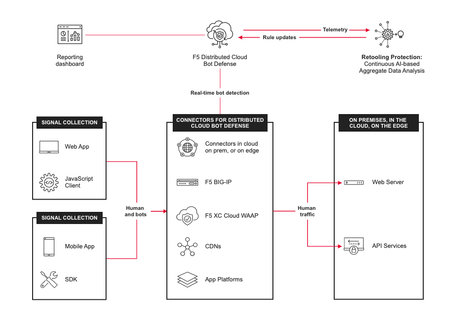
XC Bot Defense Connector Strategy F5 Distributed Cloud Bot Defense meets you where you’re at when it comes to deployment flexibility. We make it ridiculously easy for you to deploy XC Bot Defense either in the cloud, on-prem, or as a hybrid configuration with pre-built connecters in leading application platforms and CDNs to make deployment easy and fast. Choose Your Path Within each deployment scenario, you can choose your path with the following options to deploy the specified Bot Defense environment using either the console deployment link or automation with terraform. Module 1 Deploy Bot Defense on Regional Edges with F5 Distributed Cloud Module 2 Deploy F5 XC Bot Defense for AWS Cloudfront with F5 Distributed Cloud Module 3 Deploy Bot Defense in Azure with BIG-IP Connector for F5 Distributed Cloud Module 4 Deploy Bot Defense in GCP Using BIG-IP Connector for F5 Distributed Cloud XC Bot Defense Scenarios The modules below lay out a framework for connecting and managing distributed app services for this scenario, with a focus on the three core use cases. MODULE 1: Deploy Bot Defense on Regional Edges with F5 Distributed Cloud In this scenario, we will be deploying our fictitious airline application into a Regional Edge location of our choosing via the VK8's service in XC. We'll walk through all of the required steps, provide the vk8's manifest file and front end this application with an XC HTTP Load Balancer. In addition, the HTTP Load Balancer will be used to front-end our application and enable our XC Bot Defense Service. Choose your path: Console Steps for XC Bot Defense on Regional Edges Automated Deployment of XC Bot Defense on Regional Edge via Terraform MODULE 2: Deploy F5 XC Bot Defense for AWS Cloudfront with F5 Distributed Cloud In this scenario, we will be deploying our fictitious application in AWS with the XC Bot Defense Connector for AWS Cloudfront Distributions. Choose your path: Console Steps to Deploy F5 XC Bot Defense for AWS Cloudfront Coming Soon*** Automated Deployment of XC Bot Defense for AWS Cloudfront MODULE 3: Deploy Bot Defense in Azure with BIG-IP Connector for F5 Distributed Cloud In this scenario, we will be deploying our fictitious application into Azure with the XC Bot Defense Connector for BIG-IP. Choose your path: Console Steps to Deploy F5 XC Bot Defense in Azure with BIG-IP Connector Automated Deployment of XC Bot Defense in Azure with BIG-IP Connector MODULE 4: Deploy Bot Defense in GCP Using BIG-IP Connector for F5 Distributed Cloud In this scenario, we will be deploying our fictitious application into GCP with the XC Bot Defense Connector for BIG-IP. Choose your path: Console Steps to Deploy F5 XC Bot Defense in GCP Using BIG-IP Connector Automated Deployment of XC Bot Defense in GCP with BIG-IP Connector For additional information, refer to these resources: Deploy Bot Defense on any Edge with F5 Distributed Cloud (SaaS Console, Automation) GitHub repository with the walk-through of the deployment steps & demo YouTube video series discussing the different aspects of this configuration DevCentral Learning Series: Edge Compute Get Started with F5 Distributed Cloud Services2.3KViews4likes2CommentsMitigating OWASP Web Application Risk: Insecure Design using F5 XC platform
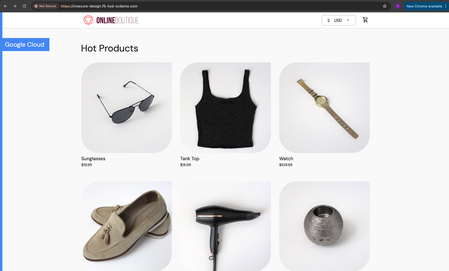
Overview: This article is the last part in a series of articles on mitigation of OWASP Web Application vulnerabilities using F5 Distributed Cloud platform (F5 XC). Introduction to Insecure Design: In an effort to speed up the development cycle, some phases might be reduced in scope which leads to give chance for many vulnerabilities. To focus the risks which are been ignored from design to deployment phases, a new category of “Insecure Design” is added under OWASP Web Application Top 10 2021 list. Insecure Design represents the weaknesses i.e. lack of security controls which are been integrated to the website/application throughout the development cycle. If we do not have any security controls to defend the specific attacks, Insecure Design cannot be fixed by any perfect implementation while at the same time a secure design can still have an implementation flaw which leads to vulnerabilities that may be exploited. Hence the attackers will get vast scope to leverage the vulnerabilities created by the insecure design principles. Here are the multiple scenarios which comes under insecure design vulnerabilities. Credential Leak Authentication Bypass Injection vulnerabilities Scalper bots etc. In this article we will see how F5 XC platform helps to mitigate the scalper bot scenario. What is Scalper Bot: In the e-commerce industry, Scalping is a process which always leads to denial of inventory. Especially, online scalping uses bots nothing but the automated scripts which will check the product availability periodically (in seconds), add the items to the cart and checkout the products in bulk. Hence the genuine users will not get a fair chance to grab the deals or discounts given by the website or company. Alternatively, attackers use these scalper bots to abandon the items added to the cart later, causing losses to the business as well. Demonstration: In this demonstration, we are using an open-source application “Online Boutique” (refer boutique-repo) which will provide end to end online shopping cart facility. Legitimate customer can add any product of their choice to the cart and checkout the order. Customer Page: Scalper bot with automation script: The below automation script will add products in bulk into the cart of the e-commerce application and place the order successfully. import requests import random # List of User-Agents USER_AGENTS = [ "sqlmap/1.5.2", # Automated SQL injection tool "Nikto/2.1.6", # Nikto vulnerability scanner "nmap", # Network mapper used in reconnaissance "Mozilla/5.0 (compatible; Googlebot/2.1; +http://www.google.com/bot.html)", # Spoofed Search Engine Bot "php", # PHP Command Line Tool "Mozilla/4.0 (compatible; MSIE 6.0; Windows NT 5.1)", # Old Internet Explorer (suspicious outdated) "libwww-perl/6.36", # Perl-based automation, often found in attacks or scrapers "wget/1.20.3", # Automation tool for downloading files or making requests "Python-requests/2.26.0", # Python automation library ] # Function to select a random User-Agent def get_random_user_agent(): return random.choice(USER_AGENTS) # Base URL of the API BASE_URL = "https://insecure-design.f5-hyd-xcdemo.com" # Perform the API request to add products to the cart def add_to_cart(product_id, quantity): url = f"{BASE_URL}/cart" headers = { "User-Agent": get_random_user_agent(), # Random User-Agent "Content-Type": "application/x-www-form-urlencoded" } payload = { "product_id": product_id, "quantity": quantity } # Send POST request with cookies included response = requests.post(url, headers=headers, data=payload) if response.status_code == 200: print(f"Successfully added {quantity} to cart!") else: print(f"Failed to add to cart. Status Code: {response.status_code}, Response: {response.text}") return response # Perform the API request to place an order def place_order(): url = f"{BASE_URL}/cart/checkout" headers = { "User-Agent": get_random_user_agent(), # Random User-Agent "Content-Type": "application/x-www-form-urlencoded" } payload = { "email": "[email protected]", "street_address": "1600 Amphitheatre Parkway", "zip_code": "94043", "city": "Mountain View", "state": "CA", "country": "United States", "credit_card_number": "4432801561520454", "credit_card_expiration_month": "1", "credit_card_expiration_year": "2026", "credit_card_cvv": "672" } # Send POST request with cookies included response = requests.post(url, headers=headers, data=payload) if response.status_code == 200: print("Order placed successfully!") else: print(f"Failed to place order. Status Code: {response.status_code}, Response: {response.text}") return response # Main function to execute the API requests def main(): # Add product to cart product_id = "OLJCESPC7Z" quantity = 10 print("Adding product to cart...") add_to_cart_response = add_to_cart(product_id, quantity) # If the add_to_cart request is successful, proceed to checkout if add_to_cart_response.status_code == 200: print("Placing order...") place_order() # Run the main function if __name__ == "__main__": main() To mitigate this problem, F5 XC is providing the feasibility of identifying and blocking these bots based on the configuration provided under HTTP load balancer. Here is the procedure to configure the bot defense with mitigation action ‘block’ in the load balancer and associate the backend application nothing but ‘evershop’ as the origin pool. Create origin pool Refer pool-creation for more info Create http load balancer (LB) and associate the above origin pool to it. Refer LB-creation for more info Configure bot defense on the load balancer and add the policy with mitigation action as ‘block’. Click on “Save and Exit” to save the Load Balancer configuration. Run the automation script by providing the LB domain details to exploit the items in the application. Validating the product availability for the genuine user manually. Monitor the logs through F5 XC, Navigate to WAAP --> Apps & APIs --> Security Dashboard, select your LB and click on ‘Security Event’ tab. The above screenshot gives the detailed info on the blocked attack along with the mitigation action. Conclusion: As you have seen from the demonstration, F5 Distributed Cloud WAAP (Web Application and API Protection) has detected the scalpers with the bot defense configuration applied on the Load balancer and mitigated the exploits of scalper bots. It also provides the mitigation action of “_allow_”, “_redirect_” along with “_block_”. Please refer link for more info. Reference links: OWASP Top 10 - 2021 Overview of OWASP Web Application Top 10 2021 F5 Distributed Cloud Services F5 Distributed Cloud Platform Authentication Bypass Injection vulnerabilities2.7KViews2likes0CommentsDelivering Secure Application Services Anywhere with Nutanix Flow and F5 Distributed Cloud
Introduction F5 Application Delivery and Security Platform (ADSP) is the premier solution for converging high-performance delivery and security for every app and API across any environment. It provides a unified platform offering granular visibility, streamlined operations, and AI-driven insights — deployable anywhere and in any form factor. The F5 ADSP Partner Ecosystem brings together a broad range of partners to deliver customer value across the entire lifecycle. This includes cohesive solutions, cloud synergies, and access to expert services that help customers maximize outcomes while simplifying operations. In this article, we’ll explore the upcoming integration between Nutanix Flow and F5 Distributed Cloud, showcasing how F5 and Nutanix collaborate to deliver secure, resilient application services across hybrid and multi-cloud environments. Integration Overview At the heart of this integration is the capability to deploy a F5 Distributed Cloud Customer Edge (CE) inside a Nutanix Flow VPC, establish BGP peering with the Nutanix Flow BGP Gateway, and inject CE-advertised BGP routes into the VPC routing table. This architecture provides us complete control over application delivery and security within the VPC. We can selectively advertise HTTP load balancers (LBs) or VIPs to designated VPCs, ensuring secure and efficient connectivity. Additionally, the integration securely simplifies network segmentation across hybrid and multi-cloud environments. By leveraging F5 Distributed Cloud to segment and extend the network to remote locations, combined with Nutanix Flow Security for microsegmentation within VPCs, we deliver comprehensive end-to-end network security. This approach enforces a consistent security posture while simplifying segmentation across environments. In this article, we’ll focus on application delivery and security, and explore segmentation in the next article. Demo Walkthrough Let’s walk through a demo to see how this integration works. The goal of this demo is to enable secure application delivery for nutanix5.f5-demo.com within the Nutanix Flow Virtual Private Cloud (VPC) named dev3. Our demo environment, dev3, is a Nutanix Flow VPC with a F5 Distributed Cloud Customer Edge (CE) named jy-nutanix-overlay-dev3 deployed inside: *Note: CE is named jy-nutanix-overlay-dev3 in the F5 Distributed Cloud Console and xc-ce-dev3 in the Nutanix Prism Central. eBGP peering is ESTABLISHED between the CE and the Nutanix Flow BGP Gateway: On the F5 Distributed Cloud Console, we created an HTTP Load Balancer named jy-nutanix-internal-5 serving the FQDN nutanix5.f5-demo.com. This load balancer distributes workloads across hybrid multicloud environments and is protected by a WAF policy named nutanix-demo: We advertised this HTTP Load Balancer with a Virtual IP (VIP) 10.10.111.175 to the CE jy-nutanix-overlay-dev3 deployed inside Nutanix Flow VPC dev3: The CE then advertised the VIP route to its peer via BGP – the Nutanix Flow BGP Gateway: The Nutanix Flow BGP Gateway received the VIP route and installed it in the VPC routing table: Finally, the VMs in dev3 can securely access nutanix5.f5-demo.com while continuing to use the VPC logical router as their default gateway: F5 Distributed Cloud Console observability provides deep visibility into applications and security events. For example, it offers comprehensive dashboards and metrics to monitor the performance and health of applications served through HTTP load balancers. These include detailed insights into traffic patterns, latency, HTTP error rates, and the status of backend services: Furthermore, the built-in AI assistant provides real-time visibility and actionable guidance on security incidents, improving situational awareness and supporting informed decision-making. This capability enables rapid threat detection and response, helping maintain a strong and resilient security posture: Conclusion The integration demonstrates how F5 Distributed Cloud and Nutanix Flow collaborate to deliver secure, resilient application services across hybrid and multi-cloud environments. Together, F5 and Nutanix enable organizations to scale with confidence, optimize application performance, and maintain robust security—empowering businesses to achieve greater agility and resilience across any environment. This integration is coming soon in CY2026. If you’re interested in early access, please contact your F5 representative. Related URLs Simplifying and Securing Network Segmentation with F5 Distributed Cloud and Nutanix Flow | DevCentral F5 Distributed Cloud - https://www.f5.com/products/distributed-cloud-services Nutanix Flow Virtual Networking - https://www.nutanix.com/products/flow/networking 732Views1like0Comments
App Delivery & Security for Hybrid Environments using F5 Distributed Cloud
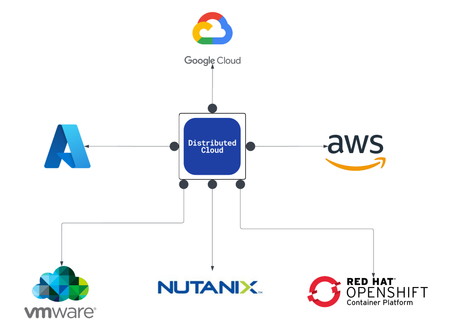
As enterprises modernize and expand their digital services, they increasingly deploy multiple instances of the same applications across diverse infrastructure environments—such as VMware, OpenShift, and Nutanix—to support distributed teams, regional data sovereignty, redundancy, or environment-specific compliance needs. These application instances often integrate into service chains that span across clouds and data centers, introducing both scale and operational complexity. F5 Distributed Cloud provides a unified solution for secure, consistent application delivery and security across hybrid and multi-cloud environments. It enables organizations to add workloads seamlessly—whether for scaling, redundancy, or localization—without sacrificing visibility, security, or performance.784Views4likes0CommentsSecuring Applications using mTLS Supported by F5 Distributed Cloud
Introduction Mutual Transport Layer Security (mTLS) is a process that establishes encrypted and secure TLS connection between the parties and ensures both parties use X.509 digital certificates to authenticate each other. It helps to prevent the malicious third-party attacks which will imitate the genuine applications. This authentication method helps when a server needs to ensure the authenticity and validity of either a specific user or device. As the SSL became outdated several companies like Skype, Cloudfare are now using mTLS to secure business servers. Not using TLS or other encryption tools without secure authentication leads to ‘man in the middle attacks.’ Using mTLS we can provide an identity to a server that can be cryptographically verified and makes your resources more flexible. mTLS with XFCC Header Not only supporting the mTLS process, F5 Distributed Cloud WAF is giving the feasibility to forward the Client certificate attributes (subject, issuer, root CA etc..) to origin server via x-forwarded-client-cert header which provides additional level of security when the origin server ensures to authenticate the client by receiving multiple requests from different clients. This XFCC header contains the following attributes by supporting multiple load balancer types like HTTPS with Automatic Certificate and HTTPS with Custom Certificate. Cert Chain Subject URI DNS How to Configure mTLS In this Demo we are using httpbin as an origin server which is associated through F5 XC Load Balancer. Here is the procedure to deploy the httpbin application, creating the custom certificates and step-by-step process of configuring mTLS with different LB (Load Balancer) types using F5 XC. Deploying HttpBin Application Here is the link to deploy the application using docker commands. Signing server/leaf cert with locally created Root CA Commands to generate CA Key and Cert: openssl genrsa -out root-key.pem 4096 openssl req -new -x509 -days 3650 -key root-key.pem -out root-crt.pem Commands to generate Server Certificate: openssl genrsa -out cert-key2.pem 4096 openssl req -new -sha256 -subj "/CN=test-domain1.local" -key cert-key2.pem -out cert2.csr echo "subjectAltName=DNS:test-domain1.local" >> extfile.cnf openssl x509 -req -sha256 -days 501 -in cert2.csr -CA root-crt.pem -CAkey root-key.pem -out cert2.pem -extfile extfile.cnf -CAcreateserial Note: Add the TLS Certificate to XC console, create a LB(HTTP/TCP) and attach origin pools and TLS certificates to it. In Ubuntu: Move above created CA certificate (ca-crt.pem) to /usr/local/share/ca-certificates/ca-crt.pem and modify "/etc/hosts" file by mapping the VIP(you can get this from your configured LB -> DNS info -> IP Addr) with domain, in this case the (test-domain1.local). mTLS with HTTPS Custom Certificate Log in the F5 Distributed Cloud Console and navigate to “Web APP & API Protection” module. Go to Load Balancers and Click on ‘Add HTTP Load Balancer’. Give the LB Name (test-mtls-cust-cert), Domain name (mtlscusttest.f5-hyd-demo.com), LB Type as HTTPS with Custom Certificate, Select the TLS configuration as Single Certificate and configure the certificate details. Click in ‘Add Item’ under TLS Certificates and upload the cert and key files by clicking on import from files. Click on apply and enable the mutual TLS, import the root cert info, and add the XFCC header value. Configure the origin pool by clicking on ‘Add Item’ under Origins. Select the created origin pool for httpbin. Click on ‘Apply’ and then save the LB configuration with ‘Save and Exit’. Now, we have created the Load Balancer with mTLS parameters. Let us verify the same with the origin server. mTLS with HTTPS with Automatic Certificate Log in the F5 Distributed Cloud Console and navigate to “Web APP & API Protection” module. Goto Load Balancers and Click on ‘Add HTTP Load Balancer’. Give the LB Name(mtls-auto-cert), Domain name (mtlstest.f5-hyd-demo.com), LB Type as HTTPS with Automatic Certificate, enable the mutual TLS and add the root certificate. Also, enable x-forwarded-client-cert header to add the parameters. Configure the origin pool by clicking on ‘Add Item’ under Origins. Select the created origin pool for httpbin. Click on ‘Apply’ and then save the LB configuration with ‘Save and Exit’. Now, we have created the HTTPS Auto Cert Load Balancer with mTLS parameters. Let us verify the same with the origin server. Conclusion As you can see from the demonstration, F5 Distributed Cloud WAF is providing the additional security to the origin servers by forwarding the client certificate info using mTLS XFCC header. Reference Links mTLS Insights Create root cert pair F5 Distributed Cloud WAF6KViews4likes1Comment