cfe
4 TopicsDeploying F5 BIG-IP HA into AWS GovCloud
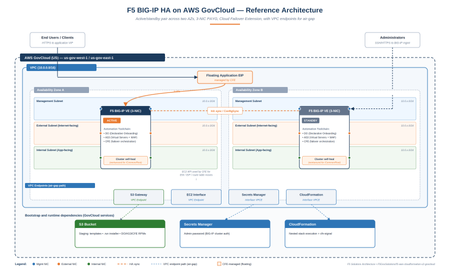
This guide provides a walk-through for deploying an active/standby F5 BIG-IP High Availability (HA) cluster within AWS GovCloud (US) using the AWS Console. Code Repository: F5GovSolutions/f5-aws-cloudformation-v2-govcloud While the repository's examples/failover/GOVCLOUD-GUIDE.md handles the exact AWS CLI workflows, this document serves as the web console companion. The Partition Problem The upstream commercial F5 templates (F5Networks/f5-aws-cloudformation-v2) assume a standard AWS commercial partition. Pointing those unmodified templates at GovCloud breaks deployment for three distinct reasons: Partition Isolation (aws-us-gov): GovCloud uses unique ARNs, regional endpoints, and an entirely separate AMI catalog. Furthermore, CloudFormation mandates that a parent stack's nested templates reside in an S3 bucket within the exact same region and partition. CloudFormation cannot fetch objects across partitions, meaning all templates must be pre-staged in a local GovCloud bucket. Air-Gapped Realities: In isolated enclaves with no internet egress, a booting BIG-IP cannot pull the runtime-init installer or Automation Toolchain RPMs from public GitHub repositories or F5 CDNs. Everything must be hosted locally inside an S3 bucket, accessible via VPC Gateway and Interface endpoints. The 17.x Clustering Bug: On the BIG-IP 17.x code train, a startup-timing condition occasionally prevents the local device-trust domain (/Common/Root) from initializing properly on first boot. When this occurs, Declarative Onboarding (DO) cannot establish the trust domain or failover group, leaving both nodes deadlocked. This modified template embeds an automated, non-blocking self-heal script to orchestrate the recovery process without manual intervention. What it deploys The root template (failover.yaml) orchestrates a series of nested module stacks (network, access, ingress, application, and individual BIG-IP nodes) to build: An active/standby pair of BIG-IP Virtual Editions (VE) deployed across two Availability Zones using a 3-NIC topology (Management, External, Internal). Cloud Failover Extension (CFE) integration to re-map floating application IPs and AWS routes during a failover event. Automated onboarding via F5 BIG-IP Runtime Init, executing Declarative Onboarding (DO) for core network clustering, Application Services 3 (AS3) for virtual servers/WAF policies, and CFE for AWS API integration. The architecture uses Pay-As-You-Go (PAYG) marketplace licensing and is fully validated on the 3nic-payg...-with-app runtime-init configuration. Core Architecture Differences vs. Commercial Staged-Bucket Deployment Mode Because of partition constraints, your local GovCloud S3 bucket serves as the single source of truth. It must hold two types of data: the nested CloudFormation templates cloned from the repository, and the target installation binaries (the runtime-init .run installer and the accompanying DO/AS3/CFE RPM packages). The Unauthenticated 403 Pitfall CloudFormation reads your deployment templates using your active IAM user/role credentials. However, during the bootstrap phase, the individual BIG-IP instances download their configuration files and RPM packages over an unauthenticated HTTPS request. They do not sign these requests with AWS credentials. If your S3 bucket permissions block public read access completely, the instances receive an HTTP 403 Forbidden response, initialization fails, and CloudFormation rolls back the stack. Because GovCloud blocks public access by default, you must apply a scoped bucket policy allowing s3:GetObject to Principal: "*" paired with a DenyInsecureTransport block. Single-Toggle VPC Endpoints Isolated enclaves require four distinct VPC endpoints to function: S3 (Gateway) for fetching installation packages and AS3 WAF policies, and Interface endpoints for EC2, Secrets Manager, and CloudFormation APIs. Missing even one endpoint causes silent automation failures. To simplify this, the template consolidates these requirements into a single parameter: setting provisionS3Endpoint=true automatically provisions all four regional endpoints with private DNS enabled. Note that your bucket, stack, and endpoints must reside within the same AWS region. Automated Clustering Self-Heal To bypass the 17.x initialization bug without manual operator access, the template installs a localized orchestration loop during the pre_onboard hook. The mechanism drops three files onto the file system: cluster-heal.sh: The main orchestrator script. cluster-heal-trust.py: A native Python script that securely pulls the admin password from Secrets Manager via a SigV4 request using the instance's IAM role, then invokes the local device trust commands. /etc/cron.d/cluster-heal: A cron job that triggers the orchestrator every 3 minutes. This loop checks the cluster status. If it detects a missing root domain, it triggers a single controlled reboot, reads the peer node's address from the runtime logs, pulls the password, and establishes device trust. Once synchronized, it issues the CloudFormation success signal and disables its own cron job. This preserves DO as the declarative source of truth without creating configuration drift. During this process, the CloudFormation stack will remain in CREATE_IN_PROGRESS for roughly 25 to 30 minutes, which is normal behavior. Elastic IP Allocation Constraints The default AWS regional quota is 5 Elastic IPs (EIPs). Depending on your topology, this architecture can request up to 7. To prevent deployment failures due to exhausted quotas, use the template toggles to limit public allocations: Default Configuration (Public Mgmt, Public VIP, Public Self IPs): 7 EIPs Standard Air-Gap Profile (Public Mgmt, Private VIP, Private Self IPs): 4 EIPs Strict Isolated Profile (Private Mgmt via Bastion, Private VIP, Private Self IPs): 3 EIPs Verify your regional limit under Service Quotas → EC2-VPC Elastic IPs (L-0263D0A3) before executing the template. Deployment Steps (AWS Console) Before You Begin Select a single target GovCloud region (us-gov-east-1 or us-gov-west-1). Your staging bucket, CloudFormation stack, EC2 Key Pair, and Secrets Manager secret must share this region to prevent cross-region routing failures in isolated enclaves. 1. Provision the staging S3 bucket S3 → Create bucket, in your Region. Give it a globally unique name. [S3 Create bucket, Region selector highlighted.] 2. Stage the templates and artifacts While file uploads can be handled via the S3 web GUI, staging is more reliably managed via the AWS CLI from a local workstation. Installing the AWS CLI is outside the scope of this article but it's easy and instructions can be Googled. Execute the following commands from the root of your cloned repository to sync the template architecture and upload your pre-downloaded F5 binaries: Download commands: # F5 BIG-IP Runtime Init installer (note: this repo's tag has NO "v" prefix) curl -fL -o f5-bigip-runtime-init-2.0.3-1.gz.run \ https://github.com/F5Networks/f5-bigip-runtime-init/releases/download/2.0.3/f5-bigip-runtime-init-2.0.3-1.gz.run # Declarative Onboarding (DO) curl -fL -o f5-declarative-onboarding-1.47.0-14.noarch.rpm \ https://github.com/F5Networks/f5-declarative-onboarding/releases/download/v1.47.0/f5-declarative-onboarding-1.47.0-14.noarch.rpm # Application Services (AS3) curl -fL -o f5-appsvcs-3.56.0-10.noarch.rpm \ https://github.com/F5Networks/f5-appsvcs-extension/releases/download/v3.56.0/f5-appsvcs-3.56.0-10.noarch.rpm # Cloud Failover Extension (CFE) curl -fL -o f5-cloud-failover-2.4.0-0.noarch.rpm \ https://github.com/F5Networks/f5-cloud-failover-extension/releases/download/v2.4.0/f5-cloud-failover-2.4.0-0.noarch.rpm Sync and upload commands (be sure to be at root of the cloned repo), set the variables accordingly: # Synchronize the nested CloudFormation infrastructure templates aws s3 sync ./examples/ "s3://$BUCKET/$PREFIX/" --region "$REGION" # Upload the core runtime engine and toolchain extensions aws s3 cp f5-bigip-runtime-init-2.0.3-1.gz.run "s3://$BUCKET/$PREFIX/" --region "$REGION" aws s3 cp f5-declarative-onboarding-1.47.0-14.noarch.rpm "s3://$BUCKET/$PREFIX/bigip-extensions/" --region "$REGION" aws s3 cp f5-appsvcs-3.56.0-10.noarch.rpm "s3://$BUCKET/$PREFIX/bigip-extensions/" --region "$REGION" aws s3 cp f5-cloud-failover-2.4.0-0.noarch.rpm "s3://$BUCKET/$PREFIX/bigip-extensions/" --region "$REGION" 3. Grant anonymous read on the artifacts In the S3 Console, select your staging bucket and navigate to Permissions. Under Block public access (bucket settings), disable the option to Block public access to buckets and objects granted through new public bucket policies (leave ACL blocks enabled). Next, apply the following bucket policy to allow the instances to pull down the bootstrap packages securely over HTTPS: { "Version": "2012-10-17", "Statement": [ { "Sid": "PublicReadGetObject", "Effect": "Allow", "Principal": "*", "Action": "s3:GetObject", "Resource": "arn:aws-us-gov:s3:::YOUR-BUCKET-NAME-HERE/*" }, { "Sid": "DenyInsecureTransport", "Effect": "Deny", "Principal": "*", "Action": "s3:*", "Resource": [ "arn:aws-us-gov:s3:::YOUR-BUCKET-NAME-HERE", "arn:aws-us-gov:s3:::YOUR-BUCKET-NAME-HERE/*" ], "Condition": { "Bool": { "aws:SecureTransport": "false" } } } ] } Note: Ensure you replace YOUR-BUCKET-NAME-HERE with your actual bucket name. Do not include any trailing lines or comments in the JSON editor. [S3 Permissions — Block public access settings.] 4. Store the Admin Password Secret Navigate to AWS Secrets Manager → Store a new secret. Choose Other type of secret, select the Plaintext tab, clear the default JSON template, and type your raw password string. Name the secret (e.g., f5-bigip-admin) and save it using the default settings. Copy the resulting Secret ARN (arn:aws-us-gov:secretsmanager:...); both nodes query this specific object at startup. [Secrets Manager Store secret, plaintext tab.] [Secrets Manager: Name your secret.] 5. Create the SSH key pair EC2 → Key Pairs → Create key pair, download the .pem. The key pair is regional. This is optional but recommended you create one before template launch. [Screenshot: EC2 Create key pair.] (You can leave the parameter blank in the template and let the stack auto-create one, but then the private key only lives in SSM Parameter Store — pre-creating is simpler if you need to access the boxes vis SSH) 6. Confirm the BIG-IP AMI exists in your Region The deployment template discovers the target AMI using automated string matching. Ensure that your region has access to the target image by running the following lookup via your terminal, this can also be done via the GUI: aws ec2 describe-images --region "$REGION" --owners aws-marketplace \ --filters "Name=name,Values=*17.5*PAYG-Best Plus 25Mbps*" \ --query 'reverse(sort_by(Images,&CreationDate))[].[Name,ImageId,CreationDate]' --output table 7. Launch the stack (CloudFormation) Open CloudFormation, select your target region, and click Create stack (with new resources). Select Template is ready, choose Amazon S3 URL, and paste the direct object URL to your staged failover.yaml file. Configure the mandatory parameters: Stack Name: Define an environment-specific identifier. S3 Configurations: Populate s3BucketName and s3BucketRegion. Secrets Management: Paste your copied Secrets Manager ARN into bigIpSecretArn. Security Access: Set restrictedSrcAddressMgmt and restrictedSrcAddressApp to your administrative CIDR blocks to avoid exposing management interfaces. Air-Gap Toggles (For isolated VPCs): Change provisionS3Endpoint to true, and flip both provisionPublicIpExternalSelf and provisionPublicIpVip to false. In the options screen, consider setting Stack failure options to Preserve successfully provisioned resources during your initial test runs. This keeps instances alive for log inspection if a deployment fails. Acknowledge the CAPABILITY_NAMED_IAM prompt and click Submit. [CloudFormation Specify template — Amazon S3 URL field.] [Parameters page, air-gap toggles section.] [Review — Acknowledgement and Stack failure options.] 8. Wait it out Expect ~25–30 minutes in CREATE_IN_PROGRESS while the self-heal forms the cluster, then CREATE_COMPLETE. This is normal — it is not stuck. After 10 minutes, go ahead and admin SSH into the boxes, they should accept your admin secret by now, if not use your SSH key you created and referenced in the template. See the commands below or in the git repo guide. Validating the deployment From the stack Outputs, grab a management IP, then: Onboarding: grep -i 'All operations completed successfully' /var/log/cloud/bigIpRuntimeInit.log; the prompt should show failover01.local / failover02.local, not ip-x-x-x-x. Clustering: tmsh show cm sync-status → In Sync (green), Mode: high-availability, one node Active and one Standby. CFE: GET https://localhost/mgmt/shared/cloud-failover/inspect returns a populated object (instance, addresses, trafficGroup). The self-heal's own narration lives in /config/cluster-heal/log — the primary place to look if the stack runs long; you'll see the reboot → add-to-trust → creating failoverGroup → cluster In Sync → cfn-signal sent OK → disabling self-heal sequence. If clustering genuinely never forms (the rare case where the self-heal exhausts its attempts), the repo guide has a validated manual fallback that follows the same reboot → rebuild trust → reapply sequence. What's GovCloud-ready today — and what isn't Let's be clear about scope. The GovCloud template— staged-bucket defaults, the four VPC endpoints, the clustering self-heal, the bumped extensions — currently applies to one solution: the failover active/standby pair on the 3-NIC PAYG -with-app runtime-init config. The repo's autoscale, the quickstart standalone, and the other failover variants (2-NIC, BYOL, and the non--with-app configs) still carry upstream configuration and are not yet GovCloud-validated. Adapting them is planned work and would follow exactly the pattern documented here. And the self-heal is a workaround for an F5 platform bug, not a permanent fix. The right long-term resolution is the platform defect behind the KB; when a fixed build is in play, the self-heal simply stays inert. Where to go next The repo: F5GovSolutions/f5-aws-cloudformation-v2-govcloud Full CLI walkthrough (first-time operator): examples/failover/GOVCLOUD-GUIDE.md Parameter and architecture reference: examples/failover/README.md The self-heal sources: examples/failover/bigip-configurations/cluster-heal.sh and cluster-heal-trust.py If you're standing up BIG-IP HA in an enclave, start from the 4-EIP air-gap profile with provisionS3Endpoint=true, stage everything in one in-Region bucket, and let the self-heal do the clustering. File issues on the repo if you hit something the guide doesn't cover.176Views1like0Comments
Install rpm packages using tmsh
Hi everyone, I’m trying to install the F5 Cloud Failover Extension (CFE) on my BIG-IP system, but I’m struggling to properly install the RPM package so that it appears under iApps → Package Management LX. Here’s what I have done so far: Successfully downloaded f5-cloud-failover-2.1.3-3.noarch.rpm Tried installing the package using rpm -ivh f5-cloud-failover-2.1.3-3.noarch.rpm. Restarted the REST API service using tmsh restart sys service restjavad. Despite these steps, the package does not appear under iApps → Package Management LX Also when I reinstall the package I get "package f5-cloud-failover-2.1.3-3.noarch is already installed" Is there a specific command to install RPM packages via TMSH so they are properly recognized? Or is there another step required to make the extension available? Thanks in advance for any insights!459Views0likes2Comments
3Nic template - AWS
I'm trying to use the Cloudformation script from the git repo to create a cluster pair across two AZs byol in an existing VPC to use CFE for failover. I've verified that the VPC is set up correct with internet access using a test EC2 linux server on the management network. When I execute the Cloudformation script, the LTM does not have internet access and licensing as well as script downloads fail. All the prerequisites have been met. Using version 15.1.2.1. Has anyone else run into this issue?334Views0likes0CommentsInstalling and running iControl extensions in isolated GCP VPCs
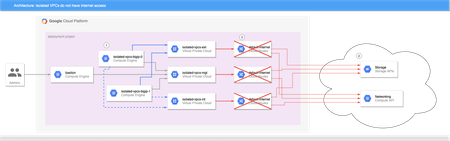
BIG-IP instances launched on Google Cloud Platform usually need access to the internet to retrieve extensions, install DO and AS3 declarations, and get to any other run-time assets pulled from public URLs during boot. This allows decoupling of BIG-IP releases from the library and extensions that enhance GCP deployments, and is generally a good thing. What if the BIG-IP doesn't have access to the Internet? Best practices for Google Cloud recommend that VMs are deployed with the minimal set of access requirements. For some that means that egress to the internet is restricted too: BIG-IP VMs do not have public IP addresses. A NAT Gateway or NATing VM is not present in the VPC. Default VPC network routes to the internet have been removed. If you have a private artifact repository available in the VPC, supporting libraries and onboarding resources could be added to there and retrieved during initialization as needed, or you could also create customized BIG-IP images that have the supporting libraries pre-installed (see BIG-IP image generator for details). Both those methods solve the problem of installing run-time components without internet access, but Cloud Failover Extension, AS3 Service Discovery, and Telemetry Streaming must be able to make calls to GCP APIs, but GCP APIs are presented as endpoints on the public internet. For example, Cloud Failover Extension will not function correctly out of the box when the BIG-IP instances are not able to reach the internet directly or via a NAT because the extension must have access to Storage APIs for shared-state persistence, and to Compute APIs to updates to network resources. If the BIG-IP is deployed without functioning routes to the internet, CFE cannot function as expected. Figure 1: BIG-IP VMs 1 cannot reach public API endpoints 2 because routes to internet 3 are removed Given that constraint, how can we make CFE work in truly isolated VPCs where internet access is prohibited? Private Google Access Enabling Private Google Access on each VPC subnet that may need to access Google Cloud APIs changes the underlying SDN so that the CIDRs for restricted.googleapis.com (or private.googleapis.com † ) will be routed without going through the internet. When combined with a private DNS zone which shadows all googleapis.com lookups to use the chosen protected endpoint range, the VPC networks effectively have access for all GCP APIs. The steps to do so are simple: Enable Private Google Access on each VPC subnet where a GCP API call may be sourced. Create a Cloud DNS private zone for googleapis.com that contains two records: CNAME for *.googleapis.com that responds with restricted.googleapis.com. A record for restricted.googleapis.com that resolves to each host in 199.36.153.4/30. Create a custom route on each VPC network for 199.36.153.4/30 with next-hop set for internet gateway. With this configuration in place, any VMs that are attached to the VPC networks that are associated with this private DNS zone will automatically try to use 199.36.153.4/30 endpoints for all GCP API calls without code changes, and the custom route will allow Private Google Access to function correctly. Automating with Terraform and Google Cloud Foundation Toolkit ‡ While you can perform the steps to enable private API access manually, it is always better to have a repeatable and reusable approach that can be automated as part of your infrastructure provisioning. My tool of choice for infrastructure automation is Hashicorp's Terraform, and Google's Cloud Foundation Toolkit, a set of Terraform modules that can create and configure GCP resources. By combining Google's modules with my own BIG-IP modules, we can build a repeatable solution for isolated VPC deployments; just change the variable definitions to deploy to development, testing/QA, and production. Cloud Failover Example Figure 2: Private Google Access 1 , custom DNS 2 , and custom routes 3 combine to enable API access 4 without public internet access A fully-functional example that builds out the infrastructure shown in figure 2 can be found in my GitHub repo f5-google-bigip-isolated-vpcs. When executed, Terraform will create three network VPCs that lack the default-internet egress route, but have a custom route defined to allow traffic to restricted.googleapis.com CIDR. A Cloud DNS private zone will be created to override wildcard googleapis.com lookups with restricted.googleapis.com, and the private zone will be enabled on all three VPC networks. A pair of BIG-IPs are instantiated with CFE enabled and configured to use a dedicated CFE bucket for state management. An IAP-enabled bastion host with tinyproxy allows for SSH and GUI access to the BIG-IPs (See the repo's README for full details on how to connect). Once logged in to the active BIG-IP, you can verify that the instances do not have access to the internet, and you can verify that CFE is functioning correctly by forcing the active instance to standby. Almost immediately you can see that the other BIG-IP instance has become the active instance. Notes † Private vs Restricted access GCP supports two protected endpoint options; private and restricted. Both allow access to GCP API endpoints without traversing the public internet, but restricted is integrated with VPC Service Controls. If you need access to a GCP API that is unsupported by VPC Service Controls, you can choose private access and change steps 2 and 3 above to use private.googleapis.com and 199.36.153.8/30 instead. ‡ Prefer Google Deployment Manager? My colleague Gert Wolfis has written a similar article that focuses on using GDM templates for BIG-IP deployment. You can find his article at https://devcentral.f5.com/s/articles/Deploy-BIG-IP-on-GCP-with-GDM-without-Internet-access.548Views1like0Comments