big-ip access policy manager (apm)
9457 Topics
Use F5 APM as Forward Proxy
Hello All, I have one BIG-IP with APM license and I wan to use it as a forward proxy. I have used this iApp https://devcentral.f5.com/codeshare/apm-explicit-proxy and now I have: DNS Resolver Tunnel for traffic HTTP profile Virtual Server (Proxy) listening on 8080 Although this is configured, when I point to this proxy with my browser it doesn’t seem to work. I suppose that now I have to create two more separate virtual servers listening on ports 80 and 443 for handling http and https traffic. Am I right? The question is once I have configured this two virtual servers how can I forward traffic to Internet? If the VS haven’t got pool members, does it check the routing table? Or I have to create an iRule with something like this: When HTTP::request { Forward } When HTTP::response { Forward } Also, I don’t want to inspect SSL traffic, I Would like to use the Proxy as a passthrough but only allow certain https sites, Do I need to inspect SSL traffic to filter by URLs? Thanks in advantageSolved417Views0likes2CommentsHitting the Easy Button: Securing the Remote Desktop on F5 BIG-IP APM
Being able to provide the most effective remote access solution is critical, especially in these turbulent times. In this article printed with permission from authors Lucas Thompson & Michael Waechter, we're going to talk about Remote Desktop Web Access. Solution Brief In short, it enables end-users to access their Remote Desktop applications through the F5 APM Webtop. The benefits of utilizing Remote Desktop Web Access over a desktop can be many. With the only requirement being a compatible web browser, Microsoft RDP application (comes installed with all modern versions of Windows), and a backend server hosting the applications… the solution speaks for itself. When the Full Webtop is displayed, APM will fetch a list of RemoteApps available on the target Terminal Server via HTTPS (using the Server SSL profile on the APM virtual server) and the associated icons. They will then be presented to the end user. The connection is done over HTTPS to the APM, and APM uses RDP (port 3389) to the Terminal Server. In the classic Terminal Server Desktop use case, the user is assigned a ‘native’ type RDP resource. This icon is presented to the user on a Full Webtop. Access is made by selecting the icon. A .RDP file is downloaded to the end user client PC, and the browser will activate the OS’s native RDP client to proceed with the connection. The connection is done over HTTPS to the APM, and APM uses RDP (port 3389) to the Terminal Server. Not only is the client setup simple, but the administration part of the equation is equally as easy to enable. I’m running version 14.1 (LTS) and here are a few screenshots of the setup. To enable the solution, let’s click on Access -> Connectivity/VPN Go ahead and choose VDI/RDP -> Remote Desktops Add the relative information. (Note: It’s always best to have the host name be a FQDN, and add this as a LTM node for health monitoring.) Technical Workflow The user clicks a resource icon on the Full Webtop, an RDP file is downloaded and then executed by the TS client on the user’s PC. The RemoteApp use case has a few differences versus targeting a desktop, or terminal server directly. In this case APM Will: Obtain a list of the RD feeds. The list of RDP App Resources will be derived from the RemoteApp feed. The list of icons will be delivered to the end user’s browser. The end user’s browser will request the icon pictures via a proxy mechanism in the VDI module. Because the RemoteApp feed comes through HTTPS and IIS on the Terminal Server, we have to make sure that: BIG-IP data plane can route to the Terminal Server. BIG-IP can create a HTTPS connection to Terminal Server. Terminal Server is rendering the page correctly. When you browse to it (https://terminalserver/rdweb/) you should see something like this: 2008: 2012: Authenticate with the same credentials that the test user uses in APM, and you should see an App Feed or desktop feed: Solution FAQ What kind of licenses are used for RDP access? APM has two license types: CCU and Access Session. Access Sessions are used for each established session ID. CCU are used for Network VPNs and other things that require more advanced features. Native Mode RDP does NOT use a CCU (connectivity) license. Only a single Access Session license will be consumed by a connecting user. What RDP options are supported? All of them. They’re basically echoed back to the client in the .RDP file. Put your desired parameter into the Custom Parameters area. It’s OK to use session variables in %{session.variable} format as well. RDP Custom Parameters configuration Lists of the RDP options have been compiled by 3rd parties, including the one at https://www.donkz.nl/overview-rdp-file-settings/ which is quite comprehensive. Please note that the following options are reserved for APM RDG use. If you attempt to apply these custom parameters, they will be ignored and/or overwritten by APM: Gatewayusagemethod Gatewayprofileusagemethod Gatewayhostname Gatewaycredentialssource Gatewayaccesstoken authentication level full address server port enablecredsspsupport signscope signature prompt for credentials on client domain username alternate full address gatewaybrokeringtype RDP Window Title The maximized window title for MSTSC inherits the target device name (not the RD gateway host). The medium-sized window title for MSTSC inherits the RDP filename (which is always “launch” -- see RFE 610244). One interesting thing that is possible is to internally-redirect the RDP session so that the client THINKS its connecting to one site, but then re-assign the remote host variable to a different site during the RAP access policy execution. RemoteApps It’s possible to create a lot of apps by using a PowerShell script on a RemoteApp-enabled terminal server. Client Requirements Microsoft Remote Desktop Client is supported for both Windows and Mac. Because the protocol used utilizes the Remote Desktop Gateway functionality, only newer RDP clients work. Legacy clients will likely not be able to create connections. iOS/Android The latest iOS / Android App Store RDP clients from Microsoft are supported. There might be some version conflicts, but for the most part the latest and greatest will work Reconnections / Disruptions Reconnections work the same as normal RDP If the user disconnects and reconnects, the session will be resumed. The client instructs the RD Gateway (APM) to again establish the session. The Remote Desktop session will be resumed also, the same way as with normal RDP. If the session is deleted or timed out or otherwise destroyed, the connection will stop, RDP will try to reconnect, but it will fail, and you will see this message from the MSTSC client.4.8KViews3likes1Commentv11: RDP Access via BIG-IP APM - Part 1
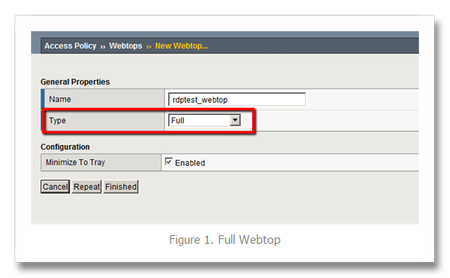
I wrote an article several months back on auto-launching Remote Desktop sessions with APM. With the introduction of BIG-IP APM v11, there is a new built-in capability to support a full webtop. This means that server, desktop, or other resources can be placed on the webtop for users to select once logging in. In this first example, I’ll set up a static internal resource for users to connect to after logging in. Create the Webtop After logging in to the BIG-IP, open up the Access Policy tab and select Webtops->Webtop List and then click Create (or you can hit the “+” circled to the right of the Webtop List.) Give the Webtop a meaningful name and the type needs to be Full as show in Figure 1. Create the RDP Resource Still in the Access Policy tab, click Application Access->Remote Desktops->Remote Desktops and then click Create. There are a number of fields here, but for this example the only ones that need to be set are the Type (RDP), the Destination (Server or Desktop hostname or IP), and Auto Logon (Enable). When Auto Logon is selected, the username, password, and domain source variable fields are shown. I accepted the defaults. Create the Access Policy Now that the two custom objects for the RDP Webtop are created, I’ll create the access policy (and virtuals) with the Network Access Setup Wizard for Remote Access under the Wizards tab. I create all my access policies this way, the wizard is very thorough and eliminates my tendency to overlook an object or misconfigure one, not to mention the time savings. In the first screen, I disabled AV checks (though in production I wouldn’t recommend this) as shown in Figure 3 below. Next I create a new authentication resource (you can select existing if this is not a new installation), utilizing my test active directory server. Next I configure the lease pool. It’s just me in my test lab, so I only create a single client address, but you’ll likely need to choose the IP address range. The next step is for network access configuration. Corporate policies will dictate whether all traffic is forced through the tunnel or if split-tunneling is appropriate. For this example, I stuck with forcing all traffic through the tunnel to minimize the necessary configuration to show the features. I only have one name server, my ad01 directory server, so I enter that and leave the rest blank. Next I’ll enter the VIP address and leave the http->https redirect virtual enabled. At this point, I review the configuration and click next. If there are any errors, you can return to previous steps in the wizard and make corrections. Before clicking Finished in the next screen, I need to edit the access policy. Once in the policy editor, click on the Logon Page object and set Field 3 from none to text and use domain as the post and session variable name. Then below in the Logon Page Input Field #3 text box, enter Domain. Next, click on the Resource Assign object and then click Add/Delete in the expression. I need to replace the webtop the network access wizard created and I need to select the RDP Resource I created. Close out the policy and then click Finished in the Setup Summary screen. For my configuration I need to snat the traffic, so I enabled snat-automap on the virtual created by the wizard. Because I made changes to the policy, I need to re-apply it, so in the Access Policy tab I clicked on Access Profiles and then selected my profile and clicked Apply Access Policy. That completes the configuration steps. Now it’s time to test. Testing the Configuration First I open a browser and navigate to my vip, https://10.10.20.30. After login, my RDP resource is shown on my Webtop, along with my network access. After clicking the rdptest icon, I am logged in automatically to my server. It seems like a lot of steps, but I configured this in less than five minutes, which is far more efficient and far less error-prone than the previous solution. The video below shares the same steps covered here in screen captures. BIG-IP APM RDP Webtop Conclusion This solution introduces a full Webtop environment for BIG-IP APM in version 11, which I took advantage of for statically configuring RDP resources for clients. In part 2, I’ll introduce a dynamic option for the RDP resource.778Views0likes8CommentsLeverage F5 BIG-IP APM and Azure AD Conditional Access Easy button
Integrating F5 BIG-IP APM’s Identity Aware Proxy (IAP) with Microsoft EntraID (Previously called AzureAD) Conditional Access enables fine-grained, adaptable, zero trust access to any application, regardless of location and authentication method, with continuous monitoring and verification. 2.4KViews1like2Comments
Newbie - Building APM University Module 1 Issues
Hi All, So I've built a lab to test APM, and i seem to have a issue running up the login page. So i've got the same visual policy as the example but when i load the page up the URL goes to a logout page with a errorcode=19 http://192.168.XXX.YYY/my.logout.php3?errorcode=19 And the page never shows a login user and password page it goes straight to the below text. Your session could not be established. BIG-IP can not find session information in the request. This can happen because your browser restarted after an add-on was installed. If this occurred, click the link below to continue. This can also happen because cookies are disabled in your browser. If so, enable cookies in your browser and start a new session. The browser can take cookies, so something else isn't quite right! Any ideas on where i start to debug this please? Interestingly i blamed the AD creds or config so i found the adtest cli comment, it doesn't like my passwords, and every time it runs it starts the config utility! Any thoughts? Thanks Pete438Views0likes4Comments
F5 Access Guard Deprecated: ZTA APM
Since F5 Access Guard is deprecated and not supported on Win 11, newer browsers, and some versions of MacOS, what is the replacement for posture checking when implementing a ZeroTrust architecture using APM as an identify aware proxy? One major point of ZT is to do continuous posture checking of a client and the requests they are making--each and every one utilizing a per-request policiy. Without this component, it seems like APM is not a great candidate for use. What are others doing when using APM within their ZT network? Are they using 3rd part solutions with an HTTP connector to evaluate to client/request for each and every request?331Views0likes3Comments
How to Apply Existing Attack Signaturue Set to an ASM Policy using iControl REST API
Hello, I am trying to use the iControl REST API interface in order to automatically and programmatically apply attack signature sets to all of our ASM Policies defined on our 11.6 device. Following the REST User Guide, I saw that it was possible to create new resources for a given policy (there was an example using /mgmt/tm/asm/policies/MD5HASH/urls as the resource endpoint) and so I tried extending the same principle to /mgmt/tm/asm/policies/MD5HASH/signature-sets , as that appears to be the most appropriate endpoint in order to apply defined signatures-sets to policies To illustrate further, issuing a GET request for signature-sets already applied to one of my ASM policies, I get the following as a response: {"selfLink": "https://localhost/mgmt/tm/asm/policies/tWE3e4F2jlpKH22mCw0I0Q/signature-sets", "kind": "tm:asm:policies:signature-sets:signature-setcollectionstate", "totalItems": 1, "items": [ { "learn": false, "kind": "tm:asm:policies:signature-sets:signature-setstate", "alarm": true, "signatureSetReference": {"link": "https://localhost/mgmt/tm/asm/signature-sets/2ODl_CpPYisXJvG_0bmcEA"}, "selfLink": "https://localhost/mgmt/tm/asm/policies/tWE3e4F2jlpKH22mCw0I0Q/signature-sets/GLKMhVlZQFNsMbMRD1EtkQ", "id": "GLKMhVlZQFNsMbMRD1EtkQ", "block": false}]} Based off the key/value pairs on display here, I extrapolated and structured my JSON POST payload as follows to try and add a different existing signature set to the same policy as above -- I deduced that "signatureSet" is the only required JSON key to add here based off the error output that I've been receiving from the REST API and the above signature-set payload: { "signatureSet": "iZvFXdIDR8lEbUdSWttwPQ" } However, I keep getting a 500 error from the REST API stating the following error message error_message:Could not parse/validate the Policy Signature Set. Can\'t use string ("iZvFXdIDR8lEbUdSWttwPQ") as a HASH ref while "strict refs" in use. I don't quite understand what I'm doing wrong here -- is the signature set ID value not the appropriate value to provide here? The REST API Guide hasn't been too helpful as it does not provide signature-set POST sample requests. Appreciate any help and clarification here! Thanks!454Views1like3CommentsAPM SSO Between NTLM and Forms Based
HI All, I’ve been struggling to get this working and could use some insight. Here’s my setup: I have three applications under the same mycompany.com domain, each with its own virtual server and access policy, all in the same partition. All three currently use NTLM v2 authentication on the application side. Two of them (APP1 and APP2) have full LTM+APM policies with login pages and AD authentication. The third (APP3) uses SSO only. Right now, they all share the same NTLM SSO profile, and everything runs perfectly. To access APP3, if there’s no active APM session, the user is redirected to APP1, logs in there, and then clicks a link to reach APP3 without reauthenticating. Now, APP3 (which is SSO-only) is switching from NTLM to forms-based authentication. For my proof of concept, I replaced the NTLM SSO profile in APP3’s AP policy with a forms SSO profile. However, I can’t get the login to APP3 to work. Instead of getting logged in to the application I get forms authentication page presented to me. In fact, APP3’s web server logs don’t even show any POST requests from APM attempting to submit credentials. APM log does not seem to reveal anything in debug mode. It only shown APP1 access policy being processed but the second you click on the app it records nothing SSO related. Any advice is greatly appreciated. Thanks, Alex148Views1like4Comments
Kerberos SSO failed for Microsoft Remote Desktop Services
I’m trying to setup Kerberos SSO for Remote Desktop using smartcard and the SSO is not working. After authenticated via F5 against LDAP server and validated, I see icons populated from MS Remote Desktop Web Access, however when I clicked on the icons, it prompted for AD username/password. I know the Kerberos is working because I can see it’s obtained Kerberos tickets in the logs. S4U ======> OK! So I know the Kerberos is working but not able to provide SSO. F5 APM v13 Microsoft Windows 2016; MS RDS Web Access For Remote Desktop profile, I enabled both Single Sign-on and Standalone Client Settings. Any idea?749Views1like3Comments