gslb
25 TopicsUsing Distributed Cloud DNS Load Balancer with Geo-Proximity and failover scenarios
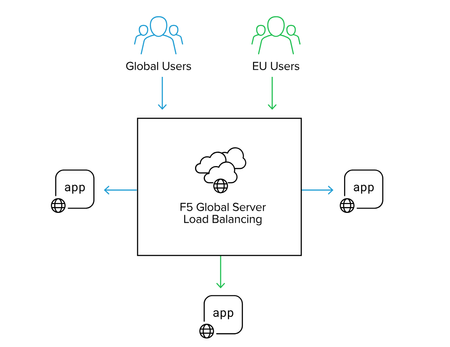
Introduction To have both high performance and responsive apps available on the Internet, you need a cloud DNS that’s both scalable and one that operates at a global level to effectively connect users to the nearest point of presence. The F5 Distributed Cloud DNS Load Balancer positions the best features used with GSLB DNS to enable the delivery of hybrid and multi-cloud applications with compute positioned right at the edge, closest to users. With Global Server Load Balancing (GSLB) features available in a cloud-based SaaS format, the Distributed Cloud DNS Load Balancer has a number distinct advantages: Speed and simplicity: Integrate with DevOps pipelines, with an automation focus and a rich and intuitive user interface Flexibility and scale: Global auto-scale keeps up with demand as the number of apps increases and traffic patterns change Security: Built-in DDoS protection, automatic failover, and DNSSEC features help ensure your apps are effectively protected. Disaster recovery: With automatic detection of site failures, apps dynamically fail over to individual recovery-designated locations without intervention. Adding user-location proximity policies to DNS load balancing rules allows the steering of users to specific instances of an app. This not only improves the overall experience but it guarantees and safeguards data, effectively silo’ing user data keeping it region-specific. In the case of disaster recovery, catch-all rules can be created to send users to alternate destinations where restrictions to data don’t apply. Integrated Solution This solution uses a cloud-based Distributed Cloud DNS to load balance traffic to VIP’s that connect to region-specific pools of servers. When data privacy isn’t a requirement, catch-all rules can further distribute traffic should a preferred pool of origin servers become unhealthy or unreachable. The following solution covers the following three DNS LB scenarios: Geo-IP Proximity Active/Standby failover within a region Disaster Recovery for manually activated failovers Autonomous System Number (ASN) Lists Fallback pool for automated failovers The configuration for this solution assumes the following: The app is in multiple regions Users are from different regions Distributed Cloud hosts/manages/is delegated the DNS domain or subdomain (optional) Failover to another region is allowed Prerequisite Steps Distributed Cloud must be providing primary DNS for the domain. Your domain must be registered with a public domain name registrar with the nameservers ns1.f5clouddns.com and ns2.f5clouddns.com. F5 XC automatically validates the domain registration when configured to be the primary nameserver. Navigate to DNS Management > domain > Manage Configuration > Edit Configuration >> DNS Zone Configuration: Primary DNZ Configuration > Edit Configuration. Select “Add Item”, with Record Set type “DNS Load Balancer” Enter the Record Name and then select Add Item to create a new load balancer record. This opens the submenu to create DNS Load Balancer rules. DNS LB for Geo-Proximity Name the rule “app-dns-rule” then go to Load Balancing Rules > Configure. Select “Add Item” then under the Load Balancing Rule, within the default Geo Location Selection, expand the “Selector Expression” and select “geoip.ves.io/continent”. Select Operator “In” and then the value “EU”. Click Apply. Under the Action “Use DNS Load Balancer pool”, click “Add Item”. Name the pool “eu-pool”, and under Pool Type (A) > Pool Members, click “Add Item”. Enter a “Public IP”, then click “Apply”. Repeat this process to have a second IP Endpoint in the pool. Scroll down to Load Balancing Method and select “Static-Persist”. Now click Continue, and then Apply to the Load Balancing Rule, and then “Add Item” to add a second rule. In the new rule, choose Geo Location Selection value “Geo Location Set selector”, and use the default “system/global-users”. Click “Add Item”. Name this new pool “global-pool” and add then select “Add Item” with the following pool member: 54.208.44.177. Change the Load Balancing Mode to “Static-Persist”, then click Continue. Click “Continue”. Now set the Load Balancing Rule Score to 90. This allows the first load balancing rule, specific to EU users, to be returned as the only answer for users of that region unless the regional servers are unhealthy. Note: The rule with the highest score is returned. When two or more rules match and have the same score, answers for each rule is returned. Although there are legitimate reasons for doing this, matching more than one rule with the same score may provide an unanticipated outcome. Now click "Apply", “Apply”, and “Continue”. Click the final “Apply” to create the new DNS Zone Resource Record Set. Now click “Apply” to the DNS Zone configuration to commit the new Resource Record. Click “Save and Exit” to finalize everything and complete the DNS Zone configuration! To view the status of the services that were just created, navigate to DNS Management > Overview > DNS Load Balancers > app-dns-rule. Clicking on the rule “eu-pool”, you can find the status for each individual IP endpoint, showing the overall health of each pool’s service that has been configured. With the DNS Load Balancing rule configured to connect two separate regions, when one of the primary sites goes down in the eu-pool users will instead be directed to the global-pool. This provides reliability in the context of site failover that spans regions. If data privacy is also a requirement, additional rules can be configured to support more sites in the same region. DNS LB for Active-Passive Sites In the previous scenario, two members are configured to be equally active for a single location. We can change the weight of the pool members so that of the two only one is used when the other is unhealthy or disabled. This creates a backup/passive scenario within a region. Navigate to DNS Load Balancer Management > DNS Load Balancers. Go to the service name "app-dns-rule", then under Actions, select Manage Configuration. Click Edit Configuration for the DNS rule. Go to the Load Balancing Rules section, and Edit Configuration. On the Load Balancing Rules order menu, go to Actions > Edit for the eu-pool Rule Action. In the Load Balancing Rule menu for eu-pool, under the section Action, click Edit Configuration. In the rule for eu-pool, under Pool Type (A) > Pool Members click the Edit action In the IP Endpoint section, change the Load Balancing Priority to 1, then click Apply. Change the Load Balancing Mode to Priority, then exit and save all changes by clicking Continue, Apply, Apply, and then Save and Exit. DNS LB for Disaster Recovery Unlike with backup/standby where failover can happen automatically depending on the status of a service's health, disaster recovery (DR) can either happen automatically or be configured to require manual intervention. In the following two scenarios, I'll show how to configure manual DR failover within a region, and also how to manual failover outside the region. To support east/west manual DR failover within the EU region, use the steps above to create a new Load Balancing Rule with the same label selector as the EU rule (eu-pool) above, then create a new DNS LB pool (name it something like eu-dr-pool) and add new designated DR IP pool endpoints. Change the DR Load Balancing Rule Score to 80, and then click Apply. On the Load Balanacing Rules page, change the order of the rules and confirm that the score is such that it aligns to the following image, then click Apply, and then Save and Exit. In the previous active/standby scenario the Global rule functions as a backup for EU users when all sites in EU are down. To force a non-regional failover, you can change F5 XC DNS to send all EU users to the Global DNS rule by disabling each of the two EU DNS rule(s) above. To disable the EU DNS rules, Navigate to DNS Load Balancer Management > DNS Load Balancers, and then under Actions, select Manage Configuration. Click Edit Configuration for the DNS rule. Go to the Load Balancing Rules section, and Edit Configuration. On the Load Balancing Rules order menu, go to Actions > Edit for the eu-pool Rule Action. In the Load Balance Rule menu for eu-pool, under the section Action, click Edit Configuration. In the top section labeled Metadata, check the box to Disable the rule. Then click Continue, Apply, Apply, and then Save and Exit. With the EU DNS LB rules disabled, all requests in the EU region are served by the Global Pool. When it's time to restore regional services, all that's needed is to re-enter the configuration rule and uncheck the Disable box to each rule. DNS LB with ASN Lists ASN stands for Autonomous System Number. It is a unique identifier assigned to networks on the internet that operate under a single administration or entity. By mapping IP addresses to their corresponding ASN, DNS LB administrators can manage some traffic more effectively. To configure Distributed Cloud DNS LB to use ASN lists, navigate to DNS Management > DNS Load Balancer Management, then "Managed Configuration" for a DNS LB service. Choose "Add Item", and on the next page, select "ASN List", and enter one or more ASN's that apply to this rule, select a DNS LB pool, and optionally configure the score (weight). When the same ASN exists in multiple DNS LB rules, the rule having the highest score is used. Note: F5 XC uses ASPlain (4-byte) formatted AS numbers. Multiple numbers are configured one per item line. DNS LB with IP Prefix Lists and IP Prefix Sets Intermediate DNS servers are almost always involved in server name resolution. By default, DNS LB doesn't see originating IP address or subnet prefix of the client making the DNS request. To improve the effectiveness of DNS-based services like DNS LB by making more informed decisions about which server will be the closest to the client, RFC 7871 proposes a solution using the EDNS0 field to allow intermediate DNS servers to add to the DNS request the client subnet (EDNS Client Subnet or EDS). The IP Prefix List and IP Prefix Set in F5 XC DNS is used when DNS requests contain the client subnet and the prefix is within one of the prefixed defined in one or more DNS LB rule sets. To configure an IP Prefix rule, navigate to DNS Management > DNS Load Balancer Management, then "Manage Configuration" of your DNS LB service. Now click "Edit Configuration" at the top left corner, then "Edit Configuration" in the section dedicated to Load Balancing Rules. Inside the section for Load Balancing Rules, click "Add Item" and in the Client Selection box choose either "IP Prefix List" or "IP Prefix Sets" from the menu. For IP Prefix List, enter the IPv4 CIDR prefix, one prefix per line. For IP Prefix Sets, you have the option of choosing whether to use a pre-existing set created in the Shared Configuration space in your tenant or you can Add Item to create a completely new set. ::rt-arrow:: Note: IP Prefix Sets are intended to be part of much larger groups of IP CIDR block prefixes and are used for additional features in F5 XC, such as in L7 WAF and L3 Network Firewall access lists. IP Prefix Sets support the use of both IPv4 and IPv6 CIDR blocks. In the following example, the configured IP Prefix rule having client subnet 192.168.1.0/24 get an answer to our eu-dr-pool (1.1.1.1). Meanwhile, a request not having a client subnet in the defined prefix and is also outside of the EU region, get an answer for the pool global-poolx (54.208.44.177). Command line: ; <<>> DiG 9.10.6 <<>> @ns1.f5clouddns.com www.f5-cloud-demo.com +subnet=1.2.3.0/24 in a ; (1 server found) ;; global options: +cmd ;; Got answer: ;; ->>HEADER<<- opcode: QUERY, status: NOERROR, id: 44218 ;; flags: qr aa rd; QUERY: 1, ANSWER: 1, AUTHORITY: 0, ADDITIONAL: 1 ;; WARNING: recursion requested but not available ;; OPT PSEUDOSECTION: ; EDNS: version: 0, flags:; udp: 4096 ; CLIENT-SUBNET: 1.2.3.0/24/0 ;; QUESTION SECTION: ;www.f5-cloud-demo.com. IN A ;; ANSWER SECTION: www.f5-cloud-demo.com. 30 IN A 54.208.44.177 ;; Query time: 73 msec ;; SERVER: 107.162.234.197#53(107.162.234.197) ;; WHEN: Wed Jun 05 21:46:04 PDT 2024 ;; MSG SIZE rcvd: 77 ; <<>> DiG 9.10.6 <<>> @ns1.f5clouddns.com www.f5-cloud-demo.com +subnet=192.168.1.0/24 in a ; (1 server found) ;; global options: +cmd ;; Got answer: ;; ->>HEADER<<- opcode: QUERY, status: NOERROR, id: 48622 ;; flags: qr aa rd; QUERY: 1, ANSWER: 1, AUTHORITY: 0, ADDITIONAL: 1 ;; WARNING: recursion requested but not available ;; OPT PSEUDOSECTION: ; EDNS: version: 0, flags:; udp: 4096 ; CLIENT-SUBNET: 192.168.1.0/24/0 ;; QUESTION SECTION: ;www.f5-cloud-demo.com. IN A ;; ANSWER SECTION: www.f5-cloud-demo.com. 30 IN A 1.1.1.1 ;; Query time: 79 msec ;; SERVER: 107.162.234.197#53(107.162.234.197) ;; WHEN: Wed Jun 05 21:46:50 PDT 2024 ;; MSG SIZE rcvd: 77 Here we're able to see that a different answer is given based on the client-subnet provided in the DNS request. Additional use-cases apply. The ability to make a DNS LB decision with a client subnet improves ability of the F5 XC nameservers to deliver an optimal response. DNS LB Fallback Pool (Failsafe) The scenarios above illustrate how to designate alternate pools both regional and global when an individual pool fails. However, in the event of a catastrophic failure that brings all service pools are down, F5 XC provides one final mechanism, the fallback pool. Ideally, when implemented, the fallback pool should be independent from all existing pool-related infrastructure and services to deliver a failsafe service. To configure the Fallback Pool, navigate to DNS Management > DNS Load Balancer Management, then "Managed Configuration" of your DNS LB service. Click "Edit Configuration", navigate to the "Fallback Pool" box and choose an existing pool. If no qualified pool exists, the option is available to add a new pool. In my case, I've desginated "global-poolx" as my failsafe fallback pool which already functions as a regional backup. Best practice for the fallback pool is that it should be a pool not referenced elsewhere in the DNSLB configuration, a pool that exists on completely independent resources not regionally-bound. DNS LB Health Checks and Observability For sake of simplicity the above scenarios do not have DNS LB health checks configured and it's assumed that each pool's IP members are always reachable and healthy. My next article shows how to configure health checks to enable automatic failovers and ensure that users always reach a working server. Conclusion Using the Distributed Cloud DNS Load Balancer enables better performance of your apps while also providing greater uptime. With scaling and security automatically built into the service, responding to large volumes of queries without manual intervention is seamless. Layers of security deliver protection and automatic failover. Built-in DDoS protection, DNSSEC, and more make the Distributed Cloud DNS Load Balancer an ideal do-it-all GSLB distributor for multi-cloud and hybrid apps. To see a walkthrough where I configure first scenario above for Geo-IP proximity, watch the following accompanying video. Additional Resources Next article: Using Distributed Cloud DNS Load Balancer health checks and DNS observability More information about Distributed Cloud DNS Load Balancer available at: https://www.f5.com/cloud/products/dns-load-balancer Product Documentation: DNS LB Product Documentation DNS Zone Management8KViews4likes0CommentsMinIO AIStor and F5 BIG-IP DNS – Globally steer and replicate your S3 object storage
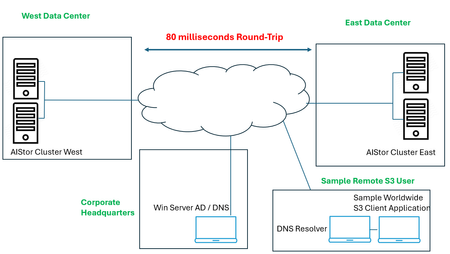
A set of two complementary technologies were set out to be assessed, the first being MinIO’s active-active replication, which serves to keep buckets in sync across wide areas. This is more than object copying. It fully includes replication of delete operations, delete markers, existing objects, and replica metadata changes. As discussed in this blog, the ability exists to configure this across two or more sites, in interesting approaches like two data centers in one metro market all the way to a larger set spanning a continent; all are in play. As the blog indicates, the deliverable solution can be for multi-primary topologies, fast hot-hot failover, and multi-geo resiliency. The second technology, F5 BIG-IP DNS and LTM modules, can impose control over the path to these active-active scenarios. The ambitious requirements surrounding global server load balancing (or GSLB, for short) is directly in BIG-IP’s wheelhouse. The fully qualified domain names (FQDN) of vast sets of S3 buckets can now be put under the purview of BIG-IP. S3 users might be delivered to data centers filled with MinIO AIStor clusters using a simple round-robin approach, or perhaps a strategy where one data center is considered live, while another is ready for a hot standby switchover, in the event that network impairments arise. This is only the start of the possibilities. What about a strategy where topological knowledge is unleashed, say American users in the Atlanta region are steered to an east coast MinIO data center, say New York City, while all bucket data is immediately then synchronized to a west coast data center, perhaps in Los Angeles? A lab setup for learning All of the geographic traffic steering capabilities can become a rabbit hole, the only limiting factor is often the imagination of the solution architect. Take one final suggested and sequenced approach, first topology is used based upon the source addresses of incoming DNS queries. The idea could be to steer user traffic to “pools” of data centers on a continental -basis: traffic from users in North America is first filtered to a North American picklist of sites, Europeans to EMEA locations, perhaps Asian users to Asia Pac data centers. Things then get really interesting at the next layer, although again topology can be leaned on, BIG-IP DNS can also be instructed to slowly poll users’ local DNS resolvers over time, such that future requests for service from, say, Atlanta as an example, again, would receive a solution which knows that the round-trip response times from New York are actually and demonstrably quicker than Los Angeles and result in that being the first criteria used to steer S3 to its optimal data center cluster. The following was the objective of the lab’s setup, a two cluster AIStor solution, multiple 4-disk AIStors in each data center’s cluster. Although replication can be synchronous or asynchronous, the latter is a better fit in cases where distance between participating data centers is significant. To introduce latency reflective of North American coast-to-coast normal values, WAN latency was emulated in the lab and an asynchronous replication between buckets was selected. A key take away from the diagram is the administration component, the so called “Corporate Headquarters” and the fact that it is not collocated with storage. It does however, have authoritative control over DNS domains in use. Also, note the sample S3 consumers may be located anywhere, and latency to each data center will be unique. The MinIO AIStor active-active setup in a nutshell The MinIO blog post referenced earlier takes a user through an easy-to-follow GUI-based approach to setting up the clusters for replication, however the command-line mcli approach is also valid. The MinIO documentation site can be found here and covers the replication topic in general. The key takeaways for anyone standing up an environment like that described in this article: The bare minimum for erasure coding, a foundational part of MinIO’s data resiliency story, is 4 drives. I have used 2 servers with 4 drives, for 8 drives, per site. Ample bandwidth between sites, in my lab I have 100 Mbps between emulated sites. Buckets to be included in an active-active replication approach must have both versioning and object-locking enabled when creating them, matching identical buckets and permissions should be set up at all other participating data centers. In this lab setup, the fictious organization is byteboutique.io, a distributed organization with MinIO storage in multiple locations, allowing B2B partners to access via S3 buckets line of business material such as “datasheets”, “product-videos” and “sales-orders-inventory”. When creating the buckets with the AIStor GUI, such as for a new bucket “sales-reports”, simply ensure versioning and object-lock are requested. Versioning allows objects touched at one location to be kept in sync with the versions accessible at all locations, even deleted objects are simply versioned and retained under the hood for future usage. Once this is performed at the clusters in each participating site, the next step is quite straightforward. Simply group select the buckets in question and feed AIStor the information about the desired replication. The last step, after pressing the button above, is to set up the replication parameters to initiate communications with the other AIStor site in the lab. At this point, objects delivered into either site’s buckets, using perhaps graphical tools like S3browser, will be replicated to the same bucket in other data centers. The next requirement is how can we use the F5 technology to provide a universal naming convention, as both humans and business automated routines prefer DNS names over static IP addresses. We want an S3 application to write to byteboutique.io’s buckets with knowledge that the content will go to one MinIO site, any site. It could even be done in a round-robin manner. The beauty of the active-active angle is that the automated backend replication work is shielded from the user. Beyond this, we can take things one step further and have the BIG-IP use context such as source IP awareness or on-going network response measurements to guide that S3 traffic to the best possible landing site. Global load balancing S3 traffic with BIG-IP DNS and LTM – infrastructure setup We can adjust our diagram to introduce the two F5 components required to meet the lab objectives. Each emulated data center will have one BIG-IP, as a minimum these appliances will have the local traffic manager (LTM) module licensed. LTM allows incoming S3 transactions to be load balanced per selected algorithm to AIStor nodes local to that site. The “least connections” algorithm is a popular choice for heavy S3 traffic flow. The received S3 traffic will be both new, user-initiated requests as well as traffic generated by AIStor clusters themselves to achieve a perpetually replicated state amongst sites. The other component to be licensed is the DNS module. This will allow global traffic steering and need not be on all BIG-IP appliances. It can co-habitate nicely with the LTM module, so perhaps some data center-housed BIG-IPs will use it, as well as BIG-IP appliances that might already exist in other areas, such as in a corporate headquarters. The minimum number of BIG-IP DNS appliances is two, but for production more would be recommended. In our lab setup, the headquarters Windows server is the authoritative DNS server for our fictious byteboutique.io domain. What we can quickly do is delegate control over the sub-domain corp.byteboutique.io to our BIG-IP DNS appliances. In other words, we will create DNS Name Server (NS) resource records for the “corp” sub-domain which point to the BIG-IPs. This is the critical cog in the wheel. All S3 accessible buckets will use DNS names below corp and are thus fully under the control of the BIG-IP administrator. Other approaches that can retain existing domain names and put them under the control of BIG-IP DNS would include using CNAME DNS resource records. In the following image, we see that the delegated corp domain has NS resource records added, and that looking at the main byteboutique.io resource records, there are A resource records pointing to IP addresses dedicated to DNS on both the HQ and East data center BIG-IPs (30.0.0.12 and 40.0.0.12). We are halfway home. Now we just need to see the key parameters of a BIG-IP DNS configuration. There is both regular F5 documentation on the DNS solution here and also a very handy lab guide here that graphically provides every step towards a sample classroom set up. To simply hit on the main tasks, the BIG-IP DNS appliances must be set to join a common DNS “group”, the name “F5DEMO_group” is used in the following lab setup screenshot. This means BIG-IPs in the DNS group can share content like zone files and collectively control where S3 traffic lands. The impactful part to you? After joining the BIG-IP DNS appliances with the “gtm_add” command, you will only ever need to create new FQDN values (such as an S3 service at name storage.corp.byteboutique.io) on just one BIG-IP DNS and all others in the group will be adjusted accordingly behind the scenes. Phew. So, with DNS administration, just set it and forget it on any BIG-IP member of your choice. Beneath the surface, F5’s iQuery protocol is in play to keep DNS members coordinated automatically. The only other command-line task in this whole endeavor is to issue “bigip_add” at each appliance, LTM, DNS, or LTM/DNS. This will let the device’s certificates be trusted by other appliance peers and allow secure communications between each. The next task is to create logical holding entities for our locations, simply and intuitively called “Data Centers”. As such, we will need entries for our diagram’s east site, west site, and headquarters. The last step of this one-time infrastructure setup phase is to add “servers” at each site. These correspond to all BIG-IP appliances, including LTM only appliances, which serve to load balance to AIStor nodes. The nice part, you ask? A discovery feature includes all the currently configured virtual servers at each site, so the task is simply adding to the server list and choosing a health check to be run in the background. Here is our server list. Notice the virtual server count has been populated, including the hq site which being licensed only for the DNS module, understandably has no virtual servers. Tying it all together - modern traffic steering for MinIO S3 buckets with F5 BIG-IP Before answering the age-old question, what precisely is a “Wide IP” anyways, let us settle on some term clarity first. For anyone with a background in BIG-IP LTM, or any on-prem load balancer, a pool normally means a set of local origin servers “behind” the load balancer. These might be Linux appliances with Nginx webservers, Windows-based server applications based around IIS, or in our case, MinIO AIStor servers offering S3 API-compatible object storage services. In the world of GSLB there are actually two tiers of pools, the first tier of pool allows groups of data centers, not individual origin servers, to be selected by one of the many available algorithms. Consider this as an example, when first selecting a pool for a mock web application, named myapp.global.example.com. In the above example, created purely for illustration, incoming requests for the domain name myapp.global.example.com would be round robin directed to either data centers in the Americas, or Asia or Europe regions. In reality, a topology-based load balancing method, not round robin, would likely be invoked in the top “Load Balancing Method” pull down. The key point is to highlight that each region might have a half dozen data centers, or more, each equipped with BIG-IP virtual servers ready to handle application traffic delivered there. This is a very reasonable first pool-level approach you might use, and the FQDN in the example (myapp.global.example.com) is referred to as a “Wide IP”. A Wide IP, or WIP for short, is an F5 DNS construct that maps names to pools first, and then to individual sites (housing virtual servers) second. In our lab, our Wide IP to get S3 transactions to MinIO AIStor nodes, is “storage.corp.byteboutique.io”. We can see we have just one pool, as denoted by the arrow. Perhaps think of this as a North America-only scenario, but a solution that is ready to be rolled out internationally when byteboutique really takes off and expands to the world. Drilling down by clicking on our WIP, we see the one pool, and observe two “members”, meaning two virtual servers are associated to this pool. This is a quick shorthand count of sorts, we know we are looking at a solution where the WIP resolves to one of two possible MinIO-equipped data centers. Interestingly, since our lab is using one pool, the actual load balancing method at this layer is moot. Round robin is seen in the above screenshot however any other mechanism of selecting from a pool set of one will, of course, not be impactful. However, by clicking onto the pool itself, we get to the heart of the actual decision-making logic in our lab setup. The following screen will dictate what IP address, meaning what site’s S3 virtual server IP address, will be delivered to a client’s local DNS resolver upon request (double-click to enlarge). We see that the two sites of our lab, east and west, are both represented in the virtual server “Member” list of our pool. The status is green, as both virtual servers are, within the two respective data centers, evaluating perpetually that the AIStor servers for in good (green) health. This is a subtle but powerful feature of BIG-IP GSLB versus normal DNS, we can see “behind” the load balancer in our two sites and ensure traffic will never be sent to a site that is having issues communicating with a sufficient number of backend S3 nodes. Perhaps you will want to think of this as "intelligent" DNS. The other major takeaway is the load balancing logic. This is a simple, perhaps “fast start” approach. We are using a static round-robin algorithm, when DNS A resource record (RR) requests are delivered to either BIG-IP DNS appliance, since they are authoritative for *.corp.byteboutique.io, the IPs of the two virtual servers will be utilized in responses, in a round robin manner. DNS has time to live (TTL) values in responses, so any local DNS resolver is sure to ask again over time, and generally, unless we choose persistence, our solution will serve each virtual server equally over time. Tiered traffic steering logic - dynamic load balancing A common design approach is to have a dynamic load balancing approach as “Preferred” and a more foolproof static approach as the alternate. You can see the tiered load balancing strategies of preferred, alternate and fallback in the previous screenshot. A good example is the idea of Round Trip Time, a dynamic attempt to measure latency from both potential data centers to the local DNS resolver. Generally, this favors the outcome that the DNS A resource record response for storage.corp.byteboutique.io will be the “closer” data center. Perhaps if network conditions and network media are alike, a user in Atlanta will be steered to AIStor clusters in New York, as opposed to Los Angeles, due to terrestrial propagation delays of crossing a continent. The “Alternate” option is best served by a static approach. In case the polling of a local DNS server is not yet in place or not properly working due to firewalls, a static choice like Round Robin can be used as the alternate. A common static approach is to use “Topology”, examine the source IP of an S3 client’s local DNS resolver and use IP network connectivity knowledge to deduce which of the two data centers is likely fewer IP network hops away. A couple of last notes on this past screenshot, what exactly is the Fallback IP for? In our scenario, it is possible that both active round trip measurements and static source IP analysis fail to come to a best data center choice. This is where Fallback comes into play. In my example, I have the IP address of the “East” data center S3 virtual server hardcoded as the Fallback (40.0.0.100). This gives our solution the assurance that a completely valid answer, even if not the optimal answer, will always be available from DNS. Also, you may note that we talk in terms of the client’s local DNS resolver source IP address, why not the source address of the user itself? This is the nature of DNS. Clients do not normally recursively engage with the global DNS infrastructure, that role is deferred to a configured DNS resolver. There is often no issue with this, if the S3 consumer is an office-bound application server itself, reading and writing to MinIO S3 storage. The local DNS resolver is very likely co-located. There are scenarios where a DNS resolver is not collocated. Think of a split tunnel VPN connection and you are using a vendor's global S3 services; your laptop’s corporate (VPN) DNS service may engage the world from another state or country, but the resulting S3 traffic may flow directly from the S3 cluster to your actual location with split tunneling. In such cases, workarounds exist with BIG-IP DNS, such as the use of the EDNS0 option, which strives to carry actual client source IP information into the DNS realm. A quick test of our AIStor and BIG-IP lab To see if our solution works, we will just use basic round robin global load balancing. For completeness, let’s look at the actual last leg of load balancing, when one of the virtual servers in either data center receives S3 transactions from clients. Our lab setup looks like the following, highlighting the west location, immediately followed by a glimpse of the “west” BIG-IP’s virtual server setup and its local pool of AIStor nodes. There are numerous GUI and command line approaches to generate S3-API compliant traffic, ideas are FileZillaPro, CyberDuck and Curl commands to name but a few. In this example I have used the S3Browser utility which even on the free account tier has many useful features. To evaluate the lab setup, we will instruct S3Browser to connect to the FQDN of storage.corp.byteboutique.io on TCP port 9000. It is recommended in production to use user level, not admin level as I have S3 access credentials. As noted, TLS is set to “off” but can easily be supported by both BIG-IP and AIStor. A potential performance-focused move would be to utilize TLS as far as the BIG-IP and then offload S3 TLS to pure HTTP within the boundaries of the datacenter. This may not be an option for security-first advocates who put a premium on end-to-end encryption over storage solution scalability. Once we connect, we see a list of buckets that have been entered into the active-active replication arrangement. Within the “sales-orders-inventory” bucket we see three files, the user is not bothered with what precise data center provided the object list displayed. The user now uploads a file, a simple file upload button is present, and loads a new file into the bucket. Within seconds, looking at sample AIStor nodes in the east and west, we can confirm that the bucket instances have all been updated in both clusters. To validate the BIG-IP GSLB solution is operating as intended, beyond the net effect on the storage experience which we see is working, multiple interesting views are available within the BIG-IPs themselves. The first expectation would be, as per our two Name Server (NS) DNS resource records, we would expect both the headquarters and east office appliances to be consulted relatively equally over time. As we see in the following screenshot, with east on top and headquarters below, that is the case (double-click to enlarge). Now, to double click on the east BIG-IP, we have seen 82 queries for storage.corp.byteboutique.io but have the two virtual servers in the pool been offered up as destinations in near equal amounts? The answer is yes; the static round robin algorithm seems to have worked. Since the preferred load balancing algorithm for the defined pool is a static, faultless one, round robin, as expected there are no instances of an alternate or fallback approach being required. A next step for closer approximation to a production environment, would be to introduce a dynamic algorithm, perhaps round trip time, to demonstrate our lab S3 user who experiences lower latency to the east data center can leverage this fact and be served by the replicated cluster in the closer east data center. Summary MinIO is a thought leader in S3-API compatible storage, both for single site applications and for distributed clusters. There is an appetite in this space for active-active replicated solutions, where different S3 users can interact with any given instance and know that the totality of the storage offering is being kept in sync. BIG-IP plays two key supportive roles in this equation, the first of which is the LTM module. A local S3 load balancing function, which distributes transactions, whether reads or writes, and can optimally distribute load against all AIStor nodes in the cluster. Hot spot avoidance is paramount at this level. The second role BIG-IP offers is through the DNS module, where global traffic steering can connect any S3 user to any one of a set of AIStor sites. Job one here is resiliency of the solution, where any data center being offline temporarily can be circumvented by control of DNS. Other aspects were touched upon in this article. S3 traffic steering based upon topological information. The knowledge accrued by studying the source of DNS requests and the expected network hop count to the closest data center is one frequently used approach. Basic Geo-IP information is another route, simply direct traffic from, say, EU nations to an EU pool of data centers and other worldwide traffic to the closest site based upon IP maps. Dynamic methods were also touched upon in the discussion. A logical use case would be a round-trip latency approach, where repetitive queries from a given local DNS resolver allow this source to be polled from various BIG-IP equipped MinIO data centers over time. Thus, future requests can be directed at the expected fastest target. Finally, it was mentioned that a cascade of load balancing algorithms could be used, dynamic decision making first, followed second by an alternate static approach, like a topology database. A final fallback IP address provided to a BIG-IP virtual server on the largest site to catch corner cases is a logical approach.229Views1like0Comments
Building digital resilience to enable digital sovereignty
In 2025, cloud service outages significantly impacted enterprises worldwide, prompting urgent calls for improved digital resilience and sovereignty strategies. Organizations face regulatory pressures and costly disruptions, necessitating robust approaches to maintain continuity and trust in critical infrastructure sectors. Digital resilience defined: Digital resilience is the capability of an organization to prevent, detect, respond to, and recover from infrastructure failures or cyberattacks, including those originating externally, making it essential for modern business continuity. Frameworks guiding resilience: Key regulatory and industry frameworks such as NIST Cybersecurity Framework, ISO/IEC 27001, COBIT, ITIL, BCM, DORA, and APRA CPS 230 provide structured guidance on managing cybersecurity, operational resilience, and third-party risk, forming the governance foundation for resilience strategies. Strategies for resilience: Effective digital resilience involves mapping applications to appropriate deployment models like distributed and redundant deployments, implementing intelligent traffic management, adaptive security, network segmentation, automation with failover testing, and continuous monitoring through visibility and analytics. Resilience and digital sovereignty: Digital resilience intersects with emerging digital sovereignty requirements that emphasize data location and governance. Achieving combined goals involves antifragile architectures that limit disruption impact, adapt to threats, and improve through learning, supported by F5 ADSP.293Views1like1CommentGTM Pool Members Gone After Maintenance? It's Probably This One Setting
You finish a maintenance window, everything looks good on LTM, and then someone notices Wide IPs are resolving to fewer destinations than before. You check the GTM pools and the members are just... gone. The virtual servers are fine on LTM. GTM just doesn't know about them anymore — and more importantly, it doesn't remember if they were ever pool members. This happens more often than it should, and it almost always comes back to the same thing: virtual-server-discovery enabled doing exactly what it was designed to do, at exactly the wrong moment. What's Actually Going On When virtual-server-discovery is set to enabled on a GTM server object, GTM keeps its view of LTM virtual servers in sync via iQuery. It automatically adds new virtual servers, updates existing ones, and — this is the part that causes problems — deletes virtual servers that LTM stops reporting on. That delete behavior is the issue. Any time iQuery reports zero virtual servers, even temporarily, GTM treats it as a mass deletion event. The virtual servers get pulled from the server object, and with them, their pool memberships. When LTM eventually reports on those virtual servers again, GTM re-discovers them as brand new objects with no memory of which pools they belonged to. Two scenarios trigger this consistently. Scenario 1: LTM Software Upgrade This is the one that catches most people. During an upgrade, LTM reboots and goes through a phase where iQuery can connect but the full configuration hasn't finished loading yet. From GTM's perspective, LTM is reachable but reporting no virtual servers. GTM interprets that as a deletion event, clears out the discovered virtual servers, and empties the pools. When LTM finishes loading and the virtual servers come back, GTM re-discovers them — but the pool memberships are gone. You're left manually rebuilding what was there before the maintenance window started. The telltale sign is pool members coming back in blue/CHECKING state. That only happens to newly discovered objects. GTM treated a returning virtual server as a brand new one — because as far as it's concerned, it is. The GTM log won't show a deletion event, only the re-add. That gap in the logs is a known blind spot with virtual-server-discovery enabled, and it's exactly why the problem is hard to diagnose after the fact. What you'll typically see in /var/log/gtm after the LTM comes back: alert gtmd[xxxxx]: 011a1005:1: SNMP_TRAP: Pool your_pool state change green --> red (No enabled pool members available) alert gtmd[xxxxx]: 011a3004:1: SNMP_TRAP: Wide IP your.wideip.example.com state change green --> red (No enabled pools available) And then shortly after, the virtual servers re-appear in CHECKING state as GTM re-discovers them — but with no pool bindings. Scenario 2: LTM HA Failover This one surprises people because the LTM pair is still running — it's just switching active units. After a failover, the new active device may not have its iQuery connections fully re-established yet. GTM sees the iQuery state as inconsistent, virtual server status updates stop coming through, and members disappear from the discovered list. What makes this harder to diagnose is that tmsh show gtm iquery may show "connected" — but connected doesn't mean the config sync is working correctly. In a GTM sync group, only the device assigned local ID 0 (the GTM with the lowest IP address) is responsible for writing auto-discovery results to the configuration. If that specific device loses its iQuery connection during the failover window, discovery events are missed entirely — even if every other GTM in the group can still reach the LTM. So you can have a situation where five out of six GTMs look perfectly healthy, iQuery shows connected everywhere, and yet pool members are still disappearing — because the one device that matters for discovery is the one with the broken connection. You can check which device in your sync group holds local ID 0 with: tmsh list sys db gtm.peerinfolocalid If that device's iQuery connection to the LTM is the one that dropped during the failover window, that's your answer — even if everything else looks fine. The Fix: enabled-no-delete Both scenarios share the same root cause: GTM's auto-delete behavior treating a temporary iQuery disruption as a permanent deletion event. The fix is the same for both: gtm server /Common/site1-ltm { addresses { 10.1.1.1 { device-name site1-ltm } } datacenter /Common/dc1 monitor /Common/bigip virtual-server-discovery enabled-no-delete } With enabled-no-delete, GTM still auto-discovers new virtual servers and keeps existing ones updated. The only thing that changes is that it will never delete a virtual server just because LTM temporarily stopped reporting it. Your pool memberships survive both scenarios above. Mode Adds new VS Updates VS Deletes VS Pool memberships survive iQuery disruption? disabled No No No Yes — nothing changes enabled Yes Yes Yes No — any disruption can empty pools enabled-no-delete Yes Yes No Yes — preserved The Trade-Off enabled-no-delete won't clean up after you when you intentionally decommission a virtual server on LTM. The stale GTM object stays in the discovered list until you remove it manually. In environments with a lot of VS churn, this can accumulate over time. The question is which failure mode you'd rather manage: pool members silently disappearing during a maintenance window, or occasionally needing to clean up stale objects after a planned decommission. For most production environments, the latter is far easier to deal with — and far less likely to wake someone up at 2am. How to Make the Change Via tmsh: tmsh modify gtm server /Common/site1-ltm \ virtual-server-discovery enabled-no-delete tmsh save sys config Via GUI: Go to DNS → GSLB → Servers Select the server object Set Virtual Server Discovery to Enabled (No Delete) Click Update This takes effect immediately and does not affect existing discovered virtual servers or current pool memberships. Cleaning Up Stale Objects When you intentionally decommission a virtual server on LTM, remove the leftover GTM object manually: # List virtual servers under a GTM server object tmsh list gtm server /Common/site1-ltm virtual-server # Remove a specific stale entry tmsh modify gtm server /Common/site1-ltm \ virtual-servers delete { /Common/old-vs-name } tmsh save sys config Make this part of your standard VS decommission runbook and stale objects will never pile up. Quick Diagnostic When Members Go Missing Before assuming it's a discovery issue, check iQuery health across all GTM devices first: tmsh show gtm iquery Look for: State: should be connected to all entries Reconnects: A high count suggests instability even if the connection looks up Configuration Time: None means the config has never successfully synced from that LTM Then confirm which GTM holds local ID 0 and verify its connectivity specifically: tmsh list sys db gtm.peerinfolocalid If the local ID 0 device is the one with the broken iQuery connection, that's your answer — regardless of what the other devices are showing. Wrapping Up Whether it's an LTM upgrade or an HA failover, the pattern is the same: iQuery goes quiet for a moment, GTM interprets silence as deletion, and your pool memberships are gone. It's working as designed — just not in a way that's useful to you. enabled-no-delete is a one-line change that stops this from happening. The cleanup overhead it introduces is predictable and manageable. The alternative — rebuilding pool memberships after an unplanned event — is not. Have you run into either of these scenarios in your environment? Drop a comment below, especially if you've seen the local ID 0 shift cause issues during a rolling GTM upgrade.321Views1like0CommentsAccelerate Your Initiatives: Secure & Scale Hybrid Cloud Apps on F5 BIG-IP & Distributed Cloud DNS
It's rare now to find an application that runs exclusively in one homogeneous environment. Users are now global, and enterprises must support applications that are always-on and available. These applications must also scale to meet demand while continuing to run efficiently, continuously delivering a positive user experience with minimal cost. Introduction In F5’s 2024 State of Application Strategy Report, Hybrid and Multicloud deployments are pervasive. With the need for flexibility and resilience, most businesses will deploy applications that span multiple clouds and use complex hybrid environments. In the following solution, we walk through how an organization can expand and scale an application that has matured and now needs to be highly-available to internal users while also being accessible to external partners and customers at scale. Enterprises using different form-factors such as F5 BIG-IP TMOS and F5 Distributed Cloud can quickly right-size and scale legacy and modern applications that were originally only available in an on-prem datacenter. Secure & Scale Applications Let’s consider the following example. Bookinfo is an enterprise application running in an on-prem datacenter that only internal employees use. This application provides product information and details that the business’ users access from an on-site call center in another building on the campus. To secure the application and make it highly-available, the enterprise has deployed an F5 BIG-IP TMOS in front of each of endpoint An endpoint is the combination of an IP, port, and service URL. In this scenario, our app has endpoints for the frontend product page and backend resources that only the product page pulls from. Internal on-prem users access the app with internal DNS on BIG-IP TMOS. GSLB on the device sends another class of internal users, who aren’t on campus and access by VPN, to the public cloud frontend in AWS. The frontend that runs in AWS can scale with demand, allowing it to expand as needed to serve an influx of external users. Both internal users who are off-campus and external users will now always connect to the frontend in AWS through the F5 Global Network and Regional Edges with Distributed Cloud DNS and App Connect. Enabling the frontend for the app in AWS, it now needs to pull data from backend services that still run on-prem. Expanding the frontend requires additional connectivity, and to do that we first deploy an F5 Distributed Cloud Customer Edge (CE) to the on-prem datacenter. The CE connects to the F5 Global Network and it extends Distributed Cloud Services, such as DNS and Service Discovery, WAF, API Security, DDoS, and Bot protection to apps running on BIG-IP. These protections not only secure the app but also help reduce unnecessary traffic to the on-prem datacenter. With Distributed Cloud connecting the public cloud and on-prem datacenter, Service Discovery is configured on the CE on-prem. This makes a catalog of apps (virtual servers) on the BIG-IP available to Distributed Cloud App Connect. Using App Connect with managed DNS, Distributed Cloud automatically creates the fully qualified domain name (FQDN) for external users to access the app publicly, and it uses Service Discovery to make the backend services running on the BIG-IP available to the frontend in AWS. Here are the virtual servers running on BIG-IP. Two of the virtual servers, “details” and “reviews,” need to be made available to the frontend in AWS while continuing to work for the frontend that’s on-prem. To make the virtual servers on BIG-IP available as upstream servers in App Connect, all that’s needed is to click “Add HTTP Load Balancer” directly from the Discovered Services menu. To make the details and reviews sevices that are on-prem available to the frontend product page in AWS, we advertise each of their virtual servers on BIG-IP to only the CE running in AWS. The menu below makes this possible with only a few clicks as service discovery eliminates the need to find the virtual IP and port for each virtual server. Because the CE in AWS runs within Kubernetes, the name of the new service being advertised is recognized by the frontend product page and is automatically handled by the CE. This creates a split-DNS situation where an internal client can resolve and access both the internal on-prem and external AWS versions of the app. The subdomain “external.f5-cloud-demo.com” is now resolved by Distributed Cloud DNS, and “on-prem.f5-cloud-demo.com” is resolved by the BIG-IP. When combined with GSLB, internal users who aren’t on campus and use a VPN will be redirected to the external version of the app. Demo The following video explains this solution in greater detail, showing how to configure connectivity to each service the app uses, as well as how the app looks to internal and external users. (Note: it looks and works identically! Just the way it should be and with minimal time needed to configure it). Key Takeaways BIG-IP TMOS has long delivered best-in-class service with high-availability and scale to enterprise and complex applications. When integrated with Distributed Cloud, freely expand and migrate application services regardless of the deployment model (on-prem, cloud, and edge). This combination leverages cloud environments for extreme scale and global availability while freeing up resources on-prem that would be needed to scrub and sanitize traffic. Conclusion Using the BIG-IP platform with Distributed Cloud services addresses key challenges that enterprises face today: whether it's making internal apps available globally to workforces in multiple regions or scaling services without purchasing more fixed-cost on-prem resources. F5 has the products to unlock your enterprise’s growth potential while keeping resources nimble. Check out the select resources below to explore more about the products and services featured in this solution. Additional Resources Solution Overview: Distributed Cloud DNS Solution Overview: One DNS – Four Expressions Interactive Demo: Distributed Cloud DNS at F5 DevCentral: The Power of &: F5 Hybrid DNS solution F5 Hybrid Security Architectures: One WAF Engine, Total Flexibility646Views1like0Comments
Use Fully Qualified Domain Name (FQDN) for GSLB Pool Member with F5 DNS
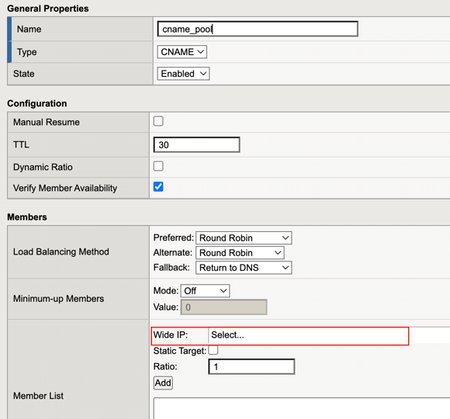
Normally, we define a specific IP (and port) to be used as GSLB pool member. This article provides a custom configuration to be able to use Fully Qualified Domain Name (FQDN) as GSLB pool member--with all GSLB features like health-check monitoring, load balancing method, persistence, etc. Despite GSLB as a mechanism to distribute traffic across datacenters having reached years of age, it has not become less relevant this recent years. The fact that internet infrastructure still rely heavily on DNS technology means GSLB is continuously used due to is lightweight nature and smooth integration. When using F5 DNS as GSLB solution, usually we are dealing with LTM and its VS as GSLB server and pool member respectively. Sometimes, we will add a non-LTM node as a generic server to provide inter-DC load balancing capability. Either way, we will end up with a pair of IP and port to represent the application, in which we sent a health-check against. Due to the trend of public cloud and CDN, there is a need to use FQDN as GSLB pool member (instead of IP and port pair). Some of us may immediately think of using a CNAME-type GSLB pool to accommodate this. However, there is a limitation in which BIG-IP requires a CNAME-type GSLB pool to use a wideIP-type pool member, in which we will end up with an IP and port pair (again!) We can use "static target", but there is "side-effect" where the pool member will always consider available (which then triggers the question why we need to use GSLB in the first place!). Additionally, F5 BIG-IP TMUI accepts FQDN input when we configure GSLB server and pool member. However, it will immediately translate to IP based on configured DNS. Thus, this is not the solution we are looking for Now this is where F5’s BIG-IP power (a.k.a programmability) comes into play. Enter the realm of customization... We all love customization, but at the same time do not want that to be overly complicated so that life becomes harder on day-2 🙃. Thus, the key is to use some customization, but simple enough to avoid unnecessary complication. Here is one idea to solve our FQDN as GSLB pool problem above The customized configuration object includes 1. External health-check monitor: Dynamically resolve DNS to translate FQDN into IP address Perform health-check monitoring against current IP address Result is used to determine GSLB pool member availability status 2. DNS iRules: Check #1: Checks if GSLB pool attached to wideIP contains only FQDN-type member (e.g. other pool referring to LTM VS is also attached to the wideIP) If false, do nothing (let DNS response refer to LTM VS) Otherwise, perform check #2 Check #2: Checks current health-check status of requested domain name If FQDN is up, modify DNS response to return current IP of FQDN Otherwise, perform fallback action as requirement (e.g. return empty response, return static IP, use fallback pool, etc.) 3. Internal Datagroup: Store current IP of FQDN, updated according to health-check interval Datagroup record value contains current IP if health-check success. Otherwise, the value contains empty data Here are some of the codes, where configured; wideIP is gslb.test.com, while GSLB pool member FQDN is arcadia.f5poc.id 1. External health-check monitor config gtm monitor external gslb_external_monitor { defaults-from external destination *:* interval 10 probe-timeout 5 run /Common/gslb_external_monitor_script timeout 120 #define FQDN here user-defined fqdn arcadia.f5poc.id } External health-check monitor script #!/bin/sh pidfile="/var/run/$MONITOR_NAME.$1..$2.pid" if [ -f $pidfile ] then kill -9 -`cat $pidfile` > /dev/null 2>&1 fi echo "$$" > $pidfile # Obtain current IP for the FQDN resolv=`dig +short ${fqdn}` # The actual monitoring action here curl -fIs -k https://${fqdn}/ --resolve ${fqdn}:443:${resolv} | grep -i HTTP 2>&1 > /dev/null status=$? if [ $status -eq 0 ] then # Actions when health-check success rm -f $pidfile tmsh modify ltm data-group internal fqdn { records replace-all-with { $fqdn { data $resolv } } } echo "sending monitor to ${fqdn} ${resolv} with result OK" | logger -p local0.info echo "up" else # Actions when health-check fails tmsh modify ltm data-group internal fqdn { records replace-all-with { $fqdn { } } } echo "sending monitor to ${fqdn} ${resolv} with result NOK" | logger -p local0.info fi rm -f $pidfile 2. DNS iRules when DNS_REQUEST { set qname [DNS::question name] # Obtain current IP for the FQDN set currentip [class match -value $qname equals fqdn] } when DNS_RESPONSE { set rname [getfield [lindex [split [DNS::answer]] 4] "\}" 1 ] #Check if return is IP address of specially encoded FQDN IP, 10.10.10.10 in this example if {$rname eq "10.10.10.10" }{ #Response is only from pool with external monitor, meaning no other pool is attached to wideIP if {$currentip ne ""}{ #Current FQDN health-check success DNS::answer clear # Use current IP to construct DNS answer section DNS::answer insert "[DNS::question name]. 123 [DNS::question class] [DNS::question type] $currentip" } else { #Current FQDN health-check failed #Define action to be performed here DNS::answer clear } } } 3. Internal Datagroup ltm data-group internal fqdn { records { # Define FQDN as record name arcadia.f5poc.id { # Record data contains IP, where this will be continuously updated by external monitoring script data 158.140.176.219 } } type string } *GSLB virtual server configuration Some testing The resolve will follow whichever current IP address for the FQDN. If a returning CNAME response is required, you can do so by modifying DNS irules above. The logic and code are open to any improvement, so leave your suggestions in the comments if you have any. Thanks!1.3KViews1like1Comment
Load-balancing generic hosts between different datacenters
Hi all I have GTM F5 Load-balancer sitting in my primary Denver (USA) data center. I have two VPN firewalls sitting in the Chennai (India) data center, where there is no F5 load balancer. Hence there is no GSLB. I would like to load-balance these two VPN firewalls through the Denver F5 GTM load balancer. The public IPs are completely different between the data centers. The expectation is that the end host ==> Public DNS Server ==> F5 GTM Listener (Denver) ==> Chennai (India) Datacenter (VPN Firewall). Will this be doable?1.5KViews1like4Comments