f5xc
11 TopicsCustomer Edge as a Fallback for F5 Distributed Cloud Regional Edge
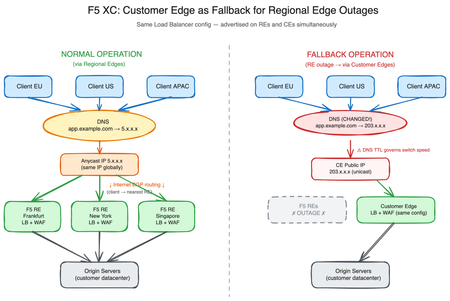
Introduction F5 Distributed Cloud Regional Edges (REs) form the backbone of F5’s globally distributed application delivery network. These F5-managed Points of Presence handle load balancing, Web Application Firewall (WAF) enforcement, bot protection, and API security for thousands of organizations worldwide. While F5 Regional Edges are engineered for extreme resilience—with built-in redundancy, geographic distribution, and continuous monitoring—no infrastructure is entirely immune to disruption. A defense-in-depth strategy demands that organizations consider even low-probability scenarios. This article explores how F5 Distributed Cloud Customer Edge (CE) nodes can serve as a fallback data path in the unlikely event of a Regional Edge outage, leveraging a capability that many organizations already have deployed but may not have considered for this purpose. Understanding the RE and CE Data Paths Regional Edge: The Default Path In a typical F5 Distributed Cloud deployment, application traffic follows this path: Client resolves the application’s FQDN via DNS DNS returns an F5 Regional Edge Anycast IP address Internet BGP routing directs the client to the nearest RE advertising that IP The RE terminates the connection, applies load balancing and security policies The RE forwards traffic to origin servers (directly or via CE nodes) The key mechanism here is IP Anycast. F5 Regional Edges advertise the same unicast IP address from multiple Points of Presence worldwide via BGP. When a client sends traffic to that IP, the internet’s BGP routing infrastructure naturally selects the shortest AS path—effectively directing the client to the geographically closest (or topologically nearest) RE. This means the DNS itself does not perform geographic selection. Every client worldwide receives the same IP address in the DNS response. It is the underlying BGP routing on the internet that ensures each client reaches its nearest RE. This is a fundamental difference from GeoDNS-based approaches, where different IPs are returned depending on the client’s location. Anycast routing typically delivers lower and more consistent latency than GeoDNS for several reasons: BGP routes on network topology, not geographic approximation. BGP is a path-vector protocol that selects routes based on AS path length, local preference, and policy attributes—not latency or congestion. However, in practice, routing to the topologically nearest PoP (fewest AS hops) generally correlates with reasonable latency, even if it is not optimized for it. GeoIP databases are approximations. GeoDNS relies on commercial GeoIP databases to map IP addresses to locations. These databases can be inaccurate or outdated. BGP doesn’t care about IP-to-location mapping; it routes based on actual network reachability. BGP adapts in real-time. If a link fails or a PoP goes offline, the BGP reconverges and traffic shifts to the next-best path automatically—often within seconds. GeoDNS is static until the DNS TTL expires. During that window, clients may continue hitting a degraded or unreachable endpoint. Regional Edges operate as a fully managed SaaS infrastructure. Organizations benefit from F5’s global Anycast network without deploying or maintaining edge nodes themselves. Customer Edge: The On-Premises Path Customer Edge nodes, typically deployed in on-premises data centers or customer cloud environments, can provide the same load balancing and WAF capabilities as Regional Edges. This is a critical but often underappreciated architectural property of the F5 Distributed Cloud platform. When a load balancer is configured in the F5 Distributed Cloud Console, it can be advertised on: Regional Edges only — the default for internet-facing applications Customer Edges only — common for internal applications Both Regional Edges and Customer Edges — the key to the fallback strategy described in this article The Shared Configuration Principle A single load balancer object in the F5 Distributed Cloud Console—with its full configuration including WAF policies, routes, rate limiting, and origin pools—can be advertised simultaneously on REs and CEs. There is no need to duplicate or maintain separate configurations. Aspect Regional Edge Customer Edge Load Balancing ✓ Same configuration ✓ Same configuration WAF / App Firewall ✓ Same policies ✓ Same policies Routes and Rewrites ✓ Same rules ✓ Same rules Origin Pool Selection ✓ Same pools ✓ Same pools Bot Defense ✓ ✓ API Protection ✓ ✓ Managed by F5 Customer Key Insight: This configuration parity is the foundation of the fallback strategy. The same security posture is enforced regardless of whether traffic enters through a RE or a CE. The Fallback Strategy: DNS-Based Traffic Switching How It Works The failover mechanism from Regional Edges to Customer Edges relies on a straightforward DNS change. Under normal operation, the application's DNS record points to the RE-assigned IP addresses. In a fallback scenario, the DNS record is updated to point to the public IP addresses of the Customer Edge nodes. Normal Operation: app.example.com → RE Anycast IP (e.g., 5.x.x.x, same IP globally) → BGP routing directs client to nearest Regional Edge → RE applies LB + WAF policies → RE forwards to origin Fallback Operation: app.example.com → CE Public IP (e.g., 203.0.113.10, standard unicast) → Client connects directly to Customer Edge (no Anycast routing) → CE applies the SAME LB + WAF policies → CE forwards to origin The application experience remains identical from the client's perspective in terms of security and functionality. The same policies are enforced, the same load balancing decisions are made, and the same origins are reached. The trade-off is that clients lose the Anycast proximity benefit—all traffic converges on the CE location(s) rather than being distributed to the nearest PoP. Prerequisites Before this strategy can be activated, several elements must be in place: The load balancer must be advertised on both REs and CEs. This is configured in the F5 Distributed Cloud Console under the load balancer's VIP advertisement settings. The CE advertisement must be active before an incident—configuring it during an outage adds delay and risk. The “Virtual Network“ type with value “ves-io-shared/public” is the equivalent of “Internet“ VIP advertisement. CE nodes must have public IP reachability. The CE's outside interface (or an NAT/firewall in front of it) must be reachable from the internet on the required ports (typically 443 and/or 80). This may require firewall rules, NAT configurations, or public IP assignments that should be validated in advance. CE nodes must have sufficient capacity for degraded-mode operation. Under normal operation, REs handle the full internet-facing traffic load. CEs used as fallback must be sized to sustain this traffic temporarily—long enough to bridge a RE outage, not to replace RE infrastructure indefinitely. This includes compute resources (CPU, memory), network bandwidth at the CE site, and upstream internet connectivity. DNS records must be prepared. The target CE IP addresses should be documented and ideally pre-staged in DNS management tooling so that the switchover can be executed rapidly. Important: All prerequisites must be validated before an incident occurs. A fallback strategy that hasn’t been tested is not a fallback strategy. Customer Edge: The On-Premises Path Customer Edge nodes, typically deployed in on-premises data centers or customer cloud environments, can provide the same load balancing and WAF capabilities as Regional Edges. This is a critical but often underappreciated architectural property of the F5 Distributed Cloud platform. When a load balancer is configured in the F5 Distributed Cloud Console, it can be advertised on: Regional Edges only — the default for internet-facing applications Customer Edges only — common for internal applications Both Regional Edges and Customer Edges — the key to the fallback strategy described in this article The Shared Configuration Principle A single load balancer object in the F5 Distributed Cloud Console—with its full configuration including WAF policies, routes, rate limiting, and origin pools—can be advertised simultaneously on REs and CEs. There is no need to duplicate or maintain separate configurations. Aspect Regional Edge Customer Edge Load Balancing ✓ Same configuration ✓ Same configuration WAF / App Firewall ✓ Same policies ✓ Same policies Routes and Rewrites ✓ Same rules ✓ Same rules Origin Pool Selection ✓ Same pools ✓ Same pools Bot Defense ✓ ✓ API Protection ✓ ✓ Managed by F5 Customer Key Insight: This configuration parity is the foundation of the fallback strategy. The same security posture is enforced regardless of whether traffic enters through a RE or a CE. DNS TTL: The Critical Factor Why TTL Matters The speed of a DNS-based failover is fundamentally governed by the Time-To-Live (TTL) value set on the application’s DNS records. TTL determines how long DNS resolvers and clients cache a DNS response before querying again. TTL Value Effective Switchover Time Trade-off 3600 (1 hour) Up to 1 hour Minimal DNS query load, slow failover 300 (5 minutes) Up to 5 minutes Moderate query load, reasonable failover 60 (1 minute) Up to 1 minute Higher query load, fast failover 30 (30 seconds) Up to 30 seconds Significant query load, near-instant failover Critical: TTL must be set before an incident occurs. Lowering TTL during an outage has no effect on records already cached by resolvers worldwide. The old, higher TTL continues to govern those cached entries until they expire naturally. Recommended Approach For organizations that consider CE fullbacks as part of their resilience strategy: Proactive TTL reduction: Set DNS TTL to 60–300 seconds on records that may need failover. This should be steady-state TTL, not an emergency change. Pre-incident preparation: Ensure the DNS change procedure is documented, tested, and can be executed by on-call staff within minutes. Automated failover (advanced): Integrate health checks on RE endpoints with DNS automation (via API calls to your DNS provider) to trigger the switch automatically. The TTL Reality Check Even with low TTL values, some clients and intermediate resolvers do not strictly honor TTL: Stub resolvers on end-user devices may cache beyond the stated TTL Some enterprise DNS resolvers impose minimum TTL floors (commonly 30–60 seconds) Browser DNS caches may hold entries independently of the OS resolver Connection keep-alive means existing TCP/TLS sessions continue to the old IP even after DNS changes Organizations should expect a gradual migration of traffic rather than an instantaneous cutover, even with aggressive TTL values. Plan for a transition window of several minutes during which traffic flows to both the old and new endpoints. Operational Caveats and Considerations Capacity Planning Under normal operations, Regional Edges absorb the full internet-facing traffic load across F5’s globally distributed infrastructure. Switching to Customer Edges concentrates this traffic onto a much smaller set of nodes, typically in one or two locations. Factor Regional Edges Customer Edges (Fallback) Geographic distribution Global Limited (customer sites) Bandwidth F5 backbone Customer uplink DDoS absorption F5 scrubbing capacity Customer/ISP capacity Horizontal scale Elastic Fixed (pre-provisioned) Recommendation: Conduct periodic load testing against CE nodes to validate they can sustain the expected RE traffic volume for a limited duration. CE infrastructure does not need to match RE capacity long-term, but it must hold up long enough to bridge an outage window without service degradation. DDoS Protection F5 Regional Edges benefit from F5’s network-level DDoS mitigation infrastructure. When traffic is redirected to Customer Edge nodes, this protection layer is bypassed. The CE site’s internet uplink becomes the direct target for any volumetric attack. Mitigation options: Ensure the CE site has upstream DDoS protection from the ISP or a dedicated scrubbing service Consider maintaining a DDoS-protected IP transit for CE public addresses If using BGP-routed DDoS protection, ensure CE public prefixes are covered Failover Workflow When a RE outage is confirmed and the decision to fail over is made, the procedure is: Step 1: Update DNS Records Change the application’s DNS A record (or AAAA for IPv6) from the RE IP addresses to the CE public IP addresses. If multiple CEs are available, configure multiple A records or use the BGP/ECMP architecture described in Part One of this series to distribute traffic across CEs behind a single public IP. Step 2: Monitor the Transition Observe traffic shifting to CEs as DNS caches expire. Expect a gradual ramp-up over a period aligned with your DNS TTL. Monitor CE resource utilization, error rates, and application response times. Step 3: Restore Normal Operation Once RE services are restored, reverse the DNS change to point back to RE IP addresses. Again, the transition back follows the same TTL-governed timeline. Validate that traffic has fully returned to the RE path before considering any CE-specific fallback infrastructure changes. Conclusion F5 Distributed Cloud Customer Edges provide a credible fallback path for the unlikely scenario of a Regional Edge outage. The platform’s ability to advertise a single load balancer—with identical configuration, WAF policies, and origin pools—on both REs and CEs is the enabling feature that makes this strategy viable without configuration duplication or drift. The key success factors are preparation and proactive configuration: DNS TTL must be set low before an incident, not during one CE capacity must be sufficient to handle traffic load in a degraded mode—this is a temporary measure, not a long-term replacement for RE infrastructure The full failover procedure must be tested periodically to remain viable Operational caveats—latency, DDoS exposure, session interruption—must be understood and accepted as part of the failover trade-off This approach does not replace the resilience built into F5’s Regional Edge infrastructure. Rather, it provides an additional layer of organizational confidence: even in a worst-case scenario, the application delivery path can be restored using infrastructure the organization already controls.437Views2likes0CommentsFrom Chat to Config: Building an AI-Native MCP Server for F5 Distributed Cloud
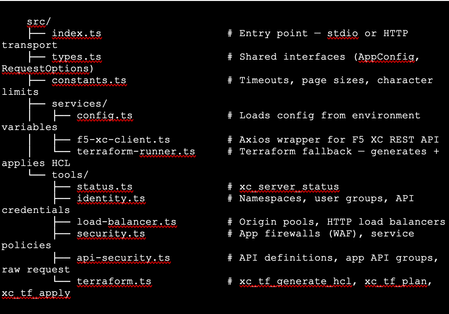
The Problem: F5 Distributed Cloud is Powerful but Verbose Anyone who has worked with F5 Distributed Cloud (XC) knows the platform is incredibly capable. HTTP load balancers, WAF policies, API security, origin pools, namespaces, service policies—the feature set is deep. But with depth comes complexity. A single POST to create an HTTP load balancer with WAF, HTTPS auto-cert, and an origin pool involves carefully crafting nested JSON across three or four separate API calls, each with its own spec structure. For experienced engineers, this is manageable. But what if you could just say: "Create an HTTPS load balancer for test-namespace, attach a WAF policy in blocking mode, origin server at 10.10.10.10 port 80 with an HTTP health check, auto-cert on port 443 with HTTP redirect" …and have all of that happen automatically, correctly, with dry-run safety by default? That's exactly what I built. This article walks through the F5 XC MCP Server—an open-source Model Context Protocol server that translates natural language commands from Claude Code or GitHub Copilot directly into F5 XC API calls. What is MCP? Model Context Protocol (MCP) is an open standard introduced by Anthropic that lets AI assistants (like Claude) call external tools and services through a structured interface. Think of it as a plugin system for AI — instead of the AI just generating text, it can actually do things: query APIs, read files, run commands, interact with platforms. An MCP server exposes a set of tools—typed functions with names, descriptions, and input schemas. When you ask Claude Code something like "list all my namespaces in F5 XC," it finds the right tool (xc_list_namespaces), calls it with the right parameters, and shows you the result. No copy-pasting API tokens into curl commands. No hunting through docs for the right endpoint path. MCP clients could be the popular AI coding tool, or any custom build MCP client, such as: Claude Code (via VS Code extension—the one I primarily used) GitHub Copilot (via VS Code extension) Any MCP-compatible client MCP servers can run locally (via stdio) or remotely (via HTTP/HTTPS). Architecture The server is built in TypeScript using the @modelcontextprotocol/sdk, with axios for F5 XC API calls and zod for input validation. The structure is intentionally simple: Key design decisions: Dry-run by default. F5_XC_DRY_RUN=true is the default. Every mutating call returns a preview of what would be sent rather than actually calling the API. This makes it safe to explore and prototype without fear. Set F5_XC_DRY_RUN=false when you're ready to go live. Dual auth. Supports both API token (Authorization: APIToken …) and mTLS certificate auth (https.Agent with PEM cert + key). The certificate extracted from the F5 XC .p12 credential file works directly. Dual transport. stdio for local use with Claude Code/Copilot; streamable HTTP/HTTPS for team-shared remote deployment. Terraform as fallback. When the REST API doesn't support an operation (more on this below), tools automatically generate ready-to-apply Terraform HCL using the volterraedge/volterra provider. The Four Use Cases The server covers four areas matching common F5 XC workflows: UC Tools Example operations UC-1 Identity Namespace CRUD, API credentials Create namespace, list users/groups, audit credentials UC-2 Load Balancer Origin pool CRUD, HTTP LB CRUD Create HTTPS LB with auto-cert, add origin pool UC-3 Security App Firewall (WAF) CRUD, Service Policy CRUD Create WAF in blocking mode, attach to LB UC-4 API Security API definition CRUD, App API group CRUD, raw request Import OpenAPI spec, create API group In total the server exposes 39 tools—enough to cover the majority of day-to-day F5 XC operations from a conversation. A Live Demo Walkthrough Here's a real session—every one of these was a natural language instruction to Claude Code, which called the appropriate MCP tool automatically. Step 1: Create a namespace "Create a new namespace called test-namespace" Step 2: Create an HTTP load balancer — then upgrade it "Create an HTTP load balancer named test-http-lb in test-namespace" The tool calls xc_create_http_lb with a minimal spec. State returns as VIRTUAL_HOST_READY in seconds. "Change protocol from HTTP to HTTPS port 443, use automatic certificate management from XC, add origin server 10.10.10.10 port 80 with default HTTP health check" This triggers three tool calls automatically: xc_raw_request → creates an HTTP healthcheck object xc_create_origin_pool → creates origin pool with 10.10.10.10:80, references the healthcheck Delete old LB + xc_create_http_lb → recreates as HTTPS with https_auto_cert, HTTP→HTTPS redirect, pool attached Note: F5 XC does not allow changing the LB type (HTTP → HTTPS) via PUT. The MCP server detected this and handled the delete-recreate flow automatically. The result: Step 3: Create and attach a WAF policy "Create a WAF policy named test-waf-policy" xc_create_app_firewall — blocking mode, default OWASP detection, default bot settings. Done in one call. test-waf-policy created ✓ Field Value Name test-waf-policy Namespace test-namespace Mode Blocking (blocks detected attacks) Detection Default OWASP ruleset Bot protection Default bot settings UID 8d350b72-5c8c-4e7c-b827-248b03067ed3 The WAF policy is ready. Would you like to attach it to test-http-lb? "Enable this WAF policy on test-http-lb" xc_update_http_lb — removes disable_waf, adds app_firewall reference. Verified with a GET to confirm disable_waf is gone and app_firewall.name is set. WAF policy enabled on test-httlp-lb ✓ Field Value WAF policy test-waf-policy (blocking mode) disable_waf removed LB state VIRTUAL_HOST_PENDING_A_RECORD Total time from zero to a WAF-protected HTTPS load balancer: under 2 minutes, all from natural language. The API Limitation Discovery — and the Terraform Fallback One of the most interesting findings during development: F5 XC's public REST API does not expose user/group write operations. Every path I tried returned either 404 or 501 Not Implemented: This is intentional by design—F5 XC routes user management through its Console UI. The Terraform volterraedge/volterra provider also didn’t help for users, group management. Rather than leaving the user with a dead end, I built a Terraform fallback: when a user group write fails, the tool’s response automatically includes: The AI can then call xc_tf_apply directly to execute it—or the user can copy the HCL and apply it themselves. The Terraform runner operates in isolated temp directories, cleans up after itself, and respects the global dryRun flag (plan instead of apply when dry-run is active). This pattern—REST first, Terraform as fallback—turned out to be a very useful architectural choice. It gracefully handles the gap between what the API exposes and what the platform can actually do. Deploying to Production: HTTPS with Automatic Certificates For a shared team tool, local stdio mode isn't enough. The server needs to be always-on, accessible over HTTPS, and with a real TLS certificate. The deployment stack on an Azure Ubuntu VM: Node.js 20 (via nvm) running the MCP server on port 3000 as a systemd service Caddy as a TLS-terminating reverse proxy—one config file, automatic Let's Encrypt The entire Caddy config: Caddy handles the ACME HTTP-01 challenge automatically. The Let's Encrypt certificate was issued in under 10 seconds after DNS propagated. Auto-renewal is built in—no cron jobs, no certbot timers. One gotcha worth noting: the default Caddy proxy timeout (30s) is shorter than some F5 XC API calls (namespace creation can take ~45s). The response_header_timeout 90s setting above is necessary. With this setup, the MCP endpoint is https://your-domain/mcp — usable from any MCP client without VPN or local server setup. Connecting Claude Code to the Remote Server Add this to your Claude Code MCP configuration (~/.claude.json or .claude/settings.json in your project): That's it. After a /mcp reload in Claude Code, all 39 tools are available. You can verify with: "Show me the F5 XC server status" Which calls xc_server_status and returns tenant, auth method, dry-run state, and Terraform auth status. Lessons Learned The F5 XC REST API is comprehensive for data plane operations, limited for identity management. Load balancers, WAF policies, origin pools, API definitions — all fully CRUD-able via REST. User and group management is not. Plan accordingly if your use case involves IAM automation. Dry-run mode is not optional — it's essential. Without it, a misunderstood instruction could delete a production load balancer. Making dry-run the default (and requiring explicit override per-call or globally) is the right design for any AI-driven ops tool. Tool descriptions matter more than you think. The quality of an MCP tool's description directly affects how accurately the AI uses it. Spending time writing precise, example-rich descriptions — including what fields are required, what values are valid, and what the return looks like — significantly improves the AI's ability to compose multi-step operations correctly. Graceful degradation beats hard failures. The Terraform fallback pattern is a good example. Rather than returning a cryptic API error and stopping, surfacing the equivalent HCL and offering to apply it keeps the workflow moving. Users get an answer even when the API says no. LB type changes require delete+recreate. The F5 XC API rejects PUT requests that change the load balancer type (e.g., HTTP → HTTPS). The MCP server handles this automatically by detecting the error and orchestrating the delete-recreate sequence — a good example of where the AI layer can absorb platform-specific quirks. What's Next This is v1.0 — functional, deployed, and covering the core use cases. Areas I'm exploring for future versions: API security scanning integration: trigger XC's web application scanning from the MCP server and return findings Multi-tenant support: switch tenants within a session without restarting the server Policy-as-code export: serialize existing LBs and WAF configs to Terraform HCL for IaC migration Audit/diff mode: compare current live config against a desired state and report drift Try It Yourself The server is open source on GitHub: https://github.com/gavinw2006/F5_XC_MCP_Server Prerequisites: Node.js 18+, an F5 XC tenant with an API token, and Claude Code or any MCP-compatible client. The first thing to try once connected: "Show me the F5 XC server status, then list all namespaces" Happy to hear feedback, questions, and PRs from the DevCentral community. If you build something on top of this—a new tool module, a different transport, integration with another F5 product—I’d love to know about it.577Views2likes2Comments
F5 XC HTTP 404 rout_not_found / rsp_code 404
I would like to add more point about the HTTP 404 error: route_not_found / rsp_code 404 in an XC (RE + CE) deployment. 1. Even if XC has the correct host match value in the route, you might still observe a 404 response. In such cases, check the DNS configuration on the CEs. A possible reason could be that the CEs are unable to resolve DNS for host which is configured in route. 2. Even if XC has the correct host match value, the path might not match. For example, if you have a single route as shown below and the request comes as https://example.com/, you may see rsp_code 404 , as it is not matching any routes. Example : HTTP Method:ANY Path Match : Prefix Prefix:/hello Headers Host example.com Orginpool: example_orgin pool https://my.f5.com/manage/s/article/K000147490307Views1like4CommentsF5 Distributed Cloud – Why You Should Never Block Regional Edge IPs on Your Firewall
Introduction A common mistake when onboarding a public-facing application onto F5 Distributed Cloud (XC) is to restrict which source IP addresses can reach the origin server. Network and security teams, following a traditional “deny all / allow what you need” approach, sometimes allow only a handful of F5 XC Regional Edge IPs through their firewall — or worse, block RE IPs entirely because they see unfamiliar traffic hitting the origin from IP ranges they don’t recognize. This article explains why this is fundamentally incompatible with how F5 Distributed Cloud works, and what the consequences are. Understanding Distributed Architecture When you expose an application through F5 Distributed Cloud, the platform advertises your application’s FQDN via an Anycast IP address across all Regional Edges worldwide. As of the latest updates, this means your application is reachable through multiple REs across the Americas, Europe, and Asia-Pacific. Each RE acts as an independent proxy and point of presence. End users are routed to the closest RE based on BGP peering and network proximity. This is the core of F5 XC’s distributed model — there is no single centralized proxy. How Health Checks Work: Each RE Monitors Independently This is the critical point that is often misunderstood. When you configure a Health Check and an Origin Pool with your application’s public IP, every Regional Edge independently performs its own health check against your origin server. Each RE uses its own local internet breakout to reach your application — health check traffic does not traverse the F5 Global Network. This means: If you have an origin server with a public IP, and your Origin Pool is configured with “Public IP” (the default), then all REs will send health-check probes to your origin. Each RE maintains its own independent view of your origin’s health status. On the F5 XC console, you will see the same origin IP listed multiple times — once per RE — each with its own health status. The source IPs of these health checks come from the RE subnet ranges published in the official F5 documentation: F5 Distributed Cloud IP Address and Domain Reference. What Happens When You Block Some RE IPs Suppose you allow only a few RE IP ranges (for example, only European REs) but block the rest. Here is what happens: REs whose IPs are allowed will successfully complete health checks, and your origin will appear as UP from those locations. REs whose IPs are blocked will see health check failures, and your origin will be marked as DOWN from those locations. The immediate and most visible consequence is on the F5 XC console itself. Because a majority of REs report the origin as DOWN, the console will display a degraded application health status — showing poor availability and performance metrics. This gives a misleading picture of your application’s actual state: your origin is perfectly healthy, but the console reflects a largely unhealthy deployment simply because most REs cannot reach it through the firewall. This can trigger unnecessary troubleshooting, false alerts, and erode confidence in the platform’s monitoring data. Now, when an end user connects through a blocked RE (for example, a user in Asia hitting a Singapore RE), the platform behavior depends on the Endpoint Selection policy configured in your Origin Pool: Endpoint Selection Policy Behavior When Local RE Shows Origin as DOWN Local Endpoints Only Traffic is dropped. The user gets an error. No fallback. Local Endpoints Preferred (default) Traffic is forwarded via the F5 Global Network to a RE that has the origin marked as UP. This adds some latency. All Endpoints Same as Local Preferred — traffic is rerouted to a healthy RE over the Global Network. This can add major latency if the responding RE is far away from the origin. In the Local Endpoints Only case, users connecting through blocked REs will experience a complete outage for your application — even though the origin is healthy and reachable. In the Local Preferred or All Endpoints cases, the platform will attempt to reroute traffic through the F5 Global Network to a RE that has a healthy view of the origin. While the application will still be reachable, this introduces several problems: Increased latency: Traffic must travel from the ingress RE to a remote egress RE over the internal F5XC fabric before reaching your origin, instead of egressing locally to the internet. Suboptimal routing: A user in Tokyo may end up having their traffic routed through Paris because only European REs can reach the origin — defeating the purpose of a globally distributed edge. Reduced resilience: You’ve effectively reduced the number of egress points that can serve traffic, creating bottlenecks and potential single points of failure. The Correct Default Approach: Allowlist All RE IP Ranges The F5 official documentation is clear on this point: you should allowlist all F5 Distributed Cloud RE subnet ranges on your origin firewall. The published IP ranges are organized by region (Americas, Europe, Asia) and are available on the official F5 Distributed Cloud documentation page. Ideally, your origin firewall should be configured to only allow the F5 Distributed Cloud subnets for your application’s listening port. This ensures that: All RE health checks succeed, giving the platform an accurate and complete view of your origin’s health. Traffic egresses locally from the closest RE, providing the lowest latency path to your users. Only traffic routed through F5 XC can reach your origin, preventing attackers from bypassing the F5 XC security stack (WAAP, DDoS, Bot Protection, etc.) by hitting the origin directly. What If You Want to Limit Which REs Perform Health Checks? If you have a legitimate reason to reduce the number of REs performing health checks (for example, to reduce health check traffic on the origin or because your application is regionally scoped), F5 XC provides a built-in mechanism for this. Instead of using “Public IP” in the Origin Pool member configuration, select “IP Address of Origin Server on Given Sites” and then assign a Virtual Site that includes only the REs you want. For example, you could create a Virtual Site that includes only European REs, reducing your health check sources from all worldwide REs down to just the ones in that region. Conclusion F5 Distributed Cloud is architected as a fully distributed system. Health monitoring is not performed from a central location — it is performed independently by every Regional Edge. This design is what enables the platform to provide low-latency, resilient application delivery worldwide. Blocking RE IPs on your origin firewall fundamentally breaks this distributed health monitoring model. It causes health checks to fail, triggers suboptimal traffic routing, and potentially increases latency. The correct and recommended approach is to allowlist all F5 Distributed Cloud RE IP ranges on your origin firewall, and use the platform’s built-in Virtual Site mechanism if you need to control which REs perform health checks.297Views2likes1CommentApp Migration across Heterogeneous Environments using F5 Distributed Cloud
F5 XC helps in deploying Customer Edge (CE) on different cloud environment such as VMware, Nutanix, Red Hat Openshift (OCP), Azure, AWS, GCP and more. This helps in migration across on-prem and cloud platforms for easy of use and leverage the services of cloud platforms for migration. 559Views2likes0Comments
F5 XC 503 upstream_reset_before_response_started{protocol_error}
Hello Community, I would like to share some additional information regarding the 503 response code in F5 XC. When the origin server sends a response to XC that is not compliant with HTTP RFC standards, the platform may return a 503. For example, if the origin server responds with a 204 status code but includes a message body, Envoy (the underlying data plane) will treat this as RFC non-compliant and therefore block the content. As a result, XC will return a 503 response to the client. 503 upstream_reset_before_response_started{protocol_error} Check if the http response headers from the origin-server have any invalid field names. Query the the origin-server directly via cURL or something equivalent. Usually indicates that XC is seeing an error in one of the http-headers of the response from the server. We would need to see the http headers that the origin-server is responding with to identify the issue. In one of the scenarios, it was seen that the origin-server may have a total of more than 100 headers (mostly duplicate headers), which XC will treat as failure parsing the response.282Views1like2CommentsExtending F5 ADSP: Multi-Tailnet Egress
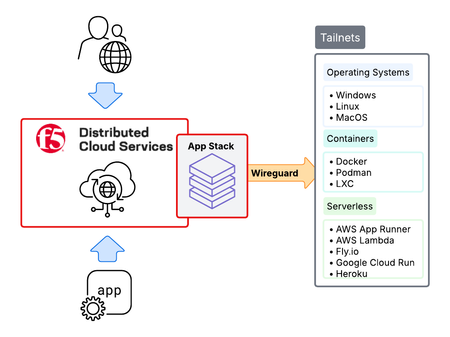
Tailscale tailnets make private networking simple, secure, and efficient. They’re quick to establish, easy to operate, and provide strong identity and network-level protection through zero-trust WireGuard mesh networking. However, while tailnets are secure, applications inside these environments still need enterprise-grade application security, especially when exposed beyond the mesh. This is where F5 Distributed Cloud (XC) App Stack comes in. As F5 XC’s Kubernetes-native platform, App Stack integrates directly with Tailscale to extend F5 ADSP into tailnets. The result is that applications inside tailnets gain the same enterprise-grade security, performance, and operational consistency as in traditional environments, while also taking full advantage of Tailscale networking.824Views4likes2CommentsDeploying F5 Distributed Cloud Customer Edge on AWS in a scalable way with full automation
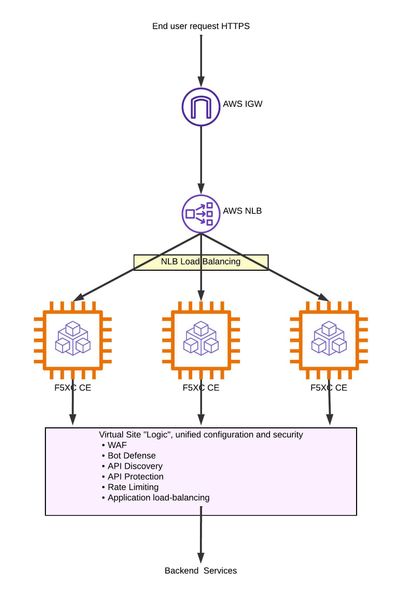
Scaling infrastructure efficiently while maintaining operational simplicity is a critical challenge for modern enterprises. This comprehensive guide presents the foundation for a fully automated Terraform solution for deploying F5 Distributed Cloud (F5XC) Customer Edge (CE) nodes on AWS that scales seamlessly from single-node proof-of-concepts to multi-node production deployments.749Views1like0CommentsStreamlining Certificate Management in F5 Distributed Cloud: From Console Clicks to CLI Efficiency
Introduction Managing TLS certificates at scale in F5 Distributed Cloud (F5 XC) can become a complex task, especially when dealing with multiple namespaces, domains, load balancers, and frequent certificate renewals. While the F5 Distributed Cloud Console provides a comprehensive GUI for certificate management. However, the number of clicks and navigation steps required for routine operations can impact operational efficiency. In this article, we'll explore how to manage custom certificates in F5 Distributed Cloud. We'll compare the console-based approach with a streamlined CLI solution, and demonstrate why using automation tools can significantly improve your certificate management workflow. The Challenge: Certificate Management at Scale Modern enterprises often manage dozens or even hundreds of TLS certificates across their infrastructure. Each certificate requires: Regular renewal (typically every 90 days for Let's Encrypt certificates) Association with the correct load balancers When multiplied across numerous applications and environments, what seems like a simple task becomes a significant operational burden. Understanding F5 Distributed Cloud Certificate Management F5 Distributed Cloud provides robust support for custom TLS certificates (Bring Your Own Certificate - BYOC). The platform allows you to: Create and manage TLS certificate objects with support for both PEM and PKCS12 formats Associate multiple certificates with a single HTTPS load balancer Share certificates across multiple load balancers The Console Approach: Step-by-Step Process Let's walk through the typical process of adding a new certificate via the F5 XC Console: Navigate to Certificate Management (3 clicks/actions) Select Multi-Cloud App Connect service Select Certificate Management from the left menu Click on TLS Certificates Create a New Certificate (8 clicks/actions) Click "Add TLS Certificate" Enter certificate name Set labels and description (optional) Click "Import from File" in the Certificate field Click "Upload File" to upload the certificate Enter password (for PKCS12) Select key type Click "Save and Exit" Attach Certificate to Load Balancer (7 clicks/actions) Navigate to Load Balancers Select or create HTTP Load Balancer Select "HTTPS with Custom Certificate" Configure TLS parameters Select certificates from dropdown Apply configuration Save and Exit Total: 18 clicks/actions minimum for a single certificate deployment Now imagine doing this for 50 certificates across 20 load balancers – that's potentially a lot of clicks! Enter the CLI: CLI TLS Certificate Manager The CLI TLS Certificate Manager (available at https://github.com/veysph/F5XC-Tools/) transforms this multi-step process into simple, scriptable commands. This tool leverages the F5 XC API to provide direct, programmatic access to certificate management functions. Key Benefits of the CLI Approach 1. Dramatic Time Savings What takes 18 clicks in the console becomes a single command: python f5xc_tls_cert_manager.py --config config.json --create 2. Batch Operations / Automation-Ready Process multiple certificates easily. The tool can be integrated/adapted for CI/CD pipelines. 3. Consistent and Repeatable Eliminate human error with standardized commands and configuration files. Practical Use Cases Use Case 1: Multi-Environment Deployment Scenario: Deploying certificates across dev, staging, and production namespaces Console Approach: Navigate to each namespace Repeat certificate upload process Risk: High (manual process prone to errors) Effort: a lot clicks CLI Approach: python f5xc_tls_cert_manager.py --config dev.json --create python f5xc_tls_cert_manager.py --config staging.json --create python f5xc_tls_cert_manager.py --config production.json --create Time: ~5 minutes Risk: Very low (automated validation) Effort: 3 commands Use Case 2: Emergency Certificate Replacement Scenario: Expired (or compromised) certificate needs immediate replacement Console Approach: Stress of navigating multiple screens under pressure Risk of misconfiguration during urgent changes CLI Approach: python f5xc_tls_cert_manager.py --config config.json --replace Conclusion While the F5 Distributed Cloud Console provides a comprehensive and user-friendly interface for certificate management. However, the CLI approach offers undeniable advantages for organizations managing certificates at scale. The Certificate Manager CLI tool bridges the gap between the powerful capabilities of F5 Distributed Cloud and the operational efficiency demands of modern infrastructure code practices. Additional Resources F5 Distributed Cloud Certificate Management Documentation F5XC TLS Certificate Manager CLI Tool F5 Distributed Cloud API Documentation829Views1like0CommentsHow to deploy an F5XC SMSv2 for KVM with the help of automation
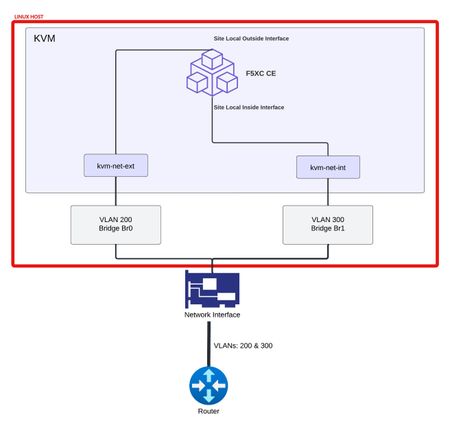
Typical KVM architecture for F5XC CE The purpose of this article isn't to build a complete KVM environment, but some basic concepts should be explained. To be deployed, a CE must have an interface (which is and will always be its default interface) that has Internet access. This access is necessary to perform the installation steps and provide the "control plane" part to the CE. The name of this interface will be referred to as « Site Local Outside or SLO ». It is highly recommended (not to say required) to add at least a second interface during the site first deployment. Because depending on the infrastructure (for example, GCP) it is not possible to add network interfaces after the creation of the VM. Even on platforms where adding a network interface is possible, a reboot of the F5XC CE is needed. An F5XC SMSv2 CE can have up to eight interfaces overall. Additional interfaces are (most of the time) used as “Site Local Inside or SLI” interfaces or "Segment interfaces" (that specific part will be covered in another article). To match the requirements, one typical KVM deployment is described below. It's a way of doing things, but it's not the only way. But most likely the architecture will be composed of: a Linux host user space softwares to run KVM: qemu libvirt virt-manager Linux Network Bridge Interfaces with KVM Networks mapped to those interfaces CE interfaces attached to KVM Networks This is what the diagram below is picturing. KVM Storage and Networking We will use both components in the Terraform automation. KVM Storage It is necessary to define a storage pool for the F5XC CE virtual machine. If you already have a storage pool, you can use it. Otherwise, here is how to create one: sudo virsh pool-define-as --name f5xc-vmdisks --type dir --target /f5xc-vmdisks To create the target directory (/f5xc-vmdisks): sudo virsh pool-build f5xc-vmdisks Start the storage pool: sudo virsh pool-start f5xc-vmdisks Ensure the storage pool starts automatically on system boot: sudo virsh pool-autostart f5xc-vmdisks KVM Networking Assuming you already have bridge interfaces configured on the Linux host but no KVM Networking yet. KVM SLO networking Create an XML file (kvm-net-ext.xml) with the following: <network> <name>kvm-net-ext</name> <forward mode="bridge"/> <bridge name="br0"/> </network> Then run: virsh net-define kvm-net-ext.xml virsh net-start kvm-net-ext virsh net-autostart kvm-net-ext KVM SLI networking Create an XML file (kvm-net-int.xml) with the following: <network> <name>kvm-net-int</name> <forward mode="bridge"/> <bridge name="br1"/> </network> Then run: virsh net-define kvm-net-int.xml virsh net-start kvm-net-int virsh net-autostart kvm-net-int Terraform Getting the F5XC CE QCOW2 image Please use this link to retrieve the QCOW2 image and store it in your KVM Linux host. Terraform variables vCPU and Memory Please refer to this page for the cpu and memory requirement. Then adjust: variable "f5xc-ce-memory" { description = "Memory allocated to KVM CE" default = "32000" } variable "f5xc-ce-vcpu" { description = "Number of vCPUs allocated to KVM CE" default = "8" } Networking Based on your KVM Networking setup, please adjust: variable "f5xc-ce-network-slo" { description = "KVM Networking for SLO interface" default = "kvm-net-ext" } variable "f5xc-ce-network-sli" { description = "KVM Networking for SLI interface" default = "kvm-net-int" } Storage Based on your KVM storage pool, please adjust: variable "f5xc-ce-storage-pool" { description = "KVM CE storage pool name" default = "f5xc-vmdisks" } F5XC CE image location variable "f5xc-ce-qcow2" { description = "KVM CE QCOW2 image source" default = "<path to the F5XC CE QCOW2 image>" } Cloud-init modification It's possible to configure static IP and Gateway for the SLO interface. This is done in the cloud-init part of the Terraform code. Please specify slo_ip and slo_gateway in the Terraform code. Like below. data "cloudinit_config" "config" { gzip = false base64_encode = false part { content_type = "text/cloud-config" content = yamlencode({ write_files = [ { path = "/etc/vpm/user_data" permissions = "0644" owner = "root" content = <<-EOT token: ${replace(volterra_token.smsv2-token.id, "id=", "")} slo_ip: 10.154.1.100/24 slo_gateway: 10.154.1.254 EOT } ] }) } } If you don't need a static IP, please comment or remove those two lines. Sample Terraform code Is available here. Deployment Make all the changes necessary in the Terraform variables and in the cloud-init. Then run: terraform init terraform plan terraform apply Should everything be correct at each step, you should get a CE object in the F5XC console, under Multi-Cloud Network Connect --> Manage --> Site Management --> Secure Mesh Sites v2235Views3likes0Comments