analytics
40 TopicsF5 Insight for ADSP - A Closer Look
Introduction F5 Insight for ADSP, a key component of the F5 Application Delivery and Security Platform (ADSP), helps teams monitor and secure apps that are spread across hybrid, multi-cloud and AI environments. In this article, I’ll highlight some of the key features and use cases addressed by F5 Insight. Demo Video Demo Video: F5 Insight for ADSP - A Closer Look The F5 Insight Home Screen The F5 Insight Home Screen provides comprehensive monitoring for your F5 infrastructure, applications, and security posture. It features intelligent anomaly detection and performance optimization tools, giving administrators and users a centralized view of their BIG-IP fleet health and operational status. System Report Cards The System Report Cards display health indicators ranked Good, Warning, and Critical for the following: Anomaly Detection Monitors the connection count, pool availability, CPU utilization, and memory usage. Application Performance Monitors application-level health based on response time, 4xx, and 5xx error codes. Security Monitors the expiration of SSL/TLS certificates and BIG-IP WAF events. BIG-IP Metrics Monitors for BIG-IP health issues with device resources and operational status. Fleet Status Displays a summary of all BIG-IP devices and their operational status. The Fleet Status shows all the BIG-IP devices with a status of Up, Down or Degraded. Ask AI Assistant Allows you to type queries in plain English to retrieve device statistics, configuration information, security events, device health, application performance and much more. The AI Assistant connects to a configurable Large Language Model (LLM) backend. Supported providers include OpenAI, Anthropic, or a customer provided LLM. An example query: Have there been any outages in the past 24 hours for all devices in all data centers? The AI Assistant understands the question and has identified all the data centers. The AI Assistant then checks the device statistics for any outages or issues. The AI Assistant compiles a detailed summary report of the query. Configuration of Large Language Model (LLM) Large language model (LLM) Insights bring natural language intelligence to F5 Insight, enabling you to query your BIG-IP configurations and logs conversationally. Instead of manually searching through configurations or parsing log files, you can ask questions like “Why is pool member X marked down?” or “Show me all virtual IPs (VIPs) with SSL offloading enabled” and receive immediate, contextualized, clear answers. In the toolbar on the left under Manage, select LLM Insights. Select your LLM Provider Enter your API Token/Key Enter your Enterprise API URL Click Test Connection to verify it’s working Click Save Configuration when the connection is validated. Conclusion F5 Insight for ADSP offers customizable visualizations and dashboards to help you surface metrics and KPIs tailored to your organization. It provides access to useful telemetry data for a deeper understanding of your environment, application behaviors, and complex BIG-IP deployments, all centralized in a single location. Identification of root causes during outages/tickets. Solves issues and struggles with Day 2 analysis of your BIG-IP Fleet and the applications therein. Mitigates the problem of a lack of detailed visual information on your BIG-IP Fleet. Set a foundation for the utilization of open-source tools and their benefits. Related Content Introducing F5 Insight for ADSP F5 Insight for ADSP Documentation F5 Insight Product Page 605Views5likes0Comments
Introducing F5 Insight for ADSP
Introduction F5 Insight for ADSP, a key component of the F5 Application Delivery and Security Platform (ADSP), helps teams monitor and secure apps that are spread across hybrid, multi-cloud and AI environments. In this article, I’ll highlight some of the key features and use cases addressed by F5 Insight. F5 Insight: Actionable intelligence to foster operational excellence Demo Videos Demo Video: Introduction to F5 Insight for ADSP Demo Video: F5 Insight - A Closer Look What is F5 Insight for ADSP? F5 Insight is a holistic solution that unifies every aspect of operating applications. It provides end-to-end visibility and operational narratives. It allows you to prioritize to-dos with health scores, anomaly detection, and report cards. It delivers clarity and value faster with views built by F5 experts. It provides expert guidance and optimization recommendations using natural language interactions. F5 Insight is not intended to replace SIEM solutions like Splunk or Sentinel but serves a different, complementary purpose. It’s an open-source tool designed specifically for monitoring and analyzing metrics from your BIG-IP devices. By leveraging open-source telemetry tools, it collects and presents data in a central, easy-to-read dashboard. This eliminates the need to log into individual interfaces like the CLI or GUI to sift through logs and metrics, offering streamlined visibility into your BIG-IP estate for simplified monitoring and analysis. Why is F5 Insight important? Gain out-of-the-box actionable intelligence to optimize application delivery and security: Get critical application and infrastructure performance data, operational analytics, security issues, and other telemetry in a unified tool. Surface important KPIs and data points fast by querying data using natural language with model context protocol (MCP) support. Optimize application delivery and security, as well as underlying resources, with built-in F5 expertise and guidance. Share data with F5 and use F5 AI Data Fabric for application health scores, security grades, and automatic identification and categorization of apps by type and workload (In Limited Availability) Speeds mean-time-to-innocence (MTTI) and mean-time-to-restore (MTTR) with actionable intelligence and proactive alerts. Streamlines monitoring and analysis while being able to run on its own and integrate with your existing Grafana/VictoriaMetrics stacks. Leverage data to make the business case and prove ROI for more resources, application migrations, or system refreshes. How does F5 Insight work? F5 Insight is deployed as a Virtual Machine. This gives you full access and control of your F5 BIG-IP telemetry data. The configuration is simple, log into the F5 Insight portal and add your BIG-IP devices. There is no configuration needed on BIG-IP itself. Ready to get started? Log into the F5 Insight portal: By default you will arrive at the Home screen. From the navigation menu, under Manage, click BIG-IP Settings to add your BIG-IP devices. Before we add the BIG-IP devices click the Data Centers tab and then Add Data Center. This allows you to specify a location for the BIG-IP devices. Give it a Name, San Jose, CA in this example. Click Add Data Center. Go back to the Devices tab and click Add Device. Note that you can add a single device from here or add multiple devices using the Upload YAML Files (more on this later). For now, let’s add a single device using the management address or Endpoint, Username and Password. Scroll down and specify the Certificate Authority if using custom TLS certificates on BIG-IP devices. Under Data Center select the Data Center created previously, San Jose, CA in this example. Note: if you didn’t create a Data Center you can still do it now. Under Modules select the BIG-IP Modules you are using. In this example I selected Policy Firewall (or AFM). Click Add Device. The BIG-IP from San Jose has been added. From the navigation menu select BIG-IP Device then Device Overview to see more details. Note: you can select the specific Device you want to view. Important details are shown on this screen. Some items of interest are the BIG-IP version, system model or VM, Licenses and Enabled Modules. The Home Screen displays System Report Cards and allows you to drill down into the individual widgets. System Report Cards provide at-a-glance health indicators for four critical monitoring categories. Each card displays a status badge (Good, Warning, or Critical) based on deviation thresholds. Note: you can filter the Home Screen to display a specific Data Center. Adding Multiple BIG-IPs using YAML File Upload For bulk onboarding or infrastructure-as-code workflows, import devices using YAML configuration. Using YAML streamlines bulk onboarding, ensures consistency, improves scalability, simplifies automation, and increases accuracy. It also ensures integration with IaC workflows and CI/CD pipelines—enabling reusable, version-controlled configurations. From the BIG-IP Settings screen select Add Device. Upload your Defaults and Receiver YAML files here or click Paste YAML to copy/paste them. Note: YAML import also supports configuring F5 Insight features such as high availability, LLM Insights, AIDF, and data retention policies alongside device definitions. Both BIG-IPs are now connected to F5 Insight When you return to the BIG-IP Settings screen it should look like this: A correctly configured ast-defaults.yaml file will look like the following. Note: enter the username and password to log into your BIG-IPs A correctly configured ast-receivers.yaml file will look like the following. Note: enter a Device Name and Endpoint address. Conclusion F5 Insight for ADSP offers customizable visualizations and dashboards to help teams surface actionable metrics and KPIs tailored to your organization. It provides access to useful telemetry data for a deeper understanding of your environment, application behaviors, and complex BIG-IP deployments, all centralized in a single location. Identification of root causes during outages/tickets. Solves issues and struggles with Day 2 analysis of your BIG-IP Fleet and the applications therein. Mitigates the problem of a lack of detailed visual information on your BIG-IP Fleet. Set a foundation for the utilization of open-source tools and their benefits. Related Content F5 Insight for ADSP BLOG F5 Insight Documentation F5 Insight Product Page2.1KViews4likes0CommentsWhat’s new in F5 Insight for ADSP v1.1?
Introduction F5 Insight for ADSP, a key component of the F5 Application Delivery and Security Platform (ADSP), helps teams monitor and secure apps that are spread across hybrid, multi-cloud and AI environments. In this article, I’ll highlight some of the new features introduced in F5 Insight v1.1. Demo Video Disaster Recovery Now with enhanced User Workflows. The F5 Insight Disaster Recovery feature helps your system keep running even if one server fails. It works by maintaining two synchronized systems: Primary instance — Handles all active operations. Standby instance — A backup system that continuously syncs data from the primary. If the Primary fails or requires maintenance, you can “promote” the Standby to take over as the Primary. After fixing the first system, you can perform a “failback” to restore it to normal operation. Change to Default User Credentials on First Boot F5 Insight now supports a default user and random password login workflow. You can either use cloud-init (like previous version) or the default user credential option. NOTE: This applies to new installations, not upgrades. In previous versions of F5 Insight, the procedure to set the admin username/password involved utilizing the “cloud-init” function. There is now an alternative method for setting the admin username/password. A unique password will be generated at first boot, allowing administrators to log in for the first time using this password. This randomly generated password must be changed after initially logging in. UI Improvements Previous versions of F5 Insight dashboards with large data volumes could experience some performance degradation due to extensive configuration objects. This has been resolved by implementing comprehensive performance optimizations across the dashboard platform, enabling it to handle significantly larger datasets while maintaining a fast and responsive user experience. Upgrade Procedure You’ve probably never upgraded your F5 Insight version, so it’s time to learn how. First, download the updated software version from myf5.com. The updated software is distributed as a bundled gzipped tar file. Then, upload the new version to your F5 Insight from the About screen, then click Upgrade. After uploading the new version, select Start Upgrade. The upgrade will take several minutes. Conclusion The latest version of F5 Insight for ADSP offers expanded functionality with Disaster Recovery. It also provides a convenient alternative to “cloud-init” for setting the initial administrative username & password. Finally, there are several UI improvements aimed at making the user experience better and more seamless. Upgrade today to the latest version of F5 Insight for ADSP and enjoy the following benefits: Streamline the initial configuration of F5 Insight with the new default admin user and dynamically generated password. Enjoy expanded workflows with the Disaster Recovery feature. Benefit from the many UI improvements. Related Content Introducing F5 Insight for ADSP F5 Insight for ADSP – Initial Setup in VMware F5 Insight for ADSP - A Closer Look F5 Insight for ADSP Documentation F5 Insight Product Page F5 Insight Release Blog 334Views3likes0Comments
Telemetry streaming - One click deploy using Ansible
In this article we will focus on using Ansible to enable and install telemetry streaming (TS) and associated dependencies. Telemetry streaming The F5 BIG-IP is a full proxy architecture, which essentially means that the BIG-IP LTM completely understands the end-to-end connection, enabling it to be an endpoint and originator of client and server side connections. This empowers the BIG-IP to have traffic statistics from the client to the BIG-IP and from the BIG-IP to the server giving the user the entire view of their network statistics. To gain meaningful insight, you must be able to gather your data and statistics (telemetry) into a useful place.Telemetry streaming is an extension designed to declaratively aggregate, normalize, and forward statistics and events from the BIG-IP to a consumer application. You can earn more about telemetry streaming here, but let's get to Ansible. Enable and Install using Ansible The Ansible playbook below performs the following tasks Grab the latest Application Services 3 (AS) and Telemetry Streaming (TS) versions Download the AS3 and TS packages and install them on BIG-IP using a role Deploy AS3 and TS declarations on BIG-IP using a role from Ansible galaxy If AVR logs are needed for TS then provision the BIG-IP AVR module and configure AVR to point to TS Prerequisites Supported on BIG-IP 14.1+ version If AVR is required to be configured make sure there is enough memory for the module to be enabled along with all the other BIG-IP modules that are provisioned in your environment The TS data is being pushed to Azure log analytics (modify it to use your own consumer). If azure logs are being used then change your TS json file with the correct workspace ID and sharedkey Ansible is installed on the host from where the scripts are run Following files are present in the directory Variable file (vars.yml) TS poller and listener setup (ts_poller_and_listener_setup.declaration.json) Declare logging profile (as3_ts_setup_declaration.json) Ansible playbook (ts_workflow.yml) Get started Download the following roles from ansible galaxy. ansible-galaxy install f5devcentral.f5app_services_package --force This role performs a series of steps needed to download and install RPM packages on the BIG-IP that are a part of F5 automation toolchain. Read through the prerequisites for the role before installing it. ansible-galaxy install f5devcentral.atc_deploy --force This role deploys the declaration using the RPM package installed above. Read through the prerequisites for the role before installing it. By default, roles get installed into the /etc/ansible/role directory. Next copy the below contents into a file named vars.yml. Change the variable file to reflect your environment # BIG-IP MGMT address and username/password f5app_services_package_server: "xxx.xxx.xxx.xxx" f5app_services_package_server_port: "443" f5app_services_package_user: "*****" f5app_services_package_password: "*****" f5app_services_package_validate_certs: "false" f5app_services_package_transport: "rest" # URI from where latest RPM version and package will be downloaded ts_uri: "https://github.com/F5Networks/f5-telemetry-streaming/releases" as3_uri: "https://github.com/F5Networks/f5-appsvcs-extension/releases" #If AVR module logs needed then set to 'yes' else leave it as 'no' avr_needed: "no" # Virtual servers in your environment to assign the logging profiles (If AVR set to 'yes') virtual_servers: - "vs1" - "vs2" Next copy the below contents into a file named ts_poller_and_listener_setup.declaration.json. { "class": "Telemetry", "controls": { "class": "Controls", "logLevel": "debug" }, "My_Poller": { "class": "Telemetry_System_Poller", "interval": 60 }, "My_Consumer": { "class": "Telemetry_Consumer", "type": "Azure_Log_Analytics", "workspaceId": "<<workspace-id>>", "passphrase": { "cipherText": "<<sharedkey>>" }, "useManagedIdentity": false, "region": "eastus" } } Next copy the below contents into a file named as3_ts_setup_declaration.json { "class": "ADC", "schemaVersion": "3.10.0", "remark": "Example depicting creation of BIG-IP module log profiles", "Common": { "Shared": { "class": "Application", "template": "shared", "telemetry_local_rule": { "remark": "Only required when TS is a local listener", "class": "iRule", "iRule": "when CLIENT_ACCEPTED {\n node 127.0.0.1 6514\n}" }, "telemetry_local": { "remark": "Only required when TS is a local listener", "class": "Service_TCP", "virtualAddresses": [ "255.255.255.254" ], "virtualPort": 6514, "iRules": [ "telemetry_local_rule" ] }, "telemetry": { "class": "Pool", "members": [ { "enable": true, "serverAddresses": [ "255.255.255.254" ], "servicePort": 6514 } ], "monitors": [ { "bigip": "/Common/tcp" } ] }, "telemetry_hsl": { "class": "Log_Destination", "type": "remote-high-speed-log", "protocol": "tcp", "pool": { "use": "telemetry" } }, "telemetry_formatted": { "class": "Log_Destination", "type": "splunk", "forwardTo": { "use": "telemetry_hsl" } }, "telemetry_publisher": { "class": "Log_Publisher", "destinations": [ { "use": "telemetry_formatted" } ] }, "telemetry_traffic_log_profile": { "class": "Traffic_Log_Profile", "requestSettings": { "requestEnabled": true, "requestProtocol": "mds-tcp", "requestPool": { "use": "telemetry" }, "requestTemplate": "event_source=\"request_logging\",hostname=\"$BIGIP_HOSTNAME\",client_ip=\"$CLIENT_IP\",server_ip=\"$SERVER_IP\",http_method=\"$HTTP_METHOD\",http_uri=\"$HTTP_URI\",virtual_name=\"$VIRTUAL_NAME\",event_timestamp=\"$DATE_HTTP\"" } } } } } NOTE: To better understand the above declarations check out our clouddocs page: https://clouddocs.f5.com/products/extensions/f5-telemetry-streaming/latest/telemetry-system.html Next copy the below contents into a file named ts_workflow.yml - name: Telemetry streaming setup hosts: localhost connection: local any_errors_fatal: true vars_files: vars.yml tasks: - name: Get latest AS3 RPM name action: shell wget -O - {{as3_uri}} | grep -E rpm | head -1 | cut -d "/" -f 7 | cut -d "=" -f 1 | cut -d "\"" -f 1 register: as3_output - debug: var: as3_output.stdout_lines[0] - set_fact: as3_release: "{{as3_output.stdout_lines[0]}}" - name: Get latest AS3 RPM tag action: shell wget -O - {{as3_uri}} | grep -E rpm | head -1 | cut -d "/" -f 6 register: as3_output - debug: var: as3_output.stdout_lines[0] - set_fact: as3_release_tag: "{{as3_output.stdout_lines[0]}}" - name: Get latest TS RPM name action: shell wget -O - {{ts_uri}} | grep -E rpm | head -1 | cut -d "/" -f 7 | cut -d "=" -f 1 | cut -d "\"" -f 1 register: ts_output - debug: var: ts_output.stdout_lines[0] - set_fact: ts_release: "{{ts_output.stdout_lines[0]}}" - name: Get latest TS RPM tag action: shell wget -O - {{ts_uri}} | grep -E rpm | head -1 | cut -d "/" -f 6 register: ts_output - debug: var: ts_output.stdout_lines[0] - set_fact: ts_release_tag: "{{ts_output.stdout_lines[0]}}" - name: Download and Install AS3 and TS RPM ackages to BIG-IP using role include_role: name: f5devcentral.f5app_services_package vars: f5app_services_package_url: "{{item.uri}}/download/{{item.release_tag}}/{{item.release}}?raw=true" f5app_services_package_path: "/tmp/{{item.release}}" loop: - {uri: "{{as3_uri}}", release_tag: "{{as3_release_tag}}", release: "{{as3_release}}"} - {uri: "{{ts_uri}}", release_tag: "{{ts_release_tag}}", release: "{{ts_release}}"} - name: Deploy AS3 and TS declaration on the BIG-IP using role include_role: name: f5devcentral.atc_deploy vars: atc_method: POST atc_declaration: "{{ lookup('template', item.file) }}" atc_delay: 10 atc_retries: 15 atc_service: "{{item.service}}" provider: server: "{{ f5app_services_package_server }}" server_port: "{{ f5app_services_package_server_port }}" user: "{{ f5app_services_package_user }}" password: "{{ f5app_services_package_password }}" validate_certs: "{{ f5app_services_package_validate_certs | default(no) }}" transport: "{{ f5app_services_package_transport }}" loop: - {service: "AS3", file: "as3_ts_setup_declaration.json"} - {service: "Telemetry", file: "ts_poller_and_listener_setup_declaration.json"} #If AVR logs need to be enabled - name: Provision BIG-IP with AVR bigip_provision: provider: server: "{{ f5app_services_package_server }}" server_port: "{{ f5app_services_package_server_port }}" user: "{{ f5app_services_package_user }}" password: "{{ f5app_services_package_password }}" validate_certs: "{{ f5app_services_package_validate_certs | default(no) }}" transport: "{{ f5app_services_package_transport }}" module: "avr" level: "nominal" when: avr_needed == "yes" - name: Enable AVR logs using tmsh commands bigip_command: commands: - modify analytics global-settings { offbox-protocol tcp offbox-tcp-addresses add { 127.0.0.1 } offbox-tcp-port 6514 use-offbox enabled } - create ltm profile analytics telemetry-http-analytics { collect-geo enabled collect-http-timing-metrics enabled collect-ip enabled collect-max-tps-and-throughput enabled collect-methods enabled collect-page-load-time enabled collect-response-codes enabled collect-subnets enabled collect-url enabled collect-user-agent enabled collect-user-sessions enabled publish-irule-statistics enabled } - create ltm profile tcp-analytics telemetry-tcp-analytics { collect-city enabled collect-continent enabled collect-country enabled collect-nexthop enabled collect-post-code enabled collect-region enabled collect-remote-host-ip enabled collect-remote-host-subnet enabled collected-by-server-side enabled } provider: server: "{{ f5app_services_package_server }}" server_port: "{{ f5app_services_package_server_port }}" user: "{{ f5app_services_package_user }}" password: "{{ f5app_services_package_password }}" validate_certs: "{{ f5app_services_package_validate_certs | default(no) }}" transport: "{{ f5app_services_package_transport }}" when: avr_needed == "yes" - name: Assign TCP and HTTP profiles to virtual servers bigip_virtual_server: provider: server: "{{ f5app_services_package_server }}" server_port: "{{ f5app_services_package_server_port }}" user: "{{ f5app_services_package_user }}" password: "{{ f5app_services_package_password }}" validate_certs: "{{ f5app_services_package_validate_certs | default(no) }}" transport: "{{ f5app_services_package_transport }}" name: "{{item}}" profiles: - http - telemetry-http-analytics - telemetry-tcp-analytics loop: "{{virtual_servers}}" when: avr_needed == "yes" Now execute the playbook: ansible-playbook ts_workflow.yml Verify Login to the BIG-IP UI Go to menu iApps->Package Management LX. Both the f5-telemetry and f5-appsvs RPM's should be present Login to BIG-IP CLI Check restjavad logs present at /var/log for any TS errors Login to your consumer where the logs are being sent to and make sure the consumer is receiving the logs Conclusion The Telemetry Streaming (TS) extension is very powerful and is capable of sending much more information than described above. Take a look at the complete list of logs as well as consumer applications supported by TS over on CloudDocs: https://clouddocs.f5.com/products/extensions/f5-telemetry-streaming/latest/using-ts.html1.3KViews3likes0CommentsHow I did it - "Remote Logging with the F5 XC Global Log Receiver and Elastic"
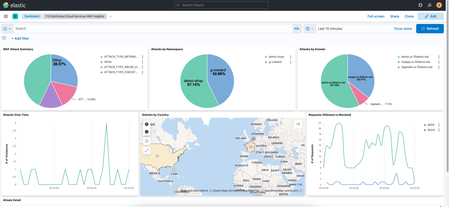
Welcome to configuring remote logging to Elastic, where we take a look at the F5 Distributed Cloud’s global log receiver service and we can easily send event log data from the F5 distributed cloud services platform to Elastic stack.1.1KViews1like0CommentsHow I did it - "Visualizing Metrics with F5 Telemetry Streaming and Datadog"
In some recent installments of the “How I Did it” series, we’ve taken a look at how F5 Telemetry Streaming, (TS) integrates with third-party analytics providers like Splunk and Elastic. In this article we continue our analytics vendor journey with the latest supported vendor, Datadog. Datadog is an analytics and monitoring platform offered in a Software-as-a-Service (SaaS) model. The platform provides a centralized visibility and monitoring of applications and infrastructure assets. While Datadog typically relies upon its various agents to capture logs and transmit back to the platform, there is an option for sending telemetry over HTTP. This is where F5’s TS comes into play. For the remainder of this article, I'll provide a brief overview of the services required to integrate the BIG-IP with Datadog. Rather than including the step-by-step instructions, I've included a video walkthrough of the configuration process. After all, seeing is believing! Application Services 3 Extension (AS3) There are several resources, (logging profiles, log publishers, iRules, etc.) that must be configured on the BIG-IP to enable remote logging. I utilized AS3 to deploy and manage these resources. I used Postman to apply a single REST API declaration to the AS3 endpoint. Telemetry Streaming (TS) F5's Telemetry Streaming, (TS) service enables the BIG-IP to stream telemetry data to a variety of third-party analytics providers. Aside from the aforementioned resources, configuring TS to stream to a consumer, (Datadog in this instance), is simply a REST call away. Just as I did for AS3, I utilized Postman to post a single declaration to the BIG-IP. Datadog Preparing my Datadog environment to receive telemetry from BIG-IPs via telemetry streaming is extremely simple. I will need to generate an API key which will in turn be used by a telemetry streaming extension to authenticate and access the Datadog platform. Additionally, the TS consumer provides for additional options, (Datadog region, compression settings, etc.) to be configured on the TS side. Dashboard Once my Datadog environment starts to ingest telemetry data from my BIG-IP, I’ll visualize the data using a custom dashboard. The dashboard, (community-supported and may not be suitable for framing) report various relevant BIG-IP performance metrics and information. F5 BIG-IP Performance Metrics Check it Out Rather than walk you through the entire configuration, how about a movie? Click on the link (image) below for a brief walkthrough demo integrating F5's BIG-IP with Datadog using F5 Telemetry Streaming. Try it Out Liked what you saw? If that's the case, (as I hope it was) try it out for yourself. Checkout F5's CloudDocs for guidance on configuring your BIG-IP(s) with the F5 Automation Toolchain.The various configuration files, (including the above sample dashboards) used in the demo are available on the GitHub solution repository Enjoy!2.2KViews1like0CommentsWhat is BIG-IQ?
tl;dr - BIG-IQ centralizes management, licensing, monitoring, and analytics for your dispersed BIG-IP infrastructure. If you have more than a few F5 BIG-IP's within your organization, managing devices as separate entities will become an administrative bottleneck and slow application deployments. Deploying cloud applications, you're potentially managing thousands of systems and having to deal with traditionally monolithic administrative functions is a simple no-go. Enter BIG-IQ. BIG-IQ enables administrators to centrally manage BIG-IP infrastructure across the IT landscape. BIG-IQ discovers, tracks, manages, and monitors physical and virtual BIG-IP devices - in the cloud, on premise, or co-located at your preferred datacenter. BIG-IQ is a stand alone product available from F5 partners, or available through the AWS Marketplace. BIG-IQ consolidates common management requirements including but not limited to: Device discovery and monitoring: You can discovery, track, and monitor BIG-IP devices - including key metrics including CPU/memory, disk usage, and availability status Centralized Software Upgrades: Centrally manage BIG-IP upgrades (TMOS v10.20 and up) by uploading the release images to BIG-IQ and orchestrating the process for managed BIG-IPs. License Management: Manage BIG-IP virtual edition licenses, granting and revoking as you spin up/down resources. You can create license pools for applications or tenants for provisioning. BIG-IP Configuration Backup/Restore: Use BIG-IQ as a central repository of BIG-IP config files through ad-hoc or scheduled processes. Archive config to long term storage via automated SFTP/SCP. BIG-IP Device Cluster Support: Monitor high availability statuses and BIG-IP Device clusters. Integration to F5 iHealth Support Features: Upload and read detailed health reports of your BIG-IP's under management. Change Management: Evaluate, stage, and deploy configuration changes to BIG-IP. Create snapshots and config restore points and audit historical changes so you know who to blame. 😉 Certificate Management: Deploy, renew, or change SSL certs. Alerts allow you to plan ahead before certificates expire. Role-Based Access Control (RBAC): BIG-IQ controls access to it's managed services with role-based access controls (RBAC). You can create granular controls to create view, edit, and deploy provisioned services. Prebuilt roles within BIG-IQ easily allow multiple IT disciplines access to the areas of expertise they need without over provisioning permissions. Fig. 1 BIG-IQ 5.2 - Device Health Management BIG-IQ centralizes statistics and analytics visibility, extending BIG-IP's AVR engine. BIG-IQ collects and aggregates statistics from BIG-IP devices, locally and in the cloud. View metrics such as transactions per second, client latency, response throughput. You can create RBAC roles so security teams have private access to view DDoS attack mitigations, firewall rules triggered, or WebSafe and MobileSafe management dashboards. The reporting extends across all modules BIG-IQ manages, drastically easing the pane-of-glass view we all appreciate from management applications. For further reading on BIG-IQ please check out the following links: BIG-IQ Centralized Management @ F5.com Getting Started with BIG-IQ @ F5 University DevCentral BIG-IQ BIG-IQ @ Amazon Marketplace9.5KViews1like1Comment