f5 distributed cloud
237 TopicsMitigating OWASP Web Application Risk: Insecure Design using F5 XC platform
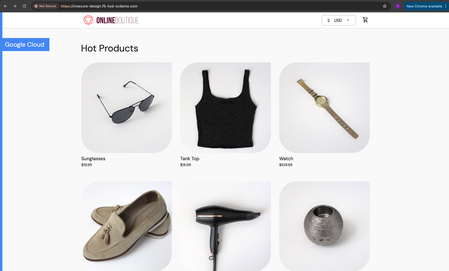
Overview: This article is the last part in a series of articles on mitigation of OWASP Web Application vulnerabilities using F5 Distributed Cloud platform (F5 XC). Introduction to Insecure Design: In an effort to speed up the development cycle, some phases might be reduced in scope which leads to give chance for many vulnerabilities. To focus the risks which are been ignored from design to deployment phases, a new category of “Insecure Design” is added under OWASP Web Application Top 10 2021 list. Insecure Design represents the weaknesses i.e. lack of security controls which are been integrated to the website/application throughout the development cycle. If we do not have any security controls to defend the specific attacks, Insecure Design cannot be fixed by any perfect implementation while at the same time a secure design can still have an implementation flaw which leads to vulnerabilities that may be exploited. Hence the attackers will get vast scope to leverage the vulnerabilities created by the insecure design principles. Here are the multiple scenarios which comes under insecure design vulnerabilities. Credential Leak Authentication Bypass Injection vulnerabilities Scalper bots etc. In this article we will see how F5 XC platform helps to mitigate the scalper bot scenario. What is Scalper Bot: In the e-commerce industry, Scalping is a process which always leads to denial of inventory. Especially, online scalping uses bots nothing but the automated scripts which will check the product availability periodically (in seconds), add the items to the cart and checkout the products in bulk. Hence the genuine users will not get a fair chance to grab the deals or discounts given by the website or company. Alternatively, attackers use these scalper bots to abandon the items added to the cart later, causing losses to the business as well. Demonstration: In this demonstration, we are using an open-source application “Online Boutique” (refer boutique-repo) which will provide end to end online shopping cart facility. Legitimate customer can add any product of their choice to the cart and checkout the order. Customer Page: Scalper bot with automation script: The below automation script will add products in bulk into the cart of the e-commerce application and place the order successfully. import requests import random # List of User-Agents USER_AGENTS = [ "sqlmap/1.5.2", # Automated SQL injection tool "Nikto/2.1.6", # Nikto vulnerability scanner "nmap", # Network mapper used in reconnaissance "Mozilla/5.0 (compatible; Googlebot/2.1; +http://www.google.com/bot.html)", # Spoofed Search Engine Bot "php", # PHP Command Line Tool "Mozilla/4.0 (compatible; MSIE 6.0; Windows NT 5.1)", # Old Internet Explorer (suspicious outdated) "libwww-perl/6.36", # Perl-based automation, often found in attacks or scrapers "wget/1.20.3", # Automation tool for downloading files or making requests "Python-requests/2.26.0", # Python automation library ] # Function to select a random User-Agent def get_random_user_agent(): return random.choice(USER_AGENTS) # Base URL of the API BASE_URL = "https://insecure-design.f5-hyd-xcdemo.com" # Perform the API request to add products to the cart def add_to_cart(product_id, quantity): url = f"{BASE_URL}/cart" headers = { "User-Agent": get_random_user_agent(), # Random User-Agent "Content-Type": "application/x-www-form-urlencoded" } payload = { "product_id": product_id, "quantity": quantity } # Send POST request with cookies included response = requests.post(url, headers=headers, data=payload) if response.status_code == 200: print(f"Successfully added {quantity} to cart!") else: print(f"Failed to add to cart. Status Code: {response.status_code}, Response: {response.text}") return response # Perform the API request to place an order def place_order(): url = f"{BASE_URL}/cart/checkout" headers = { "User-Agent": get_random_user_agent(), # Random User-Agent "Content-Type": "application/x-www-form-urlencoded" } payload = { "email": "someone@example.com", "street_address": "1600 Amphitheatre Parkway", "zip_code": "94043", "city": "Mountain View", "state": "CA", "country": "United States", "credit_card_number": "4432801561520454", "credit_card_expiration_month": "1", "credit_card_expiration_year": "2026", "credit_card_cvv": "672" } # Send POST request with cookies included response = requests.post(url, headers=headers, data=payload) if response.status_code == 200: print("Order placed successfully!") else: print(f"Failed to place order. Status Code: {response.status_code}, Response: {response.text}") return response # Main function to execute the API requests def main(): # Add product to cart product_id = "OLJCESPC7Z" quantity = 10 print("Adding product to cart...") add_to_cart_response = add_to_cart(product_id, quantity) # If the add_to_cart request is successful, proceed to checkout if add_to_cart_response.status_code == 200: print("Placing order...") place_order() # Run the main function if __name__ == "__main__": main() To mitigate this problem, F5 XC is providing the feasibility of identifying and blocking these bots based on the configuration provided under HTTP load balancer. Here is the procedure to configure the bot defense with mitigation action ‘block’ in the load balancer and associate the backend application nothing but ‘evershop’ as the origin pool. Create origin pool Refer pool-creation for more info Create http load balancer (LB) and associate the above origin pool to it. Refer LB-creation for more info Configure bot defense on the load balancer and add the policy with mitigation action as ‘block’. Click on “Save and Exit” to save the Load Balancer configuration. Run the automation script by providing the LB domain details to exploit the items in the application. Validating the product availability for the genuine user manually. Monitor the logs through F5 XC, Navigate to WAAP --> Apps & APIs --> Security Dashboard, select your LB and click on ‘Security Event’ tab. The above screenshot gives the detailed info on the blocked attack along with the mitigation action. Conclusion: As you have seen from the demonstration, F5 Distributed Cloud WAAP (Web Application and API Protection) has detected the scalpers with the bot defense configuration applied on the Load balancer and mitigated the exploits of scalper bots. It also provides the mitigation action of “_allow_”, “_redirect_” along with “_block_”. Please refer link for more info. Reference links: OWASP Top 10 - 2021 Overview of OWASP Web Application Top 10 2021 F5 Distributed Cloud Services F5 Distributed Cloud Platform Authentication Bypass Injection vulnerabilities2.5KViews2likes0CommentsDelivering Secure Application Services Anywhere with Nutanix Flow and F5 Distributed Cloud
Introduction F5 Application Delivery and Security Platform (ADSP) is the premier solution for converging high-performance delivery and security for every app and API across any environment. It provides a unified platform offering granular visibility, streamlined operations, and AI-driven insights — deployable anywhere and in any form factor. The F5 ADSP Partner Ecosystem brings together a broad range of partners to deliver customer value across the entire lifecycle. This includes cohesive solutions, cloud synergies, and access to expert services that help customers maximize outcomes while simplifying operations. In this article, we’ll explore the upcoming integration between Nutanix Flow and F5 Distributed Cloud, showcasing how F5 and Nutanix collaborate to deliver secure, resilient application services across hybrid and multi-cloud environments. Integration Overview At the heart of this integration is the capability to deploy a F5 Distributed Cloud Customer Edge (CE) inside a Nutanix Flow VPC, establish BGP peering with the Nutanix Flow BGP Gateway, and inject CE-advertised BGP routes into the VPC routing table. This architecture provides us complete control over application delivery and security within the VPC. We can selectively advertise HTTP load balancers (LBs) or VIPs to designated VPCs, ensuring secure and efficient connectivity. Additionally, the integration securely simplifies network segmentation across hybrid and multi-cloud environments. By leveraging F5 Distributed Cloud to segment and extend the network to remote locations, combined with Nutanix Flow Security for microsegmentation within VPCs, we deliver comprehensive end-to-end network security. This approach enforces a consistent security posture while simplifying segmentation across environments. In this article, we’ll focus on application delivery and security, and explore segmentation in the next article. Demo Walkthrough Let’s walk through a demo to see how this integration works. The goal of this demo is to enable secure application delivery for nutanix5.f5-demo.com within the Nutanix Flow Virtual Private Cloud (VPC) named dev3. Our demo environment, dev3, is a Nutanix Flow VPC with a F5 Distributed Cloud Customer Edge (CE) named jy-nutanix-overlay-dev3 deployed inside: *Note: CE is named jy-nutanix-overlay-dev3 in the F5 Distributed Cloud Console and xc-ce-dev3 in the Nutanix Prism Central. eBGP peering is ESTABLISHED between the CE and the Nutanix Flow BGP Gateway: On the F5 Distributed Cloud Console, we created an HTTP Load Balancer named jy-nutanix-internal-5 serving the FQDN nutanix5.f5-demo.com. This load balancer distributes workloads across hybrid multicloud environments and is protected by a WAF policy named nutanix-demo: We advertised this HTTP Load Balancer with a Virtual IP (VIP) 10.10.111.175 to the CE jy-nutanix-overlay-dev3 deployed inside Nutanix Flow VPC dev3: The CE then advertised the VIP route to its peer via BGP – the Nutanix Flow BGP Gateway: The Nutanix Flow BGP Gateway received the VIP route and installed it in the VPC routing table: Finally, the VMs in dev3 can securely access nutanix5.f5-demo.com while continuing to use the VPC logical router as their default gateway: F5 Distributed Cloud Console observability provides deep visibility into applications and security events. For example, it offers comprehensive dashboards and metrics to monitor the performance and health of applications served through HTTP load balancers. These include detailed insights into traffic patterns, latency, HTTP error rates, and the status of backend services: Furthermore, the built-in AI assistant provides real-time visibility and actionable guidance on security incidents, improving situational awareness and supporting informed decision-making. This capability enables rapid threat detection and response, helping maintain a strong and resilient security posture: Conclusion The integration demonstrates how F5 Distributed Cloud and Nutanix Flow collaborate to deliver secure, resilient application services across hybrid and multi-cloud environments. Together, F5 and Nutanix enable organizations to scale with confidence, optimize application performance, and maintain robust security—empowering businesses to achieve greater agility and resilience across any environment. This integration is coming soon in CY2026. If you’re interested in early access, please contact your F5 representative. Related URLs Simplifying and Securing Network Segmentation with F5 Distributed Cloud and Nutanix Flow | DevCentral F5 Distributed Cloud - https://www.f5.com/products/distributed-cloud-services Nutanix Flow Virtual Networking - https://www.nutanix.com/products/flow/networking 154Views1like0Comments
App Delivery & Security for Hybrid Environments using F5 Distributed Cloud
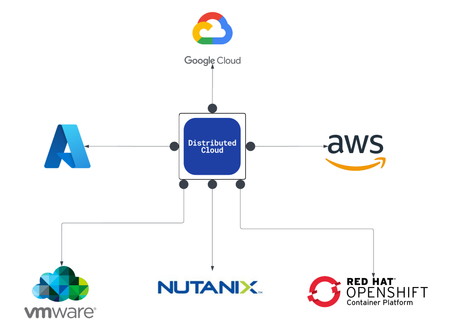
As enterprises modernize and expand their digital services, they increasingly deploy multiple instances of the same applications across diverse infrastructure environments—such as VMware, OpenShift, and Nutanix—to support distributed teams, regional data sovereignty, redundancy, or environment-specific compliance needs. These application instances often integrate into service chains that span across clouds and data centers, introducing both scale and operational complexity. F5 Distributed Cloud provides a unified solution for secure, consistent application delivery and security across hybrid and multi-cloud environments. It enables organizations to add workloads seamlessly—whether for scaling, redundancy, or localization—without sacrificing visibility, security, or performance.501Views4likes0CommentsSecuring Applications using mTLS Supported by F5 Distributed Cloud
Introduction Mutual Transport Layer Security (mTLS) is a process that establishes encrypted and secure TLS connection between the parties and ensures both parties use X.509 digital certificates to authenticate each other. It helps to prevent the malicious third-party attacks which will imitate the genuine applications. This authentication method helps when a server needs to ensure the authenticity and validity of either a specific user or device. As the SSL became outdated several companies like Skype, Cloudfare are now using mTLS to secure business servers. Not using TLS or other encryption tools without secure authentication leads to ‘man in the middle attacks.’ Using mTLS we can provide an identity to a server that can be cryptographically verified and makes your resources more flexible. mTLS with XFCC Header Not only supporting the mTLS process, F5 Distributed Cloud WAF is giving the feasibility to forward the Client certificate attributes (subject, issuer, root CA etc..) to origin server via x-forwarded-client-cert header which provides additional level of security when the origin server ensures to authenticate the client by receiving multiple requests from different clients. This XFCC header contains the following attributes by supporting multiple load balancer types like HTTPS with Automatic Certificate and HTTPS with Custom Certificate. Cert Chain Subject URI DNS How to Configure mTLS In this Demo we are using httpbin as an origin server which is associated through F5 XC Load Balancer. Here is the procedure to deploy the httpbin application, creating the custom certificates and step-by-step process of configuring mTLS with different LB (Load Balancer) types using F5 XC. Deploying HttpBin Application Here is the link to deploy the application using docker commands. Signing server/leaf cert with locally created Root CA Commands to generate CA Key and Cert: openssl genrsa -out root-key.pem 4096 openssl req -new -x509 -days 3650 -key root-key.pem -out root-crt.pem Commands to generate Server Certificate: openssl genrsa -out cert-key2.pem 4096 openssl req -new -sha256 -subj "/CN=test-domain1.local" -key cert-key2.pem -out cert2.csr echo "subjectAltName=DNS:test-domain1.local" >> extfile.cnf openssl x509 -req -sha256 -days 501 -in cert2.csr -CA root-crt.pem -CAkey root-key.pem -out cert2.pem -extfile extfile.cnf -CAcreateserial Note: Add the TLS Certificate to XC console, create a LB(HTTP/TCP) and attach origin pools and TLS certificates to it. In Ubuntu: Move above created CA certificate (ca-crt.pem) to /usr/local/share/ca-certificates/ca-crt.pem and modify "/etc/hosts" file by mapping the VIP(you can get this from your configured LB -> DNS info -> IP Addr) with domain, in this case the (test-domain1.local). mTLS with HTTPS Custom Certificate Log in the F5 Distributed Cloud Console and navigate to “Web APP & API Protection” module. Go to Load Balancers and Click on ‘Add HTTP Load Balancer’. Give the LB Name (test-mtls-cust-cert), Domain name (mtlscusttest.f5-hyd-demo.com), LB Type as HTTPS with Custom Certificate, Select the TLS configuration as Single Certificate and configure the certificate details. Click in ‘Add Item’ under TLS Certificates and upload the cert and key files by clicking on import from files. Click on apply and enable the mutual TLS, import the root cert info, and add the XFCC header value. Configure the origin pool by clicking on ‘Add Item’ under Origins. Select the created origin pool for httpbin. Click on ‘Apply’ and then save the LB configuration with ‘Save and Exit’. Now, we have created the Load Balancer with mTLS parameters. Let us verify the same with the origin server. mTLS with HTTPS with Automatic Certificate Log in the F5 Distributed Cloud Console and navigate to “Web APP & API Protection” module. Goto Load Balancers and Click on ‘Add HTTP Load Balancer’. Give the LB Name(mtls-auto-cert), Domain name (mtlstest.f5-hyd-demo.com), LB Type as HTTPS with Automatic Certificate, enable the mutual TLS and add the root certificate. Also, enable x-forwarded-client-cert header to add the parameters. Configure the origin pool by clicking on ‘Add Item’ under Origins. Select the created origin pool for httpbin. Click on ‘Apply’ and then save the LB configuration with ‘Save and Exit’. Now, we have created the HTTPS Auto Cert Load Balancer with mTLS parameters. Let us verify the same with the origin server. Conclusion As you can see from the demonstration, F5 Distributed Cloud WAF is providing the additional security to the origin servers by forwarding the client certificate info using mTLS XFCC header. Reference Links mTLS Insights Create root cert pair F5 Distributed Cloud WAF4.8KViews3likes1CommentDetection of Malicious Users using F5 Distributed Cloud WAAP – Part III
Introduction We have already discussed the advantages that the F5 Distributed cloud’s solution for malicious users’ brings to the table as well as how simple it is to configure and monitor those events using an interactive UI dashboard of F5 Distributed Cloud Console. Below are the links for parts 1 and 2 of this article: Detection of Malicious Users using F5 Distributed Cloud WAAP – Part I Detection of Malicious Users using F5 Distributed Cloud WAAP – Part II In this article, we will go over a few more test scenarios covering the detection and mitigation of malicious user events. Demonstration (using Multi Load Balancer ML config) Scenario 1: In this scenario, we will monitor and mitigate detected malicious users for forbidden access attempts. Step1: Enable malicious user detection using Multi Load Balancer ML config as mentioned in the document. Step2: Configure a policy that prevents users from accessing a specific path. From the Console homepage, click Web App & API Protection. Click Manage -> Service Policies -> Service Policies. Click 'Add service policy,' give it a name, and set the rules as needed. Here, we are prohibiting access to the path '/delete,' as illustrated in the screenshot below. As a result, users will be unable to access the endpoint "https://<domain>/delete". Go to Home -> Web App & API Protection -> Manage -> Load Balancers -> HTTP Load Balancers, and add the created service policy to the LB Step3: Configure app setting object to detect malicious user activity based on forbidden access requests Go to Home->WAAP->Manage->AI&ML->App Settings, click ‘Add App Setting’. Enter a name and go to ‘AppType’ Settings section. Click ‘Add item’. Click on the ‘App Type’ drop-down and select the app type configured in the LB while executing Step1. Click ‘Configure’ in ‘Malicious User Detection’, tune the settings as per your need. Here, we have set the threshold limit for forbidden access requests to 10, beyond which the system will flag the user as malicious. Apply and add the configurations and then click ‘Save and Exit’ to create the app settings object. Step4: Configure automatic mitigation for malicious users Go to your LB and click ‘Edit Configuration’ Scroll down to ‘Common Security Controls’ section Enable 'Malicious User Mitigation And Challenges'. Set the ‘Malicious User Mitigation Settings’ as ‘Default’. click Save & Exit. Step5: Generate requests (more than the configured threshold value in Step3) to forbidden path (https://<domain>/delete). Note: Here generating requests indicates attempts of an attacker to bypass 403 forbidden error response. For example, trying different HTTP request methods, manipulating endpoint by appending sequences to it like {%2e}, {%2f}, {%5c} or by applying some other technique manually or through script. Step6: Go to Home->Web App & API Protection->Overview->Dashboards->Security Dashboard, select your LB and switch to Malicious Users tab, monitor the activity. Note: You can also use manual configuration for mitigation if automatic mitigation is not applied by simply clicking on ‘Block User’ on the top right side and adding detected malicious user's IP address to the deny list. Scenario 2: In this scenario, we will set the configuration to detect malicious users based on requests from potentially High-Risk IPs and block them by configuring default automatic mitigation action. Step1: Enable malicious user detection using Multi Load Balancer ML config as mentioned in the document. Step2: In app settings object configuration, make sure 'IP Reputation' is enabled (follow points in Step3 from Scenario1). Apply, Save & Exit. Step3: Follow Step4 in Scenario 1 to enable default automatic malicious user mitigation action . Step4: Generate 20+ requests in a minute from Tor browser. At the end follow Step6 from Scenario1 to monitor the malicious user activity Note: Tor is a free and open-source software developed to hide its user’s identity and activities over the Internet and make them anonymous. Conclusion This brings us to the end of this article series. We have seen how F5 Distributed Cloud WAAP’s security solution for malicious users aids in the identification and mitigation of suspicious activities. Alert fatigue, long investigation times, missed attacks, and false positives are all common issues for security teams. However, by utilizing malicious user detection, security teams can effectively filter out noise and identify actual risks and threats without the need for manual intervention. Suspicious actions such as Forbidden access attempts, login failures, and so on create a timeline of events that suggests the possibility of malicious user activity. Users who exhibit such behavior can be blocked manually or automatically based on their threat levels, and exceptions can be made using allow lists.1.3KViews3likes0CommentsDetection of Malicious Users using F5 Distributed Cloud WAAP – Part I
Introduction As people embraced the Internet as a part of their daily lives, businesses all over the world discovered an easier way to reach a large customer base that is not restricted by geographical boundaries. While that is important, it has also provided an open platform for malicious users to look for potential security loopholes in order to break into the system and cause severe damages. As a result, safeguarding business applications from such malicious user events becomes extremely critical. F5 Distributed Cloud WAAP (Web App & API Protection) offers a solution for monitoring such security events as well as the means to mitigate them. In this series of articles, we will demonstrate enabling, configuring, monitoring, and mitigating malicious users using F5 Distributed Cloud console. Configuration There are two ways to enable malicious user detection: Using Single Load Balancer ML configuration. Using Multi Load Balancer ML configuration. Using Single Load Balancer ML Configuration: In this mechanism, detection is enabled as part of the load balancer configuration and is only applicable to the load balancer on which it is configured. Using Multi Load Balancer ML Configuration: In this mechanism, detection is enabled as part of the app type configuration and is valid for all LBs configured with the same app type label. In both of the mentioned ways, detection is dependent on the ML configuration derived from the app settings object, with the difference that in single load balancer ML config values are not configurable and are set to default, whereas in multi load balancer ML config values can be configured according to the need. Once malicious user events have been identified, the next stage is to prioritize mitigation. The following are two ways of mitigating detected malicious user events: Using Load Balancer Security Monitoring. Using Load Balancer Advanced Security Configuration. Using Load Balancer Security Monitoring This is a manual way of configuring mitigation in which malicious user IPs are added to the allow/deny list. Using Load Balancer Advanced Security Configuration This is an automatic way of enabling mitigation in which the platform will apply the corresponding configured mitigation action for the specific threat levels. The default identifier configured for addressing malicious user events is the client IP address but in the ever-evolving world of attacks spoofing identity is not a difficult task to perform and to uniquely identify a user we should have a set of other identification mechanisms, keeping that in mind F5 Distributed Cloud console also provides you with the option to configure other parameters of identification like cookie name, header name, query parameter, ASN, TLS Fingerprint and combination of IP-header name & IP-TLS Fingerprint. Follow the documentation for step-by-step configuration instructions Demonstration (Using Single Load Balancer ML Configuration) In this demonstration we will enable malicious user detection, configure a WAF policy with enforcement mode as monitoring, configure malicious user mitigation actions for medium and high threat levels and at the end monitor the XC logs for malicious user activity. Step1: Enable malicious user detection using Single Load Balancer ML config as mentioned in the document. Step2: Create an App Firewall policy. Select WAAP service from the home page then go to Manage->App Firewall and click on 'Add App Firewall'. Add name and customize the fields as needed, Save & Exit. Step3: Configure mitigation actions. Go to WAAP->Manage->Shared Objects->Malicious User Mitigation and click on Add Malicious User Mitigation. Add a name, set threat level and associated actions accordingly. Add Item, Save & Exit. Step4: Attach the WAF policy and add the malicious user mitigation settings to the LB. From the Console homepage, Go to Load Balancers->Manage->Load Balancers->HTTP Load Balancers, select ‘Manage Configuration’ as an ‘Action’ to your LB and click ‘Edit Configuration’. Scroll down to Web Application Firewall (WAF), enable it and set the waf policy created in Step 2, Save & Exit. Scroll down to 'Common Security Controls' enable 'Malicious User Mitigation And Challenges', set 'Malicious User Mitigation Settings' as ‘custom’ and add the mitigation rule created in Step 3, Apply the changes. (Note: Here we have provided the flexibility to configure custom malicious user mitigation setting. However, users can also select default, which is a recommended setting). Step5: Generate XSS attack (20+ requests in a minute) e.g., https://<domain>?a=<script> Step6: Monitor the malicious user activity. Go to WAAP -> Overview -> Dashboards->Security Dashboard, scroll down and select your LB. Select Malicious Users tab. On top of the above dashboard, F5 XC console also provides a seperate malicious users dashboard which shows a global view of potential malicious users interacting with the application load balancers in a specific namespace giving a better visibility and greater context about the malicious traffic and ease the process of tracking and mitigating possible attacks with quick assessment. Below are a few screenshots of the same. To view this dashboard navigate to Home -> Web App & API Protection -> Overview -> Threat Insights -> Malicious Users As you can see from the demonstration, even though the waf policy is set to monitoring mode, in the background, malicious user activity is continued to be tracked and the threat level kept increasing with the number of attacks being performed, and once the threat level reached ‘High’, configured mitigation action got triggered. (Note: Based on malicious user mitigation settings different threat levels will have different mitigation actions, for example: in default settings for low threat level, JavaScript Challenge will be applied, for medium threat level, Captcha Challenge will be applied and for high threat level, users will be temporarily blocked). In this scenario, Customers can block attackers in real-time with very low risk of False Positives, as actions are taken based on observed user behavior over time. Conclusion In this article, we discussed how to enable malicious user detection and mitigation and how you can block attackers with a very low risk of False Positives. In future articles, we will discuss other scenarios. So please stay tuned. For further information or to get started: F5 Distributed Cloud Platform (Link) F5 Distributed Cloud WAAP Services (Link)4.5KViews5likes0CommentsDetection of Malicious Users using F5 Distributed Cloud WAAP – Part II
Introduction This is an extension of the already published article Detection of Malicious Users using F5 Distributed Cloud WAAP – Part I an introductory article which highlights the configurations available for detecting and mitigating malicious user activity and includes a demonstration focused on detecting and mitigating malicious clients based on WAF security events. In part II of this series of articles, we will demonstrate a few more scenarios covering insights of malicious user detection and mitigation feature of F5 Distributed Cloud platform. Demonstration (Using Multi Load Balancer ML Configuration) In this demonstration, we will set the threshold limit for failed login attempts in the app settings configuration to mark any subsequent requests as a malicious user event and apply mitigation rules to restrict access, as well as we will detect the clients based on various user identifier types provided by the F5 Distributed cloud console. Step1: Enable malicious user detection using Multi Load Balancer ML config as mentioned in the document. Step2: Add malicious user mitigation rule to the LB In ‘Common Security Controls’, enable ‘Malicious User Mitigation And Challenges’, set 'Malicious User Mitigation Settings' as ‘Custom’, if the rule is already created select and apply the custom mitigation rule, Save & Exit or click on 'Add Item', add a name, set the rules (threat level and associated actions) accordingly, click continue, apply, Save & Exit. (Note: You can also configure the 'Default' malicious user mitigation settings, which has already defined mitigation rules and is a recommended setting). Step3: Go to Home->WAAP->Manage->AI&ML->App Settings, click ‘Add App Setting’. Step4: Enter a name and click on 'Add Item' to go to the ‘AppType’ settings section. Click ‘Add item’. Step5: Click on the ‘Select Item’ drop-down and select the app type configured in the LB while executing Step1. Step6: Click ‘Configure’ ‘Malicious User Detection’, tune the settings as per your need. For the demonstration purpose we are setting the threshold value for Failed Login Activity to 5. Step7: Apply and add the configurations and then click ‘Save and Exit’ to create the app settings object. Note: Identifying users uniquely on the Internet is a critical task because it aids in the creation of a perception by learning from the activities they perform on the application. Step8: Go to Home->WAAP->Manage->Shared Objects->User Identifications, click ‘Add User Identification’ Add a name, click ‘Configure’ on ‘User Identification Rules’, click ‘Add Item’ Set and apply the user identifier type and add the created user identification policy to the LB. Step9: Generate requests more than the configured threshold limit for failed login attempts in your application; it should return response code as 401. Available User Identifier Types: By default, the user identifier type is set to ‘Client IP Address’. As in the previous article, we have already seen IP address as a client identifier. In this demo, we will set other options available, follow the steps mentioned above to generate failed login events and verify that the users are getting detected based on the configured user identification policy. Below are the screenshots for configured user identification rules and UI dashboards displaying the results of associated configurations: Query Parameter Key HTTP Header Name Cookie Name Client Autonomous System TLS Fingerprint Client IP and HTTP Header Name Client IP and TLS Fingerprint Conclusion In this article, we demonstrated how simple it is to configure your LB to respond to multiple unauthorised access attempts by detecting them using various client identification type options and mitigating them automatically at the same time with a very low risk of false positives. For further information or to get started F5 Distributed Cloud Platform (Link) F5 Distributed Cloud WAAP Services (Link)2.8KViews4likes0CommentsF5 Distributed Cloud (XC) Global Applications Load Balancing in Cisco ACI
Introduction F5 Distributed Cloud (XC) simplify cloud-based DNS management with global server load balancing (GSLB) and disaster recovery (DR). F5 XC efficiently directs application traffic across environments globally, performs health checks, and automates responses to activities and events to maintain high application performance with high availability and robustness. In this article, we will discuss how we can ensure high application performance with high availability and robustness by using XC to load-balance global applications across public clouds and Cisco Application Centric Infrastructure (ACI) sites that are geographically apart. We will look at two different XC in ACI use cases. Each of them uses a different approach for global applications delivery and leverages a different XC feature to load balance the applications globally and for disaster recovery. XC DNS Load Balancer Our first XC in ACI use case is very commonly seen where we use a traditional network-centric approach for global applications delivery and disaster recovery. We use our existing network infrastructure to provide global applications connectivity and we deploy GSLB to load balance the applications across sites globally and for disaster recovery. In our example, we will show you how to use XC DNS Load Balancer to load-balance a global application across ACI sites that are geographically dispersed. One of the many advantages of using XC DNS Load Balancer is that we no longer need to manage GSLB appliances. Also, we can expect high DNS performance thanks to XC global infrastructure. In addition, we have a single pane of glass, the XC console, to manage all of our services such as multi-cloud networking, applications delivery, DNS services, WAAP etc. Example Topology Here in our example, we use Distributed Cloud (XC) DNS Load Balancer to load balance our global application hello.bd.f5.com, which is deployed in a hybrid multi-cloud environment across two ACI sites located in San Jose and New York. Here are some highlights at each ACI site from our example: New York location XC CE is deployed in ACI using layer three attached with BGP XC advertises custom VIP 10.10.215.215 to ACI via BGP XC custom VIP 10.10.215.215 has an origin server 10.131.111.88 on AWS BIG-IP is integrated into ACI BIG-IP has a public VIP 12.202.13.149 that has two pool members: on-premise origin server 10.131.111.161 XC custom VIP 10.10.215.215 San Jose location XC CE is deployed in ACI using layer three attached with BGP XC advertises custom VIP 10.10.135.135 to ACI via BGP XC custom VIP 10.10.135.135 has an origin server 10.131.111.88 on Azure BIG-IP is integrated into Cisco ACI BIG-IP has a public VIP 12.202.13.147 that has two pool members: on-premise origin server 10.131.111.55 XC custom VIP 10.10.135.135 *Note: Click here to review on how to deploy XC CE in ACI using layer three attached with BGP. DNS Load Balancing Rules A DNS Load Balancer is an ingress controller for the DNS queries made to your DNS servers. The DNS Load Balancer receives the requests and answers with an IP address from a pool of members based on the configured load balancing rules. On the XC console, go to "DNS Management" -> "DNS Load Balancer Management" to create a DNS Load Balancer and then define the load balancing rules. Here in our example, we created a DNS Load Balancer and defined the load balancing rules for our global application hello.bd.f5.com (note: as a prerequisite, F5 XC must be providing primary DNS for the domain): Rule #1: If the DNS request to hello.bd.f5.com comes from United States or United Kingdom, respond with BIG-IP VIP 12.203.13.149 in the DNS response so that the application traffic will be directed to New York ACI site and forwarded to an origin server that is located in AWS or on-premise: Rule #2: If the DNS request to hello.bd.f5.com comes from United States or United Kingdom and if New York ACI site become unavailable, respond with BIG-IP VIP 12.203.13.147 in the DNS response so that the application traffic will be directed to San Jose ACI site and forwarded to an origin server that is located on-premise or in Azure: Rule #3: If the DNS request to hello.bd.f5.com comes from somewhere outside of United States or United Kingdom, respond with BIG-IP VIP 12.203.13.147 in the DNS response so that the application traffic will be directed to San Jose ACI and forwarded to an origin server that is located on-premise or in Azure: Validation Now, let's see what happens. When a machine located in the United States tries to reach hello.bd.f5.com and if both ACI sites are up, the traffic is directed to New York ACI site and forwarded to an origin server that is located on-premise or in AWS as expected: When a machine located in the United States tries to reach hello.bd.f5.com and if the New York ACI site is down or becomes unavailable, the traffic is re-directed to San Jose ACI site and forwarded to an origin server that is located on-premise or in Azure as expected: When a machine tries to access hello.bd.f5.com from outside of United States or United Kingdom, it is directed to San Jose ACI site and forwarded to an origin server that is located on-premise or in Azure as expected: On the XC console, go to "DNS Management" and select the appropriate DNS Zone to view the Dashboard for information such as the DNS traffic distribution across the globe, the query types etc and Requests for DNS requests info: XC HTTP Load Balancer Our second XC in ACI use case uses a different approach for global applications delivery and disaster recovery. Instead of using the existing network infrastructure for global applications connectivity and utilizing XC DNS Load Balancer for global applications load balancing, we simplify the network layer management by securely deploying XC to connect our applications globally and leveraging XC HTTP Load Balancer to load balance our global applications and for disaster recovery. Example Topology Here in our example, we use XC HTTP load balancer to load balance our global application global.f5-demo.com that is deployed across a hybrid multi-cloud environment. Here are some highlights: XC CE is deployed in each ACI site using layer three attached with BGP New York location: ACI advertises on-premise origin server 10.131.111.161 to XC CE via BGP San Jose location: ACI advertises on-premise origin server 10.131.111.55 to XC CE via BGP An origin server 10.131.111.88 is located in AWS An origin server 10.131.111.88 is located in Azure *Note: Click here to review on how to deploy XC CE in ACI using layer three attached with BGP. XC HTTP Load Balancer On the XC console, go to “Multi-Cloud App Connect” -> “Manage” -> “Load Balancers” -> “HTTP Load Balancers” to “Add HTTP Load Balancer”. In our example, we created a HTTPS load balancer named global with domain name global.f5-demo.com. Instead of bringing our own certificate, we took advantage of the automatic TLS certificate generation and renewal supported by XC: Go to “Origins” section to specify the origin servers for the global application. In our example, we included all origin servers across the public clouds and ACI sites for our global application global.f5-demo.com: Next, go to “Other Settings” -> “VIP Advertisement”. Here, select either “Internet” or “Internet (Specified VIP)” to advertise the HTTP Load Balancer to the Internet. In our example, we selected “Internet” to advertise global.f5-demo.com globally because we decided not to manage nor to acquire a public IP: In our first use case, we defined a set of DNS load balancing rules on the XC DNS Load Balancer to direct the application traffic based on our requirement: If the request to global.f5-demo.com comes from United States or United Kingdom, application traffic should be directed to an origin server that is located on-premise in New York ACI site or in AWS. If the request to global.f5-demo.com comes from United States or United Kingdom and if the origin servers in New York ACI site and AWS become unavailable, application traffic should be re-directed to an origin server that is located on-premise in San Jose ACI site or in Azure. If the request to global.f5-demo.com comes from somewhere outside of United States or United Kingdom, application traffic should be directed to an origin server that is located on-premise in San Jose ACI site or in Azure. We can accomplish the same with XC HTTP Load Balancer by configuring Origin Server Subset Rules. XC HTTP Load Balancer Origin Server Subset Rules allow users to create match conditions on incoming source traffic to the XC HTTP Load Balancer and direct the matched traffic to the desired origin server(s). The match condition can be based on country, ASN, regional edge (RE), IP address, or client label selector. As a prerequisite, we create and assign a label (key-value pair) to an origin server so that we can specify where to direct the matched traffic to in reference to the label in Origin Server Subset Rules. Go to “Shared Configuration” -> “Manage” -> “Labels” -> “Known Keys” and “Add Know Key” to create labels. In our example, we created a key named jy-key with two labels: us-uk and other : Now, go to "Origin pool" under “Multi-Cloud App Connect” and apply the labels to the origin servers: In our example, origin servers in New York ACI site and AWS are labeled us-uk while origin servers in San Jose ACI site and Azure are labeled other : Then, go to “Other Settings” to enable subset load balancing. In our example, jy-key is our origin server subsets class, and we configured to use default subset original pool labeled other as our fallback policy choice based on our requirement that is if the origin servers in New York ACI site and AWS become unavailable, traffic should be directed to an origin server in San Jose ACI site or Azure: Next, on the HTTP Load Balancer, configure the Origin Server Subset Rules by enabling “Show Advanced Fields” in the "Origins" section: In our example, we created following Origin Server Subset Rules based on our requirement: us-uk-rule: If the request to global.f5-demo.com comes from United States or United Kingdom, direct the application traffic to an origin server labeled us-uk that is either in New York ACI site or AWS. other-rule: If the request to global.f5-demo.com does not come from United States or United Kingdom, direct the application traffic to an origin server labeled other that is either in San Jose ACI site or Azure. Validation As a reminder, we use XC automatic TLS certificate generation and renewal feature for our HTTPS load balancer in our example. First, let's confirm the certificate status: We can see the certificate is valid with an auto renew date. Now, let’s run some tests and see what happens. First, let’s try to access global.f5-demo.com from United Kingdom: We can see the traffic is directed to an origin server located in New York ACI site or AWS as expected. Next, let's see what happens if the origin servers from both of these sites become unavailable: The traffic is re-directed to an origin server located in San Jose ACI site or Azure as expected. Last, let’s try to access global.f5-demo.com from somewhere outside of United States or United Kingdom: The traffic is directed to an origin server located in San Jose ACI site or Azure as expected. To check the requests on the XC Console, go to "Multi-Cloud App Connect" -> “Performance” -> "Requests" from the selected HTTP Load Balancer. Below is a screenshot from our example and we can see the request to global.f5-demo.com came from Australia was directed to the origin server 10.131.111.55 located in San Jose ACI site based on the configured Origin Server Subset Rules other-rule: Here is another example that the request came from United States was sent to the origin server 10.131.111.88 located in AWS based on the configured Origin Server Subset Rules us-uk-rule: Summary F5 XC simplify cloud-based DNS management with global server load balancing (GSLB) and disaster recovery (DR). By deploying F5 XC in Cisco ACI, we can securely deploy and load balance our global applications across ACI sites (and public clouds) efficiently while maintaining high application performance with high availability and robustness among global applications at all times. Related Resources *On-Demand Webinar* Deploying F5 Distributed Cloud Services in Cisco ACI Deploying F5 Distributed Cloud (XC) Services in Cisco ACI - Layer Three Attached Deployment Deploying F5 Distributed Cloud (XC) Services in Cisco ACI - Layer Two Attached Deployment 1KViews1like0Comments
Use F5 Distributed Cloud to control Primary and Secondary DNS
Overview Domain Name Service (DNS); it's how humans and machines discover where to connect. DNS on the Internet is the universal directory of addresses to names. If you need to get support for the product Acme, you go to support.acme.com. Looking for the latest headlines in News, try www.aonn.com or www.npr.org. DNS is the underlying feature that nearly every service on the Internet depends on. Having a robust and reliable DNS provider is critical to keeping your organization online and working, and especially so during a DDoS attack. "Nature is a mutable cloud, which is always and never the same." - Ralph Waldo Emerson We might not wax that philosophically around here, but our heads are in the cloud nonetheless! Join the F5 Distributed Cloud user group today and learn more with your peers and other F5 experts. F5 Distributed Cloud DNS (F5 XC DNS) can function as both Primary or Secondary nameservers, and it natively includes DDoS protection. Using F5 XC DNS, it’s possible to provision and configure primary or secondary DNS securely in minutes. Additionally, the service uses a global anycast network and is built to scale automatically to respond to large query volumes. Dynamic security is included and adds automatic failover, DDoS protection, TSIG authentication support, and when used as a secondary DNS—DNSSEC support. F5 Distributed Cloud allows you to manage all of your sites as a single “logical cloud” providing: - A portable platform that spans multiple sites/clouds - A private backbone connects all sites - Connectivity to sites through its nodes (F5 Distributed Cloud Mesh and F5 Distributed Cloud App Stack) - Node flexibility, allowing it to be virtual machines, live on hardware within data centers, sites, or in cloud instances (e.g. EC2) - Nodes provide vK8s (virtual K8s), network and security services - Services managed through F5 Distributed Cloud’s SaaS base console Scenario 1 – F5 Distributed Cloud DNS: Primary Nameserver Consider the following; you're looking to improve the response time of your app with a geo-distributed solution, including DNS and app distribution. With F5 XC DNS configured as the primary nameserver, you’ll automatically get DNS DDoS protection, and will see an improvement in the response the time to resolve DNS just by using Anycast with F5’s global network’s regional point of presence. To configure F5 XC DNS to be the Primary nameserver for your domain, access the F5 XC Console, go to DNS Management, and then Add Zone. Alternately, if you're migrating from another DNS server or DNS service to F5 XC DNS, you can import this zone directly from your DNS server. Scenario 1.2 below illustrates how to import and migrate your existing DNS zones to F5 XC DNS. Here, you’ll write in the domain name (your DNS zone), and then View Configuration for the Primary DNS. On the next screen, you may change any of the default SOA parameters for the zone, and any type of resource record (RR) or record sets which the DNS server will use to respond to queries. For example, you may want to return more than one A record (IP address) for the frontend to your app when it has multiple points of presence. To do this, enter as many IP addresses of record type A as needed to send traffic to all the points of ingress to your app. Additional Resource Record Sets allows the DNS server to return more than a single type of RR. For example, the following configurations, returns two A (IPv4 address) records and one TXT record to the query of type ANY for “al.demo.internal”. Optionally, if your root DNS zone has been configured for DNSSEC, then enabling it for the zone is just a matter of toggling the default setting in the F5 XC Console. Scenario 1.2 - Import an Existing Primary Zone to Distributed Cloud using Zone Transfer (AXFR) F5 XC DNS can use AXFR DNS zone transfer to import an existing DNS zone. Navigate to DNS Management > DNS Zone Management, then click Import DNS Zone. Enter the zone name and the externally accessible IP of the primary DNS server. ➡️ Note: You'll need to configure your DNS server and any firewall policies to allow zone transfers from F5. A current list of public IP's that F5 uses can be found in the following F5 tech doc. Optionally, configure a transaction signature (TSIG) to secure the DNS zone transfer. When you save and exit, F5 XC DNS executes a secondary nameserver zone AXFR and then transitions itself to be the zone's primary DNS server. To finish the process, you'll need to change the NS records for the zone at your domain name registrar. In the registrar, change the name servers to the following F5 XC DNS servers: ns1.f5clouddns.com ns2.f5clouddns.com Scenario 1.3 - Import Existing (BIND format) Primary Zones directly to Distributed Cloud F5 XC DNS can directly import BIND formatted DNS zone files in the Console, for example, db.2-0-192.in-addr.arpa and db.foo.com. Enterprises often use BIND as their on-prem DNS service, importing these files to Distributed Cloud makes it easier to migrate existing DNS records. To import existing BIND db files, navigate to DNS Management > DNS Zone Management, click Import DNS Zone, then "BIND Import". Now click "Import from File" and upload a .zip with one or more BIND db zone files. The import wizard accepts all primary DNS zones and ignores other zones and files. After uploading a .zip file, the next screen reports any warnings and errors At this poing you can "Save and Exit" to import the new DNS zones or cancel to make any changes. For more complex zone configurations, including support for using $INCLUDE and $ORIGIN directives in BIND files, the following open source tool will convert BIND db files to JSON, which can then be copied directly to the F5 XC Console when configuring records for new and existing Primary DNS zones. BIND to XC-DNS Converter Scenario 2 - F5 Distributed Cloud DNS: Primary with Delegated Subdomains An enhanced capability when using Distributed Cloud (F5 XC) as the primary DNS server for your domains or subdomains, is to have F5 XC dynamically manage the DNS records for its own managed services. Note that prior to July 2023, the delegated DNS feature in F5 XC required the exclusive use of subdomains to use dynamically managed DNS records. As of July 2023, organizations are allowed to have both F5 XC managed and self-managed DNS resource records in the same domain or subdomain. When "Allow HTTP Load Balancer Managed Records" is checked, DNS records automatically added by F5 XC appear in a new RR set group called x-ves-io-managed which is read-only. In the following example, I've created an HTTP Load Balanacer with the domain "www.example.f5-cloud-demo.com" and F5 XC automatically created the A resource record (RR) in the group x-ves-io-managed. Scenario 3 – F5 Distributed Cloud DNS: Secondary Nameserver In this scenario, say you already have a primary DNS server in your on-prem datacenter, but due to security needs, you don’t want it to be directly accessible to the Internet. F5 XC DNS can be configured as a secondary DNS server and support both zone transfer (AXFR, IXFR) and receive (NOTIFY) updates from your primary DNS server. All that's needed to complete this change is to change the nameserver records with your DNS registrar by adding the F5 XC nameservers and removing your the real primary. Having F5 XC DNS as public interface includes complimentary security services, such as DDoS protection and vector scaling. This improves both the uptime of your services as well as reducing latency by allowing all F5's nameservers world-wide to handle domain name resolution. If the primary nameserver is configured for DNSSEC and delivers RRSIG and zone DNSKEY records, F5 XC nameservers will also include these records in the lookups delivered to clients. This ensures a consistent level of security for records management end-to-end. To configure F5 XC DNS to be a secondary DNS server, go to Add Zone, then choose Secondary DNS Configuration. Next, View Configuration for it, and add your primary DNS server IP’s. To enhance the security of zone transfers and updates, F5 XC DNS supports TSIG encrypted transfers from the primary DNS server. To support TSIG, ensure your primary DNS server supports encryption, and enable it by entering the pre-shared key (PSK) name and its value. The PSK itself can be blindfold-encrypted using the F5 XC Console to prevent other admins from being able to see it. If encryption for zone transfers is desired, simply enter the remaining details for your TSIG PSK and click Apply. Once you’ve saved a new secondary DNS configuration, the F5 XC DNS pulls the zone details and begins resolving queries on the F5 XC Global Network with its pool of Anycast-reachable DNS servers. To see the status of individual zones and when they were last transferred by navigating to the DNS Management > DNS Zones overview. As applications mature and your audience broadens, ensuring low-latency for DNS requires additional services. Adding F5 XC DNS to complement an existing BIG-IP GTM or other existing primary nameserver deployment, including with DNSSEC records and TSIG-protected zone transfer support, is straight forward. Conclusion You’ve just seen how to configure F5 XC DNS both as a primary DNS as well as a secondary DNS service. Ensure the reachability of your company with a robust, secure, and optimized DNS service by F5. A service that delivers the lowest resolution latency with its global Anycast network of nameservers, and one that automatically includes DDoS protection, DNSSEC, TSIG support for secondary DNS. Watch the following demo video to see how to configure F5 XC DNS for scenarios #1 and #3 above. Additional Resources On-Demand webinar: Boost resilience and performance with F5 Distributed Cloud DNS Information about using F5 Distributed Cloud DNS Technical documentation DNS Demo Guide and step-by-step walkthrough BIND to XC-DNS Converter (open source tool)11KViews6likes0CommentsJavaScript Supply Chains, Magecart, and F5 XC Client-Side Defense (Demo)
JavaScript Supply Chain Attacks are on the Rise With a firewall, a WAF, bot defense, and a SIEM, you control and monitor web traffic entering the data center. Criminals have adapted their strategies to attack your customers in the browser. New web architectures involving dozens of third-party JavaScript files make this new attack surface even more vulnerable. Increasing Web Page Complexity Enterprises cannot keep track of all the scripts and changes that go on in their website and attackers are exploiting this lack of surveillance to introduce malicious code into the supply chain that their web page relies on. Most use 3rd party libraries (eg. Marketing Scripts) Most 3rd party libraries themeselves depend on another set of 3rd party libraries (eg. jQuery.js) Final page loads on end user's browser can easily contain scripts from 20-30 different organizations Magecart, Formjacking, and E-skimming These attacks occur when a threat actor injects one or many malicious scripts into a legitimate page or code repo to create a software supply chain man-in-the-browser attack (SC-MITB). The attacker can then run keyloggers and any other JavaScript based attacks on the end-users browser stealing any credit card data, username and password combinations etc... which will be sent to the attackers command and control server as pictured below. What is Distributed Cloud Client-Side Defense? F5® Distributed Cloud Client-Side Defense (CSD) provides a multi-phase protection system that protects web applications against Magecart-style and other malicious JavaScript attacks. This multi-phase protection system includes detection, alerting, and mitigation. Detection. A continuously evolving signal set allows CSD to understand when scripts on web pages exhibit signs of exfiltration. CSD detects network requests made by malicious scripts that attempt to exfiltrate PII data. Alerting. CSD generates timely alerts on the behavior of malicious scripts, provided by a continuously improving Analysis Engine. The Analysis Engine contains a machine learning component for accurate and informative analysis and provides details on the behavior of malicious script to help troubleshoot and identify the root cause. Mitigation. CSD detects threats in real-time and provides enforcement with one-click mitigation. CSD leverages the same obfuscation and signal technology as F5® Distributed Cloud Bot Defense, delivering unparalleled efficacy. High Level Distributed Cloud Client-Side Defense Architecture Client-Side Defense Demo: Learn about the risks of JavaScript supply-chain attacks (aka Magecart), the costs of Formjacking and PII Harvesting, and how to detect and mitigate this threat vector. Regain security control of your apps with F5’s Distributed Cloud Client-Side Defense. Related Resources Deploy Bot Defense on any Edge with F5 Distributed Cloud (SaaS Console, Automation) F5 Client-Side Defense Product Page Client-Side Defense Documentation4.5KViews5likes0Comments