secure web gateway
12 TopicsLightboard Lessons: SSL Outbound Visibility
You’ve been having trouble sleeping because of the SSL visibility problem with all the fancy security tools that don’t do decryption. Put down that ambien, because this Lightboard Lesson solves it. In episode, David Holmes diagrams the Right Way (tm) to decrypt and orchestrate outbound SSL traffic, improving SSL visibility, decreasing failures and improving network performance.1.8KViews1like10Comments
Configuring the F5 BIG-IP as an Explicit Forward Web Proxy Using Secure Web Gateway (SWG)
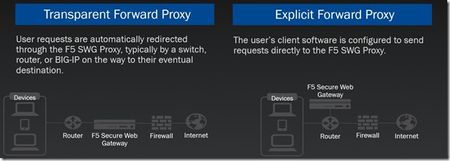
In previous articles, we have discussed the use of F5 BIG-IP as a SSL VPN and other use cases for external or inbound access. I now wanted to take some time to discuss an outbound access use case using F5 BIG-IP as an explicit forward web proxy. In laymen terms, this use case allows you to control end user web access with malware prevention, URL and content filtering. This is made possible with a great partnership between F5 and Forcepoint, previously known as Websense. The BIG-IP can also be used as a transparent forward proxy though this will be outside the scope of this article. Below is a diagram and description of each. OK, so now that we've discussed the intent of the article, let's go over the requirements before getting started. The customer requirement is to identify a forward web proxy solution that provides URL filtering, content filtering as well as the ability to export logs and statistics on end user browsing. They also require single sign on using Kerberos authentication. As the integrator, you're wondering how much it would cost to bring in a new vendor and appliances to meet this requirement. Then you remember hearing that F5 is somewhat of a Swiss Army Knife, can they do this? So as many of us do, we go back to our handy dandy search engine and type in web proxy site:f5.com. What do you know, you see BIG-IP APM Secure Web Gateway Overview. After reading the overview you will now identify the requirements to successfully deploy this solution. They include: BIG-IP LTM Licensed APM Licensed SWG Licensed Note: SWG is a subscription based licenses which includes Forcepoint (Websense DB updates) Obtain a signing cert and private key Keytab generated using KTPass Latest SWG iApp from https://downloads.f5.com DNS Configured on BIG-IP to resolve external web addresses Downloading the IP Intelligence database Configure browser with explicit web proxy Now looking at this it seems like it must include much much more than F5 but let's go deeper. Running on the F5 BIG-IP is LTM, APM and SWG. From SWG you will download the IP intelligence database which will be stored on the local BIG-IP and if connected to the internet can download updates on a reoccurring basis. With all of that now covered and you have provided a project timeline and requirements to your local PM, let's get started! We will begin by validating the required modules have been provisioned on the BIG-IP. Navigate to System > Resource Provisioning Validate LTM, APM and Secure Web Gateway are provisioned as you see in the screenshot below. If each of these modules is not provisioned, select the appropriate resources and click Submit. Note: Additional details regarding resource provisioning can be found here https://support.f5.com/kb/en-us/products/big-ip_ltm/manuals/product/bigip-system-essentials-12-1-1/7.html Now that you have provisioned the necessary F5 modules, you must obtain a signing cert and key which you will import into the BIG-IP for use later in the article. For this use case, I used a Windows 2012 box to submit a custom certificate request to my CA. For the sake of time, I am not going to walk through the certificate request process though I will provide one very important detail when performing the certificate request. When submitting the custom request, you must enable basic constraints allowing the subject to issue certificates behalf of the BIG-IP. Import the cert and key into the BIG-IP. Navigate to System > Certificate Management > Traffic Certificate Management > Click SSL Certificate List. Click Import Specify PKCS 12 as the import type. Specify Demo_SWG_CA as the certificate name. Browse to the location that the PFX file was exported to and Import. Provide the password created when exporting cert and key. Click Import Before deploying the SWG iApp, we are going to configure our Active Directory AAA server, create a Keytab file, configure a Kerberos AAA server, create an explicit access policy, custom URL filter as well as a per-request access policy. Create an Active Directory AAA Navigate to Access > Authentication >Active Directory. Click Create Specify an AAA Server Name. Specify an Domain Name. Select the Direct radio button. Specify the IP Address of your domain controller. Provide an Admin username. Provide the Admin Password. Click Finished Create a Keytab for Kerberos Authentication From Active Directory Users and Computers, create a w user account that will be used to generate a Keytab file. From a command prompt run the following ktpass command. ktpass /princ HTTP/[email protected] /mapuser demo\demouser /ptype KRB5_NT_PRINCIPAL /pass Password#1 /out c:\demo.keytab After running the command above, navigate back to active directory users and computers and notice the changes made to the AD user account. Create a Kerberos AAA Server Create the AAA object by navigating to Access ‑> Authentication -> Kerberos. Specify a Kerberos AAA server Name. Specify the Active Directory domain as the Auth Realm. Specify HTTP as the Service Name. Browse for the Keytab File. Click Finished Create an explicit access policy Navigate to Access > Profiles / Policies > Access Profiles (Per-Session Policies). Click Create Specify a name for the Per-Session access policy. Specify SWG-Explicit as the policy type. Accepted Languages: English or any that applies to you. Click Finished Once redirected back to Profiles / Policies: Access Profiles (Per-Session Policies) click Edit on the policy that was created in the previous step. Select the + between Start and Deny and add a 407 Response. From the HTTP Auth Level drop down select negotiate and click Save. Navigating back to the VPE, following the Basic branch select + between the 407 Response created in the previous step and Deny. From the Authentication tab select AD Auth and click Add. You will then be presented with the AD Auth configuration item. Select the AAA AD server we created in previous steps by using the drop down next to Server. Click Save Navigate back to the VPE. Following the Negotiate branch select the + between the HTTP 407 Response and Deny. From the Assignment tab select Variable Assign and click Add Item. From the Variable Assign configuration item, select Add new entry. Select change from the Assignment created in the previous step. Within the Custom Variable text field, type session.server.network.name . Within the Custom Expression text field, type expr { "demo.lab" } . Click Finished Click Save Following the same workflow, select + between Variable Assign and Deny. Select the Authentication tab. Select Kerberos Auth and Click Add Item. From the Kerberos Auth configuration item, select the Kerberos AAA server created in previous steps using the drop down next to AAA Server. Click Save From the VPE, modify the endings following Kerberos Auth and AD Auth to Allow. Create a Custom URL Filter Navigate to Access > Secure Web Gateway > URL Filter and click Create. Specify a URL Filter name. Click Finished Once the page refreshes, you will be presented with a page to Allow or Deny URL categories. For demo purposes only, select the check in the first column as shown in the screenshot below. Click Allow at the bottom left of the screen. Next place a single check mark next to Social Web - YouTube and click Block. Create a Per-Request Access Policy With a Per-Request Access Policy, we can identify the category of each website a user browsers to. Navigate to Access > Profiles / Policies > Per-Request Policies and click Create. Specify a Per-Request Policy name. Click Finished Click on Edit for the Per-Request Policy created in the previous step and you will be redirected to a visual policy editor. Click on the + symbol between Start and Allow. Select the General Purpose tab and add Category Lookup. Click Add Item Leave all default settings and click Save. Following Category Lookup, click the + , select the General Purpose tab and add URL Filter Assign. Click Add Item From the URL Filter drop down select the URL filter created in previous steps. Click Save Review of Completed Steps Provisioned the required BIG-IP Modules. Created and exported a signing certificate and key into a pfx file format. Created a Keytab for Kerberos Auth. Created an AAA for AD authentication. Created an AAA for Kerberos authentication using Keytab. Created a URL filter to restrict access to YouTube. Created a per-session access policy. Created a per-request access policy. iApp Download After completing each of the steps above, we can now move onto creating an explicit proxy configuration using the latest SWG iApp. From a browser navigate to downloads.f5.com and login. Note: This is a no cost account. If you have not done so, register using a valid email address and you will have access to F5 downloads. Select Find a Download From the BIG-IP Product Line, select iApp Templates. You will then be redirected to the iApps download page Select iApp-Templates Accept the End User Software License Agreement. Select the iapps-1.x.x.x.x.zip file. Select the link to your nearest location. Save File Return to the BIG-IP TMUI Navigate to iApps > Templates > Click Import Click Choose File or Browse to the iApp tmpl file located within the compressed zip file. Click Open and then Upload. Navigate to Application Services > Applications. Click Create Specify a name for the application. From the Template drop down, change the template to “f5.secure_web_gateway.x.x” Use the following responses to complete the iApp configuration. Click Finished and once the page is refreshed you will see all objects created by the iApp. Configure Trusted CA in Windows Group Policy Before we begin testing it is recommended to configure the local workstation to trust the CA that will be forging new certificates on behalf of the origin servers. In order to ensure all domain joined workstations receive the certificate and it is placed in the Trusted Root Certification Authorities store I utilized group policy to deploy the certificate. Click Start, point to Administrative Tools, and then click Group Policy Management. In the console tree, double-click Group Policy Objects in the forest and domain containing the Default Domain Policy Group Policy object (GPO) that you want to edit. Right-click the Default Domain Policy GPO, and then click Edit. In the Group Policy Management Console (GPMC), go to Computer Configuration, Windows Settings, Security Settings, and then click Public Key Policies. Right-click the Trusted Root Certification Authorities store. Click Import and follow the steps in the Certificate Import Wizard to import the certificates. From the workstation you will be testing from perform a group policy update using gpupdate /force or reboot the machine. Launch iexplore.exe Navigate to the Content tab and click Certificates. Click on the Trusted Root Certification Authorities tab and scroll down and validate the certificate chosen in the previous step is present. In order to configure your browser with a Proxy Server, within Internet Explorer Settings navigate to the Connections tab and click LAN settings. Enable the checkbox for Use a proxy server for your LAN. Address: swgkrb.demo.lab Port: 3128 Click OK twice. Testing our Solution Now the time you've been waiting for. F5 said it has the ability but only way to validate is test yourself. So let's get to the bottom of this F5 explicit web proxy claim by F5 and test for ourselves. From the browser configured in the step above, navigate to https://nfl.com. Once the page is rendered, you should not receive a certificate error. Click the Lock next to the refresh button and validate the certificate was issued from the signing certificate configured in previous steps. Once validated, navigate back to the TMUI > Access > Overview > Active Sessions Validate an access session is present for the request for https://nfl.com Next we will validate users are not able to access YouTube.com as defined in our URL filter. From the client browser, attempt to navigate to youtube.com where you should be presented with an blocked page from the BIG-IP. Validate and View Reporting Now that we have successfully validated functionality, we must ensure that we can meet the customers final requirement which is reporting. From the TMUI navigate to Access > Overview > SWG Reports > Overview Navigate to Access > Overview > SWG Reports > All Requests Navigate to Access > Overview > SWG Reports > Blocked Requests As a review, the customer requirements were to provide the following: URL filtering Content filtering Logs and statistics on end user browsing. Single Sign On using Kerberos authentication. Well, there you have it. You have successfully deployed a forward web proxy solution using something you may already have in your data center. No time to celebrate though, you've got 10 more priority one projects that came into your queue in the hour it took you to deploy SWG! Until next time. Reference Documentation https://www.f5.com/pdf/solution-center/websense-overview.pdf https://support.f5.com/kb/en-us/products/big-ip_apm/manuals/product/apm-secure-web-gateway-implementations-12-1-0/14.html https://support.f5.com/kb/en-us/products/big-ip_apm/manuals/product/apm-secure-web-gateway-implementations-12-1-0/13.html https://support.f5.com/content/kb/en-us/products/big-ip_apm/manuals/product/apm-secure-web-gateway-implementations-12-1-0/_jcr_content/pdfAttach/download/file.res/BIG-IP%C2%AE_Access_Policy_Manager%C2%AE__Secure_Web_Gateway.pdf https://support.f5.com/kb/en-us/products/big-ip_ltm/manuals/product/bigip-system-essentials-12-1-1/7.html http://clouddocs.f5.com/training/community/iam/html/class1/kerberos.html https://docs.microsoft.com/en-us/previous-versions/windows/it-pro/windows-server-2008-R2-and-2008/cc772491(v=ws.11)6KViews1like4CommentsSSL Orchestrator Use Case: SWGaaS
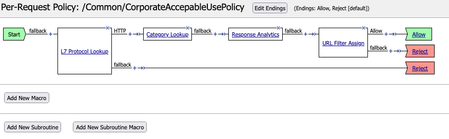
Introduction BIG-IP 16.0 with SSL Orchestrator 9.0 has support for running Secure Web Gateway (SWG) “as a Service” inside the Service Chain. This allows you to take an existing F5 SWG solution and migrate or move it to the same BIG-IP as SSL Orchestrator. Typical SWG features include: User authentication (not covered here) Enforcement of an Acceptable Use Policy (AUP) Website category database (google.com = Search Engines) Logging and Reporting (not covered here) A typical SWG deployment will have a Per-Session Policy that handles authentication. Then a Per-Request Policy that enforces the AUP. User authentication (not covered here) Refer to this Dev/Central Article for more information on this topic. Enforcement of an Acceptable Use Policy (AUP) A Per-Request Policy is used to enforce the AUP. You can find this from the Configuration Utility under Access > Profiles / Policies > Per-Request Policies. Click Edit for the Per-Session Policy and a new window like this should open: This policy does a Protocol Lookup to determine if the content is HTTP, then performs a Category Lookup based on the host header in the URI. Response Analytics will check for malicious content and pass that information on to the URL Lookup Agent. The Category is compared to the URL Filter which maps URL categories to Allow/Deny Actions. As a final result the request is either Allowed or Denied (Reject). Note: In a per-request SWG policy you would typically have a Protocol Lookup for HTTP and HTTPS. But in this case the SSL Orchestrator will perform SSL decryption so the SWG Service will receive plain-text, HTTP content. Therefore, this SWG policy is ready to be used with SSL Orchestrator. Website category database (google.com = Search Engines) The URL Filter is configured from Access > Secure Web Gateway > URL Filters. Select CorporateURLFilter in this example. This opens the Category editor. Different Categories and sub-categories are available to make Allow or Deny decisions. In this example the Games and Shopping categories have been set to Deny. Logging and Reporting (not covered here) Refer to the AskF5 Knowledge Center for more information. Configuration Export / Import the SWG Per-Request Policy The SWG Per-Request Policy is easy to export from one BIG-IP to another. From the Configuration Utility select Access > Profiles / Policy > Per-Request Policies. Click Export then OK to save the policy. The policy file can be directly imported into another BIG-IP device. On the Per-Request Policies screen click Import. Give the Policy a name, click Browse to select the policy file then Import. This policy is ready for SSL Orchestrator to use with SWGaaS. You can click Edit to verify the policy is correct. Configure the F5 SWGaaS From the SSL Orchestrator Configuration page select Services then click Add. F5 Secure Web Gateway is available on the F5 tab. Double-click the icon to configure. Give it a name. Set the Access Profile Scope to Profile. Set the Per Request Policy to the policy imported previously. Click Save and Next. Add the newly created SWGaaS to an existing Service Chain or create a new one. Select the F5_SWG Service on the left and click the right arrow to move it to the Selected column. Click Save. Save & Next. Then Deploy. Test SWG Functionality Note: be sure that a Security Policy has the Service Chain applied. Go to a client computer and test access to various web sites. News sites are allowed but Shopping is set to Block so sites like amazon.com and walmart.com should be blocked. Details from espn.com. The padlock indicates the connection is encrypted. The Issued By field indicates that this was intercepted & signed by SSL Orchestrator. Any attempts to visit a site categorized as Shopping or Games will be blocked. The configuration is now complete.2.5KViews1like1Comment
Intelligent Proxy Steering - Office365
Introduction This solution started back in May 2015 when I was helping a customer bypass their forward proxy servers due to the significant increase in the number of client connections after moving to Office365. Luckily they had a BIG-IP in front of their forward proxy servers load balancing the traffic and F5 had introduced a new “Proxy Mode” feature in the HTTP profile in TMOS 11.5. This allowed the BIG-IP to terminate Explicit Proxy connections, instead of passing them through to the pool members. The original solution was a simple iRule that referenced a data-group to determine if the connection should bypass the forward proxy pool or reverse proxy and load balance the connection as normal. Original iRule: when HTTP_PROXY_REQUEST { # Strip of the port number set hostname [lindex [split [HTTP::host] ":"] 0] # If the hostname matches a MS 0ffice365 domain, enable the Forward Proxy on BIG-IP. # BIG-IP will then perform a DNS lookup and act as a Forward Proxy bypassing the Forward Proxy # Server Pool (BlueCoat/Squid/IronPort etc..) if { [class match $hostname ends_with o365_datagroup] } { # Use a SNAT pool - recommended snatpool o365_snatpool HTTP::proxy } else { # Load balance/reverse proxy to the Forward Proxy Server Pool (BlueCoat/Squid/IronPort etc..) HTTP::proxy disable pool proxy_pool } } As more organisations move to Office365, they have been facing similar problems with firewalls and other security devices unable to handle the volume of outbound connections as they move the SaaS world. The easiest solution may have been just to create proxy PAC file and send the traffic direct, but this would have involved allowing clients to directly route via the firewall to those IP address ranges. How secure is that? I decided to revisit my original solution and look at a way to dynamically update the Office365 URL list. Before I started, I did a quick search on DevCentral and found that DevCentral MVP Niels van Sluis had already written an iRule to download the Microsoft Office365 IP and URL database. Perfect starting point. I’ve since made some modifications to his iRulesLX and a new TCL iRule to support the forward proxy use case. How the solution works The iRuleLX is configured to pull the O365IPAddresses.xml every hour. Reformat into JSON and store in a LokiJS DB. The BIG-IP is configured as an Explicit Proxy in the Clients network or browser settings. The Virtual Server has a HTTP profile attached with the Proxy Mode set to Explicit along we a few other settings. I will go in the detail later. An iRule is attached that executes on the HTTP_PROXY_REQUEST event to check if the FQDN should bypass the Explicit Proxy Pool. If the result is not in the Cache, then a lookup is performed in the iRuleLX LokiJS DB for a result. The result is retuned to the iRule to make a decision to bypass or not. The bypass result is Cached in a table with a specified timeout. A different SNAT pool can be enabled or disabled when bypassing the Explicit Proxy Pool Configuration My BIG-IP is running TMOS 13.1 and the iRules Language eXtension has been licensed and provisioned. Make sure your BIG-IP has internet access to download the required Node.JS packages. This guide also assumes you have a basic level of understanding and troubleshooting at a Local Traffic Manager (LTM) level and your BIG-IP Self IP, VLANs, Routes, etc.. are all configured and working as expected. Before we get started The iRule/iRuleLX for this solution can be found on DevCentral Code Share. Download and install my Explicit Proxy iApp Copy the Intelligent Proxy Steering - Office365 iRule Copy the Microsoft Office 365 IP Intelligence - V0.2 iRuleLX Step 1 – Create the Explicit Proxy 1.1 Run the iApp iApps >> Application Services >> Applications >> “Create” Supply the following: Name: o365proxy Template: f5.explicit_proxy Explicit Proxy Configuration IP Address: 10.1.20.100 FQDN of this Proxy: o365proxy.f5.demo VLAN Configuration - Selected: bigip_int_vlan SNAT Mode: Automap DNS Configuration External DNS Resolvers: 1.1.1.1 Do you need to resolve any Internal DNS zones: Yes or No Select “Finished" to save. 1.2 Test the forward proxy $ curl -I https://www.f5.com --proxy http://10.1.20.100:3128 HTTP/1.1 200 Connected HTTP/1.0 301 Moved Permanently location: https://f5.com Server: BigIP Connection: Keep-Alive Content-Length: 0 Yep, it works! 1.3 Disable Strict Updates iApps >> Application Services >> Applications >> o365proxy Select the Properties tab, change the Application Service to Advanced. Uncheck Strict Updates Select “Update" to save. 1.4 Add an Explicit Proxy server pool In my test environment I have a Squid Proxy installed on a Linux host listening on port 3128. Local Traffic >> Pools >> Pool List >> “Create” Supply the following: Name: squid_proxy_3128_pool Node Name: squid_node Address: 10.1.30.105 Service Port: 3128 Select “Add" and “Finished” to Save. Step 2 – iRule and iRuleLX Configuration 2.1 Create a new iRulesLX workspace Local Traffic >> iRules >> LX Workspaces >> “Create” Supply the following: Name: office365_ipi_workspace Select “Finished" to save. You will now have any empty workspace, ready to cut/paste the TCL iRule and Node.JS code. 2.2 Add the iRule Select “Add iRule” and supply the following: Name: office365_proxy_bypass_irule Select OK Cut / Paste the following Intelligent Proxy Steering - Office365 iRule into the workspace editor on the right hand side. Select “Save File” when done. 2.3 Add an Extension Select “Add extension” and supply the following: Name: office365_ipi_extension Select OK Cut / Paste the following Microsoft Office 365 IP Intelligence - V0.2 iRuleLX and replace the default index.js. Select “Save File” when done. 2.4 Install the NPM packages SSH to the BIG-IP as root cd /var/ilx/workspaces/Common/office365_ipi_workspace/extensions/office365_ipi_extension/ npm install xml2js https repeat lokijs ip-range-check --save 2.5 Create a new iRulesLX plugin Local Traffic >> iRules >> LX Plugin >> “Create” Supply the following: Name: office365_ipi_plugin From Workspace: office365_ipi_workspace Select “Finished" to save. 2.6 Verify the Office365 XML downloaded SSH to the BIG-IP and tail -f /var/log/ltm The Office365 XML has been downloaded, parsed and stored in the LokiJS: big-ip1 info sdmd[5782]: 018e0017:6: pid[9603] plugin[/Common/office365_ipi_plugin.office365_ipi_extension] Info: update finished; 20 product records in database. 2.7 Add the iRule and the Explicit Proxy pool to the Explicit Proxy virtual server Local Traffic >> Virtual Servers >> Virtual Server List >> o365proxy_3128_vs >> Resources Edit the following: Default Pool: squid_proxy_3128_pool Select “Update" to save. Select “Manage…” and move office365_proxy_bypass_irule to the Enabled section. Select “Finished" to save. Step 3 – Test the solution SSH to the BIG-IP and tail -f /var/log/ltm 3.1 Test a non-Office365 URL first $ curl -I https://www.f5.com --proxy http://10.1.20.100:3128 HTTP/1.1 200 Connected HTTP/1.0 301 Moved Permanently location: https://f5.com Server: BigIP Connection: Keep-Alive Content-Length: 0 Output from /var/log/ltm: big-ip1 info tmm2[12384]: Rule /Common/office365_ipi_plugin/office365_proxy_bypass_irule : 10.10.99.31:58190 --> 10.1.20.100:3128 big-ip1 info tmm2[12384]: Rule /Common/office365_ipi_plugin/office365_proxy_bypass_irule : ## HTTP Proxy Request ## big-ip1 info tmm2[12384]: Rule /Common/office365_ipi_plugin/office365_proxy_bypass_irule : CONNECT www.f5.com:443 HTTP/1.1 big-ip1 info tmm2[12384]: Rule /Common/office365_ipi_plugin/office365_proxy_bypass_irule : Host: www.f5.com:443 big-ip1 info tmm2[12384]: Rule /Common/office365_ipi_plugin/office365_proxy_bypass_irule : User-Agent: curl/7.54.0 big-ip1 info tmm2[12384]: Rule /Common/office365_ipi_plugin/office365_proxy_bypass_irule : Proxy-Connection: Keep-Alive big-ip1 info tmm2[12384]: Rule /Common/office365_ipi_plugin/office365_proxy_bypass_irule : www.f5.com not in cache - perform DB lookup big-ip1 info tmm2[12384]: Rule /Common/office365_ipi_plugin/office365_proxy_bypass_irule : www.f5.com - bypass: 0 big-ip1 info tmm2[12384]: Rule /Common/office365_ipi_plugin/office365_proxy_bypass_irule : 10.10.99.31:58190 (10.1.30.245:24363) --> 10.1.30.105:3128 3.2 Test the same non-Office365 URL again to confirm the cache works Output from /var/log/ltm: big-ip1 info tmm1[12384]: Rule /Common/office365_ipi_plugin/office365_proxy_bypass_irule : 10.10.99.31:58487 --> 10.1.20.100:3128 big-ip1 info tmm1[12384]: Rule /Common/office365_ipi_plugin/office365_proxy_bypass_irule : ## HTTP Proxy Request ## big-ip1 info tmm1[12384]: Rule /Common/office365_ipi_plugin/office365_proxy_bypass_irule : CONNECT www.f5.com:443 HTTP/1.1 big-ip1 info tmm1[12384]: Rule /Common/office365_ipi_plugin/office365_proxy_bypass_irule : Host: www.f5.com:443 big-ip1 info tmm1[12384]: Rule /Common/office365_ipi_plugin/office365_proxy_bypass_irule : User-Agent: curl/7.54.0 big-ip1 info tmm1[12384]: Rule /Common/office365_ipi_plugin/office365_proxy_bypass_irule : Proxy-Connection: Keep-Alive big-ip1 info tmm1[12384]: Rule /Common/office365_ipi_plugin/office365_proxy_bypass_irule : www.f5.com found in cache big-ip1 info tmm1[12384]: Rule /Common/office365_ipi_plugin/office365_proxy_bypass_irule : www.f5.com - bypass: 0 big-ip1 info tmm1[12384]: Rule /Common/office365_ipi_plugin/office365_proxy_bypass_irule : 10.10.99.31:58487 (10.1.30.245:25112) --> 10.1.30.105:3128 3.3 Test a Office365 URL and check it bypasses the Explicit Proxy pool $ curl -I https://www.outlook.com --proxy http://10.1.20.100:3128 HTTP/1.1 200 Connected HTTP/1.1 301 Moved Permanently Cache-Control: no-cache Pragma: no-cache Content-Length: 0 Location: https://outlook.live.com/ Server: Microsoft-IIS/10.0 Connection: close Output from /var/log/ltm: big-ip1 info tmm3[12384]: Rule /Common/office365_ipi_plugin/office365_proxy_bypass_irule : 10.10.99.31:58692 --> 10.1.20.100:3128 big-ip1 info tmm3[12384]: Rule /Common/office365_ipi_plugin/office365_proxy_bypass_irule : ## HTTP Proxy Request ## big-ip1 info tmm3[12384]: Rule /Common/office365_ipi_plugin/office365_proxy_bypass_irule : CONNECT www.outlook.com:443 HTTP/1.1 big-ip1 info tmm3[12384]: Rule /Common/office365_ipi_plugin/office365_proxy_bypass_irule : Host: www.outlook.com:443 big-ip1 info tmm3[12384]: Rule /Common/office365_ipi_plugin/office365_proxy_bypass_irule : User-Agent: curl/7.54.0 big-ip1 info tmm3[12384]: Rule /Common/office365_ipi_plugin/office365_proxy_bypass_irule : Proxy-Connection: Keep-Alive big-ip1 info tmm3[12384]: Rule /Common/office365_ipi_plugin/office365_proxy_bypass_irule : www.outlook.com not in cache - perform DB lookup big-ip1 info tmm3[12384]: Rule /Common/office365_ipi_plugin/office365_proxy_bypass_irule : www.outlook.com - bypass: 1 big-ip1 info tmm3[12384]: Rule /Common/office365_ipi_plugin/office365_proxy_bypass_irule : 10.10.99.31:58692 (10.1.10.245:21666) --> 40.100.144.226:443 It works! Conclusion By combining Microsoft Office365 IP and URL intelligence with LTM, produces a simple and effective method to steer around overloaded Forward Proxy servers without the hassle of messy proxy PAC files.11KViews1like41Comments