red team
1 TopicDeploying the F5 AI Security Certified OpenShift Operator: A Validated Playbook
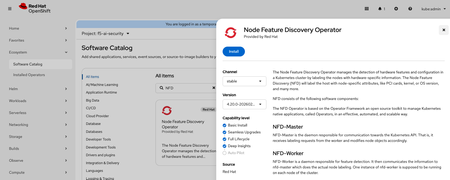
Introduction As enterprises race to deploy Large Language Models (LLMs) in production, securing AI workloads has become as critical as securing traditional applications. The F5 AI Security Operator installs two products on your cluster — F5 AI Guardrails and F5 AI Red Team — both powered by CalypsoAI. Together they provide inline prompt/response scanning, policy enforcement, and adversarial red-team testing, all running natively on your own OpenShift cluster. This article is a validated deployment runbook for F5 AI Security on OpenShift (version 4.20.14) with NVIDIA GPU nodes. It is based on the official Red Hat Operator installation baseline, in a real lab deployment on a 3×A40 GPU cluster. If you follow these steps in order, you will end up with a fully functional AI Security stack, avoiding the most common pitfalls along the way. What Gets Deployed F5 AI Security consists of four main components, each running in its own OpenShift namespace: Component Namespace Role Moderator + PostgreSQL cai-moderator Web UI, API gateway, policy management, and backing database Prefect Server + Worker prefect Workflow orchestration for scans and red-team runs AI Guardrails Scanner cai-scanner Inline scanning against your OpenAI-compatible LLM endpoint AI Red Team Worker cai-redteam GPU-backed adversarial testing; reports results to Moderator via Prefect The Moderator is CPU-only. The Scanner and Red Team Worker can leverage GPUs depending on the policies and models you configure. Infrastructure Requirements Before you begin, verify your cluster meets these minimums: CPU / Control Node 16 vCPUs, 32 GiB RAM, x86_64, 100 GiB persistent storage Worker Nodes (per GPU-enabled component) 4 vCPUs, 16 GiB RAM (32 GiB recommended for Red Team), 100 GiB storage GPU Nodes AI Guardrails: CUDA-compatible GPU, minimum 24 GB VRAM, 100 GiB storage AI Red Team: CUDA-compatible GPU, minimum 48 GB VRAM, 200 GiB storage GPU must NOT be shared with other workloads Verify your cluster: # Check nodes oc get nodes -o wide # Check GPU allocatable resources oc get node -o jsonpath='{range .items[*]}{.metadata.name}{"\t"}{.status.allocatable.nvidia\.com/gpu}{"\n"}{end}' # Check available storage classes oc get storageclass NAME PROVISIONER RECLAIMPOLICY VOLUMEBINDINGMODE ALLOWVOLUMEEXPANSION AGE lvms-vg1 (default) topolvm.io Delete WaitForFirstConsumer true 15d Step 1 — Install Prerequisites 1.1 Node Feature Discovery (NFD) Operator NFD labels your nodes with hardware capabilities, which NVIDIA GPU Operator relies on to target the right nodes. OpenShift Console → Ecosystem → Software Catalog → Search Node Feature Discovery Operator → Install After installation: Installed Operators → Node Feature Discovery → Create NodeFeatureDiscovery → Accept defaults Verify: oc get pods -n openshift-nfd oc get node --show-labels | grep feature.node.kubernetes.io || true 1.2 NVIDIA GPU Operator OpenShift Console → Ecosystem → Software Catalog → Search GPU Operator → Install After installation: Installed Operators → NVIDIA GPU Operator → Create ClusterPolicy → Accept defaults Verify: oc get pods -n nvidia-gpu-operator oc describe node <gpu-node> | grep -i nvidia nvidia-smi</gpu-node> Step 2 — Install F5 AI Security Operator Prerequisites: You will need registry credentials and a valid license from the F5 AI Security team before proceeding. Contact F5 Sales: https://www.f5.com/products/get-f5 2.1 Create the Namespace and Pull Secret export DOCKER_USERNAME='<registry-username>' export DOCKER_PASSWORD='<registry-password>' export DOCKER_EMAIL='<your-email>' oc new-project f5-ai-sec oc create secret docker-registry regcred \ -n f5-ai-sec \ --docker-username=$DOCKER_USERNAME \ --docker-password=$DOCKER_PASSWORD \ --docker-email=$DOCKER_EMAIL</your-email></registry-password></registry-username> 2.2 Install from OperatorHub OpenShift Console → Ecosystem → Software Catalog → Search F5 AI Security Operator → Install into namespace f5-ai-sec Verify your F5 AI Security Operator: # Verify the controller-manager pod is Running oc -n f5-ai-sec get pods # NAME READY STATUS RESTARTS AGE # controller-manager-6f784bd96d-z6sbh 1/1 Running 1 43s # Verify the CSV reached Succeeded phase oc -n f5-ai-sec get csv # NAME DISPLAY VERSION PHASE # f5-ai-security-operator.v0.4.3 F5 Ai Security Operator 0.4.3 Succeeded # Verify the CRD is registered oc -n f5-ai-sec get crd | grep ai.security.f5.com # securityoperators.ai.security.f5.com 2.3 Deploy the SecurityOperator Custom Resource After installation: Installed Operators → F5 AI Security Operator → Create SecurityOperator Choose YAML and copy the below Custom Resource Template in there, changing select values to match your installation. apiVersion: ai.security.f5.com/v1alpha1 kind: SecurityOperator metadata: name: security-operator-demo namespace: f5-ai-sec spec: registryAuth: existingSecret: "regcred" # Internal PostgreSQL — convenient for labs, not recommended for production postgresql: enabled: true values: postgresql: auth: password: "pass" jobManager: enabled: true moderator: enabled: true values: env: CAI_MODERATOR_BASE_URL: https://<your-hostname> secrets: CAI_MODERATOR_DB_ADMIN_PASSWORD: "pass" CAI_MODERATOR_DEFAULT_LICENSE: "<valid_license_from_f5>" scanner: enabled: true redTeam: enabled: true</valid_license_from_f5></your-hostname> Key values to customize: Field What to set CAI_MODERATOR_BASE_URL Your cluster's public hostname for the UI (e.g., https://aisec.apps.mycluster.example.com ) CAI_MODERATOR_DEFAULT_LICENSE License string provided by F5 CAI_MODERATOR_DB_ADMIN_PASSWORD DB password — must match the value set in the PostgreSQL block For external PostgreSQL (recommended for production), replace the postgresql block with: moderator: values: env: CAI_MODERATOR_DB_HOST: <my-external-db-hostname> secrets: CAI_MODERATOR_DB_ADMIN_PASSWORD: <my-external-db-password></my-external-db-password></my-external-db-hostname> Verify your F5 AI Security Operator: oc -n f5-ai-sec get securityoperator oc -n f5-ai-sec get securityoperator security-operator-demo -o yaml | sed -n '/status:/,$p' Step 3 — Required OpenShift Configuration This is where most deployments hit problems. OpenShift's default restricted Security Context Constraint (SCC) blocks these containers from running. You must explicitly grant anyuid to each service account. 3.1 Apply SCC Policies oc adm policy add-scc-to-user anyuid -z cai-moderator-sa -n cai-moderator oc adm policy add-scc-to-user anyuid -z default -n cai-moderator oc adm policy add-scc-to-user anyuid -z default -n prefect oc adm policy add-scc-to-user anyuid -z prefect-server -n prefect oc adm policy add-scc-to-user anyuid -z prefect-worker -n prefect oc adm policy add-scc-to-user anyuid -z cai-scanner -n cai-scanner oc adm policy add-scc-to-user anyuid -z cai-redteam-worker -n cai-redteam 3.2 Force PostgreSQL to Restart (if Stuck at 0/1) If PostgreSQL was stuck before the SCC was applied, bounce it manually: oc -n cai-moderator scale sts/cai-moderator-postgres-cai-postgresql --replicas=0 oc -n cai-moderator scale sts/cai-moderator-postgres-cai-postgresql --replicas=1 3.3 Restart All Components oc -n cai-moderator rollout restart deploy oc -n prefect rollout restart deploy oc -n cai-scanner rollout restart deploy oc -n cai-redteam rollout restart deploy 3.4 Verify ➜ oc -n cai-moderator get statefulset NAME READY AGE cai-moderator-postgres-cai-postgresql 1/1 3d4h ➜ oc -n cai-moderator get pods | grep postgres cai-moderator-postgres-cai-postgresql-0 1/1 Running 0 3d4h ➜ oc -n cai-moderator get pods | grep cai-moderator cai-moderator-75c47fc9db-sl8t2 1/1 Running 0 3d4h cai-moderator-postgres-cai-postgresql-0 1/1 Running 0 3d4h ➜ oc -n cai-moderator get svc NAME TYPE CLUSTER-IP EXTERNAL-IP PORT(S) AGE cai-moderator ClusterIP 172.30.123.197 <none> 5500/TCP,8080/TCP 3d4h cai-moderator-headless ClusterIP None <none> 8080/TCP 3d4h cai-moderator-postgres-postgresql ClusterIP None <none> 5432/TCP 3d4h ➜ oc -n cai-moderator get endpoints Warning: v1 Endpoints is deprecated in v1.33+; use discovery.k8s.io/v1 EndpointSlice NAME ENDPOINTS AGE cai-moderator 10.130.0.139:8080,10.130.0.139:5500 3d4h cai-moderator-headless 10.130.0.139:8080 3d4h cai-moderator-postgres-postgresql 10.128.0.177:5432 3d4h</none></none></none> Step 4 — Create OpenShift Routes (Required for UI Access) The Moderator exposes two ports that must be routed separately: port 5500 for the UI and port 8080 for the /auth path. Skipping the auth route is the most common cause of the blank/black page issue. # UI route oc -n cai-moderator create route edge cai-moderator-ui \ --service=cai-moderator \ --port=5500 \ --hostname=<your-hostname> \ --path=/ # Auth route — required, or the UI will render blank oc -n cai-moderator create route edge cai-moderator-auth \ --service=cai-moderator \ --port=8080 \ --hostname=<your-hostname> \ --path=/auth</your-hostname></your-hostname> Verify all pods are running: oc get pods -n cai-moderator oc get pods -n cai-scanner oc get pods -n cai-redteam oc get pods -n prefect Access the UI Open https:// in a browser. Log in with the default credentials: admin / pass Log in and update the admin email address immediately. You should be able to log in successfully and see the Guardrails dashboard. Step 5 — Grant Prefect Worker Cluster-scope RBAC The Prefect worker watches Kubernetes Pods and Jobs at cluster scope to monitor scan and red-team workflow execution. Without this RBAC, prefect-worker fills its logs with 403 Forbidden errors. The Guardrails UI still loads, but scheduled workflows and Red Team runs will fail silently. # ClusterRole: allow prefect-worker to list/watch pods, jobs, and events cluster-wide oc apply -f - <<'YAML' apiVersion: rbac.authorization.k8s.io/v1 kind: ClusterRole metadata: name: prefect-worker-watch-cluster rules: - apiGroups: ["batch"] resources: ["jobs"] verbs: ["get","list","watch"] - apiGroups: [""] resources: ["pods","pods/log","events"] verbs: ["get","list","watch"] YAML # ClusterRoleBinding: bind to the prefect-worker ServiceAccount oc apply -f - <<'YAML' apiVersion: rbac.authorization.k8s.io/v1 kind: ClusterRoleBinding metadata: name: prefect-worker-watch-cluster subjects: - kind: ServiceAccount name: prefect-worker namespace: prefect roleRef: apiGroup: rbac.authorization.k8s.io kind: ClusterRole name: prefect-worker-watch-cluster YAML # Restart to pick up the new permissions oc -n prefect rollout restart deploy/prefect-worker Verify RBAC errors are gone: oc -n prefect logs deploy/prefect-worker --tail=200 \ | egrep -i 'forbidden|rbac|permission|denied' \ || echo "OK: no RBAC errors detected" oc get clusterrolebinding prefect-worker-watch-cluster LlamaStack Integration F5 AI Security works alongside any OpenAI-compatible LLM inference endpoint. In our lab we pair it with LlamaStack running a quantized Llama 3.2 model on the same OpenShift cluster — F5 AI Guardrails then scans every prompt and response inline before it reaches your application. A dedicated follow-up post will walk through the full LlamaStack deployment and end-to-end integration in detail. Stay tuned. Summary Deploying F5 AI Security on OpenShift is straightforward once you know the OpenShift-specific friction points: SCC policies, the dual-route requirement, and the Prefect cluster-scope RBAC. Following this runbook in sequence — prerequisites, operator install, SCC grants, routes, Prefect RBAC — gets you to a fully operational AI guardrailing stack in a single pass. If you run into anything not covered here, drop a comment below. Tested on: OpenShift 4.20.14 · F5 AI Security Operator v0.4.3 · NVIDIA A40 GPUs · LlamaStack with Llama-3.2-1B-Instruct-quantized.w8a8 Additional Resources F5 AI Security Operator — Red Hat Catalog467Views1like0Comments