instance manager
4 Topics
High Availability for F5 NGINX Instance Manager in AWS
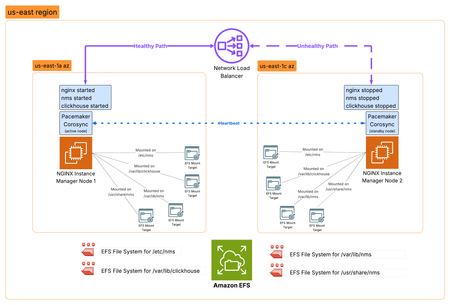
Introduction F5 NGINX Instance Manager gives you a centralized way to manage NGINX Open Source and NGINX Plus instances across your environment. It’s ideal for disconnected or air-gapped deployments, with no need for internet access or external cloud services. The NGINX Instance Manager features keep changing. They now include many features for managing configurations, like NGINX config versioning and templating, F5 WAF for NGINX policy and signature management, monitoring of NGINX metrics and security events, and a rich API to help external automation. As the role of NGINX Instance Manager becomes increasingly important in the management of disconnected NGINX fleets, the need for high availability increases. This article explores how we can use Linux clustering to provide high availability for NGINX Instance Manager across two availability zones in AWS. Core Technologies Core technologies used in this HA architecture design include: Amazon Elastic Compute instances (EC2) - virtual machines rented inside AWS that can be used to host applications, like NGINX Instance Manager. Pacemaker - an open-source high availability resource manager software used in Linux clusters since 2004. Pacemaker is generally deployed with the Corosync Cluster Engine, which provides the cluster node communication, membership tracking and cluster quorum. Amazon Elastic File System (EFS) - a serverless, fully managed, elastic Network File System (NFS) that allows servers to share file data simultaneously between systems. Amazon Network Load Balancer (NLB) - a layer 4 TCP/UDP load balancer that forwards traffic to targets like EC2 instances, containers or IP addresses. NLB can send periodic health checks to registered targets to ensure that traffic is only forwarded to healthy targets. Architecture Overview In this highly available architecture, we will install NGINX Instance Manager (NIM) on two EC2 instances in different AWS Availability Zones (AZ). Four EFS file systems will be created to share key stateful information between the two NIM instances, and Pacemaker/Corosync will be used to orchestrate the cluster - only one NIM instance is active at any time and Pacemaker will facilitate this by starting/stopping the NIM systemd services. Finally, an Amazon NLB will be used to provide network failover between the two NIM instances, using an HTTP health check to determine the active cluster node. Deployment Steps 1. Create AWS EFS file systems First, we are going to create four EFS volumes to hold important NIM configuration and state information that will be shared between nodes. These file systems will be mounted onto: /etc/nms, /var/lib/clickhouse, /var/lib/nms and /usr/share/nms inside the NIM node. Take note of the File System IDs of the newly created file systems. Edit the properties of each EFS file system and create a mount target in each AZ you intend to deploy a NIM node in, then restrict network access to only the NIM nodes by setting up an AWS Security Group. You may also consider more advanced authentication methods, but these aren't covered in this article. 2. Deploy two EC2 instances for NGINX Instance Manager Deploy two EC2 instances with suitable specifications to support the number of data plane instances that you plan to manage (you can find the sizing specifications here) and connect one to each of the AZ/subnet that you configured EFS mount targets in above. In this example, I will deploy two t2.medium instances running Ubuntu 24.04, connect one to us-east-1a and the other to us-east-1c, and create a security group allowing only traffic from its local assigned subnet. 3. Mount the EFS file systems on NGINX Instance Manager Node 1 Now we have the EC2 instances deployed, we can log on to Node 1 and mount the EFS volumes onto this node by executing the following steps: 1. SSH onto Node 1 2. Install efs-utils package if is not installed already 3. Edit /etc/fstab and create an entry for each EFS File System ID and its associated mount directory 4. Execute mount -a to mount the file systems 5. Execute df to ensure that the paths are mounted correctly 4. Install NGINX Instance Manager on Node 1 With the EFS file systems now mounted, it's time to run through the NGINX Instance Manager installation on Node 1. 1. Navigate to the Install the latest NGINX Instance Manager with a script page in the NGINX documentation and download install-nim-bundle.sh 2. Install your NGINX licenses (nginx-repo.crt and nginx-repo.key) into /etc/ssl/nginx/ 3. Run bash install-nim-bundle.sh -d ubuntu22.04 4. Wait for the installation to complete, take note of the password that was generated during the installation, then stop and disable autostart of NIM services on this node: systemctl stop nms; systemctl disable nms systemctl stop nginx; systemctl disable nginx systemctl stop clickhouse-server; systemctl disable clickhouse-server 5. Install NGINX Instance Manager on Node 2 This time we are going to install NGINX Instance Manager on Node two but without attaching the EFS file systems. On Node 2: 1. Navigate to the Install the latest NGINX Instance Manager with a script page in the NGINX documentation and download install-nim-bundle.sh 2. Install your NGINX licenses (nginx-repo.crt and nginx-repo.key) into /etc/ssl/nginx/ 3. Run bash install-nim-bundle.sh -d ubuntu22.04 4. Wait for the installation to complete, take note of the password that was generated during the installation, then stop and disable autostart of NIM services on this node: systemctl stop nms; systemctl disable nms systemctl stop nginx; systemctl disable nginx systemctl stop clickhouse-server; systemctl disable clickhouse-server 6. Mount EFS file systems on NGINX Instance Manager Node 2 Now we have the NGINX Instance Manager binaries installed on each node, let's mount the EFS file systems on Node 2: 1. SSH onto Node 2 2. Install efs-utils package if is not installed already 3. Edit /etc/fstab and create an entry for each EFS File System ID and its associated mount directory 4. Execute mount -a to mount the file systems 5. Execute df to ensure that the paths are mounted correctly 7. Install and configure Pacemaker/Corosync With NGINX Instance Manager now installed on both nodes, it's now time to get Pacemaker and Corosync installed: 1. Install Pacemaker, Corosync and other important agents sudo apt update sudo apt install pacemaker pcs corosync fence-agents-aws resource-agents-base 2. To allow Pacemaker to communicate between nodes, we need to add TCP communication between nodes to the Security Group for the NIM nodes. 3. Once we have the connectivity in place, we have to set a common password for the hacluster user on both nodes - we can do this by running the following command on both nodes: sudo passwd hacluster password: IloveF5 (don't use this!) 4. Now we start the Pacemaker services by running the following commands on both nodes: systemctl start pcsd.service systemctl enable pcsd.service systemctl status pcsd.service systemctl start pacemaker systemctl enable pacemaker 5. And finally, we authenticate the nodes with each other (using hacluster username, password and node hostname) and check the cluster status: pcs host auth ip-172-17-1-89 ip-172-17-2-160 pcs cluster setup nimcluster --force ip-172-17-1-89 pcs status 8. Configure Cluster Fencing Fencing is the ability to make a node unable to run resources, even when that node is unresponsive to cluster commands - you can think of fencing as cutting the power to the node. Fencing protects against corruption of data due to concurrent access to shared resources, commonly known as "split brain" scenario. In this architecture, we use the fence_aws agent, which uses boto3 library to connect to AWS and stop the EC2 instances of failing nodes. Let's install and configure the fence_aws agent: 1. Create an AWS Access Key and Secret Access key for fence_aws to use 2. Install the AWS CLI on both NIM nodes 3. Take note of the Instance IDs for the NIM instances 4. Configure the fence_aws agent as a Pacemaker STONITH device. Run the psc stonith command inserting your access key, secret key, region, and mappings of Instance ID to Linux hostname. pcs stonith create hacluster-stonith fence_aws access_key=(your access key) secret_key=(your secret key) region=us-east-1 pcmk_host_map="ip-172-31-34-95:i-0a46181368524dab6;ip-172-31-27-134:i-032d0b400b5689f68" power_timeout=240 pcmk_reboot_timeout=480 pcmk_reboot_retries=4 5. Run pcs status and make sure that the stonith device is started 9. Configure Pacemaker resources, colocations and contraints Ok - we are almost there! It's time to configure the Pacemaker resources, colocations and constraints. We want to make sure that the clickhouse-server, nms and nginx systemd services all come up on the same node together, and in that order. We can do that using Pacemaker colocations and constraints. 1. Configure a pacemaker resource for each systemd service pcs resource create clickhouse systemd:clickhouse-server pcs resource create nms systemd:nms.service pcs resource create nginx systemd:nginx.service 🔥HOT TIP🔥 check out pcs resource command options (op monitor interval etc.) to optimize failover time. 2. Create two colocations to make sure they all start on the same node pcs constraint colocation add clickhouse with nms pcs constraint colocation add nms with nginx 3. Create three constraints to define the startup order: Clickhouse -> NMS -> NGINX pcs constraint order start clickhouse then nms pcs constraint order start nms then nginx 4. Enable and start the pcs cluster pcs cluster enable --all pcs cluster start --all 10. Provision AWS NLB Load Balancer Finally - we are going to set up the AWS Network Load Balancer (NLB) to facilitate the failover. Create a Security Group entry to allow HTTPs traffic to enter the EC2 instance from the local subnet 2. Create a Load Balancer target group, targeting instances, with Protocol TCP on port 443 ⚠️NOTE ⚠️ if you are using Load balancing with TCP Protocol and terminating the TLS connection on the NIM node (EC2 instance), you must create a security group entry to allow TCP 443 from the connecting clients directly to the EC2 instance IP address. If you have trusted SSL/TLS server certificates, you may want to investigate a load balancer for TLS protocol. 3. Ensure that a HTTPS health check is in place to facilitate the failover 🔥HOT TIP🔥 you can speed up failure detection and failover using Advanced health check settings. 4. Include our two NIM instances as pending and save the target group 5. Now let's create the network load balancer (NLB) listening on TCP port 443 and forwarding to the target group created above. 6. Once the load balancer is created, check the target group and you will find that one of the targets is healthy - that's the active node in the pacemaker cluster! 7. With the load balancing now in place, you can access the NIM console using the FQDN for your load balancer and login with the password set in the install of Node 1. 8. Once you have logged in, we need to install a license before we proceed any further: Click on Settings Click on Licenses Click Get Started Click Browse Upload your license Click Add 9. With the license now installed, we have access to the full console 11. Test failover The easiest way to test failover is to just shut down the active node in the cluster. Pacemaker will detect the node is no longer available and start the services on the remaining node. Stop the active node/instance of the NIM 2. Monitor the Target Group and watch it fail over - depending on the settings you have set up, this may take a few minutes 12. How to upgrade NGINX Instance Manager on the cluster To upgrade NGINX Instance Manager in a Pacemaker cluster, perform the following tasks: 1. Stop the Pacemaker Cluster services on Node 2 - forcing Node 1 to take over. pcs cluster stop ip-172-17-2-160 2. Disconnect the NFS mounts on Node2 umount /usr/share/nms umount /etc/nms umount /var/lib/nms umount /var/lib/clickhouse 3. Upgrade NGINX Instance Manager on Node 1 Download the update from the MyF5 Customer Portal sudo apt-get -y install -f /home/user/nms-instance-manager_<version>_amd64.deb sudo systemctl restart nms sudo systemctl restart nginx 4. Upgrade NGINX Instance Manager on Node 2 (with the NFS mounts disconnected) Download the update from the MyF5 Customer Portal sudo apt-get -y install -f /home/user/nms-instance-manager_<version>_amd64.deb sudo systemctl restart nms sudo systemctl restart nginx 5. Re-mount all the NFS mounts on Node 2 mount -a 6. Start the Pacemaker Cluster services on Node 2 - adding it back into the cluster pcs cluster start ip-172-17-2-160 13. Reference Documents Some good references on Pacemaker/Corosync clustering can be found here: Configuring a Red Hat High Availability cluster on AWS Implement a High-Availability Cluster with Pacemaker and Corosync ClusterLabs Pacemaker website Corosync Cluster Engine website351Views0likes0CommentsAnnouncing F5 NGINX Instance Manager 2.20
We’re thrilled to announce the release of F5 NGINX Instance Manager 2.20, now available for download! This update focuses on improving accessibility, simplifying deployments, improving observability, and enriching the user experience based on valuable customer feedback. What’s New in This Release? Lightweight Mode for NGINX Instance Manager Reduce resource usage with the new "Lightweight Mode", which allows you to deploy F5 NGINX Instance Manager without requiring a ClickHouse database. While metrics and events will no longer be available without ClickHouse, all other instance management functionalities—such as certificate management, WAF, templates, and more—will work seamlessly across VM, Docker, and Kubernetes installations. With this change, ClickHouse becomes optional for deployments. Customers who require metrics and events should continue to include ClickHouse in their setup. For those focused on basic use cases, Lightweight Mode offers a streamlined deployment that reduces system complexity while maintaining core functionality for essential tasks. Lightweight Mode is perfect for customers who need simplified management capabilities for scenarios such as: Fleet Management WAF Configuration Usage Reporting as Part of Your Subscription (for NGINX Plus R33 or later) Certificate Management Managing Templates Scanning Instances Enabling API-based GitOps for Configuration Management In testing, NGINX Instance Manager worked well without ClickHouse. It only needed 1 CPU and 1 GB of RAM to manage up to 10 instances (without App Protect). However, please note that this represents the absolute minimum configuration and may result in performance issues depending on your use case. For optimal performance, we recommend allocating more appropriate system resources. See the updated technical specification in the documentation for more details. Support for Multiple Subscriptions Align and consolidate usage from multiple NGINX Plus subscriptions on a single NGINX Instance Manager instance. This feature is especially benficial for customers who use NGINX Instance Manager as a reporting endpoint, even in disconnected or air-gapped environments. This feature was added with NGINX Plus R33. Improved Licensing and Reporting for Disconnected Environments Managing NGINX Instance Manager in environments with no outbound internet connectivity is now simpler. Customers can configure NGINX Instance Manager to use a forward proxy for licensing and reporting. For truly air-gapped environments, we've improved offline licensing: upload your license JWT to activate all features, and enjoy a 90-day grace period to submit an initial report to F5. We've also revamped the usage reporting script to be more intuitive and backwards-compatible with older versions. Enhanced User Interface We’ve modernized the NGINX Instance Manager UI to streamline navigation and make it consistent with the F5 NGINX One Console. Features are now grouped into submenus for easier access. Additionally, breadcrumbs have been added to all pages for improved usability. Instance Export Enhancements We’ve added the ability to export instances and instance groups, simplifying the process of managing and sharing configuration details. This improvement makes it easier to keep track of large deployments and maintain consistency across environments. Performance and Stability Improvements With this release, we’ve made performance and stability improvements, a key part of every update to ensure NGINX Instance Manager runs smoothly in all environments. We’ve addressed multiple bug fixes in this release to improve stability and reliability. For more details on all the fixes included, please visit the release notes. Platform Improvements and Helm Chart Migration We’ve made significant enhancements to the Helm charts to simplify the installation process for NGINX Instance Manager in Kubernetes environments. Starting with this release, the Helm charts have moved to a new repository: nginx-stable/nim with chart version 2.0. Note: NGINX Instance Manager versions 2.19 or lower will remain in the old repository, nms-stable/nms-hybrid. Be sure to update your configurations accordingly when upgrading to version 2.20 or later. Looking Ahead: Security, Modernization, and Kubernetes Innovations As part of the F5 NGINX One product offering, NGINX Instance Manager continues to evolve to meet the demands of modern infrastructures. We're committed to improving security, scalability, usability, and observability to align with your needs. Although support for the latest F5 NGINX Agent v3 is not included in this release. We are actively exploring ways to enable it later this year to bring additional value for both NGINX Instance Manager and the NGINX One Console. Additionally, we’re exploring new ways to enhance support for data plane NGINX deployments, particularly in Kubernetes environments. Stay tuned for updates as we continue to innovate for cloud-native and containerized workloads. We’re eager to hear your feedback to help shape the roadmap for future releases. Get Started Now To explore the new lightweight mode, enhanced UI, and updated features, download NGINX Instance Manager 2.20. For more details on bug fixes and performance improvements, check out the full release notes. . The NGINX Impact in F5’s Application Delivery & Security Platform NGINX Instance Manager is part of F5’s Application Delivery & Security Platform. It helps organizations deliver, optimize, and secure modern applications and APIs. This platform is a unified solution designed to ensure reliable performance, robust security, and seamless scalability for applications deployed across cloud, hybrid, and edge architectures. NGINX Instance Manager is also a key component of NGINX One, the all-in-one, subscription-based package that unifies all of NGINX’s capabilities. NGINX One brings together the features of NGINX Plus, F5 NGINX App Protect, and NGINX Kubernetes and management solutions into a single, easy-to-consume package. A cornerstone of the NGINX One package, NGINX Instance Manager extends the capabilities of open-source NGINX with features designed specifically for enterprise-grade performance, scalability, and security.522Views0likes0CommentsIntroducing the single Installation script for F5 NGINX Instance Manager
F5 NGINX Instance Manager (NIM) is a centralised management tool designed to simplify the administration and monitoring of F5 NGINX instances across various environments, including on-premises, cloud, and hybrid infrastructures. It provides a single interface to efficiently oversee multiple NGINX instances, making it particularly useful for organisations using NGINX at scale. In the past, installing NGINX Instance Manager and its dependencies could often be a tedious and error-prone process. Whether you’re dealing with databases, NGINX proxies, or multiple components that require manual configuration, the time and effort involved can quickly add up. This is where our new single-installation script comes into play. Designed to streamline and simplify the installation of NGINX Instance Manager, this script allows you to set up everything you need on a supported operating system with minimal effort. Gone are the days of hunting for specific installation commands, configuring dependencies manually, or worrying about compatibility issues between different systems. With this script, you can install NGINX Instance Manager, the Clickhouse database, and NGINX proxy components in one seamless operation. Key Features: One-command installation: The script automates the installation of NGINX Instance Manager, Clickhouse database, and the NGINX proxy. Just run the script, and it takes care of everything. Cross-platform compatibility: The script supports all the operating systems specified in our technical specification document, making it versatile for different environments. Offline installation support: For users working in environments without internet access, the script can pull all necessary binaries from our software repository, enabling installation on a disconnected host. Simply gather the required binaries beforehand, and you’re good to go! License key integration: The only thing you’ll need to run the script in a fresh operating system environment are your license keys. This makes the process even easier, as there’s no need for additional setup steps. What you need A fresh machine with one of the supported operating systems installed. Download the JSON web token, SSL certificate, and private key for NGINX Instance Manager from MyF5 (including trials). You can use the same files as F5 NGINX Plus in your MyF5 portal. Download the script here. Step 1 - Download and run the installation script By default, the script: Assumes you’re connected to the internet for installations and upgrades Reads SSL files from the /etc/ssl/nginx directory Installs the latest version of NGINX Open Source Installs Clickhouse Installs the latest version of NGINX Instance Manager If you want to use the script with non-default options (e.g. to use NGINX Plus instead of Open Source), use these switches: To point to a repository key stored in a directory other than /etc/ssl/nginx: -k /path/to/your/<nginx-repo.key> file To point to a repository certificate stored in a directory other than /etc/ssl/nginx: -c /path/to/your/<nginx-repo.crt> file To install NGINX Plus (instead of NGINX OSS): -p <nginx_plus_version> -j /path/to/licence.jwt You also need to specify the current operating system. To get the latest list supported by the script, run the following command: grep '\-d distribution' install-nim-bundle.sh To see other options in the script, run: sudo bash install-nim-bundle.sh -h For example, to use the script to install NGINX Instance Manager on Ubuntu 24.04, with repository keys in the default /etc/ssl/nginx directory, with the latest version of NGINX Plus, run the following command: sudo bash install-nim-bundle.sh -n latest -d ubuntu24.04 -j /path/to/license.jwt In most cases, the script completes the installation of NGINX Instance Manager and associated packages. At the end of the process, you’ll see an auto generated password. Save that password. You’ll need it when you sign in to NGINX Instance Manager. Step 2 – Access NGINX Instance Manager To access the NGINX Instance Manager web interface, open a web browser and go to https://<NIM_FQDN>, replacing <NIM_FQDN> with the Fully Qualified Domain Name of your NGINX Instance Manager host. The default administrator username is admin, and the generated password is saved, in encrypted format, to the /etc/nms/nginx/.htpasswd file. The password was displayed in the terminal during installation. If you’d like to change this password, refer to the “Set or Change User Passwords” section in the Basic Authentication topic. This single-installation solution significantly reduces the complexity of deploying Instance Manager, whether you’re operating in a connected or disconnected environment. Now, all it takes is a simple command to get everything up and running. For more information and alternative options when using the script for NGINX Instance manager, please see the instructions here.655Views1like1CommentIntroducing the New Docker Compose Installation Option for F5 NGINX Instance Manager
F5 NGINX Instance Manager (NIM) is a centralised management solution designed to simplify the administration and monitoring of F5 NGINX instances across various environments, including on-premises, cloud, and hybrid infrastructures. It provides a single interface to efficiently oversee multiple NGINX instances, making it particularly useful for organizations using NGINX at scale. We’re excited to introduce a new Docker Compose installation option for NGINX Instance Manager, designed to help you get up and running faster than ever before, in just a couple of steps. Key Features: Quick and Easy Installation: With just a couple of steps, you can pull and deploy NGINX Instance Manager on any Docker host, without having to manually configure multiple components. The image is available in our container registry, so once you have a valid license to access it, getting up and running is as simple as pulling the container. Fault-Tolerant and Resilient: This installation option is designed with fault tolerance in mind. Persistent storage ensures your data is safe even in the event of container restarts or crashes. Additionally, with a separate database container, your product’s data is isolated, adding an extra layer of resilience and making it easier to manage backups and restores. Seamless Upgrades: Upgrades are a breeze. You can update to the latest version of NGINX Instance Manager by simply updating the image tag in your Docker Compose file. This makes it easy to stay up-to-date with the latest features and improvements without worrying about downtime or complex upgrade processes. Backup and Restore Options: To ensure your data is protected, this installation option comes with built-in backup and restore capabilities. Easily back up your data to a safe location and restore it in case of any issues. Environment Configuration Flexibility: The Docker Compose setup allows you to define custom environment variables, giving you full control over configuration settings such as log levels, timeout values, and more. Production-Ready: Designed for scalability and reliability, this installation method is ready for production environments. With proper resource allocation and tuning, you can deploy NGINX Instance Manager to handle heavy workloads while maintaining performance. The following steps walk you through how to deploy and manage NGINX Instance Manager using Docker Compose. What you need A working version of Docker Your NGINX subscription’s JSON Web Token from MyF5 This pre-configured docker-compose.yaml file: Download docker-compose.yaml file . Step 1 - Set up Docker for NGINX container registry Log in to the Docker registry using the contents of the JSON Web Token file you downloaded from MyF5 : docker login private-registry.nginx.com --username=<JWT_CONTENTS> --password=none Step 2 - Run “docker login” and then “docker compose up” in the directory where you downloaded docker-compose.yaml Note: You can optionally set the Administrator password for NGINX Instance Manager prior to running Docker Compose. ~$ docker login private-registry.nginx.com --username=<JWT_CONTENTS> --password=none ~$ echo "admin" > admin_password.txt ~$ docker compose up -d [+] Running 6/6 ✔ Network nim_clickhouse Created 0.1s ✔ Network nim_external_network Created 0.2s ✔ Network nim_default Created 0.2s ✔ Container nim-precheck-1 Started 0.8s ✔ Container nim-clickhouse-1 Healthy 6.7s ✔ Container nim-nim-1 Started 7.4s. Step 3 – Access NGINX Instance Manager Go to the NGINX Instance Manager UI on https://<<DOCKER_HOST>>:443 and license the product using the same JSON Web Token you downloaded from MyF5 earlier. Conclusion With this new setup, you can install and run NGINX Instance Manager on any Docker host in just 3 steps, dramatically reducing setup time and simplifying deployment. Whether you are working in a development environment or deploying to production, the Docker Compose-based solution ensures a seamless and reliable experience. For more information on using the docker compose option with NGINX Instance manager such as running a backup and restore, using secrets, and many more, please see the instructions here.237Views1like0Comments