global log receiver
2 TopicsForwarding Logs to SIEM Tools via HTTP Proxy for F5 Distributed Cloud Global Log Receiver
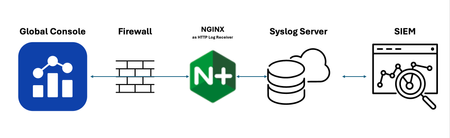
Purpose This guide provides a solution for forwarding logs to SIEM tools that support syslog but lack HTTP/HTTPS ingestion capabilities. It covers the deployment and tuning of an HTTP Proxy log receiver configured to work with F5 Distributed Cloud (XC) Global Log Receiver settings. Audience: This guide is intended for technical professionals, including SecOps teams and Solution Architects, who are responsible for integrating SIEM tools with F5 XC Global Log Receiver. Readers should have a solid understanding of HTTP communication (methods, request body, reverse proxy), syslog, and data center network architecture. Familiarity with F5 XC concepts such as namespaces, log types, events, and XC-GLR is also required. Introduction: Problem Statement: SIEM tools often support syslog ingestion but lack HTTP/HTTPS log reception capabilities. Objective: Explain how to deploy and configure an HTTP Proxy to forward logs to F5 Distributed Cloud Global Log Receiver. Solution Overview: Architecture Diagram and workflow: Configuration Steps: Configure Global Log Receiver in F5 Distributed Cloud Console Navigate to: Home → Shared Configuration → Global Log Receiver Create or edit the Global Log Receiver settings for HTTP receiver Ensure the Global Log Receiver batch size is based on the payload size expected from F5 NGINX. Example configuration snap: Set Up NGINX as an HTTP Log Receiver Install NGINX on your designated server. Configure log_format Configure NGINX to accept HTTP POST requests only and forward access logs to syslog Example configuration snippet: log_format custom_log_format_1 escape=json $request_body; # Example: include request body only server { listen 443 ssl; server_name <logreceiver_server_name>; ssl_certificate /etc/ssl/<logreceiver_server_cert>; ssl_certificate_key /etc/ssl/<logreceiver_server_key>; # Other SSL/TLS configurations (e.g., protocols, ciphers) ssl_protocols TLSv1.2 TLSv1.3; ssl_ciphers HIGH:!aNULL:!MD5; client_body_in_single_buffer on; # The directive is recommended when using the $request_body variable, to save the number of copy operations involved client_body_in_file_only off; #default client_max_body_size 32M; # based on tuning gzip on; location /log_endpoint { # Allow only POST requests for sending log data limit_except POST { deny all; } # Configure access_log to write incoming data to a file # access_log /var/log/nginx/log_receiver.log custom_log_format_1; access_log syslog:server=127.0.0.1:514,facility=local7,tag=nginx,severity=info custom_log_format_1; proxy_pass http://localhost:8091/; # This dummy Internal server required to collect request_body variable. } } # dummy internal server to respond back 200 ok server { listen 8091; server_name localhost; location / { return 200 "Log received successfully."; } } Set Up rsyslog server Install/configure rsyslog on your designated server. Configure 60-nginx.conf file in /etc/rsyslog.d/ directory Sample 60-nginx.conf file #nginx.* @@127.0.0.1:514 :syslogtag, isequal, "[nginx]" /var/log/nginx-syslog/nginx-access-log.log References: F5 Distributed Cloud Global log receiver supports many log receivers natively: F5 Distributed Cloud Technical Knowledge page on "Configure Global Log receiver" Prerequisites: An external log collection system reachable publicly. The following IP address ranges are required to be added to your firewall's allowlist: 193.16.236.64/29 185.160.8.152/29254Views5likes0CommentsF5 Distributed Cloud Telemetry (Logs) - ELK Stack
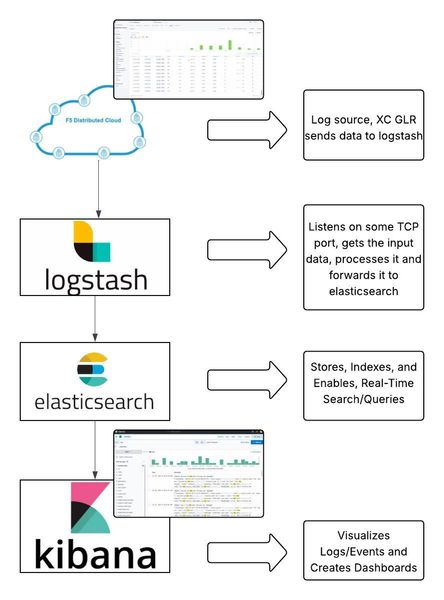
Introduction: This article is a part of the F5 Distributed Cloud (F5 XC) telemetry series. Here we will discuss how we can export logs from the XC console to ELK Stack using XC’s GLR (Global Log Receiver). F5 Distributed Cloud GLR (Global Log Receiver): Global Log Receiver is a feature provided by Distributed Cloud. It enables customers to send their logs from the F5 Distributed Cloud (F5 XC) console dashboards to their respective centralized SIEM tools like ELK. Global log receiver supports the following log collection systems: AWS Cloudwatch AWS S3 Azure Blob Storage Azure Event Hubs Datadog GCP Bucket Generic HTTP or HTTPs server IBM QRadar Kafka NewRelic Splunk SumoLogic As of now, global log receiver supports sending request (access) logs, DNS request logs, security events, and audit logs of all HTTP load balancers and sites. ELK Stack: ELK Stack is a popular and powerful open-source suite of tools used for centralized log aggregation, analysis, and visualization. "ELK" stands for Elasticsearch Logstash Kibana Together, these tools collect, process and visualize machine-generated data, helping organizations gain insights into their systems. Components of the ELK Stack: Elasticsearch: Elasticsearch is a highly scalable, distributed RESTful search and analytics engine that serves as the core backend of the ELK stack. It is a central data store where all data logs are indexed and stored. It is designed to search and analyze large volumes of structured or unstructured data, such as logs and metrics, quickly and in near real time. Logstash: Logstash is a data ingestion and processing tool that collects data (logs or events) from various sources, transforms it, and sends it to Elasticsearch (or other destinations). It acts as a data collection pipeline with configurable input, output, and filter blocks. Kibana: Kibana is the visualization layer of the ELK stack. It provides a powerful interface for exploring, visualizing, and analyzing data (logs or events) stored in Elasticsearch. It does this with the help of charts, graphs, and maps. It helps organizations monitor the health, performance, and behavior of applications and take data-driven decisions. Architecture Diagram: For this demo, we have configured GLR to export logs from a namespace to Logstash listening on port 8080. Logstash receives and processes the logs, and sends it to Elasticsearch, where the logs are indexed and stored to enable real-time search and queries. At the end, Kibana retrieves the logs from Elasticsearch and represents it through interactive dashboards. Demonstration: To bring the setup up, we will first deploy the ELK stack in the docker environment. ELK deployment and configurations: Step1: Clone the repository using command: git clone https://github.com/deviantony/docker-elk.git Step2: Update ./docker-elk/docker-compose.yml (by adding http receiver port 8080 under logstash section as shown in the screenshot below). Step3: Update ./docker-elk/logstash/pipeline/logstash.conf file. Step 4: Now, run command: docker-compose up setup followed by command: docker-compose up Step 5: Check status of ELK stack containers run command: docker ps Step 6: Once the ELK stack is already up and running, then you can access to ELK GUI http://<public-ip>:5601 using default username/password (elastic/changeme) F5 XC GLR configurations: Step 1: Login to the XC console from the home page, select the Multi-Cloud Network Connect service or the Shared Configuration service. Multi-Cloud Network Connect service: Select Manage > Log Management > Global Log Receiver, Shared Configuration service: Select Manage > Global Log Receiver. Select Add Global Log Receiver. Note: If used path: [Multi-Cloud Network Connect service: Select Manage > Log Management > Global Log Receiver] Log Message Selection can only set to current namespace Step 2: Enter a name in the Metadata section. Optionally, set labels and add a description. From the Log Type menu, select Request Logs, Security Events, Audit Logs, or DNS Request Logs. The request logs are set by default. For this demo, we have selected security events Step 3: In the case of Multi-Cloud Network Connect service, select from Log Message Selection menu, for this demo, we have set it to Select logs in specific namespaces. Step 4: From the Receiver Configuration drop-down menu, select a receiver. Here for this demo, we have set it to HTTP receiver and provided an HTTP URI (public IP of the ELK stack along with the receiver port we have set in the logstash configuration, i.e. 8080). Step 5: Optionally, configure advanced settings. Click Save and Exit. Step 6: Finally, inspect your connection by clicking on the Test Connection button as shown in the below screenshots and verify that logs are collected in the receiver ( Access ELK GUI http://<ELK instance public IP>:5601, and navigate to Home> Analytics>Discover, Add logs-* as a data view filter) Verification: Step 1: Monitor security event logs of the Load Balancers deployed in the specified namespace from the XC console. Select WAAP service, your namespace and then navigate to Overview > Security, here select the LB and then click on the security analytics tab. Step 2: Access ELK GUI http://<ELK instance public IP>:5601, and navigate to Home> Analytics>Discover, Add logs-* as a data view filter. You will notice the logs have been exported to ELK. Step 3: Optionally, Navigate to Home> Analytics>Dashboards and click create visualization to generate a customized visualization dashboard for your collected logs. Conclusion: F5 XC already has an in-built observability dashboard providing real-time visualization to monitor, analyze, and troubleshoot applications and infrastructure across multi-cloud and edge environments. This helps organizations boost efficiency, reduce downtime, and ensure system reliability. With the help of XC’s GLR feature, XC can provide seamless integration with other SIEM tools as well, like ELK stack for customers preferring to consolidate telemetry data from multiple platforms to their centralized SIEM systems. References: XC Global Log Receiver Docker-elk ELK Stack DevCentral Article331Views1like0Comments