adsp
5 TopicsWhat's new in BIG-IP v21.0?
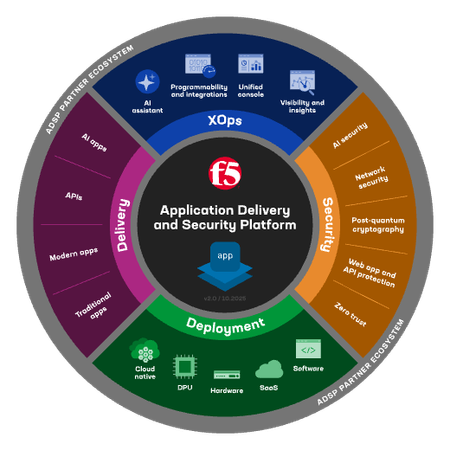
Introduction In November of 2025 F5 released the latest version of BIG-IP software, v21.0. This release is packed with fixes and new features that enhance the F5 Application Delivery and Security Platform (ADSP). These changes complement the Delivery, Security and Deployment aspects of the ADSP. New SSL Orchestrator Features SNI Preservation SNI (Server Name Indication) Preservation is now supported for Inbound Gateway Mode. This preserves the client’s original SNI information as traffic passes through the reverse proxy, allowing backend TLS servers to access and use this information. This enables accurate application routing and supports security workflows like threat detection and compliance enforcement. Previous software versions required custom iRules to enable this functionality. Note: SNI preservation is enabled by default. However, if you have existing Inbound Gateway Topologies, you must redeploy them for the change to take effect. iRule Control for Service Entry and Return Previously, iRules were only available on the entry (ingress) side, limiting customization to traffic entering the Inspection Service. iRule control is now extended to the return-side traffic of Inspection Services. You can now apply iRules on both sides of an Inspection Service (L2, L3, HTTP). This enhancement provides full control over traffic entering and leaving the Inspection Service, enabling more flexible, powerful, and fine-grained traffic handling. The Services page will now include configuration for iRules on service entry and iRules on service return. A typical use-case for this feature is what we call Header Enrichment. In this case, iRules are used to add headers to the payload before sending it to the Inspection Service. The headers could contain the authenticated username/group membership of the person who initiated the connection. This information can be useful for Inspection Services for either logging, policy enforcement, or both. The benefit of this feature is that the authenticated username/group membership header can be removed from the payload on egress, preventing it from being leaked to origin servers. New Access Policy Manager (APM) Features Expanded Exclusion Support for Locked Client Mode Previously, APM-locked client mode allowed a maximum of 10 exclusions, preventing administrators from adding more than 10 destinations. This limitation has now been removed, and the exclusion list can contain more than 10 entries. OAuth Authorization Server Max Claims Data Support The max claim data size is set to 8kb by default, but a large claim size can lead to excessive memory consumption. You must allocate the right amount of memory dynamically as required based on claims configuration. New Features in BIG-IP v21.0.0 Control Plane Performance and Scalability Improvements The BIG-IP 21.0.0 release introduces significant improvements to the BIG-IP control plane, including better scalability and support for large-scale configurations (up to 1 million objects). This includes MCPD efficiency enhancements and eXtremeDB scale improvements. AI Data Delivery Optimize performance and simplify configuration with new S3 data storage integrations. Use cases include secure ingestion for fine-tuning and batch inference, high-throughput retrieval for RAG and embeddings generation, policy-driven model artifact distribution with observability, and controlled egress with consistent security and compliance. F5 BIG-IP optimizes and secures S3 data ingress and egress for AI workloads. Model Context Protocol (MCP) support for AI traffic Accelerate and scale AI workloads with support for MCP that enables seamless communication between AI models, applications, and data sources. This enhances performance, secures connections, and streamlines deployment for AI workloads. F5 BIG-IP optimizes and secures S3 data ingress and egress for AI workloads. Migrating BIG-IP from Entrust to Alternative Certificate Authorities Entrust is soon to be delisted as a certificate authority by many major browsers. Following a variety of compliance failures with industry standards in recent years, browsers like Google Chrome and Mozilla made their distrust for Entrust certificates public last year. As such, Entrust certificates issued on or after November 12, 2024, are deemed insecure by most browsers. Conclusion Upgrade your BIG-IP to version 21.0 today to take advantage of these fixes and new features that enhance the F5 Application Delivery and Security Platform (ADSP). These changes complement the Delivery, Security and Deployment aspects of the ADSP. Related Content SSL Orchestrator Release Notes BIG-IP Release Notes BLOG F5 BIG-IP v21.0: Control plane, AI data delivery and security enhancements Press Release F5 launches BIG-IP v21.0 Introduction to BIG-IP SSL Orchestrator682Views3likes0CommentsF5 BIG-IP SSL Orchestrator Layer 2 Services with rSeries & VELOS
Introduction F5 rSeries & VELOS are rearchitected, next-generation hardware platforms that scale application delivery performance and automate application services to address many of today’s most critical business challenges. F5 rSeries & VELOS are key components of the F5 Application Delivery and Security Platform (ADSP). rSeries & VELOS rely on a Kubernetes-based platform layer (F5OS) that is tightly integrated with F5 TMOS software. Going to a microservice-based platform layer allows rSeries & VELOS to provide additional functionality that was not possible in previous generations of F5 BIG-IP platforms. The introduction of a new tenant-based architecture changes many things, including how you configure BIG-IP. Some of these changes affect the network configuration for Inline Layer 2 Services. By default, BIG-IP tenants only have a small set of internal MAC addresses available to them. However, Layer 2 Services (or Bridging) require additional MAC addresses. You must assign an adequate number of MAC addresses to what is called a “MAC pool”. A single Layer 2 Service requires two unique MAC addresses. The MAC Pool must have sufficient MAC addresses based on the number of Layer 2 Services you need. The following KB articles contain additional information on configuring MAC Pools on a BIG-IP rSeries or VELOS platform: K000133655: MAC address assignment in VELOS and rSeries systems K000135389: Configure the MAC Block Size for an existing BIG-IP tenant on the VELOS and rSeries systems Demo Video F5OS Configuration Let’s review the Network configuration on F5OS for a BIG-IP Tenant. From Network Settings select VLANs. Here you can see I have 6 Interfaces configured with VLANs. There’s a Lan VLAN for connectivity from the internal network to the BIG-IP. A Wan VLAN for connectivity from the BIG-IP to the internet. Then there are 4 “L2” VLANs configured to support two Inline Layer 2 Services with SSL Orchestrator. From the Interfaces screen you can associate the VLANs with the physical Interfaces. Next, allocate the VLANs to your BIG-IP Tenant. This is also where you configure the MAC Pool Size for your current BIG-IP Tenant. The MAC Pool can only be changed when the Tenant is not running. From Tenant Management > Tenant Deployments, you can stop the current Tenant if it is already running. Do this with caution during a change window or prior to deployment. Check the box next to the name of the Tenant you wish to configure, “big-ip-kevin” in this example. Then click Configure. Click OK to stop the Tenant When it’s stopped click the name of the Tenant to edit the configuration. Note the VLANs that are allocated to this BIG-IP Tenant: Find the section on MAC Data/MAC Block Size. Set the allocation to Small (8), Medium (16), or Large (32) depending upon your needs. I set mine to Medium. A Small allocation would be sufficient for this deployment but I want to leave room to add more Layer 2 Services in the future. Click Save & Close Click OK to update the configuration You can Deploy the Tenant now that the changes have been made Click OK to Deploy F5 BIG-IP Configuration Minimal configuration is needed on the BIG-IP since F5OS handles the underlying physical interfaces and VLANs. Check the status of the VLANs from Network > VLANs. From here we can see the VLAN configuration from F5OS is reflected in the BIG-IP. Define any Self IPs from Network > Self IPs Now we’re ready to configure SSL Orchestrator. In the interest of time, I will skip to the Network and Services configuration. From Services List click Add Service Double-click on Generic Inline Layer 2 Under Network Configuration click Add Select the L2 VLANs for this Inline L2 Service. Click Done. Click Add again and select the L2 VLANs for this Inline L2 Service. Click Done. It should look like the following: Click Save at the bottom For the Interception Rule select the Lan VLAN under Ingress Network and move it to the right. Click Save & Next at the bottom The Network configuration is now complete. SSL Orchestrator is configured with a Generic Inline Layer 2 Service that contains two Layer 2 “servers” Conclusion F5 rSeries & VELOS are hardware platforms that scale application delivery performance and automate application services to address many of today’s most critical business challenges. They are key components of the F5 Application Delivery and Security Platform (ADSP). In this article, you learned how to configure MAC Pools on rSeries and VELOS in order to create Layer 2 Inline Services with SSL orchestrator. Related Content K000133655: MAC address assignment in VELOS and rSeries systems K000135389: Configure the MAC Block Size for an existing BIG-IP tenant on the VELOS and rSeries systems SSL Orchestrator CloudDocs: Creating an Inline Layer 2 Service F5 rSeries: Next-Generation Fully Automatable Hardware F5 VELOS: A Next-Generation Fully Automatable Platform 100Views0likes0Comments
KASM Workspaces Integration with F5 BIG-IP Access Policy Manager (APM)
Introduction F5 BIG-IP Access Policy Manager (APM) is a key asset to securing containerized platforms like KASM Workspaces. In this article I’ll show you how to secure your Kasm Workspace using F5 BIG-IP APM. APM is a key component of the F5 Application Delivery and Security Platform (ADSP). APM covers both Application Delivery, Security and is a key component of Zero Trust. Kasm Workspaces Kasm Workspaces is a containerized streaming platform designed for secure, web-based access to desktops, applications, and web browsing. It leverages container technology to deliver virtualized environments directly to users' browsers, enhancing security, scalability, and performance. Commonly used for remote work, cybersecurity, and DevOps workflows, Kasm Workspaces provides a flexible and customizable solution for organizations needing secure and efficient access to virtual resources. As noted in the Kasm Documentation, the Kasm Workspaces Web App Role servers should not be exposed directly to the public. That’s where F5 BIG-IP APM can help. Demo Video Deployment Prerequisites F5 BIG-IP version 17.x Access version 10.x Kasm Workspaces version 1.17 installed and configured properly Configure using Automation Toolchain with AS3 and FAST Templates The F5 BIG-IP Automation Toolchain is a suite of tools designed to automate the deployment, configuration, and management of F5 BIG-IP devices. It enables efficient and consistent management using declarative APIs, templates, and integrations with popular automation frameworks. Application services (FAST) templates are predefined configurations that streamline the deployment and management of applications by providing consistent and repeatable setups. NOTE: The configuration using the Automation Toolchain is well-documented in this DevCentral article, which also includes demo videos: How I did it - “Delivering Kasm Workspaces three ways” Configure Manually Using a Virtual Server This article will focus on the manual configuration of the BIG-IP using a Virtual Server. Configuring it this way will give you a deeper understanding of how all the components work together to create a cohesive solution. Network Environment Linux “External” client IP: 10.1.10.4 BIG-IP “External” Self IP: 10.1.10.10 BIG-IP “Internal” Self IP: 10.1.20.10 Kasm Workspace IP: 10.1.20.23 BIG-IP Configuration Create HTTP Monitor: First, let’s create the HTTP Monitor for the Kasm Workspace server. From Local Traffic > Monitors > click the green plus sign to add a new one. Give it a name, “Kasm-Monitor” in this example Set the Type to HTTP Enter the following for the Send String: GET /api/__healthcheck\r\n Enter the following for the Receive String: OK It should look like this: Set Reverse to Yes and click Finished Create Pool: Next we’ll create the Pool From Local Traffic > Pools > Pool List > click the plus sign to add a new one Give it a name, “Kasm-Pool” in this example Select the Health Monitor you created previously and click the arrows to move it to Active Under Resources specify a Node Name, “Kasm-Server” in this example Specify the IP Address, “10.1.20.23” in this example Set the Service Port to 443, then click Add Click Finished Create Virtual Server: Next we’ll create the Virtual Server From Local Traffic > Virtual Servers > Virtual Server List > click the plus sign to add a new one Give it a Name, “vs_kasm” in this example. Keep the Type as Standard. Set the Destination to the IP Address you want the BIG-IP to listen on for connections to the Kasm server, “10.1.10.100” in this example. Set the Service Port to HTTPS, port 443. Click Finished at the bottom Click on the Virtual Server you just created Click Resources Set the Default Pool to kasm_pool, then click Update The Kasm Virtual Server Status should eventually change to Green when the Health Monitor is successful. NOTE: The Virtual Server configuration in this example has been simplified for demonstration purposes. Additional configuration options will be covered later in this article. Kasm Workspaces Configuration The Kasm Workspace will need a Zone configured with the default settings. Login as Admin and check this from Infrastructure > Zones. You will need at least one Workspace. In this example, I have a Workspace with Chrome, Firefox, Terminal and Ubuntu Jammy Click the WORKSPACES Tab at the top of the screen to see what the Workspace looks like Your view should look like this: Test Kasm Workspaces Login as a User NOTE: The IP Address used to connect to the Kasm Workspaces through the BIG-IP is the Virtual Server listening IP Address 10.1.10.100 When the Workspace loads, click Firefox Choose the option to Launch Session in a new Tab After a moment, Firefox will load Here you can see the F5.com website displayed NOTE: The browser pop-up blocker can prevent the Kasm Workspace applications from successfully launching. You can disable the pop-up blocker or create an exception for the BIG-IP Virtual IP (10.1.10.100). Enable SSL Decryption Enabling SSL Decryption allows you to fully inspect the requests and payloads passing through BIG-IP. From Local Traffic > Virtual Servers > click Virtual Server List Then click the name of your Virtual Server, “vs_kasm” in this example In the Configuration section, set the Protocol Profile (Client) to http Set the SSL Profile (Client) to clientssl Set the SSL Profile (Server) to serverssl NOTE: If you have created your own Client and Server SSL Profiles, you should add them here. The instructions above are for demonstration purposes only. Scroll to the bottom and click Update You’re done! Conclusion F5 BIG-IP Access Policy Manager (APM) is a key asset to securing containerized platforms like KASM Workspaces. In this article, you learned how to secure your Kasm Workspace using F5 BIG-IP APM. Related Content How I did it - “Delivering Kasm Workspaces three ways” Download Kasm Workspaces Kasm Documentation 115Views2likes0Comments